Windows Desktop Customization: A Complete 2026 Guide
Your Windows desktop is probably wasted space. A few shortcut icons, a recycle bin, a stock wallpaper you stopped noticing six months ago. Meanwhile you spend ten to twelve hours a day staring past it at browser tabs and app windows. The desktop is the one surface in Windows that is almost always partly visible and almost never doing anything useful.
That is what desktop customization is for — turning the blank wallpaper behind your windows into something you actually use. In 2026 the tools to do it are better, cheaper, and easier than they have ever been. Widgets, icon organizers, animated wallpapers, taskbar tweaks: every category has at least one good option, and several of them are free.
This guide is a map of that landscape. No sales pitch. It covers what the categories are, what the good tools in each one do, how to think about mixing them, and where to start if you have never customized your desktop before. Free and paid options both get a fair hearing. By the end you should have a clear picture of what is out there and a sensible first stack to install.
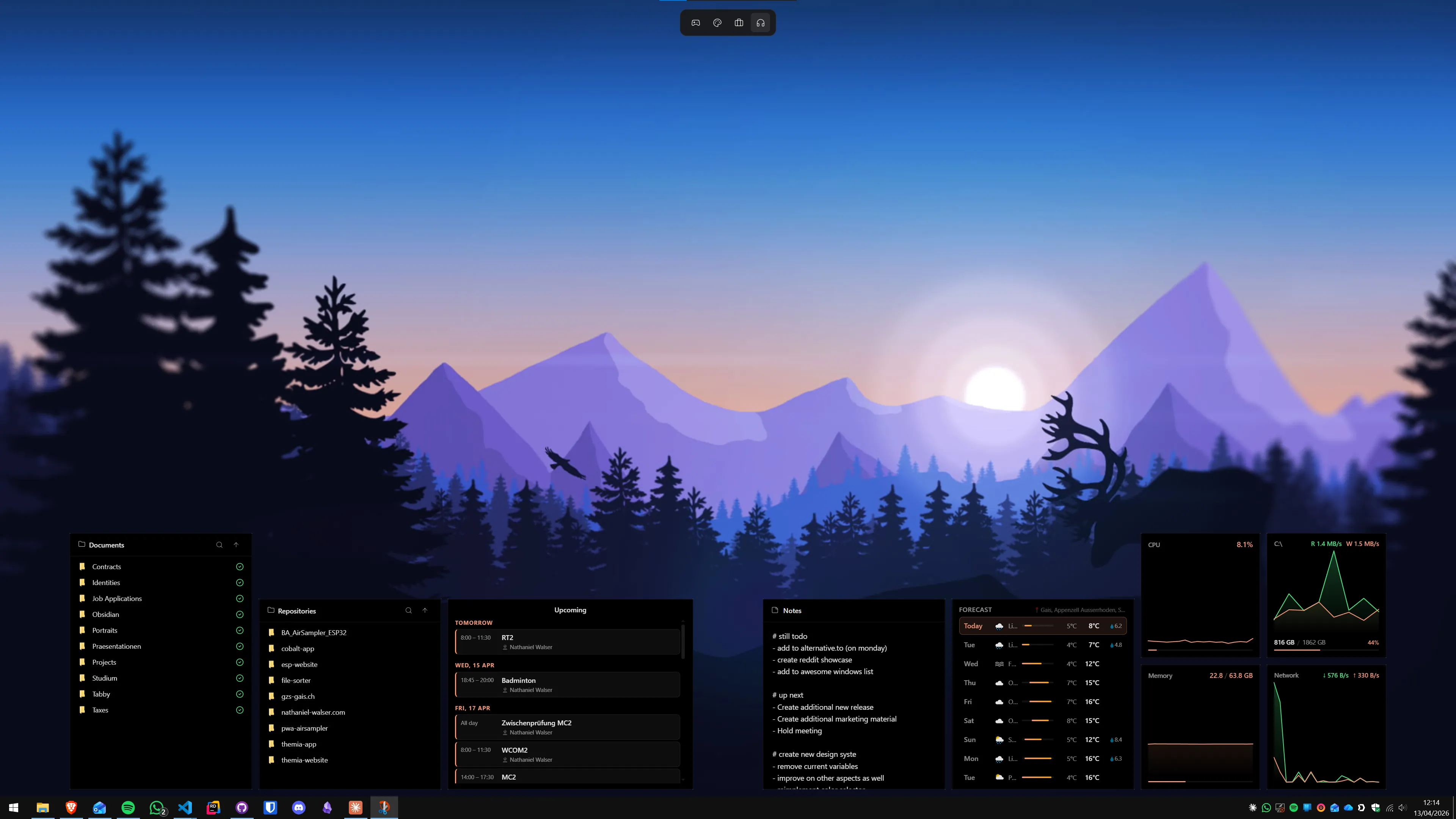
A brief history of Windows desktop customization
Desktop customization on Windows is older than most of its users. Microsoft has taken several swings at it, quit twice, and left the interesting work to the community almost every time.
The first serious attempt was Active Desktop in Windows 98 — the idea that your wallpaper could be a live web page with embedded HTML. It was ahead of its time and mostly used for making desktops crash. It was also where the "my desktop could show me things" idea first entered the Windows world.
The actual golden era was Windows 7 Sidebar Gadgets. A clock, a CPU meter, a weather widget, a sticky note, all neatly parked on the right side of the screen. Gadgets were easy to install, hard to break, and the community wrote hundreds of them. Plenty of people over thirty still remember their Windows 7 desktops more fondly than any setup since.
Microsoft killed gadgets in Windows 8 on security grounds, and they never came back. The case was real (gadgets ran with full user privileges and could load remote HTML), but the replacement — live tiles on the Start menu — was not what anyone had asked for. Windows 10 removed any pretense of desktop widgets.
In Windows 11 Microsoft tried again with the Widgets Board: a pop-out panel on the taskbar showing weather, a calendar, sports, traffic, and an MSN news feed. It is better than nothing, but it lives behind a button, the widget catalog is thin, and the MSN feed is hard to turn off — a lot of people treat the Widgets Board as an ad surface with a weather tile on top. We wrote a longer comparison in Themia vs Windows 11 Widgets if you want the detail.
While Microsoft was shipping and un-shipping its own ideas, the community kept going. Rainmeter appeared in 2001 and never left — for almost two decades it has been the tool every "rice your desktop" YouTube tutorial reaches for. Stardock Fences solved the desktop-icon problem for everyone who did not want widgets. XWidget, 8GadgetPack, and a small army of smaller tools kept the gadget idea alive. And recently, native-toolkit apps like Themia have started building the polished, out-of-the-box experience Microsoft keeps failing to ship.
That is the short history. The rest of this guide is about where things actually stand now.
The 2026 landscape: five categories
Almost every Windows customization tool falls into one of five buckets. Knowing the buckets first makes it much easier to shop for tools without getting lost.
1. Widget apps
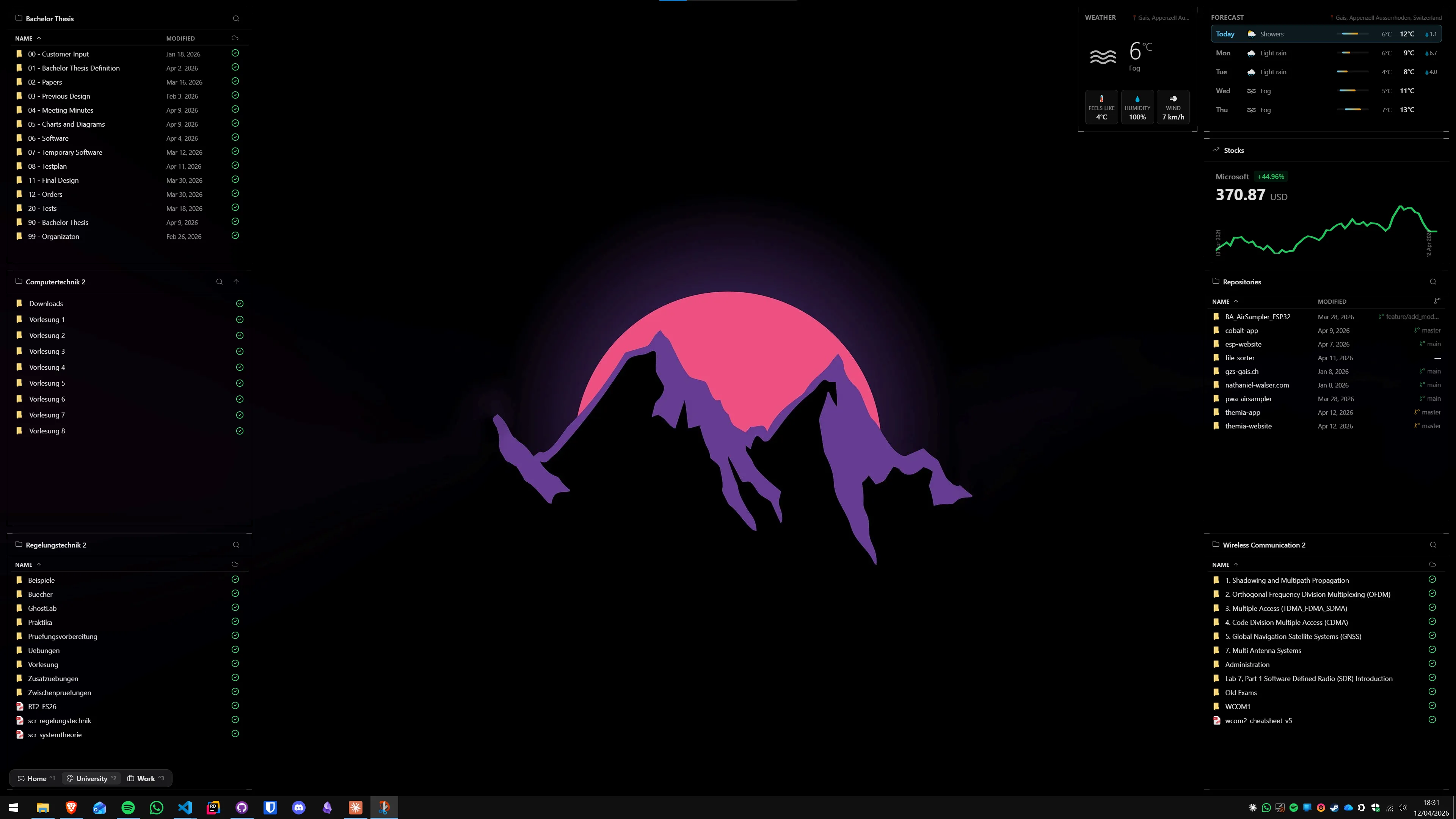
Widget apps put live information directly on your desktop — weather, calendar, files, system stats, music, stocks, to-dos. The two classics are Rainmeter (a rendering engine for community-made skins) and XWidget (a visual designer with a community gallery). Modern native apps like Themia ship a full widget library out of the box with no skins to download. At the nostalgic end, 8GadgetPack revives the old Windows 7 gadget platform, and Widget Launcher gives you a Microsoft Store install. If you want a head-to-head of all of them, our best Windows desktop widget apps roundup covers the whole field.
2. Icon organizers
Icon organizers do not show live data — they fix the chaos of a desktop covered in shortcuts. The category leader is Stardock Fences, which groups icons into labeled, scrollable containers and can turn real folders into "portals" on the desktop. Nimi Places is the free alternative, with themed containers and drag-and-drop rules. These tools solve a different problem from widgets (organization vs. information) and they happily run alongside a widget app.
3. Wallpaper engines
Wallpapers are the original desktop customization. In 2026 the category has two real options. Wallpaper Engine (on Steam) is the paid choice with a huge Workshop and polished controls. Lively Wallpaper is free, open source, and handles videos, web pages, and shaders as backgrounds. A wallpaper engine is pure decoration — it does not try to be useful — which is why people who care about customization usually pair one with a widget app or an organizer.
4. Shell, Start, and taskbar tools
This is the category that reshapes the Windows chrome itself. Start11 and StartAllBack rework the Start menu (Start11 leans modern, StartAllBack restores the old Windows 7/10 look). TranslucentTB makes the taskbar transparent. TaskbarX centers and styles the taskbar icons. None of them touch the desktop itself, but they change the frame around it and most widget setups look noticeably better with a transparent or restyled taskbar underneath.
5. Polish utilities
The last category is everything that does not fit the first four — small utilities that improve day-to-day Windows life. Microsoft PowerToys is the free Swiss-army-knife every Windows power user should have (FancyZones, PowerRename, Keyboard Manager, and about twenty others). ModernFlyouts replaces the ugly volume and brightness popups with tasteful modern ones. Groupy adds browser-style tabs to every window. These are quality-of-life tools rather than true desktop customization, but they belong in the same conversation because people who care about one usually care about the others.
How to think about your desktop
Before you install anything, it helps to answer one question: what is actually bothering you? People end up in desktop-customization rabbit holes for three different reasons, and the right stack depends on which one is yours.
If the problem is icons — your desktop is a wall of unsorted shortcuts and you cannot find anything — the right tool is an icon organizer. Widgets will not fix clutter; they will add to it.
If the problem is information — you keep alt-tabbing to check weather, a calendar, a folder, a music app, system stats — a widget app is the answer. Organizers will not show you live data, and wallpaper engines will not either.
If the problem is aesthetics — the desktop just looks boring — a wallpaper engine and a taskbar tool will do more for you than anything else. Widgets help, but they help more after you have a wallpaper you actually like.
The categories are not mutually exclusive. Most serious setups mix two to four tools: a wallpaper, a widget app, sometimes an organizer, sometimes a taskbar tweak. The mistake is trying to do all five on day one. Pick the category that matches your actual problem, set it up well, and only then layer the next one in.
Budget is the last variable. A respectable setup costs zero dollars — Rainmeter, Lively Wallpaper, Nimi Places, PowerToys, and TranslucentTB together are free and cover four of the five categories. Paying a little usually buys you polish (a native app with a real GUI instead of config files), better support, or tighter integrations. Our 10 best Rainmeter alternatives post breaks down the paid-vs-free trade-off in more detail if you want a longer read.
A recommended starting stack
Here are three concrete stacks depending on what kind of person you are. Every product links to the deep-dive comparison if you want to read about it first.
The minimalist
Budget: $0. Time to set up: about ten minutes.
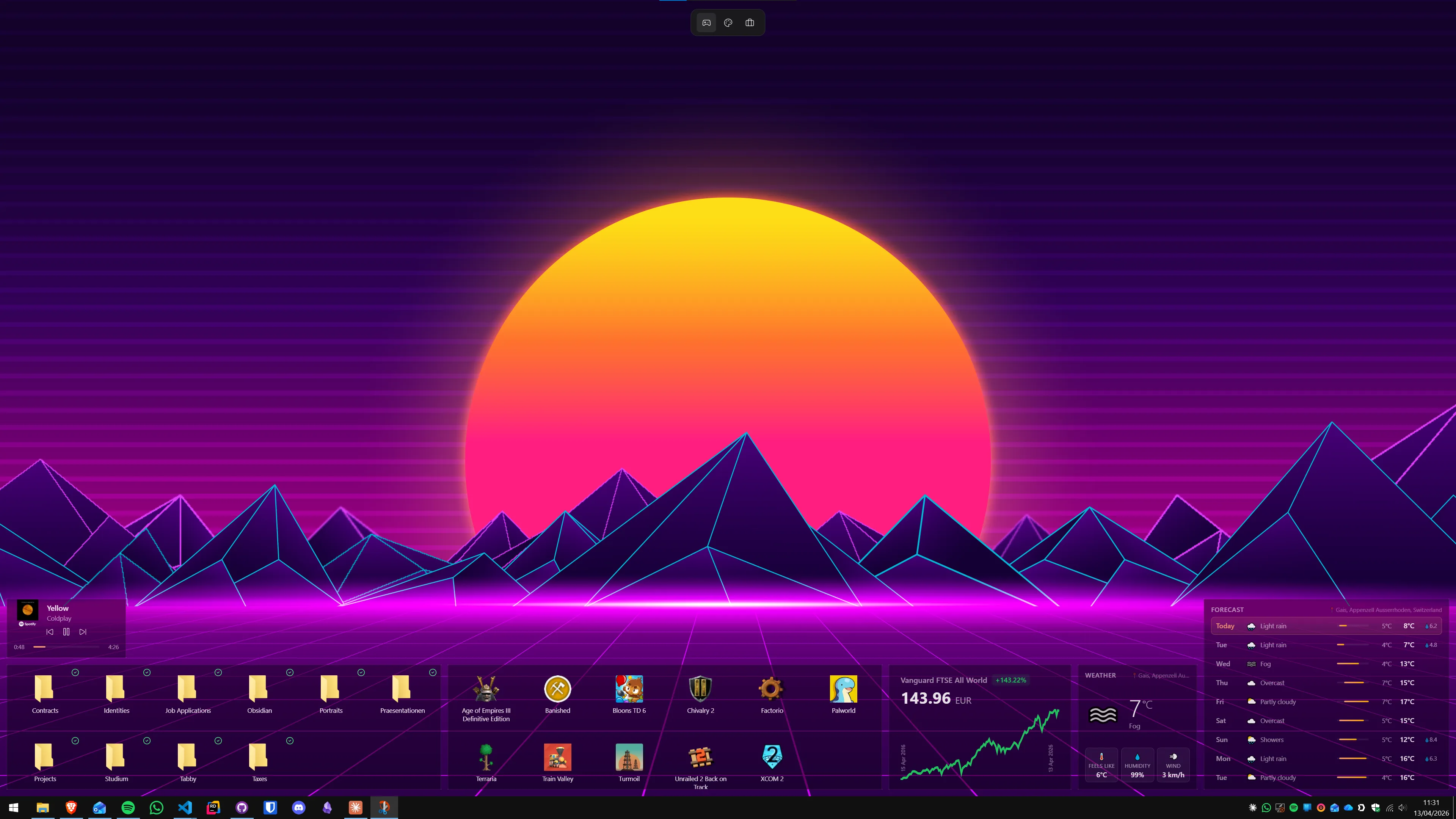
Install the Themia free tier for a handful of useful widgets (clock, weather, calendar, system stats, files), then install Lively Wallpaper and pick one animated background you can live with for a month. Done. You now have a desktop that shows live information and looks better than 95% of Windows desktops. You have spent nothing, you have installed two tools, and you can stop.
This is the right stack for most people. You can always upgrade later.
The power user
Budget: roughly $19 for Themia Pro plus whatever Fences costs on sale. Time to set up: an afternoon.
Themia Pro for the full widget library (per-screen layouts, email, calendar, GitHub, RSS, unlimited widgets), Stardock Fences for icon organization, PowerToys for FancyZones and the other power-user utilities, and TranslucentTB to clean up the taskbar under it all. Optionally add ModernFlyouts so your volume popup stops looking like 2015.
This is the stack for someone whose computer is their workplace. It is paid where paying gets you real value and free where the free tools are already better than the paid ones.
The tinkerer
Budget: $20-ish for Wallpaper Engine. Time to set up: every weekend for the rest of your life.
Rainmeter plus a community skin pack (Jarvis, Mond, Simple Media — take your pick), Wallpaper Engine for the Workshop, and TaskbarX for centered icons. You are going to spend hours editing INI files, hunting DeviantArt for skins, and rebuilding your layout every few months. That is not a bug. That is the hobby.
If you enjoy the process of building a desktop as much as having one, this stack is unmatched. Nobody else needs this much flexibility.
Common mistakes and pitfalls
Almost everyone who dives into desktop customization makes the same five mistakes. You can save yourself a week by knowing them up front.
Installing eight widgets before you know what you need
The first instinct with any widget app is to add everything — weather, calendar, email, stocks, CPU meter, GPU meter, RAM meter, network graph, music, to-do, notes, RSS. Two weeks later you realize you only ever look at three of them. Start with three or four widgets you will actually use, live with that for a while, and only add more when you miss them.
Forgetting that widgets cost screen real estate
Every widget on your desktop is space you cannot use for a window. On a 27-inch monitor that does not matter; on a 13-inch laptop it matters a lot. Be honest about whether widgets on the main screen or widgets on a second monitor make more sense for your setup — and if you only have one screen, keep the footprint small.
Combining skins from different authors
Mostly a Rainmeter problem, but it happens with XWidget too: you download a beautiful Reddit-famous skin for your clock, a different one for system stats, and a third one for music. Each is gorgeous in isolation. Together they look like a ransom note. Either commit to a single author's skin pack or use a native app like Themia where every widget shares the same design language on purpose.
Widgets that query hardware too aggressively
A CPU meter that polls every 100 ms is a CPU meter that shows up in the CPU meter. Most widget apps (and most Rainmeter skins written in the last decade) have sensible defaults, but occasionally you will install something that updates way too often and you will notice it in battery life or fan noise. If your laptop gets louder after a customization session, check the widget update intervals first.
Treating customization as a replacement for actual productivity
This is the big one. A beautifully customized desktop is not the same thing as getting work done on it. It is very easy to spend a whole Saturday picking a wallpaper and arranging widgets, feel extremely productive, and have done nothing. Set a timer. When the stack feels good enough, stop.
What is changing in 2026
A few things worth knowing about where the category is heading.
Microsoft is still half-abandoning widgets. The Windows 11 Widgets Board has been quietly de-prioritized in every recent build, the MSN feed keeps getting more aggressive, and the developer story for new widgets has stalled. For anything serious, a third-party app is the safer bet than waiting on Microsoft.
On the other side, native-toolkit desktop apps are suddenly viable again. Tauri, Electron, and similar frameworks have made it realistic to build small, fast, good-looking Windows apps without a twenty-person team. That is why you are seeing apps like Themia, ModernFlyouts, and a wave of smaller tools that look designed rather than decorated. Five years ago the "widget app that is not a skin engine" category basically did not exist. Now it is where most of the interesting work is.
Modern service integration is now table stakes. A widget that cannot talk to Microsoft 365, Google Calendar, Spotify, or GitHub through proper OAuth feels dated in 2026. This is structurally hard for community-skin platforms — keeping OAuth credentials alive across a million separate skins is a nightmare — and structurally easy for native apps with a single maintainer. Expect the gap to widen.
Finally, the community itself is shifting. Rainmeter will not go away (the skin archive is too deep), but a lot of people who would have been Rainmeter users five years ago are now running native apps as their daily driver and reserving Rainmeter for one-off "rice" projects. That is probably healthy for both.
Conclusion
The whole guide in one paragraph: pick a widget app, optionally pair it with an icon organizer, optionally pair it with a wallpaper engine, and ignore the rest until you have lived with that stack for a month. Free tools are genuinely good in 2026 and there is no reason to pay until you know what you use.
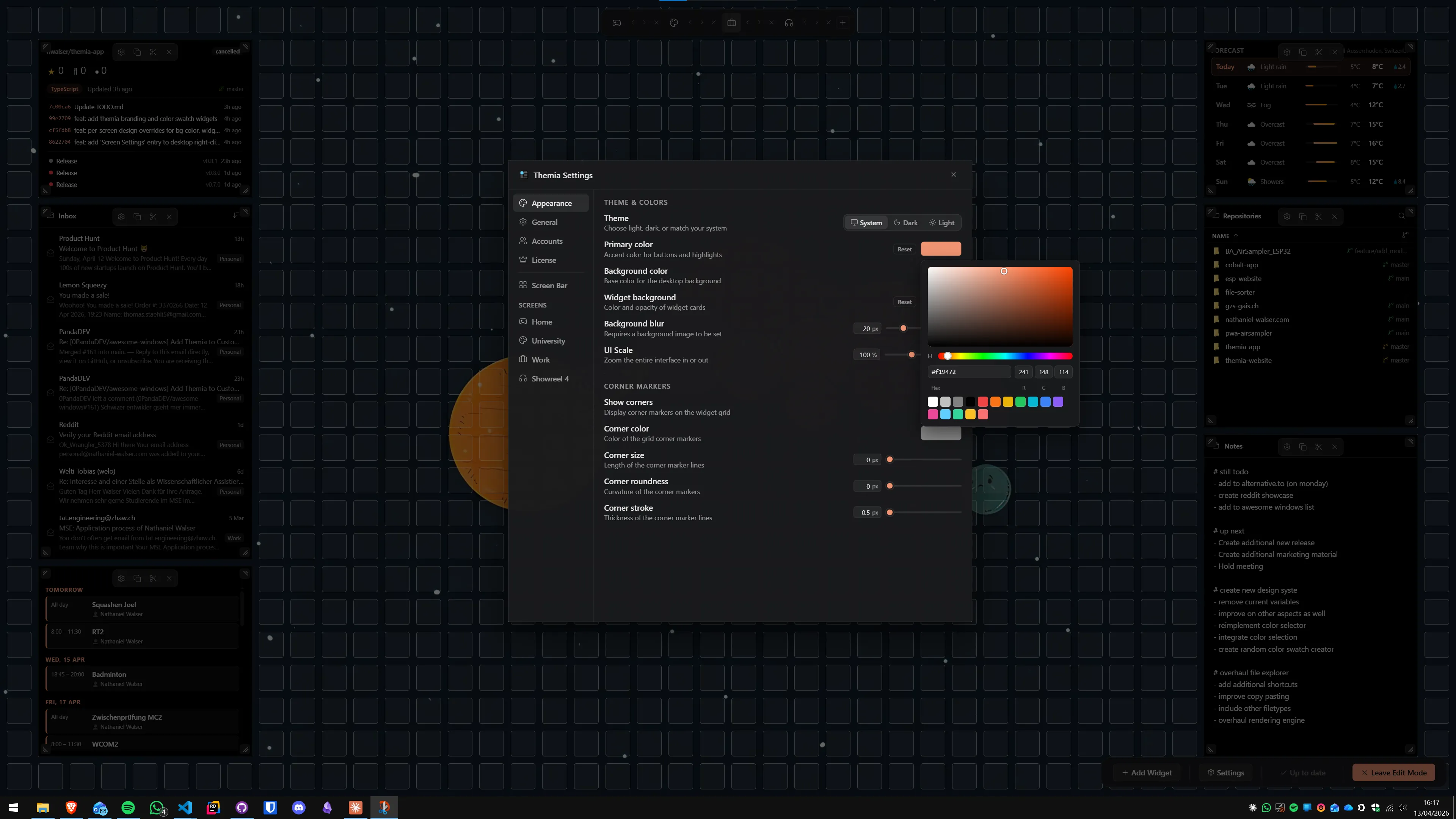
For most people the specific recommendation is Themia — it is native, it is under 10 MB, the free tier is real, and you do not have to learn anything to get a good-looking desktop out of it. If you actively enjoy the building process, Rainmeter is still the gold standard and always will be. Everything else in this guide sits somewhere on that spectrum.
If you want to try the fastest possible version of the minimalist stack, the Themia free tier is a two-minute install and costs nothing. Come back here when you want to go deeper — every tool in this post has a longer comparison linked, and the widget app roundup and Rainmeter alternatives posts cover the two biggest sub-categories in depth.
FAQ
What is Windows desktop customization?
Windows desktop customization is the practice of changing how your desktop looks and behaves beyond what the stock OS offers. In 2026, that usually means a mix of four things: live widgets on the desktop itself, icon organizers that tame clutter, animated or themed wallpapers, and small tools that reshape the taskbar or Start menu. Most people mix two or three of these, not all of them.
Is desktop customization still worth it in 2026?
Yes, and more than it used to be. The native app ecosystem has caught up with what Rainmeter skinners were hand-building a decade ago, so you can get a clean, information-dense desktop in ten minutes instead of a weekend. If you spend most of your day on a Windows desktop, even a small setup — widgets for weather, calendar, and system stats, plus an organized file layout — pays back the install time quickly.
What is the easiest way to start customizing my desktop?
Install one widget app and one wallpaper you like. That is it. The Themia free tier plus Lively Wallpaper covers both in under five minutes and costs nothing. Once you have lived with that for a week, you will know whether you want to layer in an icon organizer, a taskbar tool, or a paid tier.
Should I use free or paid customization tools?
Both have a place. Rainmeter, Lively Wallpaper, PowerToys, TranslucentTB, 8GadgetPack, and the Themia free tier are all free and genuinely good. Paid tools (Themia Pro, Stardock Fences, Wallpaper Engine, Start11) tend to buy you either polish, integrations, or support. A reasonable rule: start free, upgrade only the one or two tools you actually use every day.
Does desktop customization slow down Windows?
Well-built tools have negligible impact — Themia is a native Tauri app under 10 MB, Rainmeter is lightweight on its own, and Fences barely registers. Performance problems almost always trace back to a specific widget or skin that queries hardware or the internet too aggressively, or to a wallpaper engine running a 4K video loop while a game tries to use the GPU. Pick tools with good defaults and the "does it slow my PC down" question mostly answers itself.
Will Microsoft make the Windows 11 Widgets Board better?
Probably not in a way that helps. Microsoft has re-launched and quietly de-prioritized the Widgets Board several times, and its MSN news feed is the core monetization story, not the widgets themselves. For a serious desktop setup, treat the Widgets Board as a nice-to-have glance panel and use a third-party widget app for anything you actually rely on.