Stardock Fences vs Windows 11 Virtual Desktops (2026)
Two Windows features come up in almost every conversation about desktop organisation: Stardock Fences and Windows 11 Virtual Desktops. Both are meant to bring order to a chaotic PC setup. Both live somewhere on the Windows desktop. But they operate at completely different levels of the operating system, solve completely different problems, and confusing them leads to dismissing one before understanding what it actually does.
This guide explains precisely what each feature does, where they genuinely interact, and when running both together is the right answer. It also covers Themia and how its desktop widgets sit within the same space.
What Stardock Fences actually does
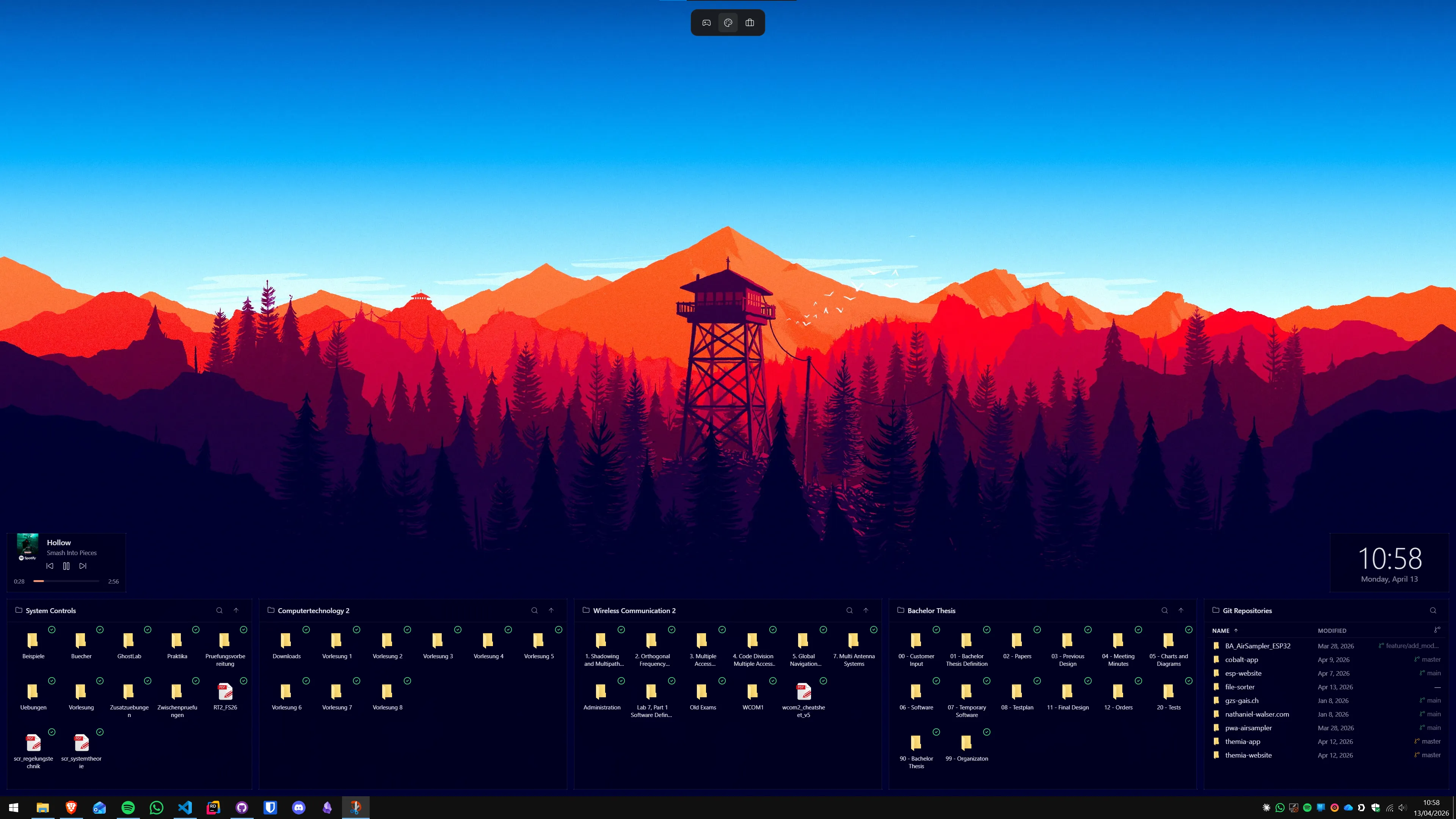
Stardock Fences is a desktop icon organiser. It operates on the desktop background layer — the surface beneath all open application windows — and groups the icons and file shortcuts living on that surface into labelled, resizable containers called fences. Each fence has a name, a position, and a configurable size. The icons inside it stay grouped by whatever category you assigned: work projects, downloads, launchers, creative tools, or anything else that makes sense for your workflow.
Fences 6 is the current version. It costs $29.99 for a one-time perpetual licence or $9.99 per year as a subscription, with a 30-day free trial. It runs on Windows 10 and Windows 11, including the 24H2 update. For a complete breakdown of whether the price is justified for your specific use case, see the full guide on whether Stardock Fences is worth buying in 2026.
Beyond basic grouping, Fences 6 adds several capabilities relevant to anyone managing a complex workflow:
- Auto-Organize rules: set conditions based on file type, name pattern, or category, and Fences automatically routes new desktop files into the right container. More on this in the complete Auto-Organize rules guide.
- Folder Portals: a fence that mirrors the live contents of a file system folder. Files appear automatically as they are added to the source folder, keeping frequently-used directories visible without moving the originals.
- Desktop Pages: multiple icon layout pages that you switch between with a keyboard shortcut — a separate arrangement for work, personal projects, and gaming without affecting open application windows.
- Tabs: a single fence container can hold multiple named tab groups, reducing the number of separate containers on screen.
- Quick Hide: a keyboard shortcut that instantly removes all fences from view — useful before screen sharing or video calls.
What Fences does not do: it has no ability to manage open application windows. If you want to group a set of running applications together, hide a set of windows, or switch between different sets of open programs, Fences does nothing for you. That is an entirely different problem.
What Windows 11 Virtual Desktops actually do
Windows 11 Virtual Desktops create separate window workspaces within the same physical desktop. When you create a second virtual desktop — via Task View (Win+Tab) or the keyboard shortcut Win+Ctrl+D — you get a fresh, empty workspace. Any application windows you open while on that desktop stay on that desktop. Switching to a different virtual desktop hides those windows and shows whatever is open on the desktop you switched to.
The most common use case is context separation: a work desktop with your email client, document editor, and video call software; a personal desktop with a browser, music player, and messaging app; a creative desktop with image editing and reference material. Switching between them is instant — Win+Ctrl+Left and Win+Ctrl+Right cycle through desktops in order.
Windows 11 adds some quality-of-life features on top of the basic virtual desktop model. You can rename each desktop (right-click the thumbnail in Task View). You can assign a unique wallpaper to each desktop, giving immediate visual confirmation of which context you are on. You can pin specific application windows to appear on all desktops simultaneously — a chat app or reference document that follows you everywhere.
What virtual desktops do not do: they have zero effect on the icons and file shortcuts sitting on the desktop background. The desktop icon layer is shared across all virtual desktops. Whatever icons exist on Desktop 1 are visible on Desktop 2, Desktop 3, and every other desktop you create. If your desktop background is buried under icon chaos, switching to a new virtual desktop shows the same buried background.
The critical difference: what layer each feature operates on
The cleanest way to understand the relationship between Fences and virtual desktops is to think about what layer of the Windows desktop each one touches.
Windows has, broadly speaking, two relevant layers. The bottom layer is the desktop background — the wallpaper surface, the place where icons and file shortcuts live, the canvas that Fences containers and Themia widgets sit on. This layer is always there, always visible when you minimise all windows, and it is shared across every virtual desktop.
The top layer is the application window layer — the running programs that sit above the wallpaper. This is the layer that virtual desktops manage. Each virtual desktop shows a different selection of application windows from this layer.
Fences operates entirely on the bottom layer. It never touches application windows. Virtual desktops operate entirely on the top layer. They never touch icons on the desktop background. The two features interact spatially — everything is rendered on the same physical monitor — but they are functionally independent. Running one does not interfere with the other, and neither duplicates what the other does.
Where they genuinely interact: Fences Desktop Pages vs Virtual Desktops
The closest Fences comes to overlapping with virtual desktops is the Desktop Pages feature. Desktop Pages let you create multiple distinct icon layouts on the desktop background and switch between them with a keyboard shortcut. You could have a Work page with project file shortcuts, a Personal page with game launchers and media tools, and a Scratch page with miscellaneous downloads.
This is similar in spirit to what virtual desktops do for windows, but operating on a different layer. Switching a virtual desktop changes which windows are visible. Switching a Fences Desktop Page changes which icon containers are visible on the background. The two operations are independent — you can switch a Desktop Page without changing your virtual desktop, and switching a virtual desktop does not change the active Desktop Page.
Some users combine both features deliberately: Virtual Desktop 1 (work windows) paired with Fences Desktop Page 1 (work icon containers), Virtual Desktop 2 (personal windows) paired with Fences Desktop Page 2 (personal icon containers). The pairing is manual — there is no automatic synchronisation between the two systems — but for users willing to set up both, the combination provides context separation at both the window layer and the icon layer.
For users who only want separate window workspaces, virtual desktops (built into Windows, free) are sufficient without Fences. For users who only want organised icon containers with consistent grouping across all their window contexts, Fences is the right answer. For users who want both, the features complement each other cleanly.
Performance: does running both affect system resources?
Stardock Fences runs as a lightweight shell extension. At idle with containers configured, it typically uses under 30 MB of RAM and negligible CPU. Adding more virtual desktops to Windows does not meaningfully increase Fences resource usage, because the containers are rendered on the shared desktop background layer rather than duplicated per desktop.
Windows virtual desktops themselves have near-zero overhead. The feature is built into the OS and adds essentially nothing to resource usage until you open application windows on the additional desktops. The memory footprint comes from the open applications — a browser with thirty tabs uses the same RAM on Virtual Desktop 2 as it would on Virtual Desktop 1.
Running Fences alongside four or five virtual desktops with multiple application windows open on each is a perfectly normal configuration on a modern Windows 11 machine and does not require any special hardware. For more context on Fences performance in general, see the guide on whether Fences slows down Windows 11.
Themia: the third layer on the same desktop surface
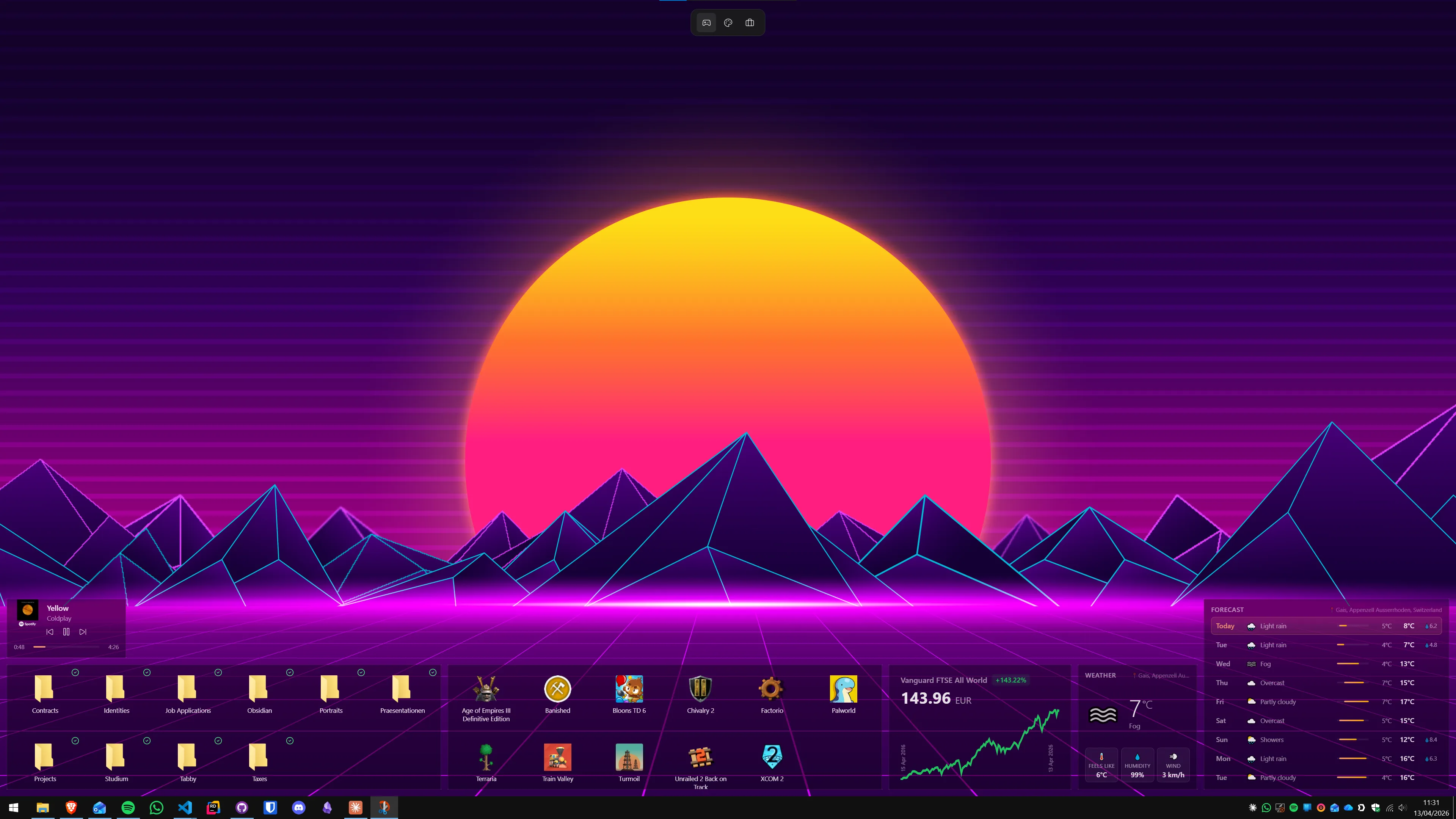
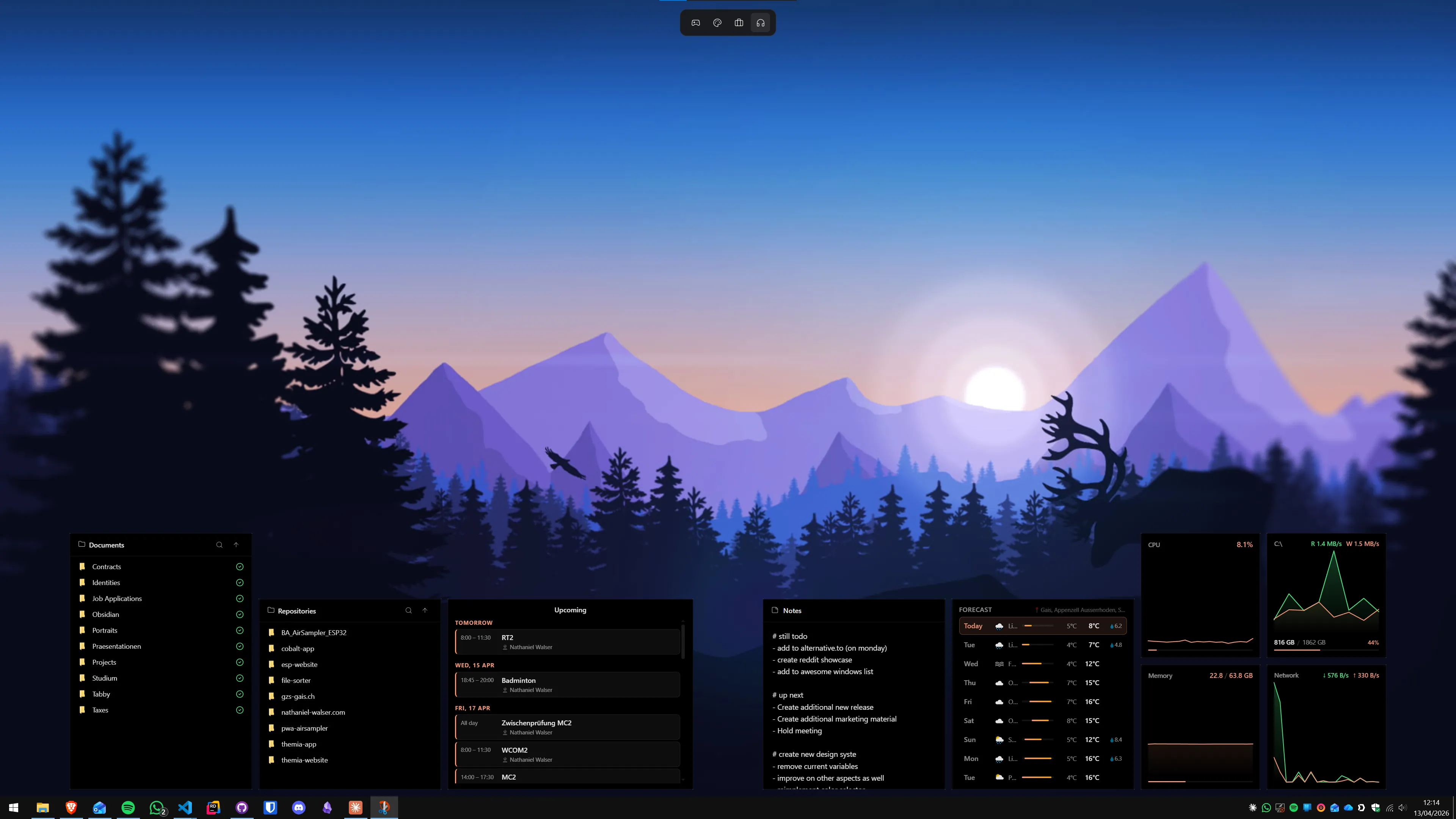
Alongside Fences containers and virtual desktop windows, there is a third layer worth understanding: desktop widgets. Themia is a native Windows application that places live-data widgets directly on the desktop background — the same surface where Fences containers sit.
Themia widgets include: current weather and multi-day forecast, calendar showing upcoming appointments, system stats covering CPU, RAM, storage, and network, real-time stock prices, email unread counts, GitHub activity, notes, and to-do lists. Its installed size is under 10 MB and it starts with Windows, drawing under 30 MB of RAM at idle.
Like Fences containers, Themia widgets live on the shared desktop background layer. They appear on every virtual desktop you switch to, not just the one you were on when you placed them. This is typically the desired behaviour — you want your weather widget and calendar visible regardless of which window workspace you are currently using. The widget layer, the icon container layer, and the window layer all coexist on the same physical monitor without conflict.
For users running virtual desktops, Themia is the most practical way to keep at-a-glance information always visible regardless of which context they are currently in. Themia offers a free tier that includes core widgets, with a one-time $19 Pro upgrade for the full catalogue. For the complete picture of how Themia and Fences complement each other, see the guide to using Themia and Fences together.
Practical recommendations
Use Virtual Desktops if: you regularly context-switch between completely different sets of open applications and want clean separation between work and personal computing, or between different projects. Virtual desktops are built into Windows 11 at no additional cost and keyboard navigation between them is fast enough to become second nature.
Use Stardock Fences if: your desktop background is buried under a pile of loose icons and file shortcuts. No amount of virtual desktop creation will fix that problem — the icons follow you to every desktop you create. Fences gets the background surface under control. See the Fences setup guide for Windows 11 for a complete walkthrough of the initial configuration.
Use both if: you want clean icon organisation on the background surface AND separate window workspaces for different contexts. The features run side by side without conflict, and for power users managing multiple projects simultaneously, combining them covers every layer of desktop organisation.
Add Themia if: you want always-visible live information — weather, calendar, system stats, email — that persists across all your virtual desktops without requiring you to switch context to check it.
Summary
Stardock Fences and Windows 11 Virtual Desktops are not alternatives to each other. They operate on different layers of the Windows desktop and address different problems. Fences brings order to the icon and file shortcut layer on the desktop background — organising what lives on the wallpaper surface. Virtual Desktops bring separation to the application window layer above the wallpaper — controlling which running programs are visible at any moment.
Running both together is the natural choice for anyone who wants both layers of organisation. Fences ($29.99 one-time or $9.99 per year, 30-day trial) handles the background surface. Virtual Desktops are already built into Windows 11 at no extra cost. Themia (free tier available, $19 one-time Pro) adds always-visible live data widgets on the same background surface. None of these conflict, and each addresses something the others cannot.
FAQ
Does Stardock Fences replace Windows 11 Virtual Desktops?
No. Stardock Fences and Windows 11 Virtual Desktops solve completely different problems. Fences organises the icons and file shortcuts sitting on your desktop background — it groups them into labelled, resizable containers so your wallpaper stays visible. Virtual Desktops create separate window workspaces, each with its own set of open application windows. You switch between them using keyboard shortcuts or Task View. Fences does not manage windows. Virtual Desktops do not manage desktop icons. Running both simultaneously is the correct answer if you want tidy icons and separate window workspaces.
Do Stardock Fences containers appear on every virtual desktop?
Yes. Stardock Fences containers live on the desktop background layer, which is shared across all Windows virtual desktops. Whatever containers you create appear on every virtual desktop you switch to. This is by design — your icon organisation persists regardless of which window workspace you are currently on. If you want different icon layouts per virtual desktop, Fences Desktop Pages are the feature for that. Desktop Pages let you define multiple icon arrangements and switch between them independently of Windows virtual desktops.
How many virtual desktops can I create in Windows 11?
Windows 11 does not enforce a hard limit on the number of virtual desktops you can create. In practice, most users find three to six desktops cover their use cases — work, personal, creative projects, communication. Creating too many desktops makes navigating between them cumbersome, which defeats the purpose. Each virtual desktop is independent: opening a window on Desktop 2 does not make it visible on Desktop 1. You can rename each desktop and assign a unique wallpaper to each one, though icon and widget layers remain shared.
Can I pin specific apps to a virtual desktop in Windows 11?
Yes, with some limitations. Right-clicking a window on the taskbar gives you options to show that window on all desktops or pin it to the current desktop only. This lets you keep an always-visible application — a reference document, a chat client, a music player — on every desktop simultaneously while other windows stay on their assigned desktop. The limitation is that this is a per-window setting, not a per-application rule. Each time you open the app, you need to set the pinning preference again unless it was already pinned.
Do Themia widgets appear on all virtual desktops?
Yes. Themia widgets live on the desktop background layer, the same layer as Stardock Fences containers. Because this layer is shared across all Windows virtual desktops, your Themia widgets — weather, calendar, system stats, email counts, and any others you have configured — appear on every virtual desktop you switch to. This is typically the desired behaviour: you want your at-a-glance information visible regardless of which window workspace you are currently using. Themia does not currently support per-virtual-desktop widget layouts, but the always-visible approach covers most workflows.
Should I use virtual desktops or Fences Desktop Pages for context switching?
The two features serve different purposes and are complementary. Windows virtual desktops switch your entire window context — every open application on that desktop becomes visible or hidden depending on which desktop you switch to. Fences Desktop Pages only switch the icon layout on the desktop background. If you want separate sets of open windows for work versus personal use, virtual desktops are the correct tool. If you want different icon arrangements on the desktop surface without affecting open windows, Fences Desktop Pages are the correct tool. Many users run both: virtual desktops for window context and Fences Desktop Pages for matching icon layouts on each context.
What is the performance impact of running Stardock Fences alongside multiple virtual desktops?
Minimal. Stardock Fences runs as a lightweight shell extension that uses under 30 MB of RAM and negligible CPU at idle. Adding more virtual desktops does not meaningfully increase Fences resource usage because the containers are drawn on a shared desktop layer rather than duplicated per desktop. Virtual desktops themselves have near-zero overhead until you open application windows on them — the memory impact comes from the open applications, not from the virtual desktop feature itself.