Does Stardock Fences Slow Down Windows 11?
Stardock Fences is the most popular desktop-organisation tool for Windows, but a question comes up repeatedly in forums and Reddit threads: does it make your PC slower? The answer is more nuanced than a simple yes or no — it depends on your hardware, your Fences configuration, and what kind of slowdown you're talking about.
This article breaks down exactly how Fences affects Windows 11 performance, what the signs of Fences-related slowdowns look like, and when switching to a lighter approach makes sense.
How Fences works — and why it has a cost
Fences is a shell extension. That means it integrates directly into Windows Explorer — the process that manages the desktop, the taskbar, and the file system shell. When you log in, Fences loads alongside Explorer and draws its containers (the labelled rectangles that group your icons) on top of the desktop layer.
This is fundamentally different from, say, a separate app that runs in its own window. Fences is woven into the desktop itself. That tight integration is what lets it do things a standalone window cannot — like keeping icon positions in sync across multiple virtual desktops, or letting you double-click blank desktop space to hide all icons at once. But that integration comes with a cost: Fences processes start with Explorer, run continuously in the background, and cannot be fully unloaded without disabling the feature.
Startup time: what Fences actually adds
The most commonly reported Fences performance complaint is a slower-than-expected desktop after login — the point where you can see the wallpaper but icons haven't fully appeared yet, or where the desktop is visible but clicking anything feels unresponsive for a few seconds.
Fences needs to enumerate all your desktop icons, apply your organisation rules, and draw the container overlays before the desktop is in its final state. On a fast NVMe-equipped machine with plenty of RAM, this usually happens invisibly — Fences finishes its startup work within the normal desktop-loading window. On a machine with a slower drive or tighter memory, it can be the bottleneck that holds up the desktop being ready.
If you have a lot of folder portals configured, the startup cost is higher because Fences needs to enumerate the contents of those folders as well. Users with dozens of portals or very large desktop directories report the most noticeable delays.
RAM usage: how much Fences actually takes
A straightforward Fences installation — a handful of containers, no folder portals, one desktop page — typically idles at around 80–120 MB of RAM. That is a real cost, but it is not catastrophic on modern hardware. A browser with a handful of tabs uses more.
The story changes when you add folder portals, multiple desktop pages, and large icon sets. Heavier configurations can push Fences' memory footprint noticeably higher. For users running 16 GB of RAM or more, this is unlikely to matter. For users on 8 GB systems — which is still common in the business and budget laptop space — Fences' background footprint means less headroom for applications.
CPU usage: mostly idle, but not zero
At idle, Fences' CPU usage is genuinely low — typically fractions of a percent on modern processors. You should not notice Fences in your CPU usage readout under normal circumstances.
The exceptions are during icon reorganization events: when you move files, when auto-organize rules fire, or when Fences redraws after a resolution change. During those moments, brief CPU spikes appear in Task Manager. They are short-lived and unlikely to cause visible lag on any desktop-class processor made in the last five years.
Gaming: the indirect concern
Fences does not run inside games. When a game takes over the display, the Windows desktop shell is pushed into the background and Fences' containers are not being rendered. Its direct impact on in-game frame rates is therefore minimal.
The concern is indirect and applies specifically to memory-constrained systems. If you are gaming on 8 GB of RAM and Fences is occupying 100 MB of that, you have 100 MB fewer bytes available for texture streaming, game assets, and the operating system. On a 16 GB system the maths barely register. On 8 GB running a memory-hungry game like a recent open-world title, every reserved megabyte matters.
How to check if Fences is your bottleneck
Before blaming Fences for a general Windows slowdown, it is worth isolating whether it is actually the cause. Here is a quick diagnostic process:
- Open Task Manager (Ctrl+Shift+Esc) and click More details if you see the compact view.
- On the Processes tab, look for FencesDesktop.exe and any other Stardock-named processes. Note their memory and CPU columns at idle.
- To isolate the startup impact: right-click the Fences tray icon → Settings → disable Fences at startup. Reboot and time how long it takes from login to a fully usable desktop. Re-enable and compare.
- If you have a lot of folder portals, try removing a few and see whether startup time improves. Portals are the highest-cost Fences feature per unit of desk space.
If the slowdown disappears when Fences is disabled, you have confirmed the source. The next question is whether the organisational benefit justifies the cost — or whether a lighter alternative closes the gap.
The lighter-weight alternative: widget-based desktops
If the performance overhead of Fences is a real problem for your system, the main alternative is to replace the icon-organiser model entirely with a widget-based desktop.
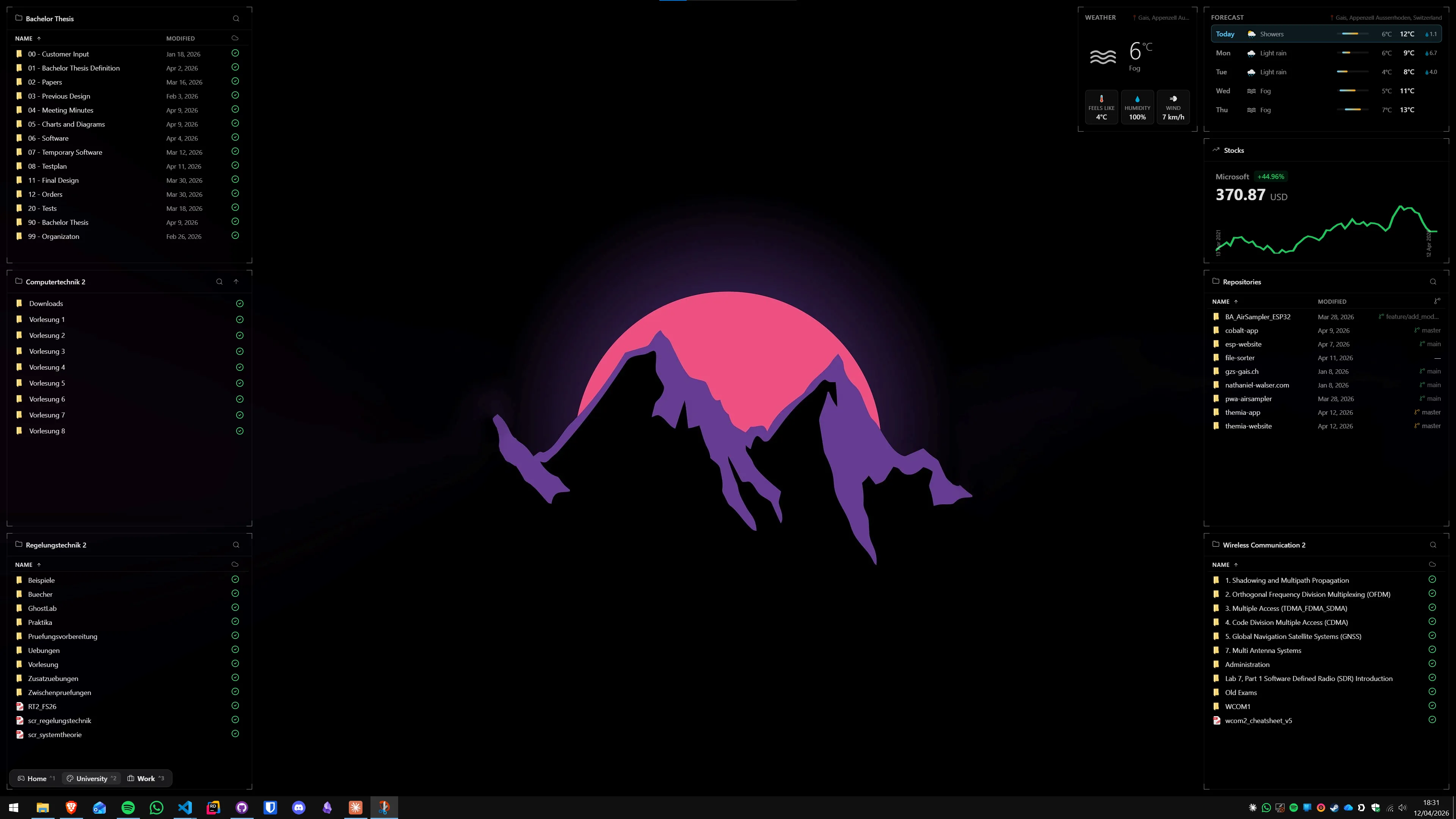
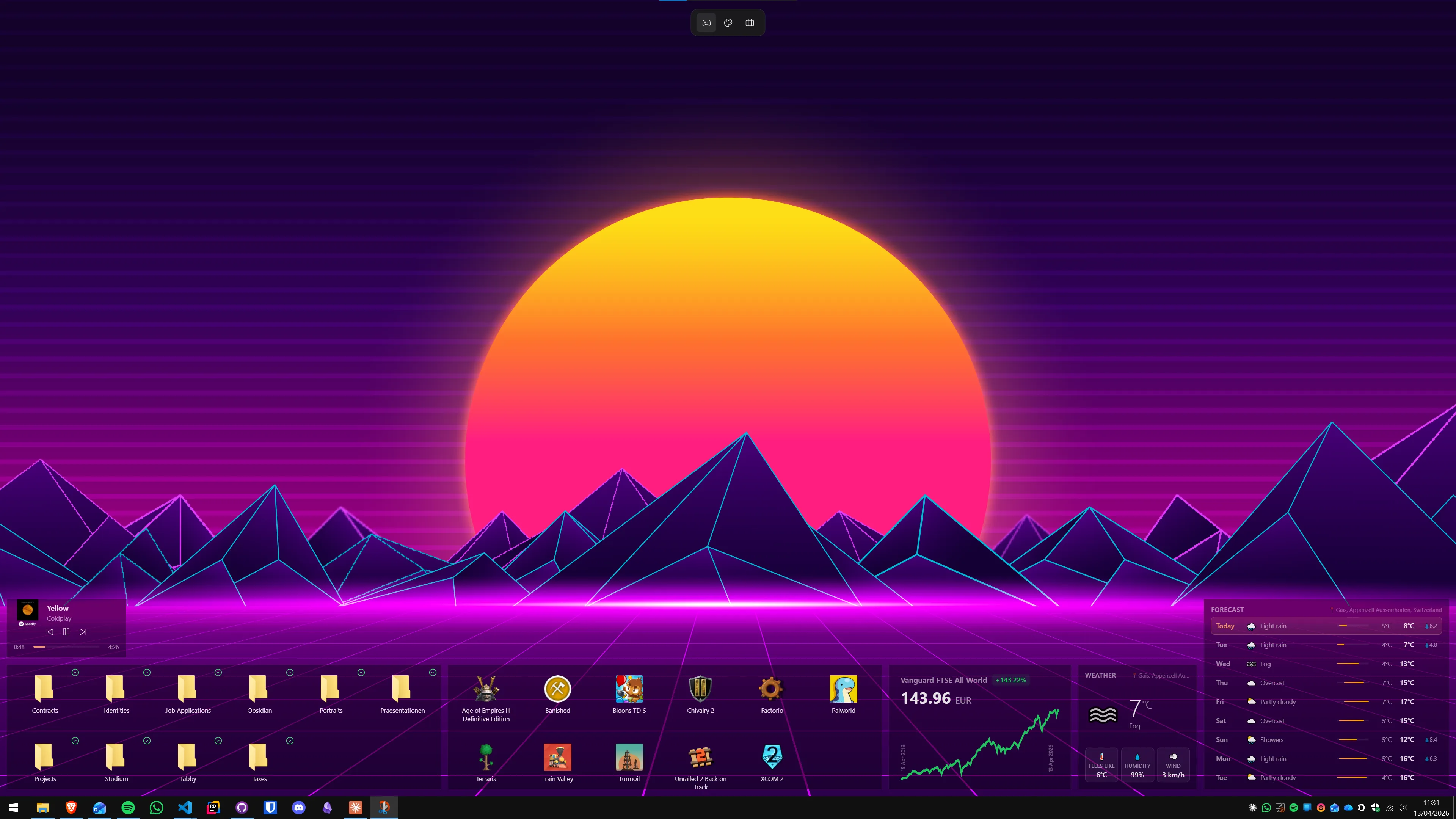
Themia is built differently from Fences. It does not hook into Windows Explorer as a shell extension — it runs as a widget overlay that sits on top of the desktop. Its widgets cover files, weather, calendar, email, system stats, GitHub activity, and more. Because it is not integrated at the shell level, it does not add to desktop startup time the way Fences does, and its memory footprint at idle is considerably smaller.
The trade-off is conceptual rather than technical: Fences organises your existing desktop icons into containers. Themia replaces the need for icons by surfacing the information directly. If you still have 50 shortcuts on your desktop that you click regularly, Themia is not a replacement. If you have mostly moved to launching apps from the Start menu or taskbar and want a desktop that shows you live data rather than a grid of icons, Themia fits the gap without the overhead.
Themia's free tier includes the weather widget, file widgets, and system stats. The one-time Pro unlock (currently $19) adds the full widget set. There is no recurring subscription fee, which also means no background licensing check running on your system.
When to keep Fences, and when to switch
Keep Fences if: you have a large collection of desktop icons you actually use, you rely on folder portals for quick file access, your hardware is capable enough that the overhead does not register, and you value the icon-organisation workflow that Fences provides.
Consider switching if: your machine is showing startup delays or memory pressure, you have already moved most of your workflow off the desktop to the taskbar or Start menu, or you would prefer live information widgets over icon containers. Running both Fences and a widget app simultaneously doubles your overhead — it rarely makes sense.
Performance-sensitive users — especially those gaming on tight RAM budgets or running older hardware — get the most benefit from switching to a widget-only approach. The desktop organisation they lose from Fences is usually already redundant on those systems.
FAQ
Does Stardock Fences slow down Windows 11?
Fences adds a shell extension that runs alongside Windows Explorer, and this does carry a measurable resource cost. On modern hardware with 16 GB or more of RAM, most users notice no difference in everyday use. On older machines — particularly those with 4–8 GB of RAM or spinning hard drives — Fences can add a noticeable delay before the desktop is fully usable after login, and it keeps a background process running throughout the session. The actual impact scales with how many fences and folder portals you have configured.
How much RAM does Stardock Fences use?
A basic Fences setup (a few containers, no folder portals) typically idles at around 80–120 MB of RAM. Heavier configurations with multiple desktop pages and folder portals can push that higher. This is not catastrophic on a 16 GB system, but it is a real cost on a machine that is already under memory pressure from a browser, a communication app, and background system processes all running at once.
Does Fences affect gaming performance on Windows 11?
Fences' direct impact on in-game frame rates is minimal — it manages the desktop shell, which is largely inactive while a game is running fullscreen. The indirect concern is memory: if Fences is holding 100–150 MB of RAM and your system only has 8 GB total, that headroom is not available to the game. On systems with 16 GB or more this is a non-issue. On tight memory budgets it can contribute to stuttering in memory-hungry titles.
How do I check whether Fences is causing my Windows slowdown?
Open Task Manager (Ctrl+Shift+Esc → More details), then look for processes named FencesDesktop.exe or DesktopOverlayHost.exe. Watch their CPU and memory columns at idle and during any sluggish moments. To isolate the cause, temporarily disable Fences via the tray icon (right-click → Settings → Enable/Disable) and compare desktop responsiveness over a day. If the slowdown disappears, Fences is the likely culprit.
What is a lighter alternative to Stardock Fences for Windows 11?
Themia is the most direct lightweight alternative. It runs as a widget overlay rather than a shell extension, so it does not hook into Windows Explorer the same way Fences does. It typically uses far less memory at idle and has no measurable effect on desktop startup time. The trade-off: Themia replaces icon containers with live widgets for files, weather, calendar, and system stats — it does not organise existing desktop icons. If you have already moved to a taskbar-and-launcher workflow and want live data on the desktop, the switch is straightforward.
Is Stardock Fences worth it despite the performance cost?
For users on capable hardware who have hundreds of desktop icons and genuinely use the folder-portal and desktop-pages features, Fences earns its keep — the performance overhead is acceptable. For users who primarily want a clean desktop and some live information (weather, calendar, files), the overhead is harder to justify when widget-based apps achieve a similar result with a smaller footprint. The honest answer is: benchmark your own machine with and without Fences for a week, then decide.