Stardock Fences Setup Guide for Windows 11 (2026) — and When Themia Is Better
Stardock Fences has been the dominant icon-organizer on Windows for over a decade. Fences 6, the current major version, is a polished, feature-rich tool that genuinely solves the chaos of a cluttered desktop — if icon-based organization is what you need. This guide walks through every meaningful Fences feature, how to set it up properly, and then makes the honest case for when Themia's live-widget approach is the better alternative for your workflow.
Installing Stardock Fences 6
Download the installer from the Stardock website. Fences runs on Windows 10 and Windows 11 (including the 24H2 update). After installation, Fences activates immediately: your existing desktop icons are still there, but Fences has scanned them and is ready for you to start organizing.
Pricing: Fences 6 is sold as a subscription at approximately $9.99 per year, with a 30-day free trial. A one-time purchase option has been available intermittently, but the subscription is the standard offering. For reference, Themia's free tier never expires and the Pro upgrade is a one-time $19.
Core Concepts: Fences, Tabs, and Portals
Understanding three concepts unlocks most of Fences 6's value:
Fences (Icon Containers)
A fence is a translucent, labelled rectangle you draw directly on the desktop. Drag icons into it and they stay grouped. You can resize, move, and rename fences at any time. Right-clicking gives you options to change opacity, color tint, font size, and roll-up behavior.
The roll-up feature is particularly useful: double-click any empty area of the desktop and all fences collapse to just their header bars, uncovering the wallpaper entirely. A second double-click restores them. Individual fences can also be collapsed independently by double-clicking their headers.
Tabs
Fences 6 introduced tabbed fences — multiple fence groups living inside a single tabbed container. This is valuable when you have many logical categories but limited desktop space. For example, a "Projects" tab container might have tabs for "Work," "Personal," and "Archive," each holding its own set of icons.
Folder Portals
A folder portal looks like a fence but behaves like a live window into an actual folder on disk. You can portal any local folder, network share, or cloud-synced folder (OneDrive, Dropbox). Files dragged into the portal actually move into the underlying folder — the portal is not just a visual shortcut but a functional file-management surface.
Setting Up Auto-Organize Rules
Auto-organize is one of Fences' most powerful features and the most commonly overlooked. Instead of manually dragging files into fences, you define rules that Fences enforces automatically:
- Right-click any fence header and choose "Configure Auto-organize Rules."
- Add a new rule. You can match by file extension (.png, .pdf, .exe), name pattern (wildcard matching), or date modified.
- Assign a destination fence. When a file matching the rule appears on the desktop, Fences moves it to the designated fence immediately.
- Order matters. Rules are evaluated in order — a more specific rule (exact filename match) should come before a broader one (all .exe files).
Practical auto-organize setups that work well:
- All
.pngand.jpgfiles → "Screenshots" fence - All
.exeand.msifiles → "Installers" fence (set to auto-delete after 7 days) - All
.pdffiles → "Reading" fence (portal to your Documents/Reading folder) - Name pattern
Invoice*→ "Finance" fence (portal to Accounting folder)
With auto-organize active, the desktop essentially manages itself. New screenshots land in the Screenshots fence. Downloaded installers route to their fence automatically. The only manual effort required is the initial rule setup.
Using Desktop Pages for More Space
Fences 6 supports multiple desktop pages — essentially multiple layers of desktop space accessible by dragging the mouse to the screen edge. This multiplies available fence real estate without crowding the primary view. Power users with many active projects often use a second page as a "staging area" for files in progress.
For multi-monitor setups specifically, Fences places separate fence collections on each monitor independently. This works well but lacks one feature that Themia handles better: per-monitor content differentiation. For context on the multi-monitor comparison, see our comparison of the Fences and widget approaches to tidying Windows desktops.
The Peek Feature: Win+Space
When all your windows are open and you need to grab something from a fence, the normal workaround is to minimize everything with Win+D. Fences 6 offers an alternative: pressing Win+Space briefly brings all fences on top of every open window, letting you see and click icons without minimizing anything. Release the shortcut and windows return to their previous state.
This is genuinely useful for a specific use case: you have multiple documents open, need a file from the desktop, and do not want to lose your current arrangement. It does not replace Win+D but complements it.
Icon Tinting
Fences 6 added the ability to apply a color tint to desktop icons within a specific fence. This is primarily aesthetic — it can help a particular fence stand out visually at a glance, or create a uniform color palette across all icons for a cleaner look. Practically useful for users who rely on visual scanning to find the right fence quickly.
When Fences Is the Right Choice
Fences earns its subscription fee when:
- You actively use desktop shortcuts to launch applications, open project folders, or access reference files
- You receive or download files regularly and the desktop is a natural first landing place before filing
- You work across multiple monitors and want each monitor to have its own organized icon layout
- Auto-organize rules can automate a meaningful part of your file-handling workflow
If most of your desktop icons go untouched for days — and you really use the taskbar, Start menu, and search to open apps — Fences is organizing clutter that could simply be deleted. For an honest assessment, see whether Stardock Fences is worth it in 2026.
When Themia Is the Better Alternative
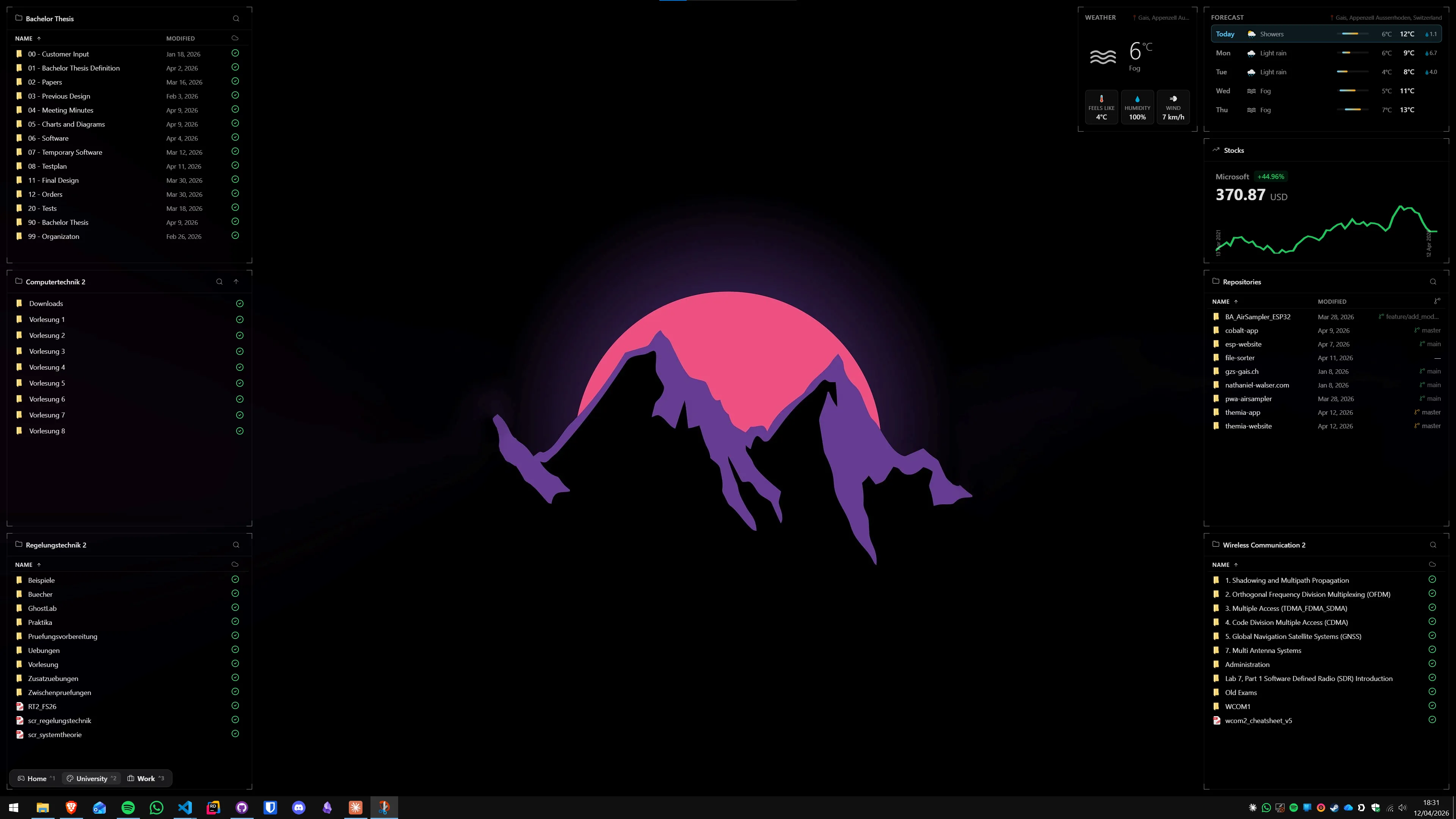
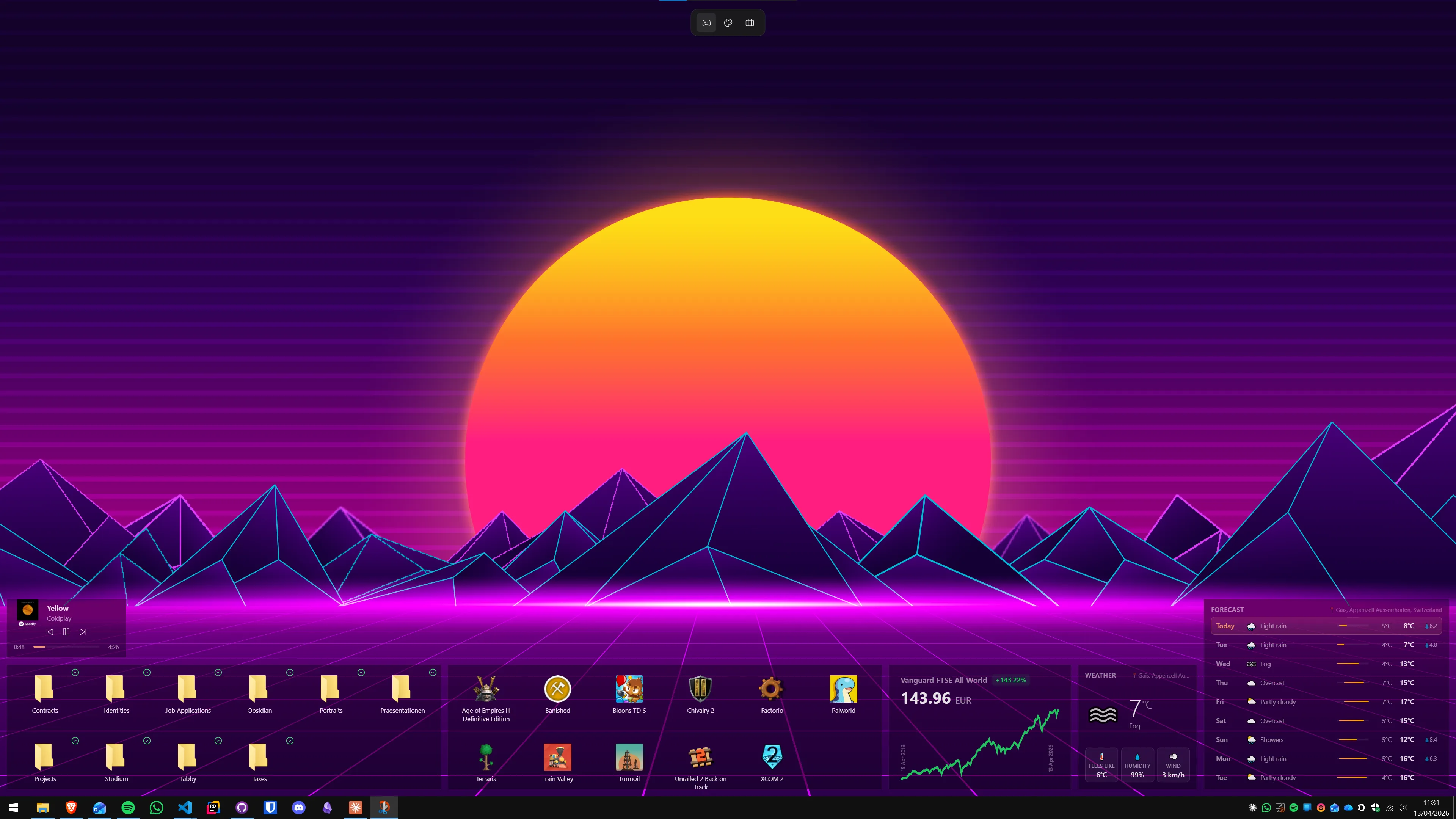
Themia takes the opposite approach: instead of organizing icons, it eliminates them. The desktop becomes a live dashboard populated with widgets — weather forecasts, calendar events, to-do lists, system performance stats, stock prices, email previews, and more. No icons, no containers, no clutter.
The case for switching to Themia is strongest when you recognize this pattern: your desktop icons are just noise you periodically tidy but never actually click. You open Chrome from the taskbar. You open VS Code from the Start menu. The shortcut to "Old Project 2024" on your desktop has not been touched in months. In that scenario, replacing the icon layer with useful live data is a genuine upgrade.
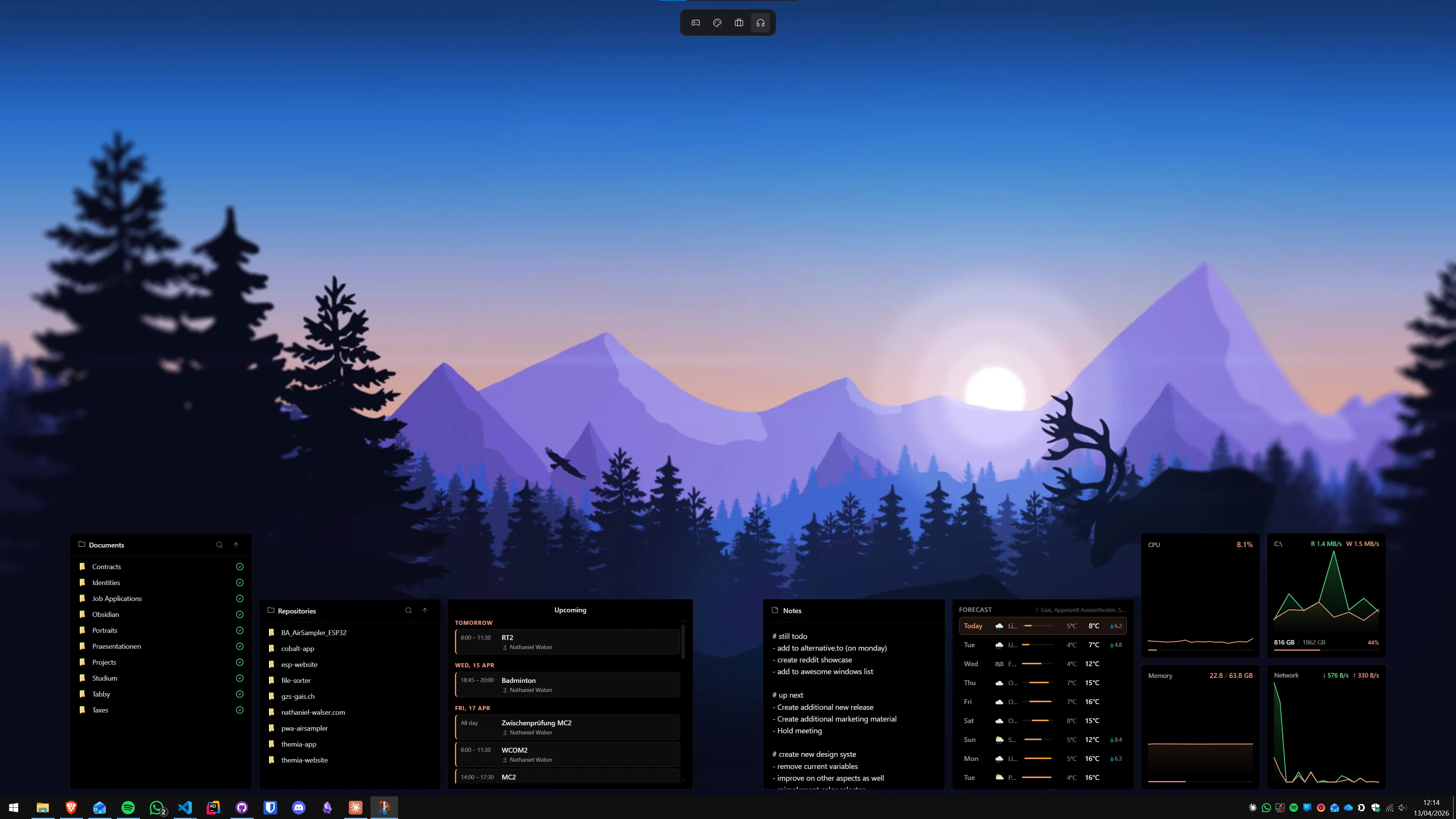
Themia is built on the Tauri framework (Rust-based, not Electron), keeping the installer under 10 MB and RAM usage consistently low. Unlike older Windows gadget platforms, Themia does not impose noticeable CPU overhead even with many widgets running. Each screen in a multi-monitor setup gets its own independent widget layout — your laptop might show a calendar and email preview while your external display shows system stats and a stock ticker.
Pricing: Themia's free tier is permanent and fully functional for most users. The Pro upgrade, at a one-time $19, unlocks additional widget options and customization features. There is no annual renewal.
For a detailed head-to-head, see Themia vs Stardock Fences: head-to-head comparison. If you are already on Fences and want to move to Themia, the guide to switching from Fences to Themia covers the full transition process. And if you are evaluating all options in 2026, the Stardock Fences alternatives roundup covers every major competitor.
Side-by-Side Feature Summary
| Feature | Stardock Fences 6 | Themia |
|---|---|---|
| Desktop icons | Organized into containers | Hidden, replaced by widgets |
| Auto-organize rules | Yes — file-type and name rules | N/A |
| Live data (weather, calendar…) | No | Yes — core feature |
| Tabs | Yes | N/A |
| Folder portals | Yes | File browser widget |
| Per-monitor layouts | Independent fences per monitor | Independent widget sets per monitor |
| App size | ~50 MB | Under 10 MB |
| Price | ~$9.99/year subscription | Free / $19 one-time Pro |
| Windows 11 support | Yes | Yes |
Making the Decision
The simplest decision test: look at your desktop right now and count how many icons you have clicked in the past week. If the answer is more than five, Fences is likely worth configuring. If the answer is zero or one, you are managing clutter that should not exist — and Themia's live dashboard is a more meaningful use of that screen real estate.
Fences is excellent software that solves its stated problem well. The $9.99/year subscription is reasonable for users who get genuine daily value from organized icon containers. But it is worth asking honestly whether icon organization is the problem you actually have, or whether your desktop needs to communicate information rather than store shortcuts.
FAQ
Is Stardock Fences 6 free to use?
No. Fences 6 is sold as a subscription at approximately $9.99 per year. A 30-day free trial is available from the Stardock website. By contrast, Themia has a permanently free tier — the Pro upgrade is a one-time $19 payment with no annual fees.
Does Stardock Fences work on Windows 11?
Yes. Fences 6 supports both Windows 10 and Windows 11, including the latest 24H2 update. Installation is straightforward: download the installer from stardock.com, run it, and Fences activates on your desktop automatically.
What is the difference between a fence and a folder portal in Fences 6?
A fence is a visual container drawn on the desktop — icons inside it stay on the desktop but are grouped within a labelled rectangle. A folder portal is different: it creates a live window into an actual folder (including cloud folders), so files dragged into the portal land in the real folder on disk. Portals are more like shortcuts that look like fences.
Can Fences automatically sort new files into the right fence?
Yes. Fences 6 includes auto-organize rules. You define conditions — file type, name pattern, date — and Fences automatically moves matching files into the designated fence. For example, all PNG screenshots can be routed to a "Screenshots" fence without manual dragging.
How do I make Fences hide everything so I can see the wallpaper?
Double-click an empty area of the desktop and all fences will roll up to show only their header strips, revealing the wallpaper behind. Double-click again to restore all fences to full size. You can also double-click any individual fence header to collapse just that one.
Why would someone choose Themia over Fences if they have been using Fences for years?
The main reason to switch is if you realize you rarely use the desktop icons themselves — you open apps from the taskbar and the icons are just clutter you habitually tidy but never click. Themia replaces icons with live data widgets: weather, calendar, to-do, system stats, and more. If the information is more valuable than shortcuts, Themia is a significant upgrade. If you genuinely need desktop shortcuts, Fences is still the better tool.
Do Fences and Themia conflict if run simultaneously?
They do not conflict at a technical level — both can run at the same time without crashing. However, the combination is usually redundant. Themia hides desktop icons by default, which means there is nothing left for Fences to organize. The practical approach is to use one or the other, not both.