How to Switch From Stardock Fences to Themia
If you have been using Stardock Fences for a while, switching to a new desktop tool feels like more trouble than it is worth. But once you know exactly what Fences does, what Themia does differently, and what the transition actually looks like in practice, the move takes about twenty minutes — and in most cases you end up with a more useful desktop on the other side.
This guide is for people who already use Fences and are considering Themia as either a replacement or an addition. It covers what to export before you uninstall, how to rebuild the things you relied on, and where the two tools genuinely differ.
What Fences actually does (and what Themia replaces)
Stardock Fences 6 is an icon organizer. Its core job is grouping desktop shortcuts and files into labeled containers called fences — translucent areas you can drag, resize, collapse, and name. The major features in Fences 6 are:
- Icon containers. Drag any desktop shortcut into a fence. Name it, recolor it, resize it. You can have as many fences as the desktop fits.
- Roll-up. Double-click a fence header to collapse it to just the label, freeing up space. In Fences 6.20+, you can configure roll-up on hover as well.
- Auto-organize. Set rules that automatically sort new desktop shortcuts into fences by type, name, or other attributes.
- Desktop pages. Think of it as multiple layers of desktop — swipe between them. If you have more fences than one screen fits, desktop pages let you spread them across virtual layers.
- Folder portals. Mirror a local, network, or cloud folder's contents directly into a fence on your desktop. Files appear as icons inside the fence area.
- Tabbed fences. New in Fences 6 — a single fence with multiple tabs, each showing a different icon group.
- Peek. Win+Space hides all open windows temporarily so you can see your desktop and fences.
Fences 6 costs around $9.99 per year on subscription or roughly $29.99 for a one-time lifetime license. It supports Windows 10 and Windows 11 including the 24H2 update.
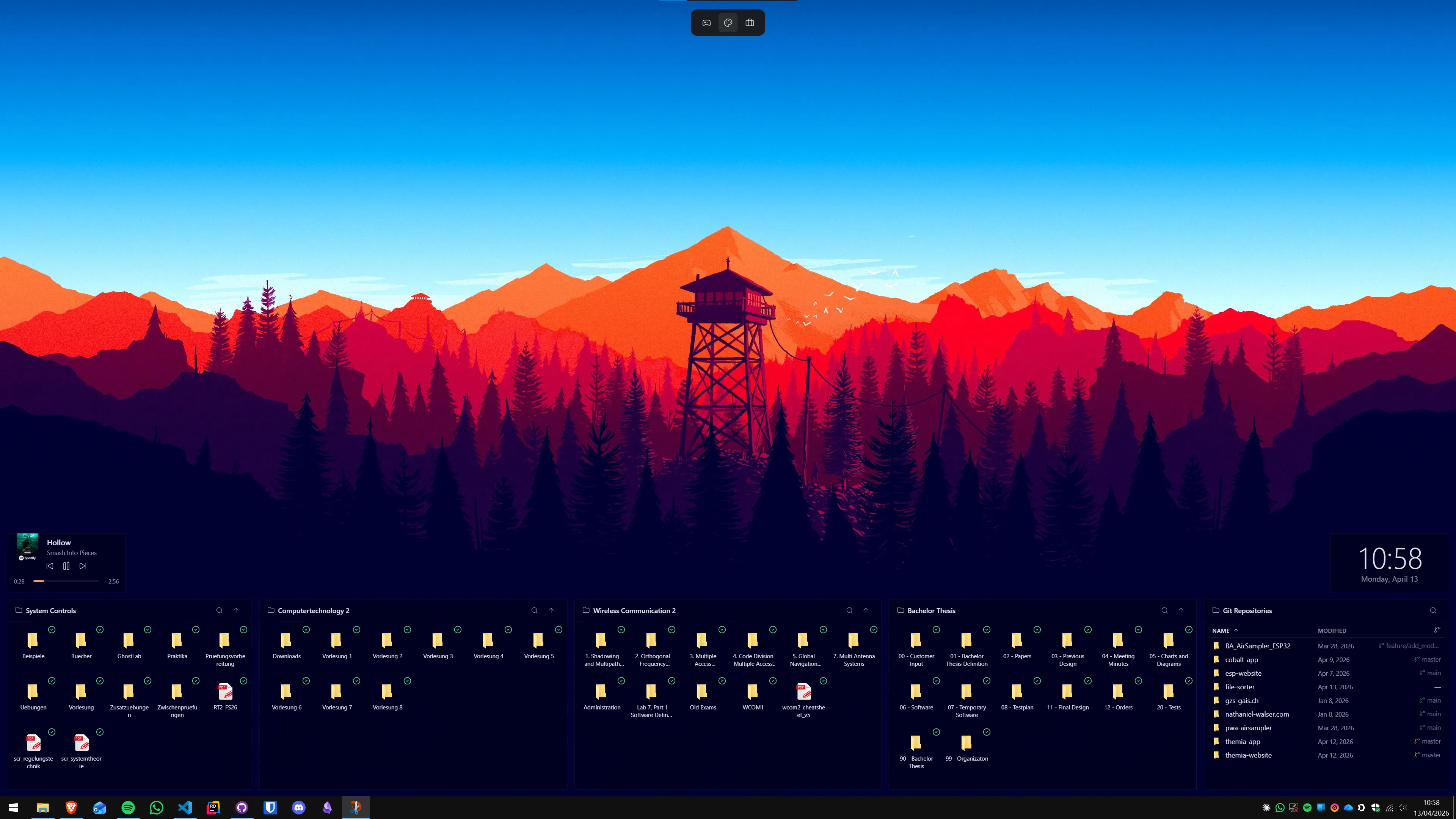
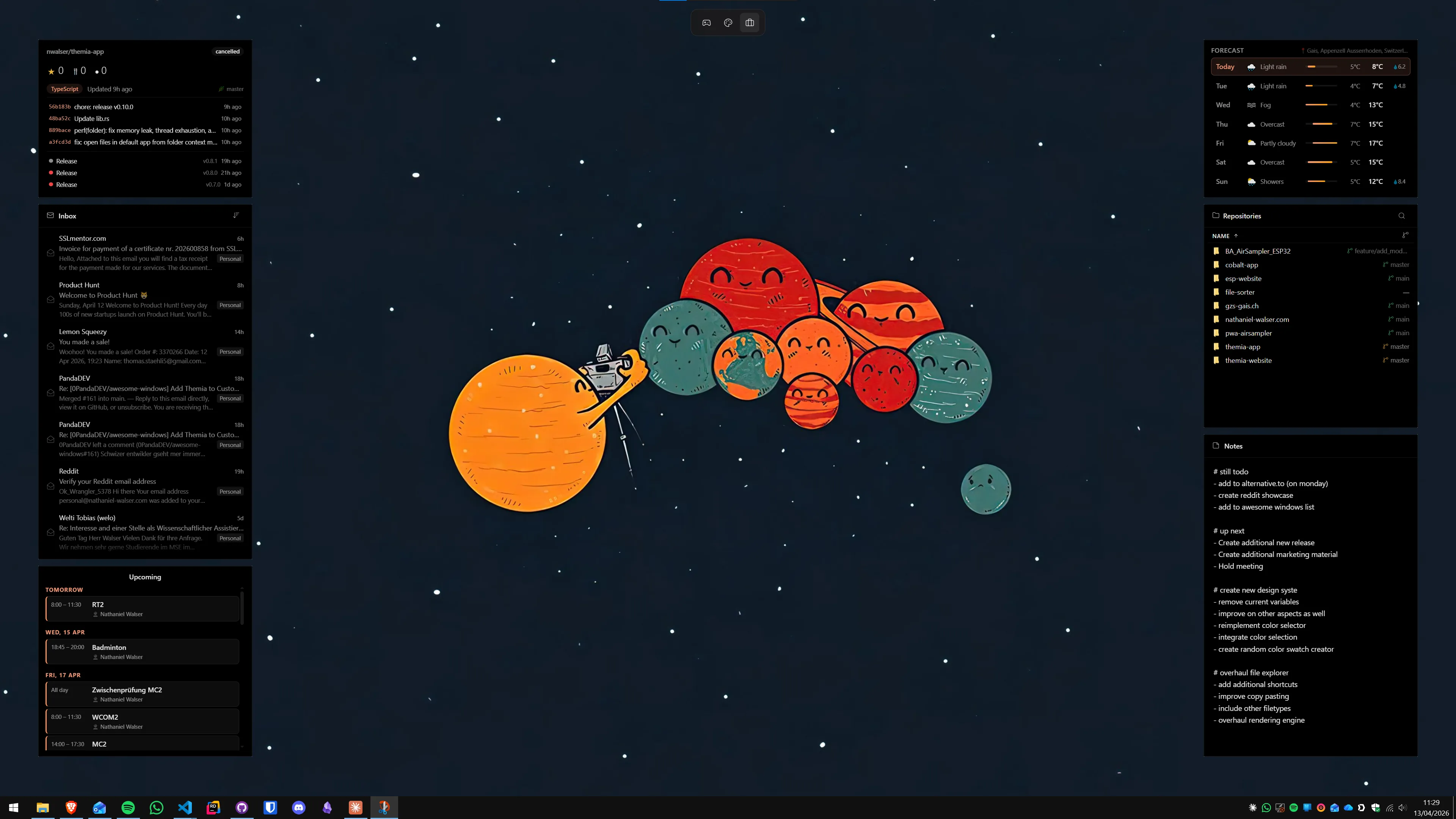
Themia is a different kind of tool. Instead of organizing shortcuts, it puts live information widgets directly on your wallpaper — a calendar widget that pulls real appointments, an email widget showing unread counts, a weather widget, system stats, stock prices, a to-do list, notes, RSS headlines, GitHub data, and a folder widget that shows live directory contents. The installer is under 10 MB (built on Tauri), there is a free tier, and the Pro unlock is a one-time $19.
The most direct overlap between the two tools is folder portals (Fences) and folder widgets (Themia). Both let you see and open files from a specific directory without navigating there. The difference is that Themia's folder widget updates in real time and sits as a proper wallpaper-layer panel rather than an icon container.
Before you do anything: note what you actually use in Fences
Fences has a lot of features, but most users rely on only two or three. Before making any change, spend five minutes writing down:
- Which fences do you have, and what is in them? (Named categories: Work Files, Tools, Games, etc.)
- Do you use folder portals? Which folders?
- Do you use desktop pages? How many?
- Do you use auto-organize rules?
- Do you use the roll-up feature regularly?
If your answers are mostly "I have a few named containers with shortcuts," Themia replaces that workflow with folder widgets and virtual desktops. If you depend heavily on auto-organize rules or desktop pages, those are Fences-specific features Themia does not duplicate — in that case, running both tools side by side makes more sense than switching.
Fences has a built-in backup option under Settings → Backup. Before any change, export a backup. If you decide to return to Fences, this restore restores your exact layout. The backup file is a single archive you can keep on OneDrive or a USB drive.
Step 1: Install Themia (keep Fences for now)
The safest migration is additive first. Install Themia without removing Fences, run them both for a few days, and see how your actual workflow shifts before touching your Fences layout.
- Go to the Themia website and download the installer. It is signed and under 10 MB.
- Run the installer. Themia does not touch existing desktop icons or Fences containers.
- On first launch, right-click your desktop and choose Add widget. The widget panel opens on the right.
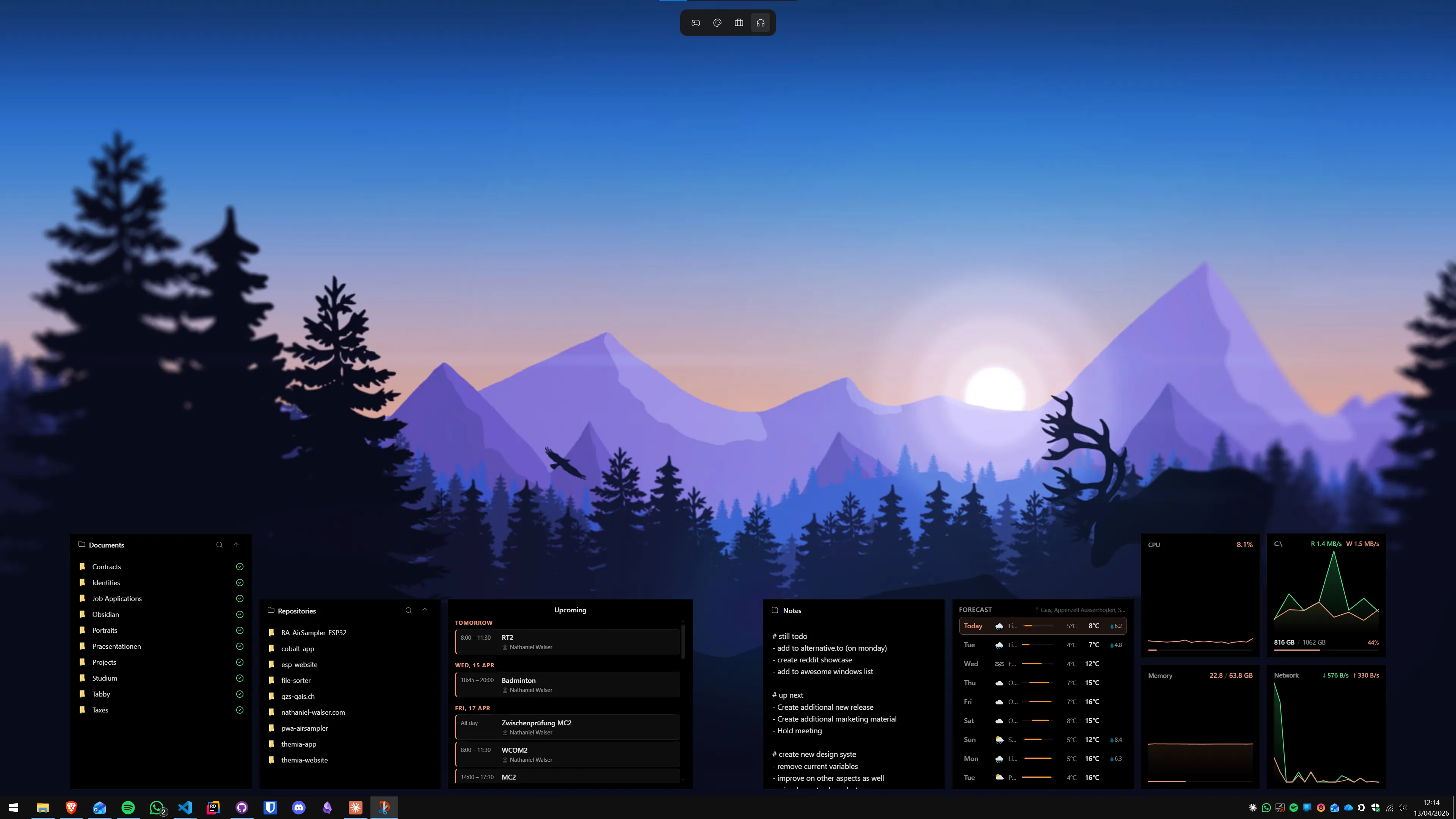
- Add a Folder widget first. Point it at one of the directories you currently access through a Fences folder portal — your Downloads folder, a project directory, or whatever you open most often.
Notice the difference immediately: instead of a container full of static shortcut icons, you see the actual live contents of that folder — the real files, updating in real time. Click a file to open it directly from the widget.
Step 2: Rebuild your folder access as live widgets
For each Fences folder portal you have, create a corresponding Themia folder widget. Right-click the desktop → Add widget → Files, then set the path. You can have as many folder widgets as you need, and you can resize and reposition each one independently.
For fences that contain shortcuts to applications rather than folders, the Themia equivalent is a folder widget pointed at your Start Menu or Applications folder, or simply a pinned row of taskbar shortcuts. Themia is not an application launcher — it is a live-data layer. If you had a "Tools" fence full of app shortcuts, those shortcuts are better off on the taskbar or Start menu where they belong, rather than on the desktop.
If you want to keep some desktop shortcuts organized without Fences, Nimi Places is a free alternative that handles the icon-container role while Themia handles live data.
Step 3: Add the live-data widgets that Fences never had
This is the step where switching to Themia pays off beyond the migration effort. Once you have folder access covered, add the widgets that Fences simply cannot provide:
- Calendar. Shows your real appointments from Google Calendar or Outlook. No Fences equivalent.
- Email. Unread count and latest senders via IMAP. No Fences equivalent.
- Weather. Current conditions and forecast. No Fences equivalent.
- System stats. CPU, RAM, GPU, network speed, battery. No Fences equivalent.
- Stocks. Live price tickers for any symbol. No Fences equivalent.
- RSS. Headline feed from any RSS source. No Fences equivalent.
- To-do. A persistent checklist on the wallpaper. No Fences equivalent.
Most of these are available on Themia's free tier. The one-time $19 Pro unlock adds advanced widget styling, custom backgrounds, and additional layout options. See Themia pricing for the full breakdown.
Step 4: Decide what to do with Fences
After using both tools for a few days, you will know which features of Fences you actually miss. The common outcomes:
- Most people uninstall Fences. The folder widget covers folder portals, virtual desktops handle context separation better than desktop pages, and the taskbar handles application shortcuts. Once Themia is set up, the icon containers feel redundant.
- Some people keep both. If you use Fences auto-organize rules to handle the handful of files that still land on your desktop (downloads, installers, screenshots), keeping Fences running alongside Themia is perfectly stable. Both tools are lightweight enough that running them together is not a concern on modern hardware.
- A few users keep Fences for desktop pages. Desktop pages in Fences are genuinely useful for people who have many different workflows and want to swipe between complete sets of desktop shortcuts. Themia does not have an equivalent — virtual desktops in Windows 11 cover the context-switching use case, but they are different in feel.
To uninstall Fences: Settings → Apps → Installed apps → search for Fences → Uninstall. Your desktop shortcuts will scatter. Either reorganize them into the taskbar and Start menu, or leave the few you need and let Themia's folder widgets handle file access.
What you will miss from Fences (honest)
Themia does not replicate everything Fences does. Be clear-eyed about these gaps before switching:
- Auto-organize. Fences can automatically route new desktop shortcuts into the right container by rule. Themia has no equivalent — you organize your desktop manually or not at all.
- Icon tinting and per-fence colors. Fences 6 lets you apply custom background tints and colors to individual containers. Themia's widget styling is more uniform by default (customizable with Pro, but not per-widget container colors).
- Desktop pages. Themia does not have multiple desktop layers you swipe between. Windows 11 virtual desktops partially cover this, but they work differently.
- Tabbed fences. If you use the tabbed containers in Fences 6, Themia has no equivalent.
For a detailed side-by-side breakdown of every feature, see our Themia vs Stardock Fences comparison.
What you will gain (also honest)
The case for switching is not that Themia beats Fences at Fences' job. It is that Fences' job is too narrow. Themia turns the desktop from an icon storage area into a live information surface:
- Your calendar is on the wallpaper. You glance at the desktop and know what is next without opening any app.
- Your email unread count is visible at all times — not a badge you have to look for.
- Your system stats (temperature, RAM usage, upload speed) are always there when you need them.
- Folder contents update live — if a file lands in a watched folder, it appears in the widget immediately.
The productivity shift is real: once information lives on the desktop, you open fewer applications just to check on things. That reduction in context switching adds up across a working day.
Summary: the 20-minute migration
- Back up your Fences layout (Settings → Backup).
- Install Themia alongside Fences — do not remove Fences yet.
- Add a Themia folder widget for each Fences folder portal.
- Add calendar, email, weather, and any other live widgets you want.
- Use both for a few days. Identify what you are still going to Fences for.
- If you no longer need Fences: uninstall it, move remaining shortcuts to taskbar or Start menu.
- If you still use auto-organize or desktop pages: keep Fences running alongside Themia.
Either way, your desktop ends up more useful than it was before — either because you trimmed the tools down to what actually matters, or because you added a live-data layer on top of what Fences was already doing.
If you have not tried the current options for Windows desktop widget apps beyond Fences, the landscape in 2026 is wider than it was a few years ago. Themia is the most complete native alternative, but knowing what else is out there helps you make the right call for your workflow.
FAQ
Will I lose any files when I switch from Fences to Themia?
No. Fences only organizes shortcuts and labels on your desktop — it does not move the actual files. Your documents, downloads, and any files on your desktop remain exactly where they are. Uninstalling Fences leaves all files intact; you may just see icons scatter back across the desktop until you set up Themia.
Does Themia replace every feature Fences has?
Not entirely. Fences 6 has desktop pages (swipe between icon layers), folder portals, auto-organize rules, and the ability to double-click to hide all fences. Themia replaces the folder-access workflow with live folder widgets and adds real-time data (email, calendar, weather, stocks) that Fences does not have. If you rely on auto-organize rules or desktop pages heavily, keep Fences for those; use Themia alongside it for live widgets.
How much does Stardock Fences 6 cost versus Themia?
Fences 6 is priced at around $9.99 per year (subscription) or approximately $29.99 for a one-time lifetime license. Themia has a free tier that covers most widgets, and a one-time Pro unlock at $19. So Themia is cheaper upfront on a lifetime basis, and the free tier gives you substantial functionality at no cost.
Can I run Themia and Fences at the same time?
Yes. They operate independently — Fences manages desktop icon containers and Themia manages widget overlays. There is no known conflict. Some users run both: Fences to group legacy desktop shortcuts, Themia for live data widgets. The one consideration is performance: both apps run continuously, so on lower-end machines you may prefer to pick one.
Does Themia slow down my PC more or less than Fences?
Themia is built on Tauri (Rust + WebView2) and is under 10 MB installed. In typical use it draws a small slice of CPU when widgets refresh and minimal memory. Fences is a native C++ application with a long track record — it is also lightweight. Neither should meaningfully slow down a modern Windows PC. If you are on older hardware with limited RAM, test both and keep an eye on Task Manager.
Is Themia a good Stardock Fences alternative?
For most people, yes — especially if you want live information on your desktop rather than just organized icon groups. Themia adds email, calendar, weather, stocks, system stats, to-do, notes, RSS, and GitHub data that Fences does not offer. If your primary need is purely organizing desktop icons with auto-sort rules, Fences still wins that specific use case. For a full desktop information panel, Themia is the better choice.