How to Enable Dark Mode on Windows 11 (2026)
Dark mode on Windows 11 is more than a cosmetic preference. Done properly — covering not just the system chrome but every app you actually use — it creates a genuinely cohesive, low-glare workspace. Done sloppily, you end up with Windows dark and Chrome blindingly white, which defeats the point.
This guide covers the whole stack: system-level settings, automatic sunrise/sunset switching, browsers, Microsoft Office, the apps that respect dark mode and the ones that stubbornly do not, and how desktop widgets sit inside a dark-mode workflow. The goal is a desktop that stays comfortable from morning to evening without you touching a setting.
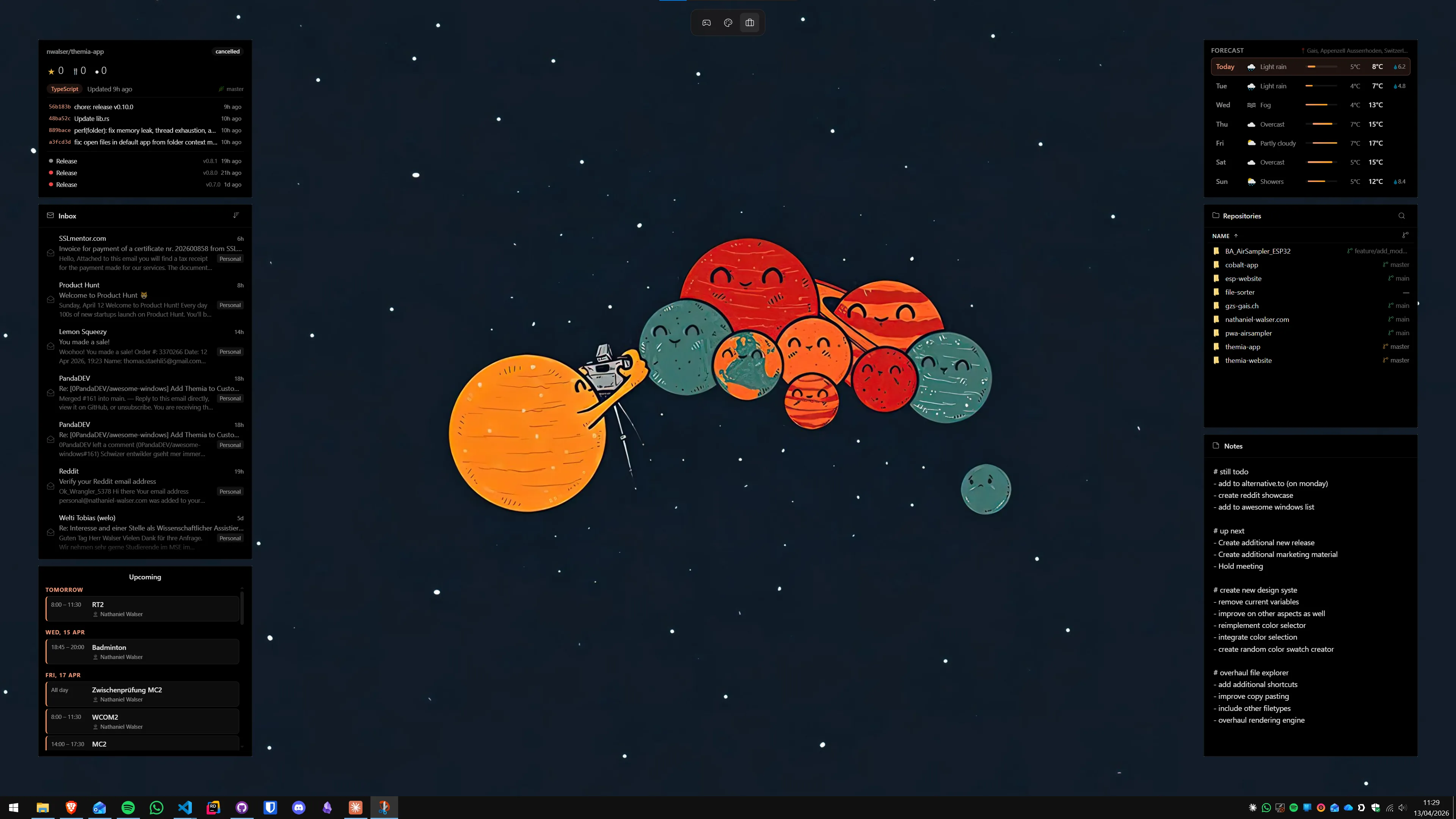
Step 1: Enable system-wide dark mode
The core setting is in Settings → Personalization → Colors. There are two independent controls here, which confuses people:
- Choose your Windows mode — controls the taskbar, Start menu, Action Center, and system chrome.
- Choose your default app mode — controls how Windows-native apps like Settings, File Explorer, and the Microsoft Store render their UI.
Set both to Dark for full dark mode. You can mix them: Windows mode Dark with app mode Light keeps a dark shell with light app interiors, which some people prefer for productivity. Most users find full dark or full light more cohesive.
While you are here, choose a dark or neutral accent color. Bright accent colors can look garish against a dark background — something like slate blue, forest green, or the automatic accent color pulled from your wallpaper tends to look more polished.
Step 2: Schedule automatic switching with Auto Dark Mode
Windows 11 does not have built-in sunrise/sunset switching in 2026. The best solution is Auto Dark Mode, a free open-source app from the GitHub project "AutoDarkModeApp". It is available directly from GitHub releases and installs in under a minute.
After installing, open Auto Dark Mode from the system tray. The setup wizard lets you choose:
- Time-based switching: you set the exact light and dark switch times.
- Sunrise/sunset: the app uses your Windows location (no account needed) to calculate the local sunrise and sunset each day.
- System time: switches at a fixed offset from dawn and dusk.
Auto Dark Mode can also change your wallpaper when it switches — useful for a paired light and dark wallpaper set. It is lightweight (a few megabytes), runs entirely locally, and does not phone home.
Step 3: Browsers in dark mode
Once Windows is in dark mode, most modern browsers automatically follow the system setting and serve dark-mode CSS to websites that support it. However, each browser also has its own interface theme:
- Microsoft Edge: Settings → Appearance → Overall appearance → Dark. Edge also has a built-in Force Dark Mode option under
edge://flags(search "Auto Dark Mode for Web Contents") which attempts to invert web pages that do not natively support dark CSS. Quality varies. - Google Chrome: Chrome respects the system theme by default. For the browser chrome itself, go to Settings → Appearance → Themes and choose a dark theme from the Chrome Web Store. The "Just Black" theme is clean and popular.
- Firefox: Settings → Extensions & Themes → Themes. Firefox ships with a built-in Dark theme that activates independently of the OS setting.
For websites that do not support dark mode natively, browser extensions like "Dark Reader" apply a smart inversion algorithm to the page content. It works well on most sites and is configurable per domain.
Step 4: Microsoft Office in dark mode
Office has its own theme system that is independent of Windows dark mode. In any Office app (Word, Excel, Outlook, PowerPoint), go to File → Account → Office Theme and select Black. This is the darkest option — "Dark Gray" is a middle ground if full black feels too heavy.
One important distinction: the Office theme controls the ribbon and app chrome, not the document itself. A Word document with a white page stays white. If you want to write on a dark canvas, go to Design → Page Color and set a dark background for that document. It is usually better to keep document backgrounds light for readability and printability, and keep only the app chrome dark.
Outlook in dark mode deserves a note: incoming emails are sometimes rendered with their own inline HTML colors, which can make dark-background emails hard to read. Outlook's dark mode rendering automatically converts most light-background emails to dark, with variable success. If a particular email looks garish, click the three-dot menu in the message preview and choose "Turn off Dark Mode for this message".
Step 5: The apps that do not follow dark mode
Some apps stay light regardless of your Windows setting. This includes older Win32 applications that use hardcoded system colors, apps with their own embedded UI frameworks that predate the dark mode API, and some enterprise software. There is no universal fix, but a few approaches help:
- Check the app's own settings first. Many apps — VS Code, Notepad++, Telegram, Signal, Discord, WhatsApp Desktop — have their own dark mode or theme toggle that works independently of Windows.
- Windhawk is a modding framework for Windows UI that has community mods for dark mode in several apps, including older system dialogs.
- For the classic context menus and dialogs that Windows 11 still renders in light, go to Settings → Personalization → Colors and make sure "Show accent color on title bars and windows borders" is enabled — it adds a bit of color depth to otherwise very plain dialogs.
Step 6: Dark wallpapers that work
A dark system setting with a bright wallpaper is visually jarring. Good dark wallpapers for 2026:
- WallHaven (wallhaven.cc): Filter by "dark" and sort by relevance. High resolution, free, no account needed.
- Windows Spotlight lock screen images: These cycle automatically and are often beautiful landscape shots. You can capture them from
%LocalAppData%\Packages\Microsoft.Windows.ContentDeliveryManager_cw5n1h2txyewy\LocalState\Assets— copy files out and add.jpgextension to view them. - Unsplash: Search "night landscape" or "dark minimal" for high-quality dark wallpapers with commercial-friendly licenses.
For a paired wallpaper setup with Auto Dark Mode, pick one dark and one light image of similar subject matter. The switch feels natural when the landscape matches — sunrise for light mode, starfield for dark.
Step 7: Desktop widgets in a dark workspace
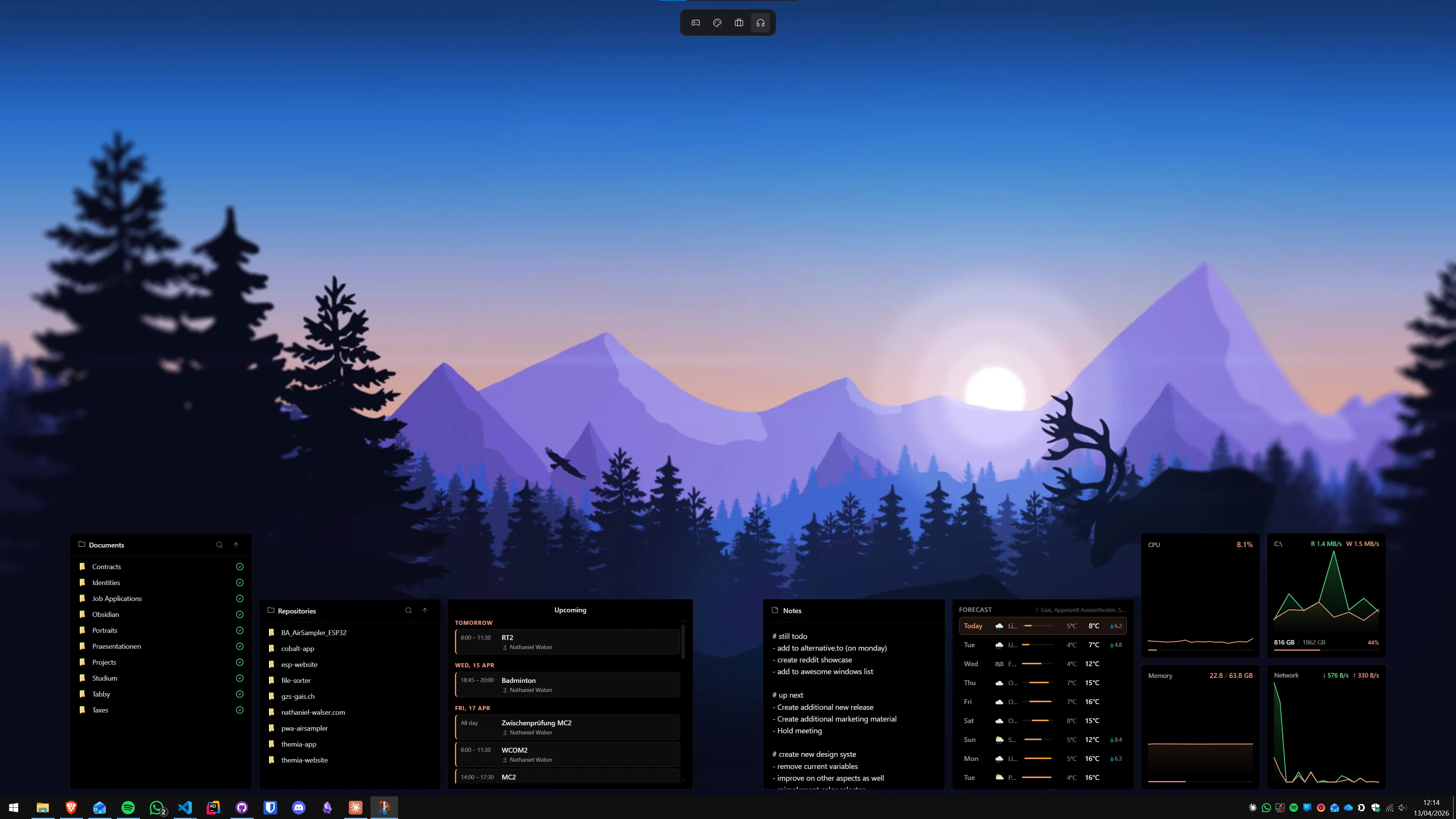
A dark-mode desktop is a natural environment for always-visible desktop widgets. With a dark wallpaper and a dark system theme, widget panels with semi-transparent dark backgrounds blend smoothly into the desktop layer rather than sitting as bright rectangles over the image.
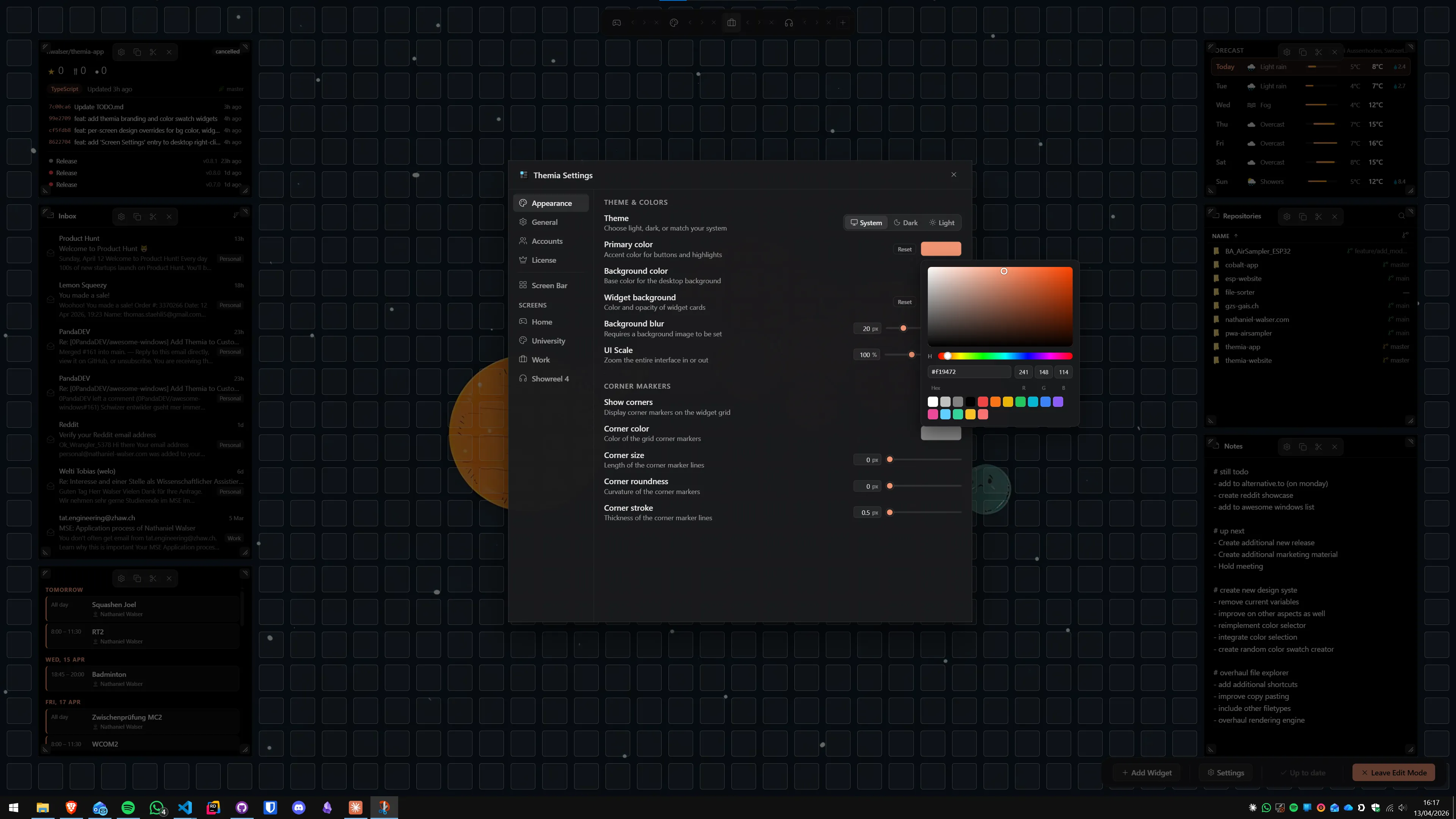
If you are running desktop widgets with Themia, the widget backgrounds adapt to the system color scheme. A few settings worth adjusting for dark desktop use: reduce widget opacity slightly so the wallpaper shows through, and use light or accent-colored text on the widget faces for contrast. The result is an information dashboard that feels like part of the desktop, not pasted onto it.
This is also worth considering for widget placement: dark wallpapers tend to have more visual complexity (stars, gradient skies, textured backgrounds), so placing widgets in a less busy corner — lower-right, or along the right edge — keeps the wallpaper's focal point clear. More on this in the guide to setting up a minimalist Windows desktop.
If you are customizing further — themes, icon packs, custom taskbar styling — the Windows 11 themes guide has the full toolkit for a cohesive dark aesthetic across the whole system.
Keeping it consistent long-term
Dark mode is only pleasant when it is consistent. A few things that break consistency over time:
- New apps you install that default to light mode — check each new install's appearance settings.
- Windows updates that occasionally reset the accent color or transparency setting — worth a quick check in Personalization after a major update.
- Remote desktop sessions that inherit the remote machine's theme — this is normal and unavoidable unless you configure the remote machine separately.
The investment is about 20 minutes to set up properly, and then Auto Dark Mode handles the daily management. For a deeper look at making Windows 11 work well as a full daily workspace — not just dark mode but layout, widgets, and workflow tools — the guide to setting up Windows 11 for working from home covers the broader picture.
FAQ
Does dark mode actually reduce eye strain?
The evidence is mixed. Dark mode reduces screen brightness in dim environments, which many people find more comfortable for extended sessions at night. However, research suggests that for most people reading in well-lit conditions, light text on a dark background can actually be harder to process than dark text on light. The practical answer: use dark mode when your environment is dim, light mode when it is bright, and let scheduled switching handle the transition automatically.
Can I have Windows dark mode but keep specific apps in light mode?
Yes. Windows 11 lets you set the system (shell) and app modes independently in Settings → Personalization → Colors. Set Default app mode to Light while keeping Windows mode Dark, or vice versa. Individual apps can also override the system setting — Chrome, Edge, and Firefox all have their own theme preferences, and Office apps have their own Dark Mode option under File → Account → Office Theme.
Does dark mode save battery on Windows laptops?
Only meaningfully on OLED screens, and Windows laptops with OLED displays are becoming more common in 2026. OLED panels draw no power for true-black pixels, so a dark background actively saves battery. On LCD panels (which include most traditional laptop screens and IPS monitors) dark mode has negligible impact on battery life — the backlight is always on regardless of screen content.
Why does the desktop go dark but some apps still look white?
Not every app respects the Windows dark mode API. Older apps that draw their own UI using Win32 controls or have hardcoded light themes will stay light regardless of your system setting. There is no system-level way to force these apps into dark mode. Your options are: check whether the app has its own dark mode setting, use a third-party tool like DarkWindowDecorations or Windhawk to skin them, or accept that those apps stay light.
Does Auto Dark Mode interfere with other Windows settings?
No. Auto Dark Mode is a lightweight open-source app that simply calls the same Windows APIs you would use manually. It does not modify system files or the registry in any unsafe way. It runs as a tray icon and fires a scheduled API call at sunrise and sunset based on your location or a fixed time you set. If you uninstall it, your Windows theme returns to whatever it was last set to — no cleanup needed.
Can desktop widgets like Themia use dark mode automatically?
Themia adapts to your Windows color scheme. When your system is in dark mode, widget backgrounds and text colors adjust accordingly. You can also fine-tune the look per widget — background opacity, accent color, and font weight — so widgets blend into a dark wallpaper rather than appearing as bright white boxes. This is one reason dark mode and a desktop widget layer work well together: the darker the desktop, the more information-dense a widget layout can feel without being visually heavy.