The Minimalist Windows Desktop Setup Guide
A minimalist desktop is not an empty one. An empty desktop is just a blank canvas — you can get that by hiding every icon and walking away. A minimalist desktop is harder: it is a desktop where every single thing on screen earns its place. The wallpaper earns it by being something you want to look at. The widgets earn it by showing information you actually check. The taskbar earns it by staying out of the way until you need it. Everything else gets removed.
That principle — "nothing that isn't earning its place" — is what separates a minimalist setup from a sterile one. It is also why most "minimal Windows desktop" tutorials miss the point. They treat minimalism as an aesthetic: a moody wallpaper, a centered taskbar, a Rainmeter clock in a thin font. That is fine as decoration but it is not minimalism. Minimalism is a set of small, stubborn decisions about what to keep.
This guide is a practical walk through those decisions on Windows 10 and 11. Five principles, the tools that help with each one, and three sample setups at different ends of the spectrum. No moody-wallpaper gatekeeping. No performative "less is more." Just how to build a Windows desktop you can live with for a year.
A quick word on philosophy
You do not need a manifesto to set up a desktop, but two old ideas are useful as a sanity check.
Dieter Rams wrote ten principles of good design. The relevant ones for a desktop are "good design is as little design as possible" and "good design makes a product useful." Taken together, they mean: keep removing until something important breaks, then put back only that thing. Not the whole category it belonged to — just the thing.
Christopher Alexander, who wrote about architecture, kept pointing at a quality he called "the quality without a name" — the feeling of a space that is alive because everything in it is doing its job. You know it when you see it: a good bookshelf, a good kitchen, a good workbench. It is not emptiness. It is fit. A minimalist desktop is after the same thing. Not fewer things for their own sake. Fewer things so the ones that remain can do their work.
If that sounds abstract, the five principles below are the concrete version.
The five principles
1. One wallpaper, chosen deliberately
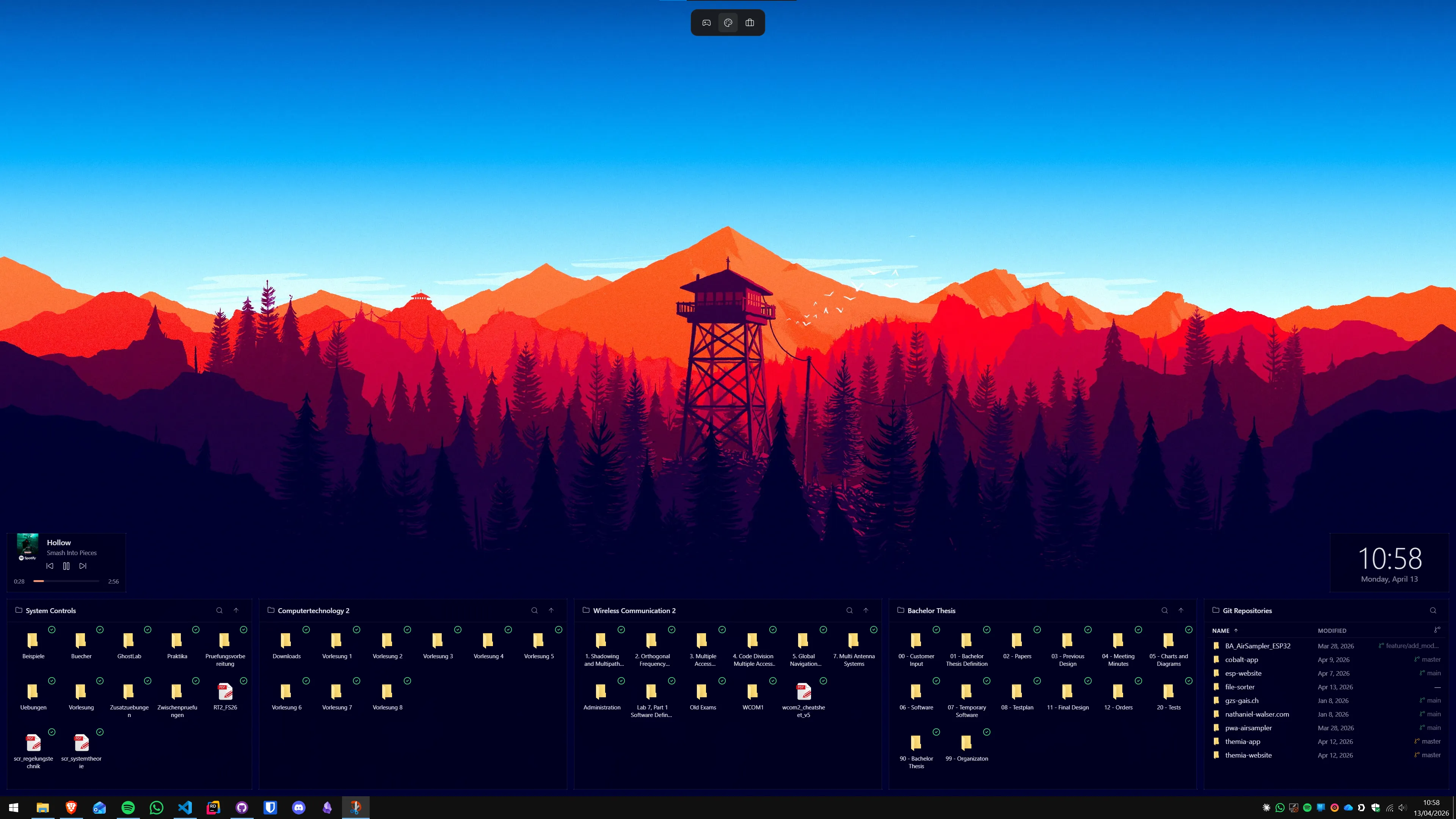
The wallpaper is the largest visible surface on your computer. It is worth picking one. Not a rotating album of a hundred, not whatever Bing pushed today — one. Something you can look at for a month without getting tired of. That usually means low contrast, few focal points, and colors that do not fight with white text.
Good sources: Unsplash's minimalist and minimal-abstract collections, slow landscape photographers on Are.na, the Firewatch promo art set, and the deep archive of single-color and gradient wallpapers the r/MinimalDesktops community has curated for years. A plain solid color is also legitimate and underrated — a deep graphite, a forest green, a navy. If you are picking between "good photo" and "great solid color," the solid color almost always wears better.
2. No desktop icons, or at most a handful
Desktop icons are the most common cause of visual noise on a Windows machine and the easiest to fix. The target is zero. Right-click the desktop, uncheck "Show desktop icons," and you are done. Everything launches from the taskbar or Start menu instead, which is faster anyway once you get used to pressing the Windows key.
If you cannot go to zero, cap yourself at three to five. A current project folder. The one app you use every ten minutes that does not belong in the taskbar. A "today" inbox folder. Anything past five is going back to clutter. People who really need a lot of shortcuts should not fight it — install Stardock Fences and group them into scrollable containers, because that is the problem Fences exists for.
3. A clean taskbar
The taskbar is the second biggest source of noise after icons. Three small changes fix most of it.
First, unpin everything you do not open daily. Right-click, Unpin from taskbar. Most people end up with five or six icons, not fifteen. Second, turn off the system-tray noise — search box, task view, widgets button, Copilot, Chat — in Taskbar settings. Third, either install TranslucentTB for a transparent bar that fades into your wallpaper, or turn on "Automatically hide the taskbar" under Taskbar behaviors so it only appears when you mouse to the bottom of the screen. The two stack: transparent when visible, hidden when not.
One more thing worth doing: Nilesoft Shell replaces the busy Windows 11 right-click menu with a compact, configurable one. It is free, open source, and the right-click menu is the one place Windows still feels like it is designed for selling you things.
4. Restrained widgets, not more widgets
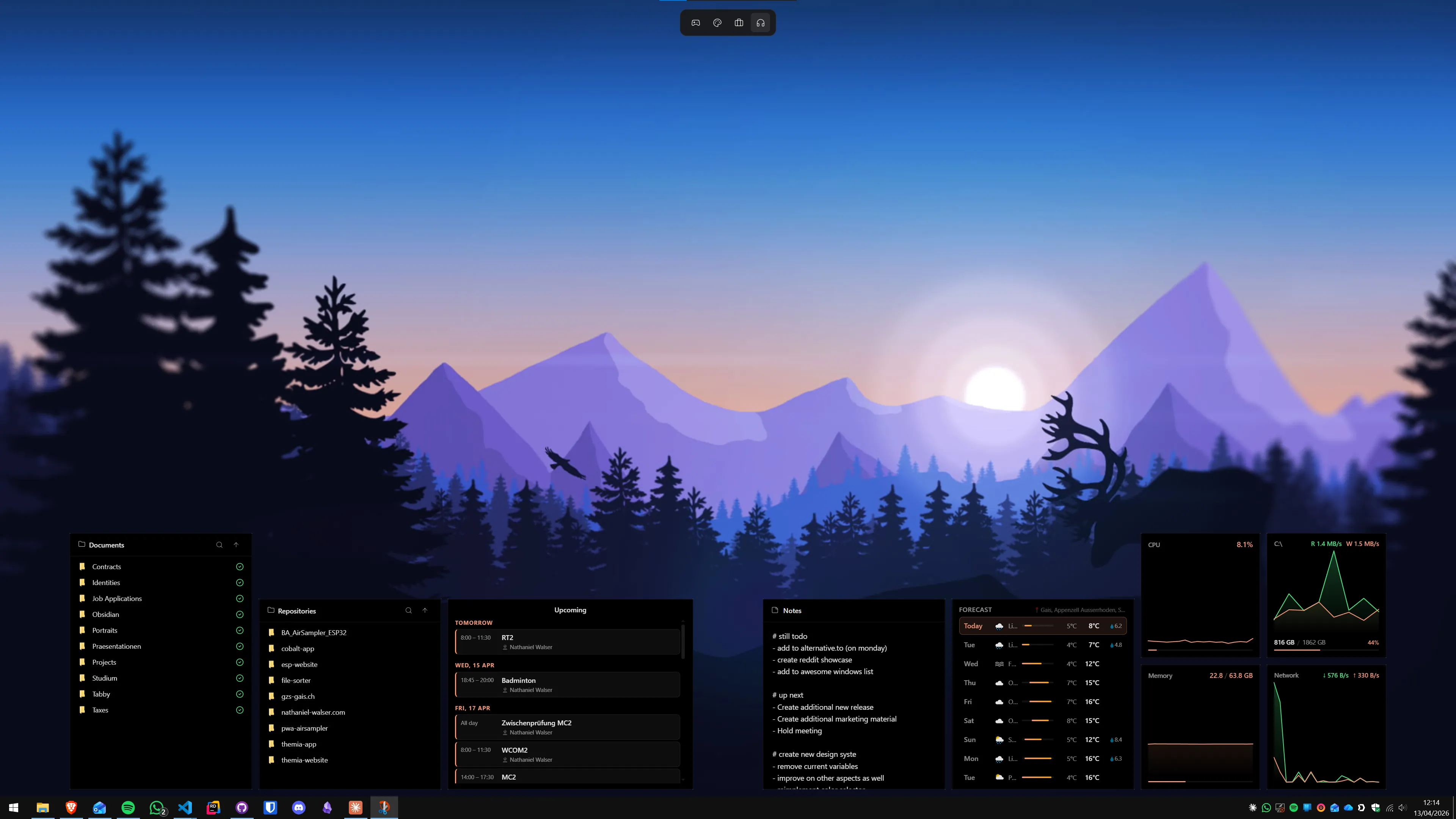
This is where Themia fits into a minimalist setup — and where a lot of widget apps do not. The point of widgets on a minimal desktop is to replace things you already alt-tab to look at: the time, the weather, today's calendar, a system stat you genuinely care about. Two or three widgets, small, unified in design, arranged in a corner. That is the entire job.
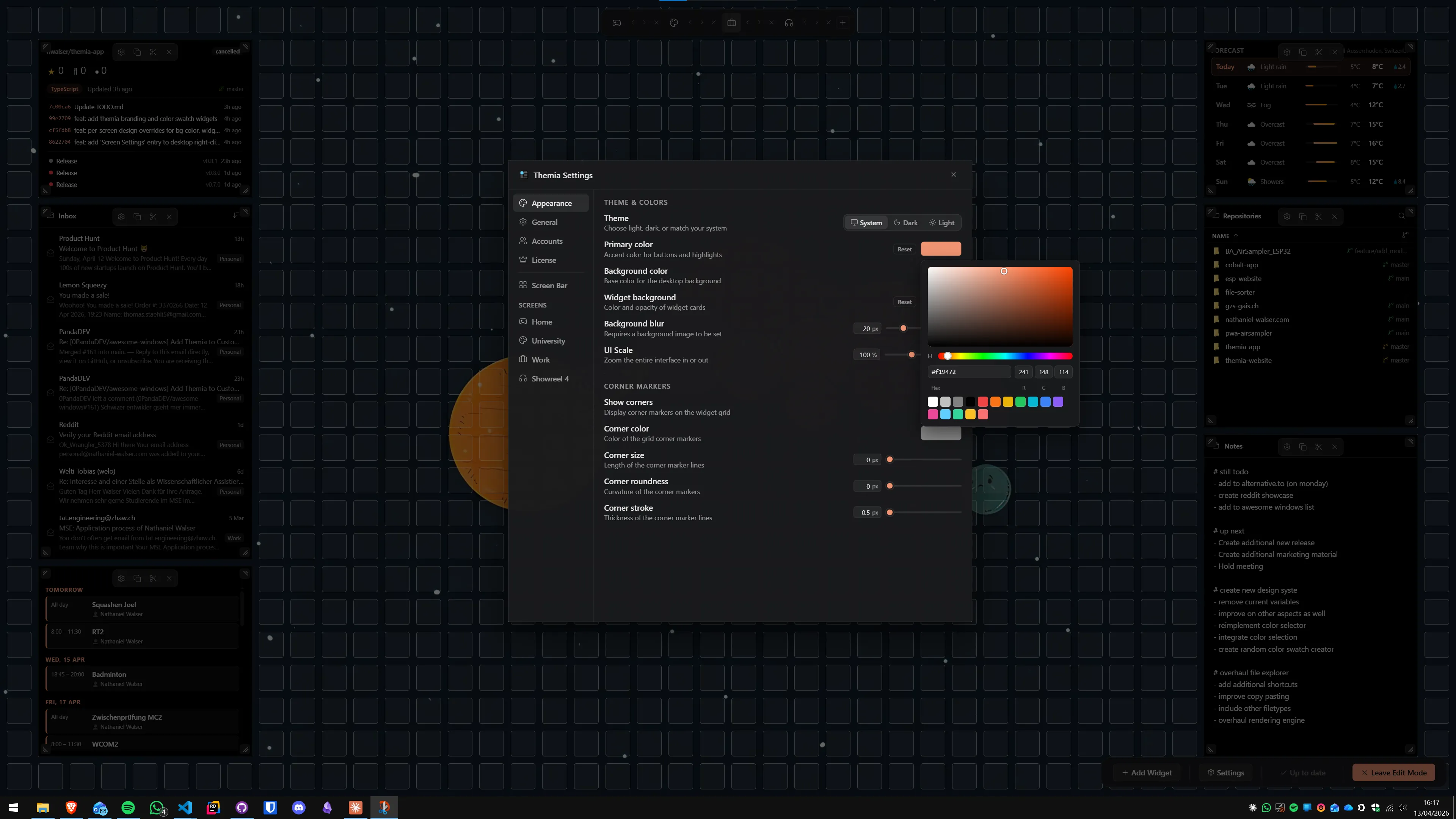
Themia's design defaults help here: every widget uses the same color tokens and typography, they can be resized smaller than most competitors, and the transparency and blur settings let a widget read as "a square of slightly frosted glass on your wallpaper" rather than "a UI element someone dropped on your desktop." For a minimal look, pick the smallest size that is still readable, turn the background opacity down, and stop there. You can always add more. You rarely need to.
If you enjoy hand-building a single skin for its own sake, Rainmeter is the tinkerer's answer and has produced some of the cleanest-looking Windows desktops ever screenshotted. It is more work, and mixing skins from different authors is the fastest way to end a minimalist project. Pick one skin pack and commit to it.
5. Silent notifications and a quiet Start menu
The last principle is not visual. A minimalist desktop that dings at you every three minutes is not minimalist — it is a pretty dashboard interrupted by noise. Turn on Focus sessions (Settings → System → Focus) for real work blocks. Set Do Not Disturb to priority-only during the day. Go through Settings → Notifications and turn off every app that is not a person or a calendar. This is the part that actually affects how focused you feel.
The Start menu matters too. In Settings → Personalization → Start, turn off "Show recommendations," "Show recently added apps," and "Show most used apps." Unpin every default Microsoft app you do not use. What you are left with is a Start menu that lists only things you pinned on purpose — which is the minimalist definition of a good one. If the stock Start menu still annoys you after that, OpenShell (free) or StartAllBack (paid) bring back classic Start behavior, but most people do not need them.
Tool by tool
Wallpaper
Unsplash and its minimalist collections are the best free source — start with the minimalist, minimal-abstract, and solid-color collections and download the 4K original. Are.na's curated channels are excellent if you want something less picked-over. For a little motion without being a "live desktop" person, Lively Wallpaper (free, open source) handles subtle looping wallpapers; keep the loop long and the motion slow or you will notice it in your peripheral vision all day. Solid colors never go out of style; Windows' built-in solid-color picker is all you need.
Taskbar: TranslucentTB
Install from the Microsoft Store (free). Open it, set the default mode to "Clear" or "Acrylic" with a low opacity, and turn on "Visible window" or "Maximized window" dynamic modes so the taskbar becomes more opaque when a window is actually covering it. That gives you transparency over the wallpaper without losing legibility when you are working. Check the autostart box. Under Windows Taskbar behaviors, optionally also turn on "Automatically hide the taskbar." That is the whole setup.
Desktop: moving icons off
The fastest way to an empty desktop: right-click the desktop, View, uncheck "Show desktop icons." Icons still exist in the Desktop folder; they just do not render. If you want a handful of icons, move every shortcut you do not need into a "Parked" subfolder you can forget about, then bring back only the three or four you actively use.
Widgets: a small Themia layout
Install Themia (free tier is enough for a minimalist setup), open Add widget, and pick two or three from: clock, weather, calendar, system stats, music. Drag them to one corner — top-right is a classic. Resize each to the smallest size that is still readable. In the widget settings, drop the background opacity to 30-50% so they read as translucent. Stop adding widgets. If you feel the urge to add a fourth, wait a week.
Start menu: just clean the one you have
Settings → Personalization → Start, turn off all three "Show" recommendation toggles. Right-click every pinned app you do not open weekly, Unpin. You are done. If the stock Start menu is still wrong for you after that, OpenShell or StartAllBack are the escape hatch — but try the cleaned-up stock one first.
Sound and notifications: Focus
Settings → System → Focus, start a 30- or 60-minute session when you sit down to work. That silences notifications and badges. Settings → Notifications, scroll through the app list and turn off everything that is not actually a person, a meeting, or a deploy failure. This is the least aesthetic item on the list and the one that makes the biggest difference to how your desktop feels.
Three sample setups
The scholar
Muted landscape wallpaper (forest, mountain, coastline — low contrast). Zero desktop icons. Taskbar auto-hidden with TranslucentTB on acrylic. Three small Themia widgets in the top-right: clock with date, weather, this-week calendar. Focus on during work hours. Total install count: two apps (Themia, TranslucentTB). Time to set up: about twenty minutes.
The coder
Solid dark background (graphite, navy, or a Gruvbox-style warm gray). Zero desktop icons. Taskbar centered, auto-hidden. Two Themia widgets: system stats (CPU, RAM, a single network line) and a GitHub widget showing open PRs or your contribution graph. Terminal pinned to the taskbar. Nothing else. The rest of the screen is for the editor.
The monk
One wallpaper. One widget — a single clock in a corner. Taskbar auto-hidden. No widgets, no organizers, no flourishes. Almost no install needed beyond Themia for the clock, and you can argue the built-in Windows clock already does that job. This is the "do I really need anything here" school of minimalism, and for a lot of people it is the right answer.
Common mistakes
Three predictable ways a minimalist setup stops being minimalist.
Going empty instead of minimal. Zero icons, zero widgets, stock wallpaper. The desktop is technically clean and also completely inert. You have not designed anything; you have just hidden the default. Minimalism is a choice about what stays, not the absence of choice. At least pick the wallpaper.
Stacking five tools that do the same thing. TranslucentTB plus TaskbarX plus StartAllBack plus Rainmeter plus Lively Wallpaper plus Winaero Tweaker plus a custom mouse cursor pack. Every tool is one more thing to reconfigure on the next Windows update and one more thing that can silently break. The minimalist stack is two or three tools, chosen so they do not overlap.
Installing widgets as decoration. If a widget is not something you would otherwise open an app or a tab for, it is clutter in a nice font. Could you delete it and miss nothing for two weeks? Then delete it.
Conclusion
The whole guide in one line: pick one wallpaper you like, clear the icons, hide or quiet the taskbar, install two or three small widgets that replace something you already glance at, and turn notifications off during work. That is the entire setup. Everything else in this post is detail on how to do those five things well.
If you want the fastest version: download the Themia free tier, install TranslucentTB, pick a wallpaper from Unsplash's minimalist collection, and turn on Focus. Twenty minutes, two free apps, a desktop you can live with for a year. Come back and add things only when you notice yourself missing them.
For the broader field — widget apps, organizers, wallpaper engines — the widget app roundup and the full Windows desktop customization guide cover more ground. And if you are weighing Themia specifically against the obvious alternatives for a minimal look, Themia vs TranslucentTB and Themia vs Rainmeter are the two to read.
FAQ
What counts as a minimalist Windows desktop?
A minimalist Windows desktop is not an empty one. It is a desktop where everything visible — the wallpaper, the widgets, the taskbar, the icons — is there because you chose it on purpose. The usual giveaways are a single calm wallpaper, zero or a handful of icons, a transparent or auto-hiding taskbar, and at most a few widgets that show information you check often. The test is whether you can point at anything on screen and say what it is for.
Do I need widgets for a minimalist setup?
No, and this is where a lot of people get it wrong. Widgets are worth having only if they replace something you already look at — a clock you glance at on your phone, a calendar tab you keep open, a weather app. If you add widgets for their own sake you are decorating, not simplifying. A monk-style setup with a wallpaper and a single small clock is completely legitimate.
Is TranslucentTB enough, or do I also need to auto-hide the taskbar?
TranslucentTB alone gives you a transparent taskbar — the icons are still there. Auto-hide pulls the whole bar off screen until you mouse to the bottom. They stack well: TranslucentTB for when the taskbar is visible, auto-hide so it is only visible when you want it. If you can only pick one, auto-hide does more for a truly minimal look.
Should I remove every desktop icon?
Whatever is right for you. Zero icons is the purest option and works if you launch everything from the taskbar or Start menu. Three to five pinned shortcuts is also fine if those shortcuts earn the space (a current project folder, a common tool). The trap is the middle: twenty half-used icons that accumulated because moving them felt like work.
Do I need to replace the Start menu?
Most minimalists do not. The Windows 11 Start menu is fine once you unpin every promoted app and turn off "Show recommendations" in Settings. Replace it with OpenShell or StartAllBack only if the pinned layout actively bothers you — not because a blog post said to. Every extra tool is another thing that can break on a Windows update.
Will a minimalist setup actually help me focus?
A little, honestly. The biggest focus wins come from notification and Start menu hygiene, not wallpaper choices. A calm desktop is nice to look at and makes the desktop feel like yours, but if you are getting pulled out of flow it is almost always by a notification, a Slack badge, or a recommendation feed. Fix those first and the aesthetics come along for free.