Best Windows 11 Themes and Icon Packs (2026)
Windows 11 ships with a handful of decent themes and a solid Fluent Design foundation — but the built-in options cover a narrow range, and the real depth lives in the community. In 2026 there are more high-quality themes, icon packs, and visual style tools for Windows 11 than at any point in the platform's history.
This guide is honest about what each type of customization actually changes, how much effort is involved, and where the risks sit. The list goes from zero-install options to full visual overhauls, in that order.
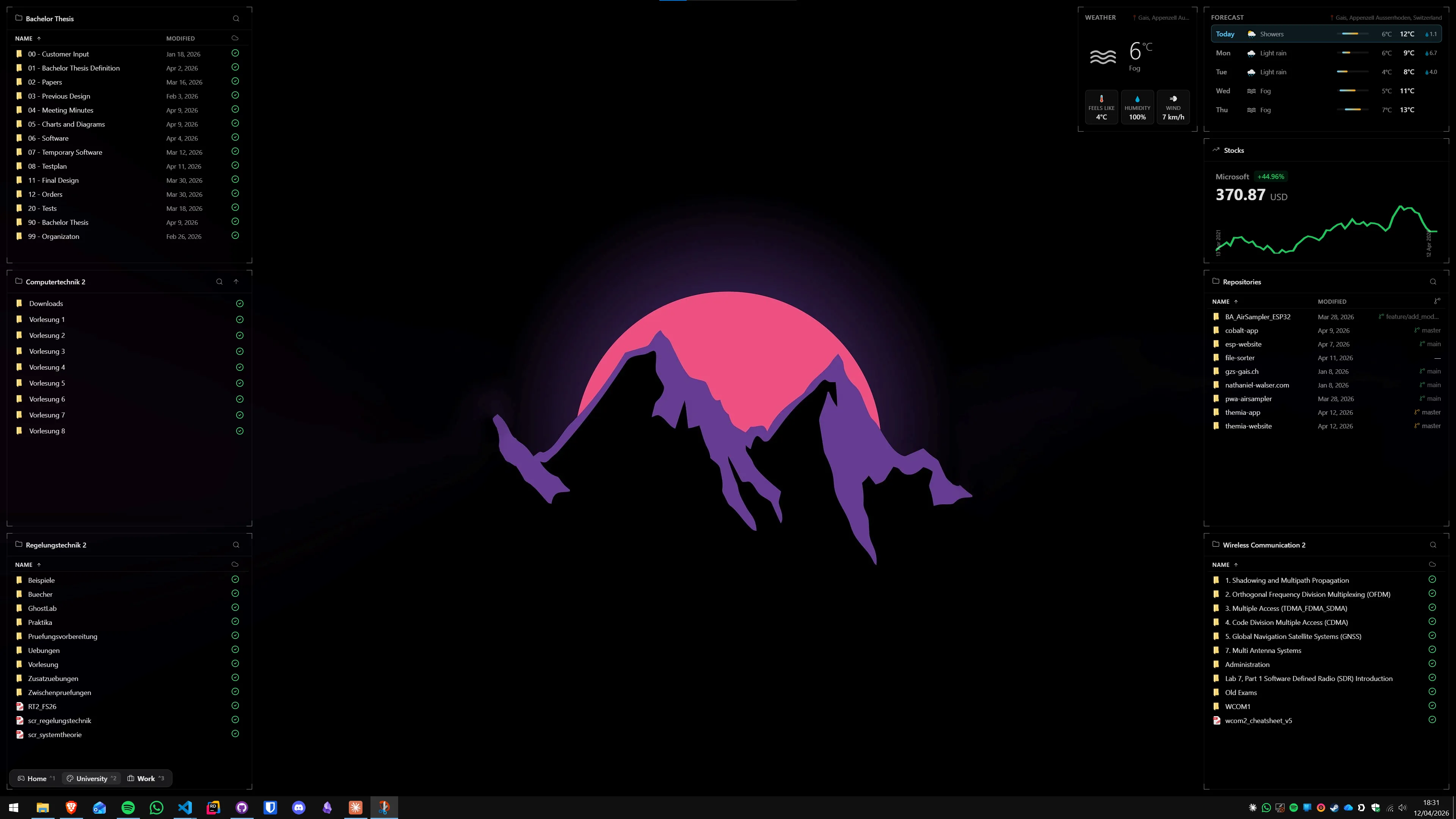
What a Windows 11 theme actually changes
Before diving into specific picks, it helps to understand the three layers of Windows theming — because most guides conflate them.
- Built-in themes (Settings → Personalization → Themes): change the wallpaper, colour scheme, cursors, and system sounds. Safe, reversible, no tools required.
- Custom visual styles: modify the window chrome — borders, title bars, control colours. Require a third-party patching tool (like SecureUXTheme) because Windows only allows Microsoft-signed themes by default.
- Icon packs: replace the icons for system folders, apps, and file types. Require a separate icon-swapping utility (7tsp, WinPaletter, or a commercial tool).
Most aesthetically impressive desktops you see on Reddit's r/desktops or r/unixporn (yes, Windows users post there too) combine all three. But you can get most of the visual impact from just a good wallpaper, a strong accent colour, and a quality icon pack — without touching system files at all.
Layer 1: Built-in themes worth using
Microsoft Store themes (free and paid)
Windows 11 has a small but curated selection of themes on the Microsoft Store. In Personalization → Themes, click Browse themes to open the store section. The free ones are limited but polished; the paid ones (usually $0.99–$2.99) include coordinated wallpaper sets with matching accent colours.
Notable picks available in 2026:
- Captured Motion (free): a moody dark theme with abstract photography wallpapers. Works well with a dark widget layout.
- Neon Nights (free): a purple-tinged dark theme that pairs naturally with a synthwave wallpaper approach.
- Azure Calm (free): a clean blue-and-white theme, the closest Microsoft offers to a "pro productivity" default.
- Glow (free): translucent pastel colours, soft gradients — the Windows 11 aesthetic taken to its logical conclusion.
These themes will not change your window chrome or icons, but they do set a coherent colour foundation that makes the rest of your desktop feel intentional.
Setting a custom accent colour
One of the most overlooked adjustments: Settings → Personalization → Colours → Accent colour → pick a custom colour. Windows 11 then uses this colour for highlights across the taskbar, Start menu, focus rings, and title bars. Pair it with a wallpaper that shares those tones and the entire desktop looks designed rather than default.
WinPaletter (free, open-source on GitHub) goes further — it lets you set separate colours for dark and light mode, the taskbar, window borders, and start menu individually, going beyond what Settings exposes. No system file patching required.
Layer 2: Community visual styles (custom window chrome)
This is where the most dramatic transformations happen — and where a little care is needed.
SecureUXTheme
SecureUXTheme is a free, open-source tool (GitHub: namazso/SecureUXTheme) that patches the Windows theme system to accept unsigned custom visual styles. It has been actively maintained through every Windows 11 update and is the standard method used by the desktop customization community.
The installation process is simple: download the latest release from the GitHub releases page, run it once as administrator, and it patches the relevant DLLs. After that, you can apply any custom .msstyles file by right-clicking it and choosing Install. A System Restore point before patching is a sensible precaution.
Top community visual styles in 2026
These are all actively maintained and available on DeviantArt or GitHub:
- niivu's Windows 11 themes (DeviantArt: niivu): consistently the most downloaded and best-maintained visual styles for Windows 11. Available in dozens of colour variants — Catppuccin Mocha, Nord, Dracula, Tokyo Night, and more. Clean Fluent Design approach with subtle border adjustments.
- Rectify11 (rectify11.net): a deeper intervention — it patches hundreds of inconsistencies in the Windows 11 UI (leftover Win32 dialogs, mismatched icons, old context menus). Not strictly a theme, but the result is a dramatically more cohesive Windows 11. Free, open-source, and well-documented. Works best alongside a custom visual style.
- WhiteSur for Windows (GitHub): a macOS Big Sur / Monterey-style theme. If you want the macOS aesthetic, this is more carefully crafted than most SkinPacks and lighter on system impact. Pairs well with a macOS Sonoma or Sequoia wallpaper.
- Fluent-Metro (DeviantArt / GitHub): a revival of the Windows 10 Fluent aesthetic applied more consistently across Windows 11. Good choice if you liked Windows 10's look and want to carry it forward cleanly.
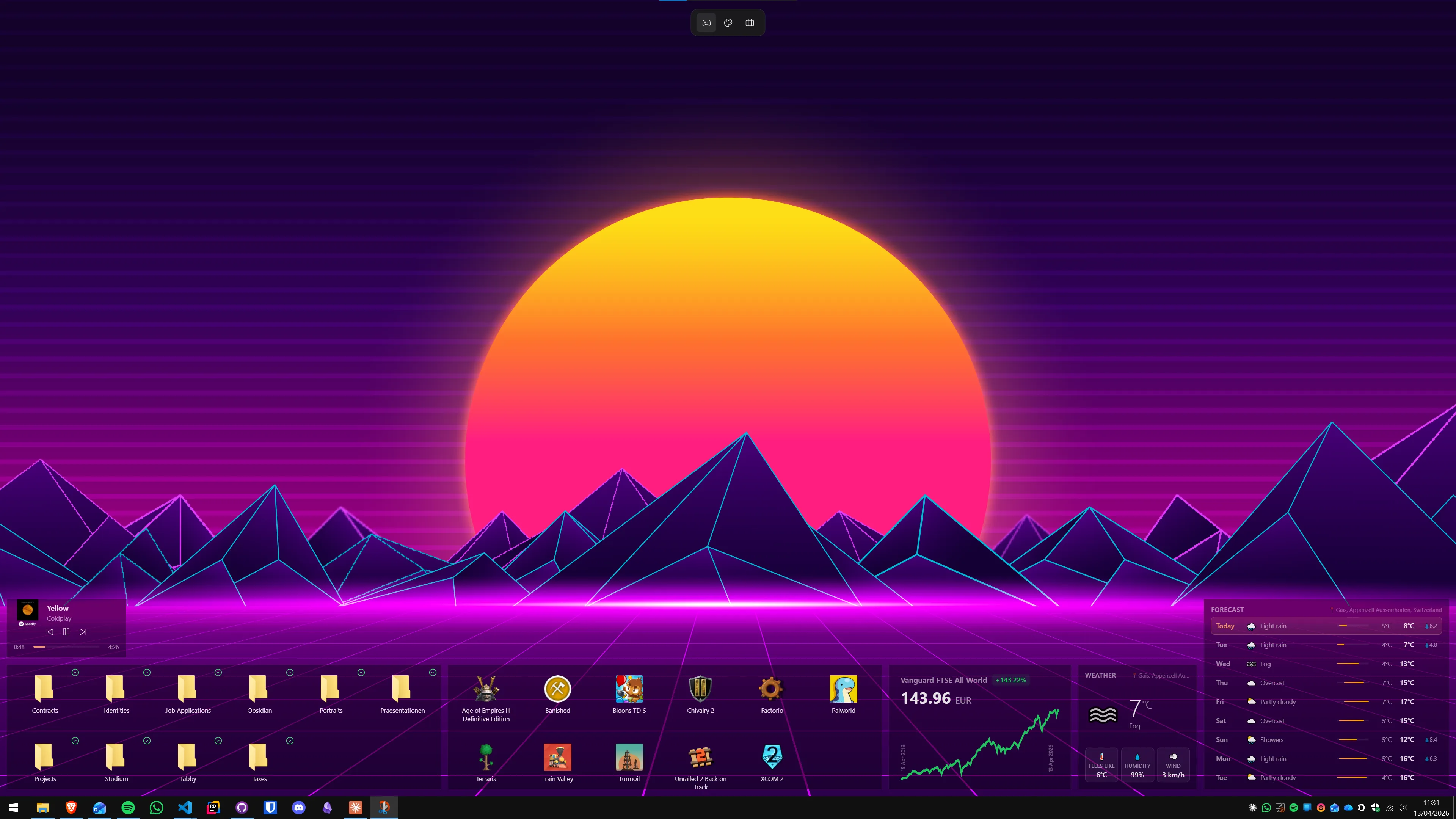
Layer 3: Icon packs
Icons have an outsized visual impact. Even a default Windows 11 installation looks significantly more cohesive once the folder icons, system icons, and file-type icons are replaced with a consistent set.
Tools for applying icon packs
- 7tsp GUI (free): the most widely used community tool. Patches system DLLs to replace icons in bulk. Takes a backup automatically before any changes. Works on Windows 10 and 11.
- IconPackager (Stardock, paid ~$9.99): a commercial alternative that is easier to install and uninstall cleanly. Worth it if you swap icon packs frequently.
- Folder Colorizer (free tier): specifically for recolouring folder icons without touching anything else. Useful for coding projects or a colour-coded filing system.
Best icon packs for Windows 11 in 2026
- Lumicons: flat, modern, consistent across hundreds of app and system icons. Available for 7tsp. One of the cleanest free packs available.
- Fluent Icons by niivu: designed to match niivu's visual styles — folder icons, system icons, and many app icons rethought in the Fluent aesthetic. Available on DeviantArt alongside the corresponding themes.
- Tealtones: a teal-and-dark icon set popular with Nord and Catppuccin desktop themes. Works well with dark visual styles.
- macOS Big Sur / Sonoma icons: multiple packs exist on DeviantArt that replicate macOS-style icons. Most consistent ones are by niivu and wg42 — check the download date to ensure Windows 11 compatibility.
- Cyberpunk 2076 icons: a yellow-and-dark icon set with a future-city aesthetic. Niche but consistently maintained on GitHub.
Completing the desktop: widgets and wallpaper
A great theme sets the palette. Widgets and a matching wallpaper complete the picture.
For wallpaper, the most consistently high-quality free sources in 2026 are Wallhaven (wallhaven.cc) — which lets you filter by colour, resolution, and tag — and the r/Wallpaper subreddit. For animated wallpapers, see our guide to Lively Wallpaper or Wallpaper Engine.
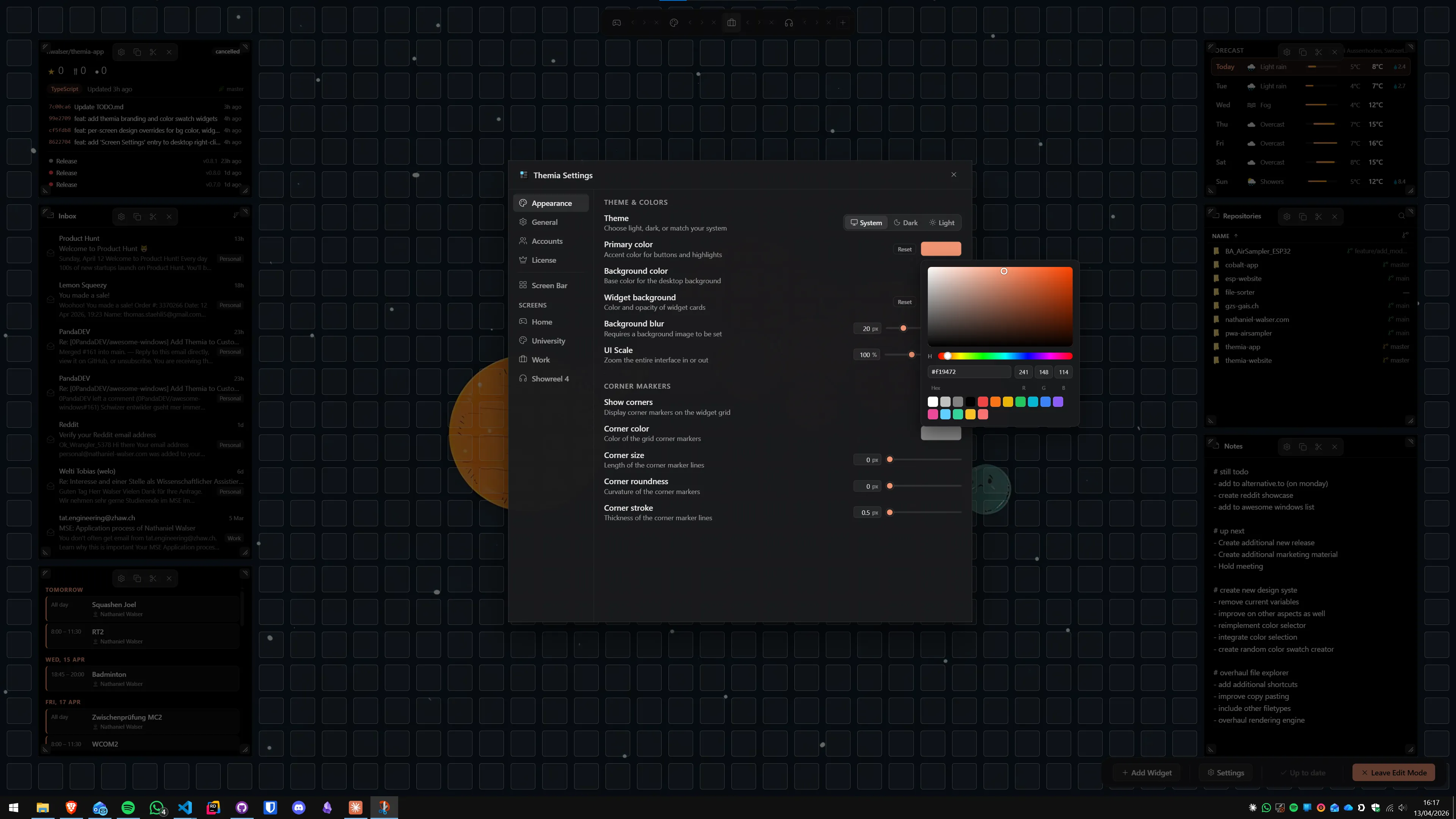
For desktop widgets — calendar, weather, system stats, notes, RSS — Themia is the native Windows widget app that layers on top of the wallpaper. The key is colour coherence: Themia's widget themes have transparent and semi-transparent options, so they pick up the tones of whatever wallpaper is behind them. In a well-riced desktop, the widgets become part of the theme rather than floating elements on top of it.
For people who want total control over every visual detail, the Windows ricing guide walks through the full process from start to finish.
Quick-start combinations that work
If you want a starting point rather than building from scratch, these combinations are consistent and popular:
- Minimalist dark: niivu Catppuccin Mocha visual style + Fluent Icons by niivu + a dark abstract wallpaper from Wallhaven + Themia widgets in transparent mode. Very common on r/desktops. Readable, non-distracting, and effective for productivity.
- Nord: niivu Nord visual style + Fluent Icons Nord variant + a nature/mountain wallpaper in cool tones + TranslucentTB for a matching taskbar. A well-worn combination that looks polished without effort.
- Synthwave retro: a dark purple-and-pink visual style (several variants on DeviantArt) + Cyberpunk 2076 icons + a retro synthwave wallpaper. Higher visual contrast, suits secondary-monitor dashboards well.
- Minimalist light: Fluent-Metro visual style in a light variant + Lumicons + a clean photography wallpaper from Unsplash. The closest you can get to a macOS-style calm workspace without going the full macOS route.
For truly minimal desktops — hiding icons entirely and letting the wallpaper breathe — the minimalist Windows desktop guide covers those techniques in detail. If you want a macOS aesthetic specifically, the dedicated macOS look guide goes deeper on dock, rounded corners, and font replacements.
What to avoid
A few categories of Windows theming are more trouble than they are worth:
- SkinPacks that replace shell files: some macOS or Ubuntu SkinPacks go very deep — replacing explorer.exe shell components, boot screens, and login screens. These are much harder to remove cleanly than standard themes and can leave artefacts after Windows updates. Custom visual styles + icon packs get you 90% of the visual result with far less risk.
- Old Rainmeter skins sold as "themes": some sites market Rainmeter skin collections as Windows 11 themes. They are not. Rainmeter skins are overlay elements, not system themes. They work fine, but they are a different product. See the Rainmeter alternatives guide for context on where Rainmeter fits today.
- EXE installers from unverified sources: legitimate theme packs are distributed as .msstyles + .theme files, or as .zip archives. An EXE installer for a "theme" is almost always bundled adware. Stick to DeviantArt direct downloads or GitHub releases.
- Tools that promise to "unlock all themes": the legitimate tool for this is SecureUXTheme. Tools that claim to do the same thing but are not open-source and are distributed without clear source are not something to run on your machine.
Practical workflow: theming a Windows 11 desktop from scratch
- Create a System Restore point: search "Create a restore point" in Start, click Create.
- Choose your palette: pick a colour scheme (Nord, Catppuccin, Dracula, synthwave) — this guides every other choice.
- Install SecureUXTheme from its GitHub releases page.
- Download a matching visual style from niivu on DeviantArt (or an alternative). Apply via right-click → Install, then activate it in Personalization → Themes.
- Install 7tsp GUI and apply a matching icon pack. Restart Explorer when prompted.
- Set a matching wallpaper from Wallhaven (filter by your palette's dominant colour).
- Set a matching accent colour in Personalization → Colours.
- Add desktop widgets via Themia — use transparent widget backgrounds so they absorb the wallpaper's tones.
- Optional: install TranslucentTB to make the taskbar translucent and match the theme.
Done correctly, the entire process takes about 90 minutes the first time. After that, swapping themes is a ten-minute exercise because all the tooling is in place.
For the full deep-dive on tooling, community resources, and the culture around desktop customisation, the free Windows desktop customization tools guide covers the complete landscape.
FAQ
Do Windows 11 themes change only the wallpaper?
No. A full Windows 11 theme package bundles a wallpaper (or a set of them), a colour scheme, a cursor set, and system sounds. Deeper third-party themes — applied via patched UxTheme or a tool like Rectify11 — also change window borders, title bar styling, control colours, and the overall visual chrome. The free themes on the Microsoft Store are lighter and change less. Icon packs are a separate layer on top; they require a dedicated icon-changer tool unless the pack ships as a SkinPack.
Is it safe to install custom Windows 11 themes from DeviantArt or GitHub?
Custom themes themselves are just resource files (images, colour definitions) — they cannot execute code. The risk comes from the tools required to apply them: SecureUXTheme patches a system DLL (uxtheme.dll) to allow unsigned visual styles. This is a legitimate, open-source project, but patching system files does carry a small risk if something goes wrong or a future Windows update reverses it. Stick to well-maintained, open-source tools (SecureUXTheme is on GitHub with thousands of stars), download only from the project's official repo, and make a restore point first.
What is the difference between a Windows 11 theme and a SkinPack?
A standard theme changes the OS colour scheme, wallpaper, cursors, and sounds using Microsoft's built-in theming system. A SkinPack goes further: it replaces shell files, system icons, sounds, and often the boot screen to imitate another OS (macOS, Ubuntu) or aesthetic. SkinPacks are easier to apply but harder to uninstall cleanly, and they modify more system files. For most users who just want a different look, a theme plus an icon pack gives better results with less system exposure.
Which icon pack changer tool should I use in 2026?
7tsp GUI (7-Tsp Icon Patcher) remains the most widely used free option for applying community icon packs in bulk — it patches system DLLs and takes a backup before doing so. WinPaletter is a good complement for accent colours and window border tweaks without touching icons. IconPackager from Stardock is a paid alternative that is easier to uninstall. For Microsoft Store app icons (which 7tsp cannot touch), you need to update them individually or use an app like Iconoid.
Will installing a custom theme break Windows Update?
Not typically, but a Windows Update can undo theme patches. Tools like SecureUXTheme are designed to survive most updates by patching at the OS level in a way that gets re-applied; however, a major feature update (like a new Windows 11 version) can reset it. Keep the theme tool around so you can re-apply after big updates. The theme files themselves and your wallpaper choices are never affected by updates — only the patching mechanism may need re-running.
Can I use a custom theme alongside desktop widget apps like Themia?
Yes, and they complement each other well. A custom theme or icon pack changes the visual chrome of Windows — the shell, the windows, the cursors. A widget app like Themia adds an information layer on top of the wallpaper. They operate at different layers and do not conflict. In fact, most desktop rices combine both: a carefully chosen theme sets the overall palette, and widgets like calendar, weather, or system stats reinforce the aesthetic while adding utility.