10 Best Free Windows Desktop Customization Tools
Windows out of the box is functional, not personal. The good news: you do not have to pay a cent to change that. The Windows customization scene has always rewarded frugal users — there is a deep, mostly open-source toolbox for reshaping your desktop, taskbar, Start menu, wallpapers, and widgets without ever reaching for a credit card.
This is a 2026-current list of the 10 best genuinely free Windows desktop customization tools. Every license is called out explicitly (MIT, GPL, proprietary-free, donationware) so you know exactly what you are signing up for. Nothing on this list is a trial, and anything with a paid tier is flagged so you can stick to the free stuff if you want.
At a glance
- Best overall free toolkit: Microsoft PowerToys (MIT)
- Best free widget engine for tinkerers: Rainmeter (GPLv2)
- Best modern widget app with a free tier: Themia
- Best free animated wallpaper app: Lively Wallpaper (GPL-3.0)
- Best free taskbar polish: TranslucentTB (GPLv3)
- Best free Start menu replacement: OpenShell (MIT)
- Best free desktop organizer: Nimi Places (donationware)
- Best free Windows 7 nostalgia: 8GadgetPack (free proprietary)
The 10 best free Windows desktop customization tools
Microsoft PowerToys
Best overallMicrosoft's own free toolbox — and easily the highest value-per-megabyte on Windows.
PowerToys is an official Microsoft project, MIT-licensed, open source, and distributed free via GitHub and the Microsoft Store. It bundles roughly two dozen utilities into one installer: FancyZones (window tiling), PowerRename (bulk renaming), PowerToys Run (a Spotlight-style launcher), Color Picker, Keyboard Manager, Always On Top, Text Extractor, Mouse Highlighter, and more.
Very little of PowerToys is decorative — most of it is quality-of-life plumbing — but it is the first thing I install on any new Windows machine and the baseline everything else layers on top of.
Pros
- Official Microsoft support, signed binaries
- MIT license — free forever, no ads
- FancyZones alone is worth the download
- Updates monthly with new modules
Cons
- Not a widget or visual-theming app
- A few modules are Windows 11 only
Related: Themia vs PowerToys.
Rainmeter
The classicFree, open source, and still the benchmark for total desktop control.
Rainmeter is the oldest entry on this list and still the most powerful free desktop widget engine on Windows. It renders "skins" described in config files — the widget ecosystem is a huge community on DeviantArt, Reddit, and GitHub, all free. Every jaw-dropping rice setup you have seen on r/Rainmeter is built from skins anyone can download.
The price of that power is a learning curve. Expect to spend an evening with an .ini file the first time you want to seriously customize a skin.
Pros
- Free and open source (GPLv2)
- Near-unlimited flexibility
- Vast free skin community
Cons
- Steep learning curve
- No built-in modern service integrations (email, calendar)
- Aesthetic quality depends entirely on the skins you pick
Related: Best Rainmeter alternatives.
Themia (free tier)
Modern widgetsA native, modern desktop widget app with a genuine free tier — no trial clock.
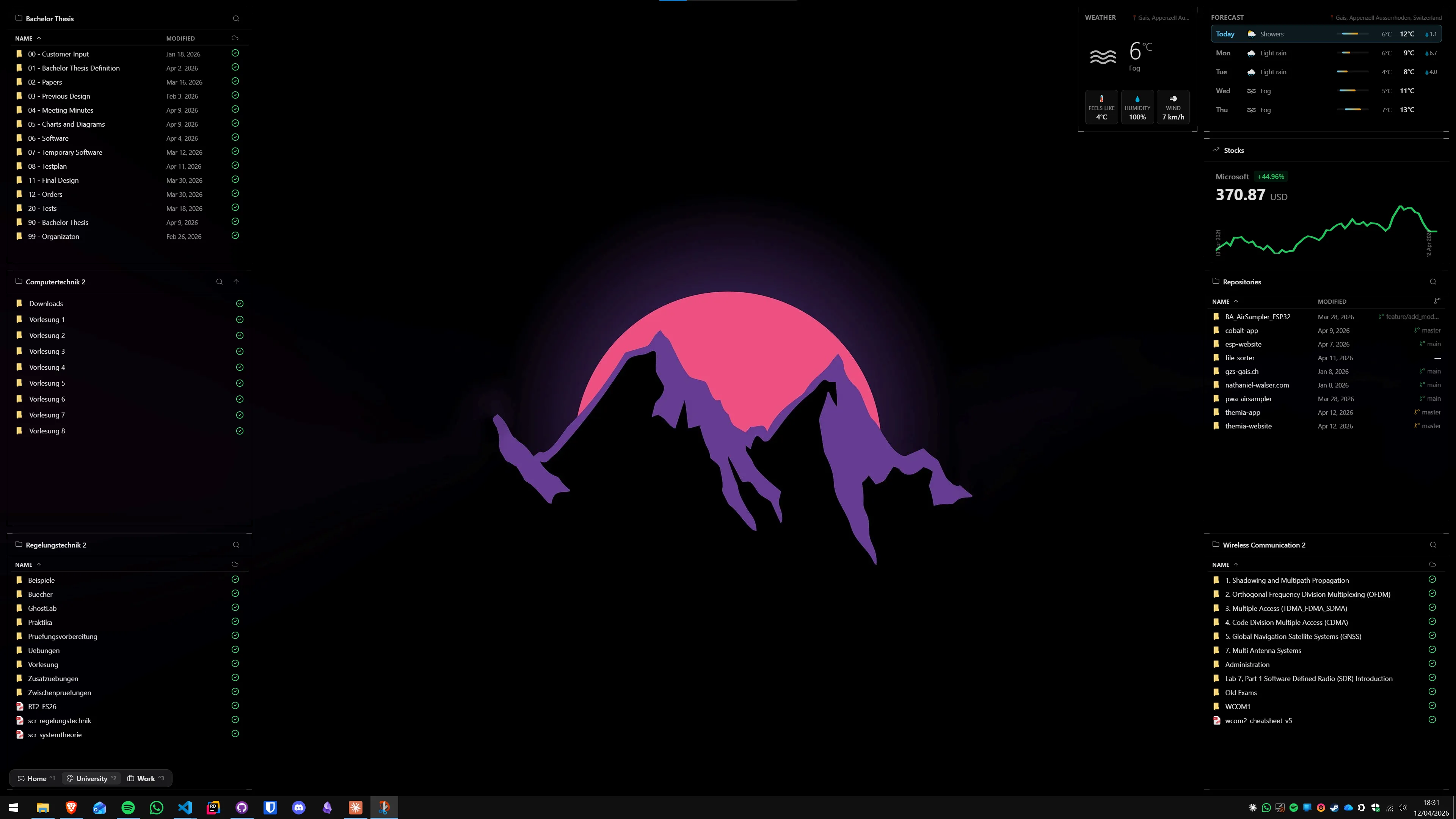
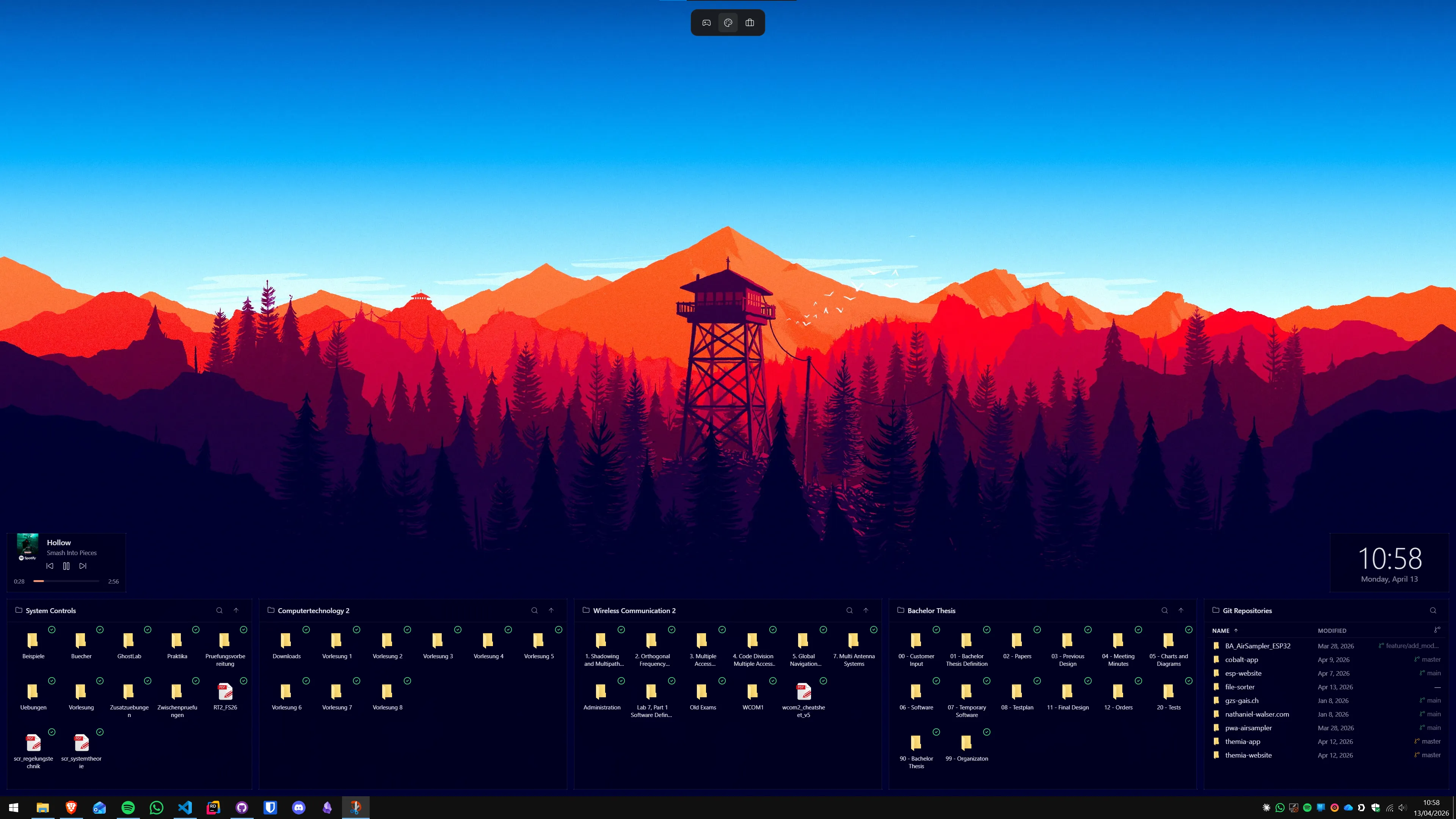
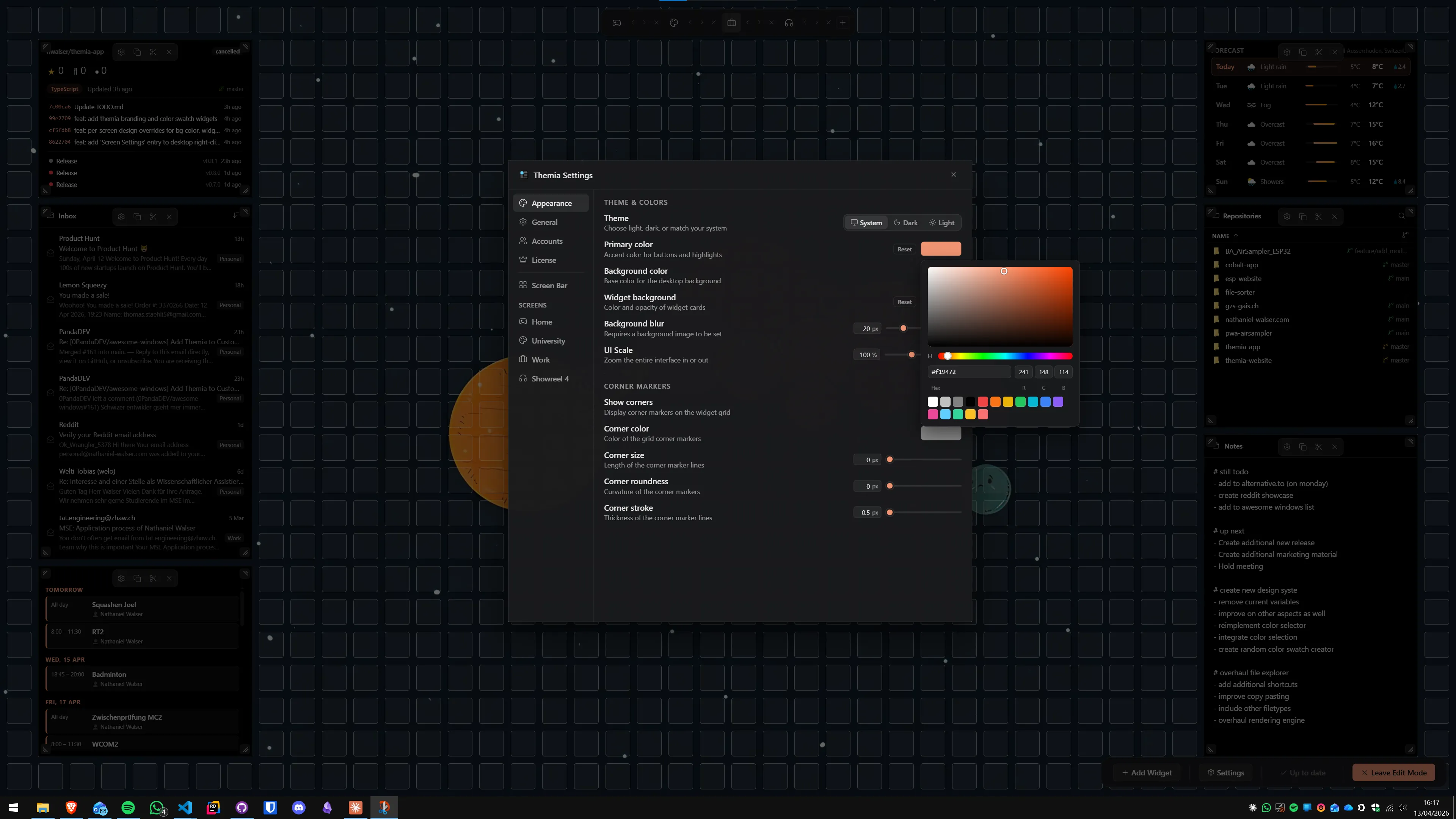
Themia is a native Tauri app (under 10 MB) that drops live widgets onto the desktop. The free tier covers the core widgets most people want: files, weather, system stats (CPU/GPU/RAM/disk/network), notes, to-do, clock, and battery. You can lay them out per screen, theme them in one click, and drag them wherever you want — no config files.
To be upfront: Themia also has a $19 one-time Pro tier for M365 email, calendar, stocks, GitHub, and a few other integrations. That is optional. If you stay on the free tier, you still get a modern, good-looking widget setup — and nothing expires.
Pros
- Genuine free tier (not a trial)
- Native, under 10 MB, fast startup
- Unified visual design across every widget
- Visual editor — no INI or Lua
Cons
- OAuth integrations (M365, GitHub) are Pro-only
- Closed source (free-as-in-beer, not free-as-in-code)
Related: Best Windows desktop widget apps.
Lively Wallpaper
Free wallpaper engineThe free, open-source answer to Wallpaper Engine — video, web, and shader backgrounds.
Lively Wallpaper is GPL-3.0 licensed, on GitHub, and also available in the Microsoft Store. It plays video wallpapers, HTML/JS web wallpapers, and GLSL shader wallpapers with per-monitor control and automatic pause-when-fullscreen so games and videos do not stutter. The community library is smaller than Wallpaper Engine's, but every feature is available without paying.
Pros
- Free and open source (GPL-3.0)
- Supports video, web, and shader wallpapers
- Per-monitor configuration
- Auto-pauses on fullscreen apps
Cons
- Smaller library than Wallpaper Engine
- Animated wallpapers cost real GPU cycles
Related: Themia vs Lively Wallpaper.
TranslucentTB
Taskbar polishA tiny, free, open-source tool that makes the Windows taskbar look the way it should have shipped.
TranslucentTB is one of the most popular free Windows utilities on GitHub for a reason: it does exactly one thing and does it well. It lets you set the taskbar to clear, blurred, acrylic, or fully opaque, with different states for desktop, maximized windows, Start, Cortana, or timeline. Available free in the Microsoft Store and on GitHub.
Pros
- Free and open source (GPLv3)
- Tiny and lightweight
- Microsoft Store install, no admin needed
- Per-state taskbar styles
Cons
- Taskbar only — scope is narrow by design
- Windows 11 updates occasionally break effects
Related: Themia vs TranslucentTB.
ModernFlyouts
Flyout redesignReplaces Windows' ugly old volume and brightness popups with Fluent-design flyouts.
Every time you press a media key or turn your laptop's brightness up, Windows shows a boxy flyout that has barely changed since Windows 8. ModernFlyouts replaces those with modern, Fluent-styled, translucent flyouts that also add media session info (album art, track names, controls) and an airpods-style battery indicator for some devices.
Pros
- Free and open source (GPLv3)
- Big visual upgrade for near-zero effort
- Media session UI is genuinely useful
Cons
- Scope is narrow — only flyouts
- Development has slowed recently
Open-Shell
Start menu replacementThe Classic Shell successor — a free, MIT-licensed classic Start menu for modern Windows.
Open-Shell (formerly Classic Shell) brings back the Windows 7-style Start menu on Windows 10 and 11 — nested folders, classic shutdown options, skinnable look. It is community-maintained, MIT-licensed, and entirely free. If the Windows 11 Start menu's centered, search-first layout actively frustrates you, Open-Shell is the single best free replacement.
Pros
- Free and open source (MIT)
- Classic, fast Start menu that respects keyboard nav
- Skinnable with community themes
Cons
- Aesthetic leans 2010, not 2026
- Major Windows 11 updates can require reinstalling
Nimi Places
Free desktop organizerThe free, donationware answer to Stardock Fences — skinnable containers for your desktop icons.
If your desktop is a graveyard of icons, Nimi Places groups them into skinnable "places" — containers with custom frames, backgrounds, and icon layouts. It supports icon stacks, auto-sort rules, and folder mirroring. It is donationware — fully free, donations optional — and has a loyal community that has kept it going for over a decade.
Pros
- Free (donationware)
- Deep visual theming per container
- Auto-sort and icon stack rules
Cons
- Proprietary (source not public)
- Only handles icons — no live widgets
8GadgetPack
Win7 nostalgiaThe most direct path back to Windows 7 sidebar gadgets — free, and it still works in 2026.
8GadgetPack (rebranded GadgetPack) re-enables the Windows 7 gadget platform Microsoft deprecated in 2012 and ships 50+ classic gadgets on top of it: clock, weather, CPU meter, RSS, calendar, sticky notes. It is entirely free (proprietary freeware). The look is unapologetically 2009, which is either charming or cursed depending on your taste.
Pros
- Free
- 50+ gadgets bundled
- Authentic Windows 7 sidebar feel
Cons
- Proprietary (source not public)
- Relies on a platform Microsoft deprecated for security reasons
- Aesthetic locked in the Win7 era
Files
File explorer replacementA free, open-source, modern replacement for Windows Explorer — tabs, columns, and Fluent design.
Files is an MIT-licensed, open-source file manager that fills the gaps in Windows 11 Explorer with multi-tab browsing, column view, tags, dual-pane layout, and proper Git integration. The free (community) version has every feature; the Microsoft Store version asks for a small optional payment to support development but is identical in features to the free GitHub build.
Honourable mention in the same slot: FancyWM (MIT-licensed keyboard-driven tiling window manager) and TaskbarX (donationware, centres your taskbar icons) are both free and round out the toolkit if you still want more.
Pros
- Free and open source (MIT) on GitHub
- Tabs, columns, tags, dual-pane
- Fluent design on Windows 11
Cons
- Occasional rough edges vs. Explorer stability
- Microsoft Store version has an optional paid price
How to pick
A 30-second decision tree:
- Start with PowerToys. It is a no-brainer on any Windows machine and costs nothing.
- Want live information on the desktop (email, weather, stats)? Themia free tier for the zero-config path, or Rainmeter if you enjoy the tinkering.
- Want a prettier wallpaper? Lively Wallpaper — free and open source, no reason to pay Wallpaper Engine until you have outgrown it.
- Hate how the taskbar looks? TranslucentTB.
- Hate how the Start menu works? Open-Shell.
- Hate how the flyouts look? ModernFlyouts.
- Too many desktop icons? Nimi Places, free.
- Miss the Windows 7 sidebar? 8GadgetPack.
- Want a better Explorer? Files.
Stacked together, those nine tools give you a completely reshaped desktop for $0. If you later decide you want OAuth-connected widgets for email, calendar, stocks, or GitHub, that is when something like Themia Pro is worth the one-time $19 — but it is optional, and the free tier already covers the most-used widgets.
Want to go deeper on any of these? Read the full Windows desktop customization guide, the best desktop widget apps list, or head-to-head deep dives: Themia vs PowerToys, Themia vs TranslucentTB, Themia vs Lively Wallpaper.
FAQ
Are these Windows customization tools actually free, or just free trials?
Every tool on this list is genuinely free to download and use without a trial timer. Most are open source (PowerToys, Rainmeter, Lively Wallpaper, TranslucentTB, ModernFlyouts, OpenShell, Files, FancyWM). Two are donationware (Nimi Places, TaskbarX) — free forever, donations optional. 8GadgetPack is free proprietary. Themia has a genuine free tier that covers the core widgets; the $19 Pro upgrade is optional.
Is it safe to install multiple customization tools at once?
Mostly yes, but there are a few known clashes. TranslucentTB, TaskbarX, and any other taskbar mod will fight each other — pick one. OpenShell replaces the Start menu, so do not stack it with another Start-menu replacement. PowerToys, Rainmeter, Themia, Lively Wallpaper, ModernFlyouts, Nimi Places, and Files are happy to coexist on the same machine.
Will free customization tools slow down my PC?
Well-built ones have negligible impact. PowerToys and Themia are small native apps. Rainmeter on its own is lightweight — problems usually come from individual community skins that poll hardware or the internet constantly. Animated wallpaper engines like Lively Wallpaper are the biggest CPU/GPU cost on this list and can be paused when a game or video is fullscreen.
Do I need admin rights to install these?
Most installers ask for admin once (PowerToys, OpenShell, 8GadgetPack, Rainmeter). Microsoft Store versions of Lively Wallpaper, Files, and TranslucentTB install without admin. Themia installs per-user by default. On a managed work laptop, check with IT before installing system-level tools like OpenShell.
Are these tools compatible with both Windows 10 and Windows 11?
Every tool here supports Windows 11. Most also support Windows 10 — the exceptions are some of the newest features in PowerToys (a few modules are Windows 11 only) and FancyWM, which focuses on Windows 11. 8GadgetPack explicitly supports Windows 10 and 11 by re-enabling a deprecated gadget platform.
What is the difference between free open source and free donationware?
Open source means the code is public and the license (MIT, GPL, etc.) guarantees you can keep using and modifying it forever. Donationware is proprietary but offered for free — the author asks for optional donations. Both are free in practice; open source gives you stronger long-term guarantees if the original author disappears.