How to Add a Contacts Widget to Your Windows Desktop
Windows 7 had the People sidebar gadget. Windows 10 had the People hub pinned to the taskbar. Windows 11 has neither — Microsoft quietly removed both over the years, and the built-in Widgets Board introduced in Windows 11 still does not include a contacts panel as of 2026. If you want to see your most-contacted people directly on the desktop wallpaper, you need a workaround or a third-party widget app.
This guide covers every practical method: the Phone Link path that pulls contacts from your phone, widget apps that put a live contacts panel on the desktop, and Rainmeter for users who want full visual control. Each method is evaluated honestly on setup time, real-world usefulness, and what it actually shows.
Why a contacts widget is worth the setup
The typical workflow for contacting someone from a Windows desktop involves opening a browser or app, searching for the person, then copying or clicking their details. For someone you message or call every day, that friction adds up.
A contacts widget on the wallpaper changes the dynamic: names, phone numbers, and email addresses are visible whenever the desktop appears. Clicking a phone number can open a call through Phone Link, Teams, or Skype. Clicking an email address opens a compose window in your default mail client. The people you contact most often are one click away from any moment your desktop is visible — not buried behind an open window or a search query.
The use case is strongest for:
- Freelancers and consultants who communicate with a fixed set of clients daily and want quick access without digging through a contact app.
- Home office workers whose desktop is a dashboard rather than a folder dump — the productivity dashboard setup guide covers this layout in full.
- Anyone on a dual-monitor setup who dedicates a secondary screen to persistent information, as described in the dual monitor widget guide.
- Small business owners managing supplier or client relationships without a CRM.
What Windows 11 gives you natively
Before installing anything, it is worth understanding what Windows 11 still offers for contacts visibility.
- Phone Link contacts. Phone Link (formerly Your Phone) is a first-party Microsoft app that pairs a Windows 11 PC with an Android or iOS device. On Android, it syncs full contacts to the Windows People store, making them available across Windows apps. On iOS the sync is more limited — primarily calls and messages. Phone Link itself is a full application window, not a desktop widget, but it is the cleanest bridge between your phone address book and your PC.
- Windows People app (deprecated role). The standalone People app still exists in Windows 11 and can aggregate contacts from Outlook.com, Google, Exchange, and CardDAV accounts added in Settings. It does not appear as a taskbar widget anymore, but it populates the Windows People store that other apps and widgets can read from.
- Widgets Board (Win+W). The built-in Windows 11 Widgets Board does not include a contacts widget as of 2026. There is no first-party panel for displaying contact cards in the board.
- Taskbar search and Start. Typing a contact name in Windows Search or the Start menu will surface them if they are in the People store, but this is pull-based — you have to search, not glance.
None of these put an always-visible contacts panel directly on the desktop wallpaper. For that, the methods below are what actually works.
Method 1: Phone Link for phone-sourced contacts (built-in, no extra install)
If your contacts live primarily on your phone and you pair it with Windows 11 via Phone Link, you already have a reasonable contacts bridge. To set it up:
- Open Phone Link from the Start menu (it ships with Windows 11). If it is not installed, find it in the Microsoft Store.
- Follow the pairing flow: scan the QR code on your phone, install the companion app (Link to Windows on Android), and grant contact sync permissions.
- Once paired, Phone Link shows a People tab with synced contacts. You can initiate calls, texts, and sometimes WhatsApp messages directly from the app.
Pros: free, built-in, automatically syncs with your phone address book, no contact data entry on the PC.
Cons: Phone Link is a full app window, not a desktop widget — you have to open it to see contacts; Android works much better than iOS for contact sync; requires Bluetooth or the same Wi-Fi network for the connection to stay active.
Who it is for: users whose contact list is on their phone and who do not need contacts persistently visible on the wallpaper, just quickly accessible when needed.
Method 2: Desktop widget app — persistent contacts on the wallpaper
The cleanest way to get an always-visible contacts panel on the desktop surface is a widget app that renders directly on the wallpaper layer. The most practical option in 2026:
Themia
Themia is a native Windows widget app built on Tauri — the installer is under 10 MB, it runs on Windows 10 and 11 without a .NET runtime or background browser engine, and it includes a dedicated contacts widget that reads from the Windows People store.
- Download and install Themia from the Themia website.
- Right-click an empty area of the desktop and choose Add widget → Contacts.
- In the widget settings, click Select contacts. Themia reads from the Windows People store — any account (Outlook, Google, Exchange, CardDAV) already syncing to Windows will appear here. Select the contacts you want to pin.
- The widget appears on the desktop. Drag it to the position you want, resize it by dragging a corner, and set how many contacts to display in the panel.
- Contact names, photos (if available), and quick-action buttons (call, email) are rendered directly on the wallpaper layer.
Pros: true wallpaper-layer rendering, reads from Windows People store (so Outlook, Google, and Exchange contacts all work), one-click calling via Phone Link or Teams, tiny resource footprint.
Cons: requires contacts to be in the Windows People store — contacts stored only locally on a phone need Phone Link sync first; some advanced theming requires the $19 Pro unlock.
Who it is for: most people in this guide — you want a persistent, styled contacts shortcut on the desktop with minimal friction.
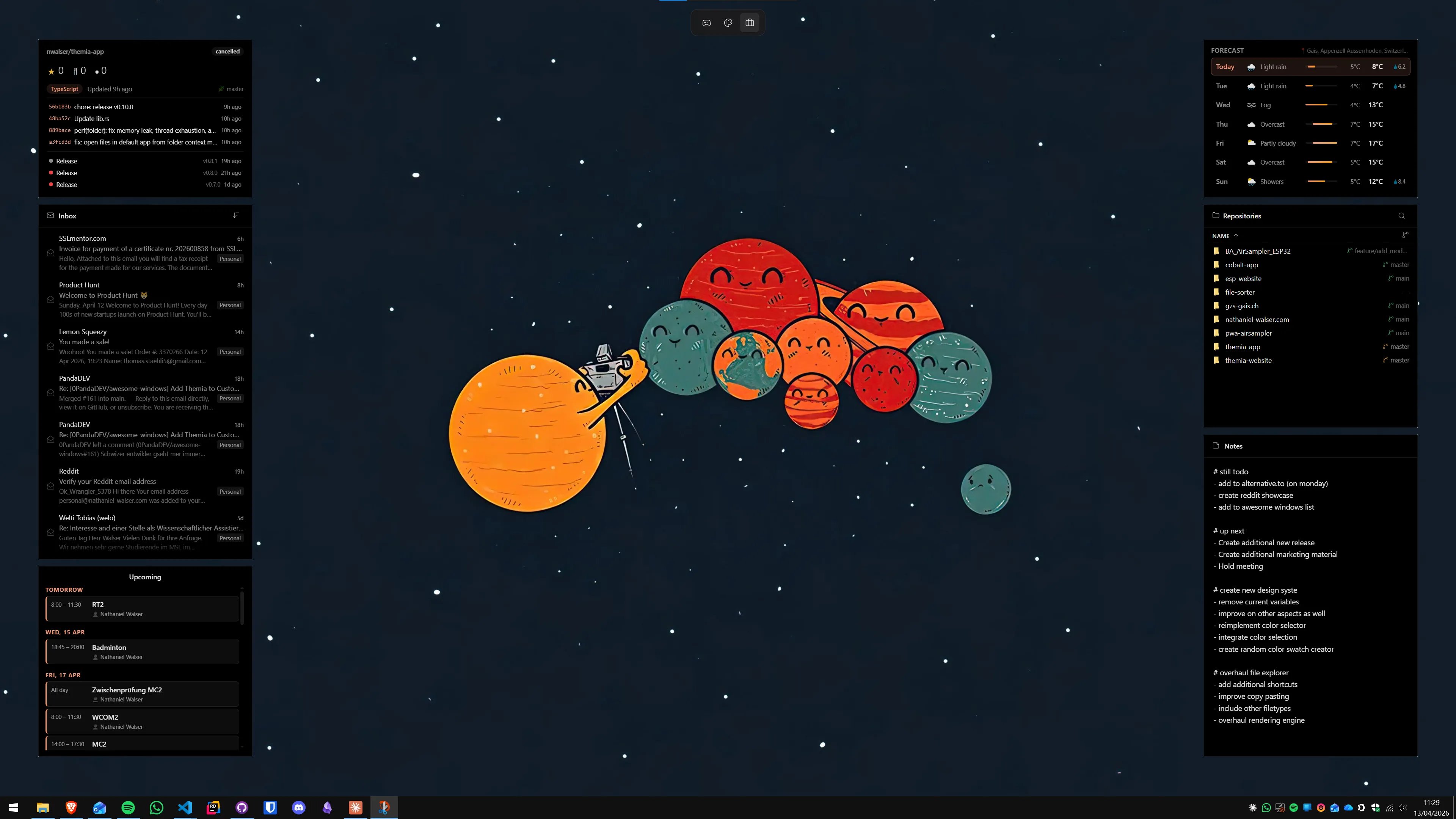
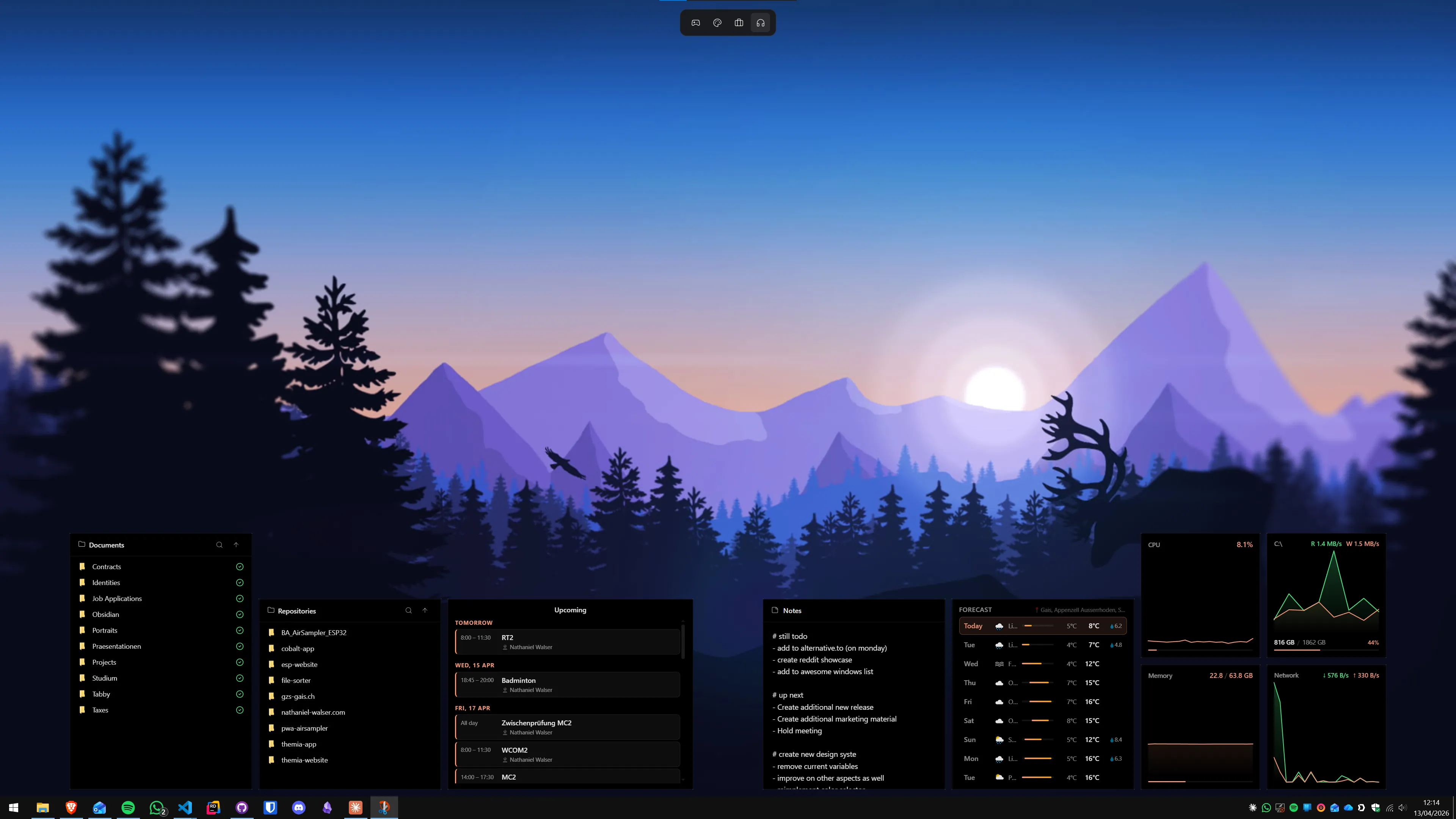
The contacts widget fits naturally alongside other Themia panels. The combination of contacts, calendar, email, and a to-do list turns the desktop into a complete morning dashboard — the email widget guide covers the email side, and the to-do widget guide covers tasks.
Method 3: Contacts in a compact window or pinned app
For users who prefer working with native apps rather than a widget layer, two approaches keep contacts accessible without a full app context switch:
Outlook People pane (compact window)
The new Outlook for Windows (the 2023+ web-based version) includes a People section in its left sidebar. You can resize Outlook to a narrow panel and snap it to the edge of a secondary monitor, giving a persistent contacts view. This is not a wallpaper widget — it is a real application window — but for users with a dedicated secondary display, it provides always-visible contacts with full Outlook sync. The Outlook compact panel approach is also described in the developer desktop setup guide in the context of keeping communication tools visible without dominating the primary monitor.
Windows People app in a small window
The legacy People app (available in the Microsoft Store if not pre-installed) can be set to always-on-top via the title bar options in Windows 11. Resize it to a small panel showing your favorites list and place it in a corner of the secondary screen. It is a full application window rather than a wallpaper widget, but it has direct integration with the Windows People store and requires no third-party software.
Method 4: Rainmeter with a contacts skin
Rainmeter does not natively read from the Windows People store, but it can display contact information from a manually maintained local file. Several approaches exist:
CSV-based contact skin
Create a plain text or CSV file with columns for name, phone, and email. A Rainmeter skin using the String meter can read this file and render the contact rows as a styled panel on the desktop. Clicking a row can trigger an action measure that opens the phone number in your default calling app or composes an email. The visual output can be designed to match any aesthetic precisely — fonts, colors, transparency, and spacing are all configurable in the skin INI file.
Pros: completely free, full visual control, no dependency on the Windows People store.
Cons: no automatic sync — every contact change must be manually reflected in the CSV file; INI file editing required for setup and adjustments; a significant time investment compared to widget apps.
Who it is for: Rainmeter enthusiasts who already have a complete skin setup and want contacts to match their existing aesthetic. For a side-by-side comparison of the two approaches, the Themia vs Rainmeter comparison covers the tradeoffs.
Getting your contacts into Windows in the first place
The widget layer is only as good as the data it reads. If your contacts are currently scattered across a phone, a Google account, and an Outlook inbox, consolidating them first will make any widget setup more useful.
- Google Contacts: Go to Settings → Accounts → Add account → Google in Windows 11. Make sure Contacts is toggled on in the account sync settings. Google contacts will appear in the Windows People store within a few minutes.
- Outlook.com or Microsoft 365: Add the account in Settings → Accounts → Email & accounts. Outlook contacts sync to the People store automatically once the account is connected.
- CardDAV (iCloud, Fastmail, Nextcloud): Open the People app, click the settings gear, and add a CardDAV account. iCloud requires an app-specific password.
- Phone contacts (Android): Set up Phone Link as described in Method 1. After the initial sync, Android contacts appear in the Windows People store.
Which method is right for you
- Contacts are on your phone, and you mostly need to call or text: Phone Link — sync your phone and use the People tab inside the app.
- Want persistent contacts on the wallpaper with one-click email and call: Themia's contacts widget — the lowest friction path to a properly on-desktop contacts panel.
- Have a secondary monitor and prefer a real app window: Resize the Outlook People pane or the legacy People app and snap it to the secondary screen edge.
- Want full visual control over the layout and have time to invest: Rainmeter with a CSV-backed contacts skin — maximum flexibility, real setup commitment.
For most people, the widget app path gives the best result for the effort. If you are already using Themia for a calendar or email panel, adding contacts takes about a minute in the widget settings. The best Windows widget apps roundup surveys the full landscape if you want to compare options before committing.
FAQ
Does Windows 11 have a built-in contacts widget on the desktop?
No. Windows 11 removed the People hub that appeared in the Windows 10 taskbar in 2021. The modern Widgets Board (Win+W) does not include a contacts widget as of 2026. The only native contacts-related feature still in Windows 11 is the Phone Link app, which mirrors contacts from a paired Android or iPhone — but it opens as a full application window rather than a persistent desktop widget. For an always-visible contacts panel on the wallpaper, a third-party widget app is required.
What is a contacts widget actually useful for on a desktop?
A contacts widget earns its place on the desktop for anyone who communicates with a fixed set of people every day — clients, colleagues, family members, or regular suppliers. With the contact card visible on the wallpaper, clicking a phone number initiates a call through your default app (Phone Link, Skype, Teams), clicking an email address opens a compose window, and the name and photo serve as a visual reminder for anyone whose details you reach for repeatedly. It is especially useful on a second monitor or home office setup where the desktop is visible most of the day.
How does Themia's contacts widget connect to my address book?
Themia's contacts widget reads from the Windows People store, which aggregates contacts from accounts you have added in Windows Settings (Outlook.com, Google, Exchange, and CardDAV sources). Any account already syncing contacts with the Windows People app will appear in Themia's contact picker automatically. You select which contacts to pin to the widget — there is no separate import step. Changes made in the source account (name, photo, phone number) sync through the Windows People store and appear in the widget after the next refresh.
Can I add a contacts widget with Rainmeter?
Rainmeter does not have a native address-book integration. The closest approach is a manually maintained skin that reads contact data from a local file — typically a CSV or a plain text file you populate by hand with names, phone numbers, and email addresses. Several skins on DeviantArt implement this pattern. It works, but it means keeping the contact list in sync manually. If a contact's details change in your phone or email provider, the Rainmeter skin will not update unless you edit the source file yourself.
Will a contacts widget work if my contacts are only on my phone?
Yes, with Phone Link. Microsoft's Phone Link app (built into Windows 11) can sync contacts from a paired Android or iOS device and make them available in the Windows People store. Once Phone Link has synced the contacts and they appear in the People app, Themia's contacts widget can display them. The sync requires Bluetooth or a network connection between the phone and PC. iOS support via Phone Link is more limited than Android as of 2026 — primarily phone calls and messages rather than full contact sync.
How many contacts can I pin in a single widget?
Themia's contacts widget is designed for a curated shortlist rather than a full address book — typically 4 to 12 contacts depending on the widget size you set. This is intentional: the value of a desktop contacts panel is having the five people you communicate with most always visible at a glance, not replicating the full People app. For a larger address book you can add a second contacts widget instance and assign a different group to each, positioning them in separate areas of the desktop.