How to Show CPU and GPU Temperature on Windows
If you have ever watched a game stutter and wondered whether it was a frame-pacing issue or the GPU hitting thermal limits, or opened a laptop chassis because you suspected the cooler had come loose, or tuned a curve in Precision Boost Overdrive and wanted a live sanity check, you already know why an always-visible temperature readout on the desktop matters. Utilization graphs only tell you that the chip is busy. Temperature tells you whether it is happy about it.
This guide is the 2026 version of the question that has been asked for as long as Windows has had a desktop: how do you get CPU and GPU temperatures displayed live, somewhere you can glance at without opening a tool? The short answer is that you need two things working together — a program that actually reads the sensors, and a program that draws numbers on the desktop. The long answer is below.
Utilization is not temperature (and Windows does not help)
The first thing worth being precise about: utilization and temperature are different measurements. Windows Task Manager, the Xbox Game Bar performance overlay, and almost every minimalist "system stats" widget on the Microsoft Store show you utilization — a percentage of how busy the CPU, GPU, RAM, disk, and network are. That is useful, but it is not a thermometer.
Temperature is measured by physical sensors inside the silicon. Intel CPUs expose per-core DTS values; AMD CPUs expose Tctl and Tdie; GPUs expose a core temperature (and, on modern Nvidia and AMD cards, a memory junction temperature that often matters more than the core). Windows does not expose any of these through a user-facing API. Task Manager will show GPU temperature if the graphics driver feeds it up, which has been true since Windows 10 20H1, but it does not show CPU temperature anywhere, and it probably never will.
That means every always-visible CPU and GPU temperature readout on Windows is doing the same thing under the hood: a third-party program reads the hardware sensors, and something else renders the numbers. The interesting question is which combination is right for you.
The sensor-reading tools
These are the programs that talk to hardware directly. Most people only need one of them running; the others are stacked on top to display the numbers those programs produce.
HWiNFO (free, the de facto standard)
HWiNFO is the program almost every serious Windows sensor setup is built around. It is free for personal use, it is actively developed (version 8.4x as of spring 2026, with added support for Panther Lake NPUs and the RTX 50 series), and its sensor list is deeper than anything else on Windows — CPU package and per-core temps, motherboard VRM and chipset sensors, SSD controller temperatures, VRM currents and voltages, fan tach inputs, GPU hotspots and memory junctions, all in one window.
Its real power is the Shared Memory interface. With Shared Memory enabled, HWiNFO publishes every sensor it reads into a memory region that Rainmeter, AIDA64-style sensor panels, custom widget skins, and third-party display apps can subscribe to. In practice, HWiNFO is the plumbing and everything else is the tap. If you only install one sensor-reading tool in 2026, install HWiNFO.
LibreHardwareMonitor (free, open source)
The original Open Hardware Monitor stopped receiving meaningful updates around 2020. LibreHardwareMonitor is the community fork that picked it up, and it has become the go-to open-source alternative — active development, modern CPU and GPU support, a small memory footprint, and the same simple tree-of-sensors UI. It is slightly behind HWiNFO on obscure hardware and VRM detail, but it is fully open source (MIT licensed) and it is what a lot of third-party dashboards, home-assistant integrations, and custom widgets use as a data source if HWiNFO's license is a sticking point.
AIDA64 (paid, polished)
AIDA64 Extreme is the commercial option and a long-standing favorite of case modders and custom-PC builders because of its SensorPanel feature — a configurable dashboard you can pin to the desktop or route to a secondary display. Its sensor coverage is on par with HWiNFO, the UI is more polished, and the SensorPanel editor is genuinely nice to use. The trade-off is price: AIDA64 Extreme is a one-year license, not a permanent free-for-personal-use deal, and if you already have HWiNFO plus Rainmeter you are probably paying for presentation rather than functionality.
HWMonitor (free, basic)
CPUID's HWMonitor is the minimum viable sensor tool: it opens, it shows temperatures, voltages, and fan speeds in a plain window, it gets updates, and that is the whole product. There is no shared-memory export in the free version (HWMonitor Pro offers it), so it is not much use as a data source for widgets. But as a quick "what is this machine actually running at" check, especially on a new or borrowed PC, it is fine.
The display tools
Once a sensor-reading tool is feeding values, you need something that puts them on screen. This is where the "desktop widget" part of the question actually lives.
Rainmeter skins with HWiNFO plugin
Rainmeter is the classic Windows desktop skin engine, and it has a first-party HWiNFO integration. The official Rainmeter documentation covers the setup: enable the relevant output mode inside HWiNFO, point a Rainmeter measure at the sensor IDs you care about, and you have live temperatures anywhere on the desktop. Community skins like Rainformer's HWiNFO edition and SSyl's HWiNFO skin ship ready-to-use with CPU temp, GPU temp, and load all wired up.
The cost of Rainmeter is time — every element is configured through INI files, fonts and layouts need manual tuning, and keeping a skin looking good across DPI changes is its own small project. The payoff is that nothing else on Windows gives you the same degree of visual control. For a deeper comparison of the two approaches, see Themia vs Rainmeter.
MSI Afterburner with RivaTuner Statistics Server (RTSS)
MSI Afterburner is nominally a GPU overclocker, but the Afterburner + RTSS pairing is the overlay of choice for PC gaming. Afterburner monitors GPU and CPU sensors; RTSS renders them as an on-screen display that floats over whatever application has focus — including the desktop, if you want. You tick the sensors you want (GPU temp, CPU temp, framerate, frametime, VRAM, RAM), set them to show in the OSD, and that is it.
The upside is zero configuration compared to Rainmeter and an overlay that follows you into games. The downside is that it is an overlay, not a desktop widget — the numbers sit in a corner of the screen, always on top of whatever is focused, which is right for gaming and wrong for a calm desktop.
HWiNFO sidebar mode
Worth mentioning on its own: HWiNFO has a built-in sidebar/gadget mode that pins a compact, always-on-top panel to the edge of the screen with whichever sensors you pick. It is not beautiful, but it is zero additional software and it works on every edition of Windows 10 and 11. For "I just want CPU and GPU temp somewhere visible and I do not care how it looks", this is often the fastest answer.
Modern widget apps
A newer category of tools tries to collapse the sensor-plus-display split into one native desktop widget app. This is where honesty is important, because the feature lists differ on exactly this point.
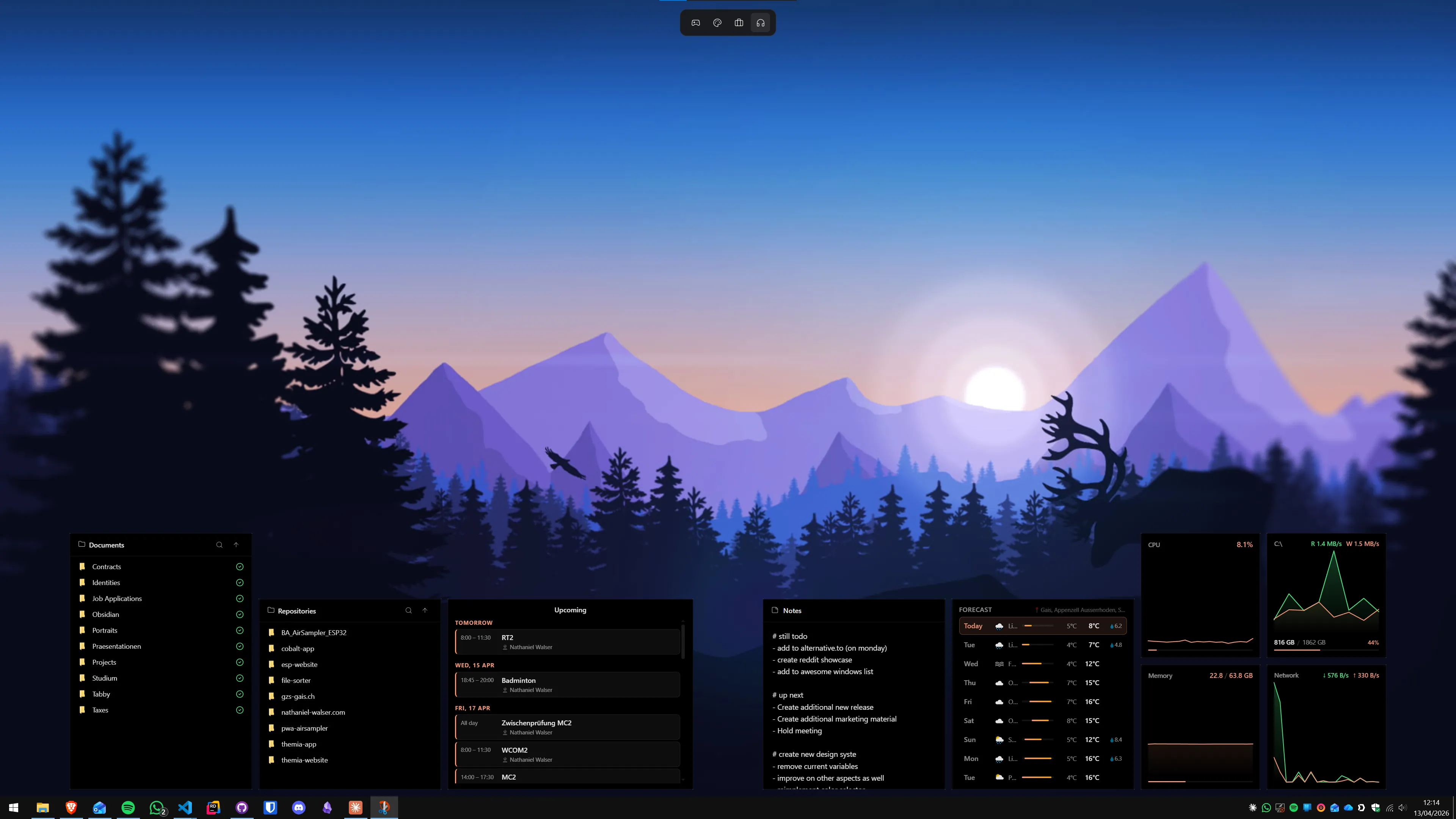
- Themia — a native Tauri-based Windows widget app, under 10 MB, with a free tier and a one-time $19 Pro upgrade. Its system stats widget shows CPU, GPU, RAM, disk, and network usage in real time. At the time of writing it reports utilization, not on-die temperature — so if always-visible temps are your only goal, pair Themia with HWiNFO's sidebar for the temperature numbers, or use a Rainmeter skin alongside.
- XWidget and 8GadgetPack — these older Windows-7-style gadget hosts include community widgets that read Core Temp or HWiNFO. Coverage varies widget-to-widget; test any specific skin before trusting it as a readout.
- AIDA64 SensorPanel — effectively a widget app bundled with a paid sensor tool. If you want a polished dashboard and do not mind the license cost, it is the most complete one-stop answer.
Recommended stacks for 2026
A few setups that actually work, depending on what you are optimizing for.
Beginner: HWiNFO + a Rainmeter skin
Install HWiNFO, enable its shared-memory output (or the Rainmeter-compatible registry-gadget mode on non-Pro), install Rainmeter, and drop in a pre-built HWiNFO skin like Rainformer or SSyl's. Ten minutes of setup, free, infinitely customizable later. This is the setup most people asking this question actually want.
Overclocker / gamer: MSI Afterburner + HWiNFO
Afterburner and RTSS for the in-game overlay, HWiNFO in the background as the authoritative sensor log (it records min/max/average for every sensor across a session, which is gold when you are dialing in curves). If you only game full-screen, you can skip Rainmeter entirely — the RTSS overlay is enough.
Modern / minimal: widget app + HWiNFO sidebar
If your aim is a calm, native-looking desktop — weather, calendar, files, system usage, all on the wallpaper — use a widget app like Themia for the everyday stuff and let HWiNFO's sidebar carry the temperature display until either a) one of the widget apps ships a proper temperature widget, or b) you add a single Rainmeter skin just for temps. For the wider context on desktop customization, see the Windows desktop customization guide and the best Windows desktop widget apps roundup.
Two practical notes before you start
Do not stack three sensor-reading tools. HWiNFO, LibreHardwareMonitor, HWMonitor, and AIDA64 all poll the same underlying hardware. Running two of them simultaneously is usually fine; running three or four can cause intermittent read failures on SMART data and VRM sensors, because some of those reads briefly lock the hardware. Pick one as the source and let everything else subscribe to it.
Sensor names are not standardized. "CPU" temperature on an Intel system might be Package, DTS #0, or the motherboard CPU socket sensor — each slightly different. On AMD it is usually Tctl/Tdie. When a Rainmeter skin shows a wildly different number from Afterburner, this is almost always why. HWiNFO's sensor list labels everything clearly; match on that, not on guesses.
None of this is particularly hard. The reason it feels hard is that Windows itself still refuses to expose a unified sensor API, so the ecosystem has grown up around a handful of excellent third-party tools that read the hardware directly and share their data with everything else. Install HWiNFO first, pick a display surface that matches how you actually use your desktop, and you will have live CPU and GPU temperatures somewhere you can glance at in under fifteen minutes.
FAQ
Can Windows 11 show CPU temperature without any extra software?
No. Windows has no user-facing sensor API for CPU die temperatures. Task Manager exposes GPU temperature when the graphics driver reports it, but CPU temps come from on-die thermal sensors (DTS on Intel, Tctl/Tdie on AMD) and from the motherboard super-I/O chip, and Microsoft does not read or surface those. The only built-in option is your motherboard firmware (BIOS/UEFI) hardware monitor screen, which is not useful once Windows boots. Any always-visible desktop readout requires a third-party tool that talks to the hardware directly.
Is HWiNFO really still the best option in 2026?
For raw sensor accuracy and breadth, yes. HWiNFO is on version 8.4x as of early 2026, it supports the latest Panther Lake NPUs and RTX 50-series GPUs, and it remains free for personal use. Its sensor list reads directly from on-die thermal diodes, super-I/O chips, GPU drivers, SMART data, and VRM controllers, and almost every other Windows monitoring ecosystem (Rainmeter skins, AIDA64-style panels, third-party widget apps) relies on HWiNFO as the underlying data source via its shared-memory interface.
What is the difference between CPU utilization and CPU temperature?
Utilization is how much of the CPU is busy doing work, expressed as a percentage of its theoretical capacity. Temperature is how hot the silicon die or package is, in degrees Celsius, measured by a physical sensor inside the chip. They are related but not the same — a short burst at 100% utilization can push temperatures up quickly, while a long workload at 60% utilization can sit at a steady high temperature. Most built-in Windows widgets and system stats displays show utilization. Temperature specifically requires a tool that reads the thermal sensors.
Does Themia show CPU and GPU temperature on the desktop?
Not at the moment. Themia's current system stats widget reports CPU, GPU, RAM, disk, and network usage in real time — utilization, not temperature. If temperature is the only thing you need always visible on the desktop, the honest answer is to pair HWiNFO (as the sensor source) with a Rainmeter skin that displays those values, or use HWiNFO's own sidebar mode. A temperature widget is a reasonable request for any modern widget app and worth tracking in release notes.
Will running HWiNFO, Afterburner, or LibreHardwareMonitor all the time hurt performance?
Barely. The polling interval is typically one or two seconds and each tool is optimized to read sensors with minimal overhead — you are looking at a fraction of a percent of CPU and a few tens of megabytes of RAM. What you should avoid is running several of them simultaneously, because some sensor reads (especially SMART queries and VRM polling) briefly acquire exclusive access to the hardware and can conflict. Pick one sensor-reading tool as your source of truth and let display tools (Rainmeter, overlay apps) pull from it.
How hot is too hot for a modern CPU or GPU?
Rough rule of thumb for 2026 parts: desktop CPUs are comfortable under about 80 C under load and throttle somewhere between 95 and 105 C depending on the SKU. Laptop CPUs run hotter by design and often touch 95 C briefly on boosts — that is normal. Modern GPUs (RTX 40/50 series, RX 7000/9000 series) are fine up to roughly 85 C on the core, with memory junction temperatures up to about 100 C being the real number to watch on Nvidia cards. Sustained temperatures near the throttle point under normal loads are a sign something is wrong — dust, bad paste, failing fans, or a case airflow problem.