How to Disable Windows 11 Widgets (2026)
The Windows 11 Widgets Board — the panel that slides out when you click the little icon on the left side of the taskbar, or when you accidentally hover it — is fine for some people. For a lot of others it is a constant minor annoyance: an MSN news and sports feed you did not ask for, popups on hover, taskbar real estate spent on a button you never press on purpose.
This guide covers every working method to turn Widgets off in 2026, from a single toggle to a full PowerShell uninstall. Pick the one that matches your Windows edition and how permanent you want the change to be — Home users should skip Method 3, and anyone nervous about the registry can stop after Method 2.
At the end, a quick section on what to put on your desktop instead, because an empty taskbar corner is not the goal — a desktop you actually use is.
Why people disable Windows 11 Widgets
Before the how-to, a quick sanity check on the why — partly because it will help you choose the right method, and partly because knowing exactly what bothers you about Widgets makes it easier to pick a replacement.
- The MSN feed dominates the panel. Even if you pin weather and calendar, the news and sports feed underneath takes most of the vertical space and cannot be cleanly removed.
- Taskbar real estate. The Widgets icon, live weather text and all, sits on the left edge of the taskbar next to Start. For anyone with a minimal taskbar, it stands out.
- Accidental hover popups. By default the board opens when the cursor lingers over the icon. It is easy to trigger by mistake when reaching for Start.
- Battery and performance. Minor, but real — the Widgets service and WebExperience host quietly use RAM and CPU to keep the feed fresh.
- Distraction. A live news feed that is one hover away is the opposite of what you want during focused work.
Method 1: Taskbar Settings (easiest, works on all editions)
This is the right starting point for almost everyone. It works on Windows 11 Home, Pro, and Enterprise, it takes about ten seconds, and it is fully reversible.
- Right-click any empty area of the taskbar and choose Taskbar settings. (Or open Settings → Personalization → Taskbar.)
- Under Taskbar items, toggle Widgets to Off.
- Confirm the Widgets icon is gone from the left side of the taskbar. No reboot needed.
Important caveat: this hides the entry point but leaves the Widgets app and background service running. For most people that is fine — the visible annoyance is gone. If you want the feature truly off (no service running, no update surprises), continue to Method 3, 4, or 5 depending on your edition.
Method 2: Disable the hover preview
If the problem is not Widgets in general but only the popup that appears every time your cursor drifts over the icon, you can leave Widgets on and kill just the hover behavior.
- Open Settings → Personalization → Taskbar.
- Expand Taskbar behaviors.
- Uncheck Open Widgets board on hover.
The icon stays — you can still click it when you actually want the board — but you will not trigger the panel by accident when reaching for Start.
Method 3: Group Policy Editor (Pro / Enterprise only)
Group Policy is the cleanest permanent disable for Windows 11 Pro, Enterprise, and Education. It stops Widgets at the policy layer, which means cumulative Windows updates generally cannot re-enable the feature behind your back. It does not exist on Windows 11 Home — Home users should skip to Method 4.
- Press Win+R, type
gpedit.msc, press Enter. - In the left pane, navigate to Computer Configuration → Administrative Templates → Windows Components → Widgets.
- Double-click Allow widgets.
- Set it to Disabled and click OK.
- Reboot (or sign out and back in) for the policy to take effect.
After the reboot, the Widgets toggle in Taskbar settings will be greyed out and Win+W (the Widgets keyboard shortcut) will do nothing. To reverse it, set the same policy back to Not Configured.
Method 4: Registry Edit (all editions)
The registry method does the same thing as Group Policy but is available on every edition of Windows 11, including Home. It survives updates cleanly. Back up the registry first — File → Export inside regedit — so you can roll back if anything looks wrong afterwards.
- Press Win+R, type
regedit, press Enter. - Navigate to
HKEY_LOCAL_MACHINE\SOFTWARE\Policies\Microsoft. - If a
Dshsubkey does not already exist, right-click Microsoft and choose New → Key. Name itDsh. - With
Dshselected, right-click in the right pane and choose New → DWORD (32-bit) Value. Name itAllowNewsAndInterests. - Leave the value data at
0. - Reboot.
After the reboot, the Widgets taskbar toggle will be locked off, Win+W does nothing, and the Widgets service will not start. To re-enable, change the DWORD to 1 (or delete it) and reboot again.
Method 5: Uninstall via PowerShell (the nuclear option)
Widgets are implemented as an Appx package called MicrosoftWindows.Client.WebExperience. You can uninstall it outright. This is overkill for most people — Methods 3 and 4 already stop Widgets from running — but if you want the package off your disk entirely, it is one command.
- Open the Start menu, type PowerShell, right-click Windows PowerShell, and choose Run as administrator.
- Run:
Get-AppxPackage *WebExperience* | Remove-AppxPackage - Reboot.
One caveat: cumulative Windows updates may reinstall the WebExperience package in the future, which means the Widgets icon can reappear. If that happens, re-run the command — or pair this method with Method 4 (registry) so that even if the package comes back, the feature stays disabled by policy.
How to re-enable Widgets if you change your mind
Every method above is reversible:
- Methods 1 and 2: flip the toggles back on in Settings → Personalization → Taskbar.
- Method 3: in
gpedit.msc, set Allow widgets back to Not Configured and reboot. - Method 4: change the
AllowNewsAndInterestsDWORD to1or delete it, then reboot. - Method 5: reinstall from the Microsoft Store (search for "Windows Web Experience Pack"), or re-register the package with
Get-AppxPackage -allusers *WebExperience* | Foreach {Add-AppxPackage -register "$($_.InstallLocation)\AppXManifest.xml" -DisableDevelopmentMode}.
What to use instead
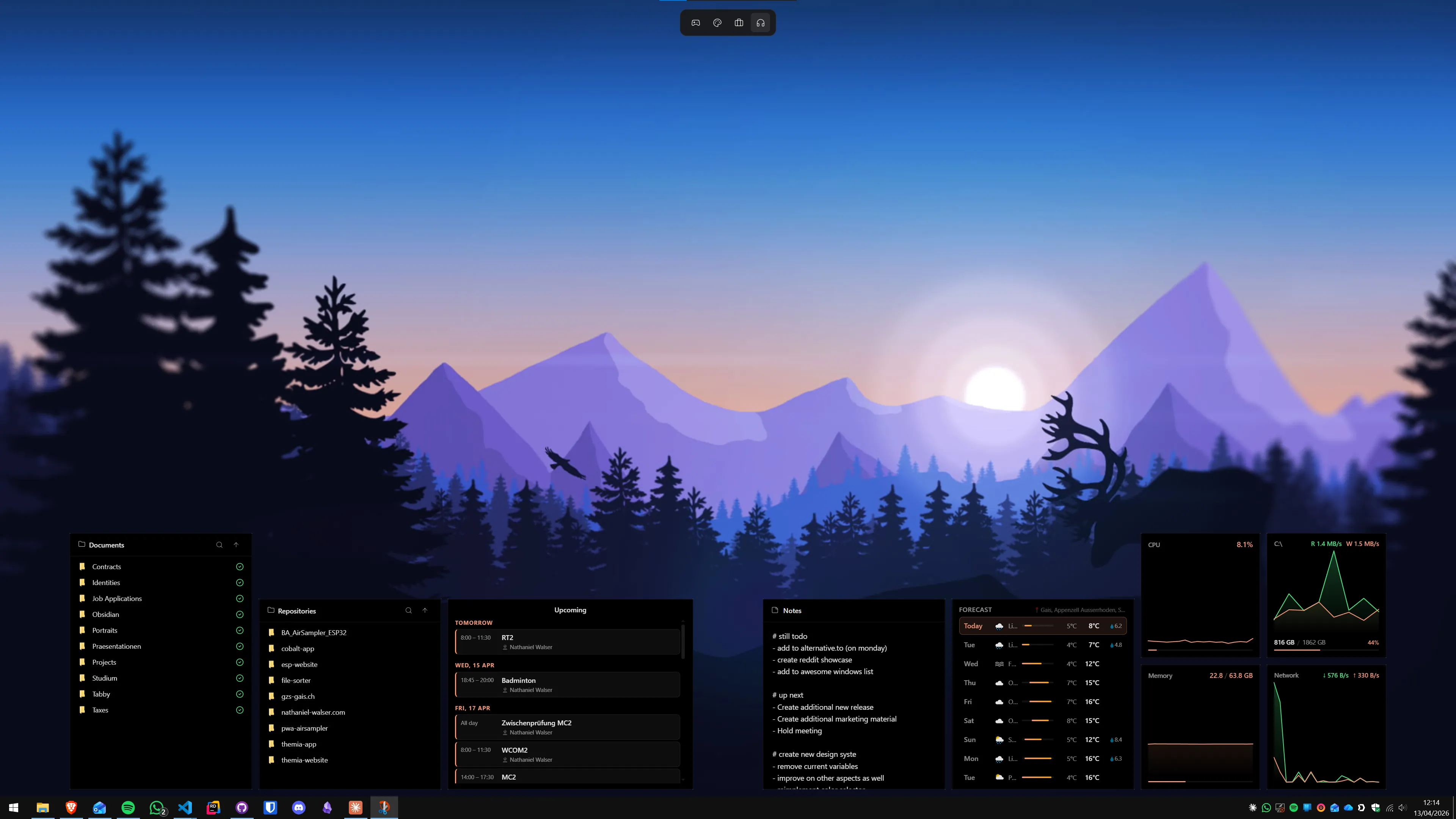
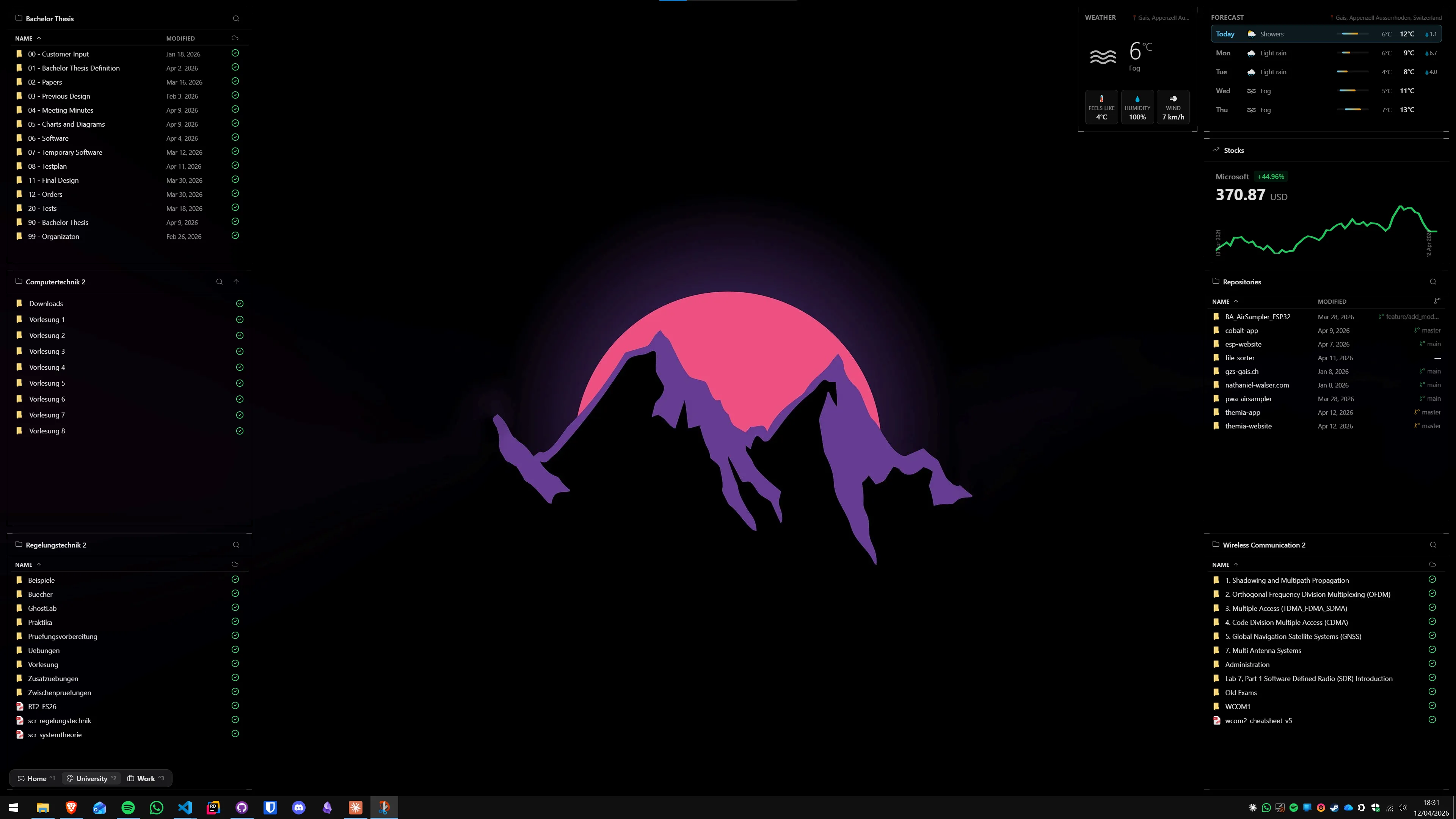
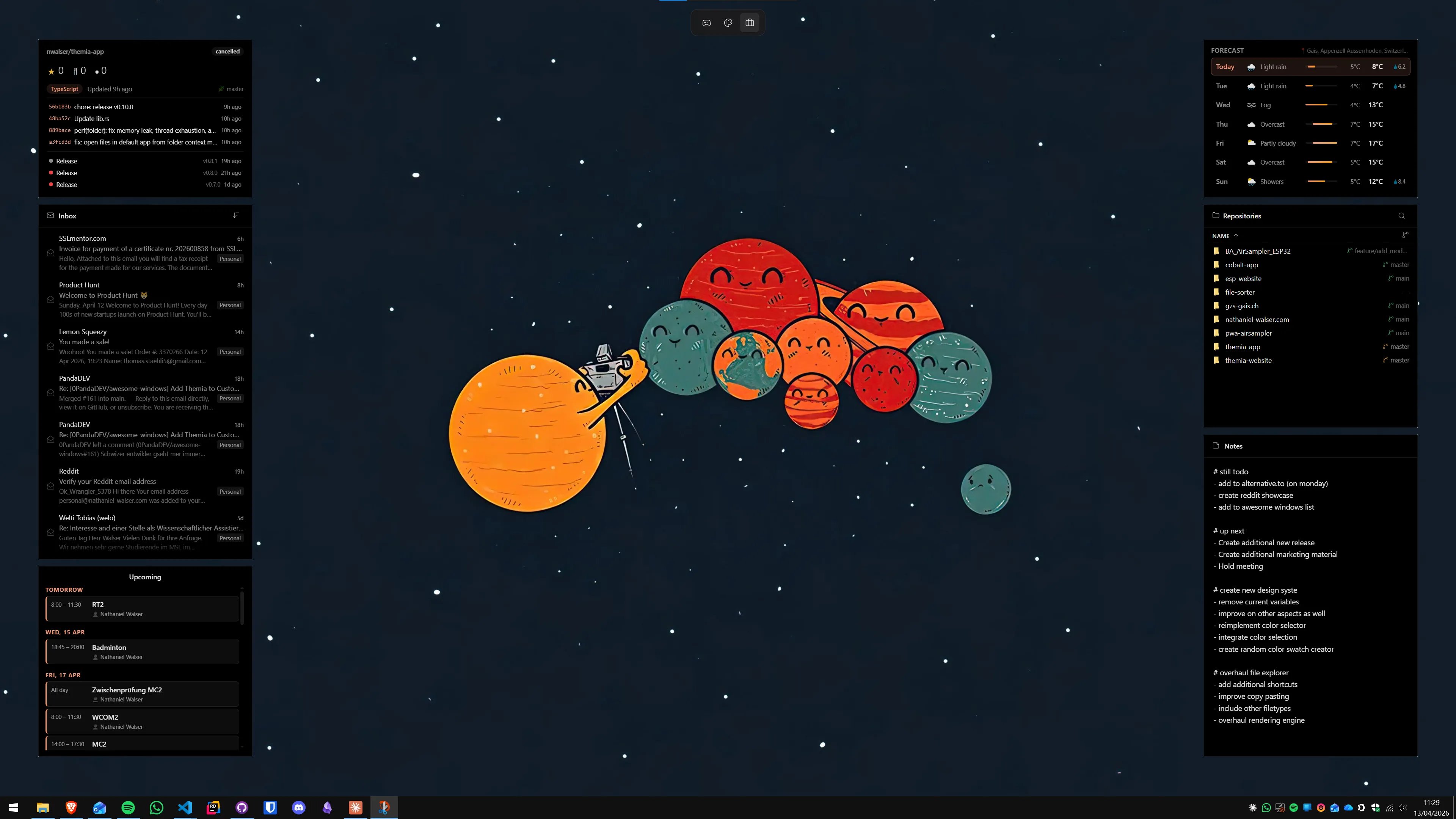
Here is the honest bit. If you are reading a guide on how to disable Widgets, it probably is not because you hate the idea of widgets — it is because you hate this widgets implementation. The feature behind a taskbar button that mostly shows news you did not ask for is not a great take on the concept. Widgets on the desktop itself, where they are always visible and always yours, is a much better one.
The modern option most people end up on is Themia. It is a native Windows app built on Tauri (so the whole thing is under 10 MB, not a hidden Chromium process), and it puts real widgets directly on the desktop — files, email, calendar, weather, system stats, stocks, music, notes, to-do. A free tier covers the basics; Pro is a one-time $19. No MSN feed, no panel to open, no accidental hovers.
Other options worth knowing about: Rainmeter if you enjoy configuring your desktop from scratch and want total control over appearance; Widget Launcher and 8GadgetPack if you specifically miss the Windows 7 gadget style.
More reading on the Themia blog: a full side-by-side in Themia vs Windows 11 Widgets, a roundup of every modern option in the best Windows desktop widget apps in 2026, and the comparison against the classic skin engine in the best Rainmeter alternatives for Windows.
If you want the calendar-weather-stats glance without the taskbar panel, give Themia's free tier a try — it takes about a minute to install and you can decide from there.
FAQ
Will disabling Widgets free up RAM?
A little. The Widgets Board and its background processes (notably the Widgets service and the WebExperience host) can use a few hundred megabytes of RAM and a small amount of CPU while the feed refreshes. On a modern machine the impact is minor; on a low-memory laptop it is worth doing. Disabling the taskbar icon alone helps a small amount; uninstalling the WebExperience package helps more.
Does disabling Widgets break anything in Windows?
No. Widgets are a separate optional feature. Hiding the taskbar icon, toggling the Group Policy, or setting the registry value does not affect other parts of Windows. Uninstalling the WebExperience package via PowerShell is also safe — it only removes the Widgets host and the MSN feed. If anything looks off after a reboot, you can always flip the setting back or reinstall the package from the Microsoft Store.
Can I re-enable Widgets later?
Yes. For Methods 1 and 2, flip the toggle back on in Taskbar settings. For Method 3, set the Group Policy back to Not Configured. For Method 4, change the registry DWORD to 1 or delete it. For Method 5, reinstall the Widgets package from the Microsoft Store (search for "Windows Web Experience Pack") or re-register it with PowerShell.
Why does the Widgets icon come back after a Windows update?
Cumulative Windows updates sometimes reset components of the taskbar and reinstall Microsoft Store apps, including the WebExperience package that hosts Widgets. Group Policy and registry-based methods usually survive updates; the taskbar toggle and the PowerShell uninstall do not always. If you want Widgets gone for good, combine Method 4 (registry) with Method 5 (uninstall).
Is there a way to keep the calendar/weather but hide the news feed?
Microsoft has removed most of the granular feed controls that used to exist in earlier versions of the Widgets Board. You can pin and unpin individual widgets, but the MSN news and sports feed underneath is not easily hidden. If you only want calendar and weather without the feed, a dedicated desktop widget app is a cleaner answer than fighting the panel.
What's the best replacement for Windows 11 Widgets?
If you want the calendar-weather-stats-at-a-glance experience without a pop-out panel or a news feed, a desktop widget app is the right fit. Themia is the modern native option — it puts widgets directly on the desktop, ships with the widgets most people actually want, and has a free tier. Rainmeter is the pick if you enjoy configuring things from scratch. Widget Launcher and 8GadgetPack give you a Windows 7 gadget feel.