How to Add a To-Do Widget to Your Windows Desktop
A task list on your desktop sounds simple — you want a list of things to do, always in view, without switching to another app. Windows makes this harder than it should be. There is no native to-do widget on the desktop itself. Microsoft To Do is a full app you open and close. Sticky Notes float above everything, which is its own annoyance. And the Widgets Board lives behind a button.
This guide covers every working method in 2026, ordered from least setup to most. Most people land on Method 2 or 3 and stay there.
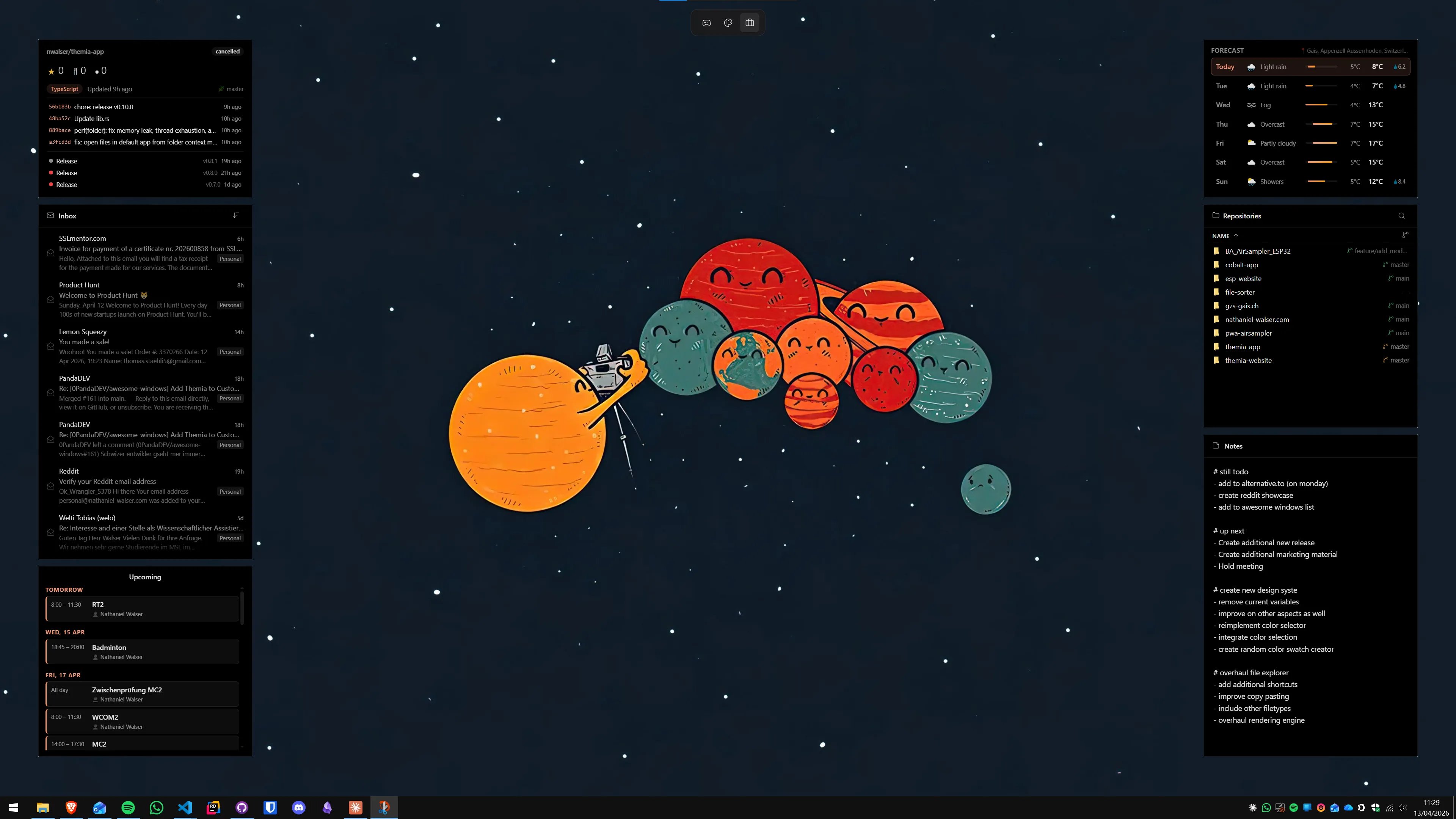
What Windows 11 gives you out of the box
Before installing anything, it is worth knowing exactly where the built-in tools fall short — because the gap explains why third-party options exist.
Windows 11 ships with two task-adjacent tools: Sticky Notes and Microsoft To Do. Neither is a desktop widget in the usual sense.
- Sticky Notes creates floating windows that sit on top of your open apps. They are useful for quick, unstructured notes. The problem is they obscure whatever is behind them, you have to manually minimise them when you are in full-screen apps, and there is no checklist structure — they are text pads.
- Microsoft To Do is a well-designed task app with due dates, subtasks, recurring tasks, and Microsoft 365 integration. It does not put anything on the desktop. You open it, you see your tasks, you close it. The Widgets Board includes a To Do card, but the board only appears when you deliberately invoke it.
If you want a checklist that lives on the desktop itself — below your open windows, visible whenever the desktop shows through — you need one of the options below.
Method 1: Sticky Notes (lowest friction, but not a widget)
Sticky Notes ships with Windows 11. It is not a desktop widget — it is an app that creates floating note windows — but for people who want a minimal text reminder that is always visible, it is the fastest path.
- Press Win and type Sticky Notes to open the app.
- Click the + button to create a note. Type your list items, separated by Enter. Use Ctrl+Shift+L to toggle a bullet list, or Ctrl+Shift+T for a simple text marker.
- Drag the note to a corner of your desktop where it will not cover the content you work in most often.
- Sign into Windows with a Microsoft account to get notes synced across the Sticky Notes mobile app and OneNote — useful if you also work from a phone.
Limitation: Sticky Notes sits on top of open windows, not on the desktop wallpaper. If you maximise any app, the note disappears behind it unless you bring it back manually. It is also a plain text area, not a proper checklist — there are no checkboxes, no completion tracking.
Best for: people who want a quick scratch-pad for the day and do not need a structured task list or always-on desktop placement.
Method 2: Add a to-do widget with Themia (recommended)
Themia is a native Windows desktop widget app built on Tauri — the entire installer is under 10 MB, and it runs on Windows 10 and 11 without any browser runtime. The to-do widget is one of the built-in widgets: a structured checklist that sits on the desktop wallpaper itself, below all open windows, always visible when the desktop is showing.
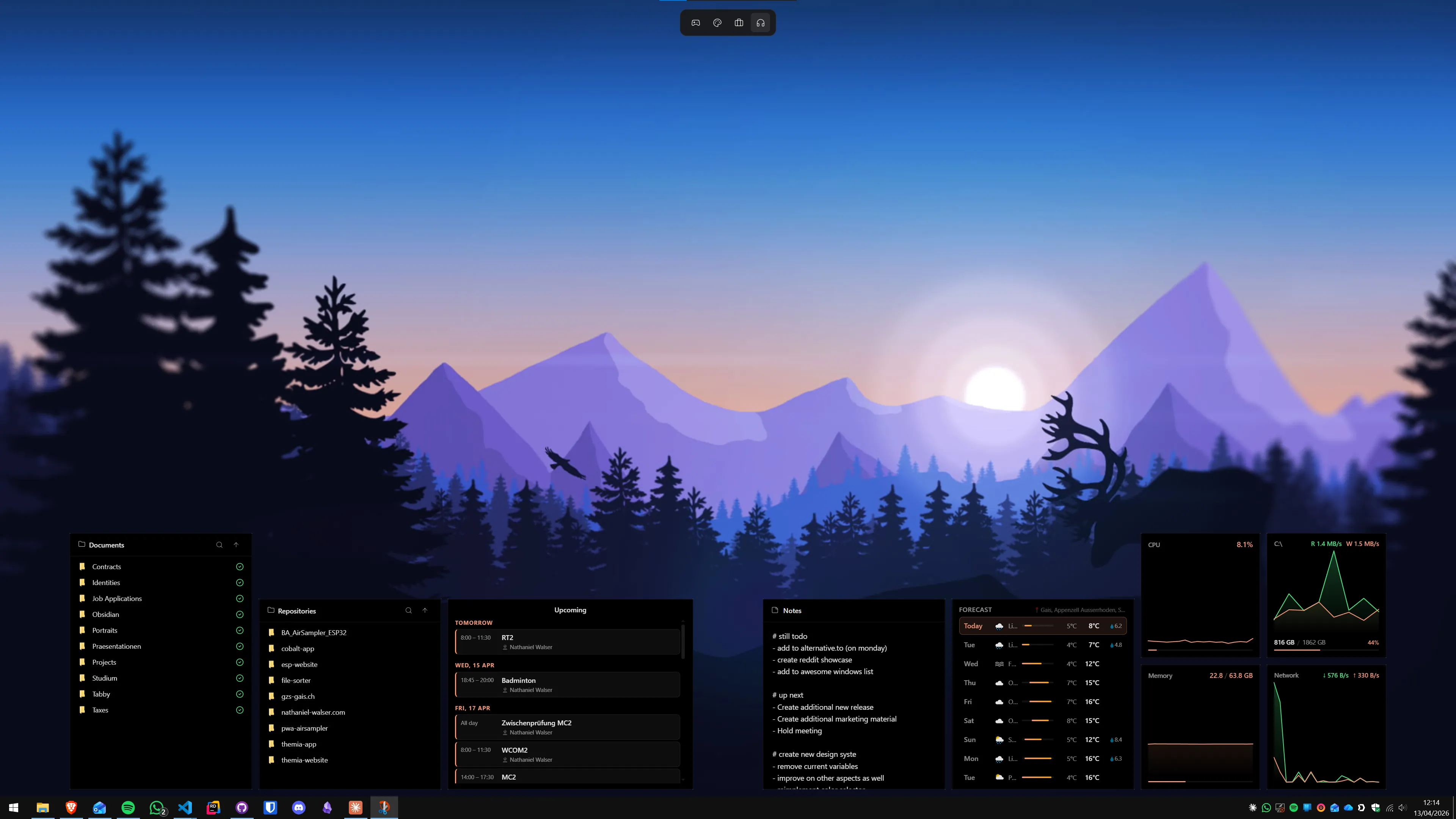
Setup takes about three minutes:
- Download Themia from the Themia homepage and run the installer. It is signed and under 10 MB.
- Once running, right-click any empty area of the desktop and choose Add widget → To-Do.
- Type your first task and press Enter to add more. Check items off directly in the widget. Completed items can be cleared with a single button press.
- Drag the widget to where you want it — most people put it in the top-right corner or along the right edge.
- Resize by dragging a corner handle to show as many or as few items as you want visible at once.
The free tier includes the to-do widget and several others. The one-time $19 Pro unlock adds styling options — custom backgrounds, per-widget themes, font choices. The functional widget works without it.
Because the to-do widget lives on the desktop layer, it is visible whenever no full-screen apps are running — on a second monitor, when you show the desktop (Win+D), or in the gaps between windows. It does not get in the way of your active apps.
If you are building a fuller desktop workspace alongside the to-do list, our productivity dashboard guide walks through combining task, calendar, and system widgets into a layout that actually works.
Method 3: Microsoft To Do in the Widgets Board
If you already use Microsoft To Do for all your tasks and do not want to maintain a separate list, the Widgets Board integration is worth setting up. It is not a desktop widget — it lives in the panel — but it is quick to invoke.
- Make sure the Widgets toggle is on in Settings → Personalization → Taskbar.
- Press Win+W to open the Widgets Board.
- Click the + icon in the top-right to add widgets, find Microsoft To Do, and add it.
- Drag the To Do card to the top of the board so it is the first thing you see when you open it.
The To Do widget inside the board shows your flagged items, today's tasks, or a specific list — you configure which view you want. Since it is the same app you use everywhere, items you add on your phone or in the desktop app appear here instantly.
The tradeoff is that the board is an overlay, not a desktop widget. Press Win+W, do your task review, press Escape. If you want tasks always visible without any invocation step, you still need Method 2.
Method 4: Widget Launcher's to-do widget (Microsoft Store, free)
Widget Launcher is a free app on the Microsoft Store that brings a suite of desktop gadgets inspired by the Windows 7 sidebar. It includes a simple to-do / notes widget that sits on the desktop in a panel style.
- Search Widget Launcher in the Microsoft Store and install it (free, no account required).
- Open Widget Launcher, navigate to the task or notes widget, and launch it to the desktop.
- Position it on screen using the drag handle at the top of the widget panel.
Widget Launcher's aesthetic is deliberately retro — it looks like a Windows 7 gadget, which some people want. The functionality is simple: you get a text list, no checkboxes, no priorities, no due dates. For a more modern look or richer widget functionality, compare it with Themia in our Themia vs Widget Launcher breakdown.
Method 5: Rainmeter with a task skin (maximum control)
Rainmeter is a free, open-source desktop scripting engine. With the right skin, you can create a to-do or task display that reads from a text file, a Google Tasks API, or any data source you can query. It can look like anything — minimal monospace, full-colour dashboard, retro sci-fi — because you are writing the configuration.
The standard approach for tasks in Rainmeter:
- Download and install Rainmeter from rainmeter.net.
- Download a task-capable skin. Sonder and Mond both include notes or task panels. Install the
.rmskinpackage by double-clicking it. - Load the skin via right-click → Rainmeter → Skins. The skin creates a text file on disk that acts as your task list — edit the file, the widget updates.
- To get checkboxes or interactive completion, use skins with
MouseOverActionevents, or look for skins that include JavaScript automation via Rainmeter's scripting plugin.
Rainmeter tasks widgets are the most customisable option by a wide margin — but "reading from a text file" is not the same as a real task app. You will either maintain the file manually or spend time building an integration with an external service. If that sounds interesting rather than annoying, Rainmeter is the right tool. If not, Method 2 covers what most people actually need.
For a full comparison of the widget engines, see our best Windows desktop widget apps roundup.
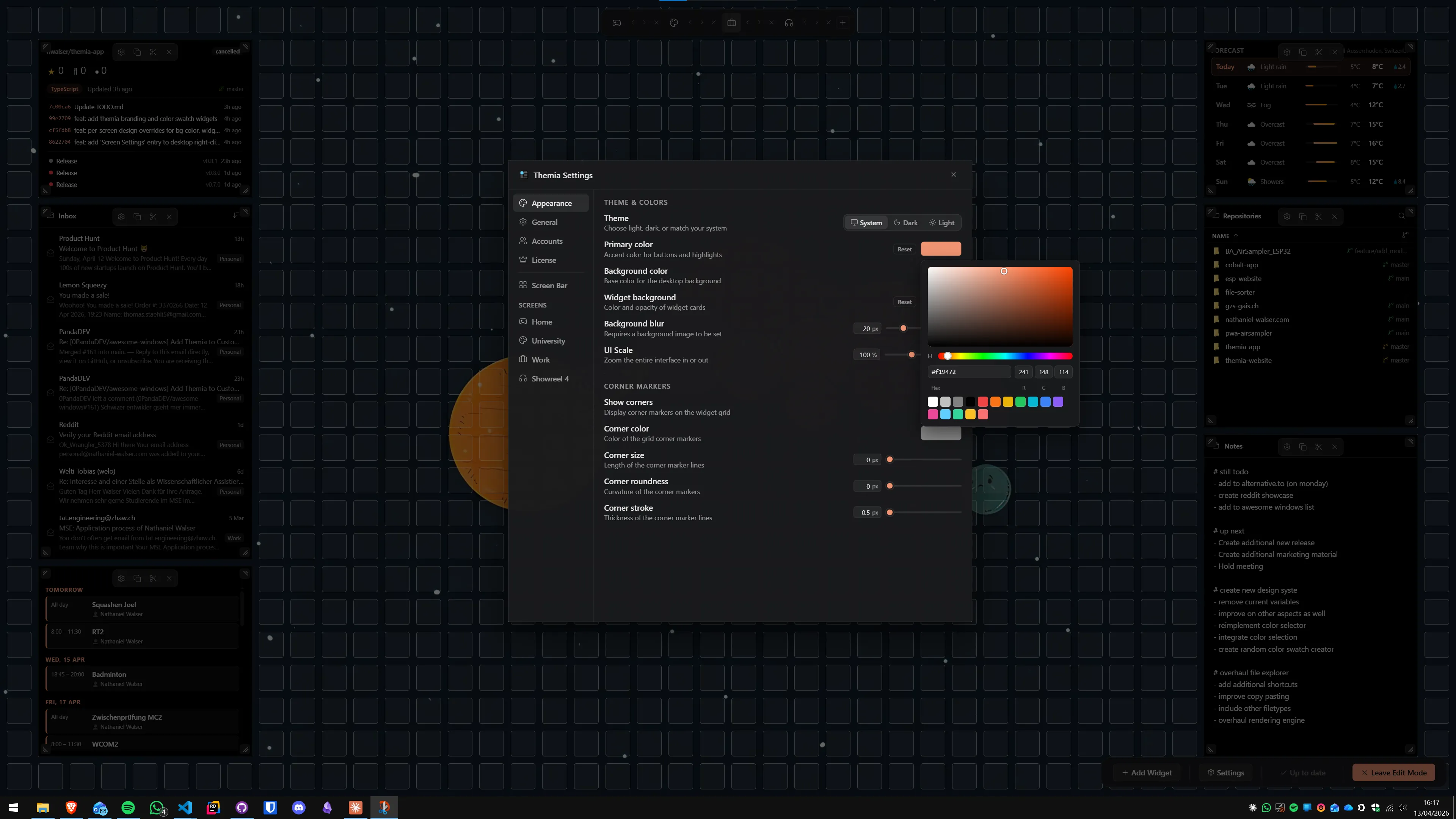
Which method should you use?
Here is the decision matrix in plain terms:
- You want the absolute fastest option and do not need checkboxes: Method 1 (Sticky Notes). Set up in 30 seconds.
- You want a real to-do checklist always visible on the desktop: Method 2 (Themia). Best balance of speed, polish, and function.
- You already live in Microsoft To Do and want it integrated: Method 3 (Widgets Board). Quick to invoke, synced everywhere.
- You want the Windows 7 gadget aesthetic: Method 4 (Widget Launcher). Retro look, simple function.
- You want total visual control and do not mind configuration: Method 5 (Rainmeter). Unlimited customisation, higher time cost.
For most people searching this topic, the gap is between wanting something that looks good on the desktop and not wanting to spend an afternoon configuring it. Themia fills that gap. The free tier gets you a working to-do widget in about three minutes. You can combine it with a calendar widget or a weather widget and have a genuine desktop workspace without touching any config files.
If you want to keep the desktop clean and minimal rather than filling it with widgets, our minimalist Windows desktop guide has a section on using one or two restrained widgets rather than a full dashboard.
FAQ
Does Windows 11 have a built-in to-do widget on the desktop?
Not on the desktop itself. Windows 11 ships with Sticky Notes (simple text notes that float on screen) and Microsoft To Do (a full task app), but neither puts a persistent to-do widget directly on your wallpaper. The Widgets Board (Win+W) includes a Microsoft To Do card, but it only shows inside that slide-out panel — it does not sit on the desktop. For a real always-visible to-do widget, you need a third-party app like Themia or a Rainmeter skin.
What is the difference between Sticky Notes and a to-do widget?
Sticky Notes are free-form text boxes you float on the desktop — they stay on top of windows unless you minimise them, and they sync to OneNote and the Sticky Notes mobile app. A to-do widget is a structured checklist that lives on the desktop wallpaper itself, below all open windows, always visible when the desktop is showing. Sticky Notes are better for quick scratch-pad notes; a to-do widget is better for a persistent task list you glance at throughout the day.
Does Themia sync to-do items with Microsoft To Do or Todoist?
Themia's to-do widget is a self-contained local list — it does not sync to Microsoft To Do, Todoist, or any cloud service. Items you add stay in Themia. If you need cloud sync, keep Microsoft To Do as your main task app and use Themia for a curated "today's top tasks" subset that you update each morning. The two tools work alongside each other without any conflict.
Can I add checkboxes to a Rainmeter task widget?
Yes, several Rainmeter skins include interactive checkboxes or strikethrough toggles. The most widely used is the "Sonder" suite, which includes a tasks panel with clickable checkboxes. The limitation is that Rainmeter reads task lists from a local text file — you either edit the file manually or use a companion script to pull from a calendar or task API. It is powerful but requires more setup than a dedicated widget app.
Will a to-do widget slow down my Windows PC?
A lightweight widget app like Themia uses under 1% CPU at idle and around 100–200 MB of RAM — indistinguishable from background system processes on any machine made in the last five years. Rainmeter skins are slightly more variable depending on how often they refresh, but a simple task list skin typically uses even less. The apps to be cautious about are animated wallpaper engines running 4K video on integrated graphics — to-do widgets are not in that category.
Is there a way to show a to-do list in the Windows 11 Widgets Board?
Yes. The Windows 11 Widgets Board (Win+W or the taskbar icon) includes a Microsoft To Do card out of the box. Sign in with a Microsoft account, pin the To Do card to the top of the board, and your tasks sync from the app. The limitation is that the board does not sit on the desktop — it slides over your open windows when you invoke it and disappears when you click elsewhere. It is a task viewer, not a desktop widget.