How to Add a Clock Widget to Your Windows Desktop
The clock in the corner of your taskbar has been there since Windows 95. It is small, it is right-aligned, and if you are working full-screen or using a second monitor, it is easy to miss. A proper desktop clock widget — one that sits on the wallpaper itself, always visible no matter what windows you have open — is a different proposition entirely.
This guide walks through every working method to get a clock onto your Windows desktop in 2026, from the zero-effort taskbar tweak to full analog clock widgets you can position anywhere on the screen. Most people will stop at Method 2 or 3. The Rainmeter section is for people who want total visual control and do not mind spending time on configuration.
What Windows gives you by default
Before installing anything, it is worth knowing the exact limits of what Windows provides natively:
- Taskbar clock (bottom-right corner): Always visible, shows time and date, updates every minute by default. You can enable seconds display in Windows 11 23H2 and later via Settings → Personalization → Taskbar → Taskbar behaviours → "Show seconds in system tray clock."
- Additional clocks popup: Click the taskbar clock to see a calendar, and up to two additional time zones if you have configured them in Settings → Time & Language → Date & Time → Additional clocks. These only appear on click — they are not persistent desktop elements.
- Widgets Board clock: The Windows 11 Widgets Board (Win+W) does not actually include a clock widget. It shows weather, calendar events, and MSN news, but not a dedicated clock.
The conclusion: if you want a clock on the wallpaper itself, you need a third-party tool. Microsoft removed desktop gadgets (including the clock gadget) in Windows 8, and they have never returned. Here is how to get them back.
Method 1: Show seconds in the taskbar clock (zero install)
The fastest win. If you just want to see seconds ticking — perhaps for timing tasks, monitoring cron jobs, or just knowing the precise time at a glance — you can enable this with no download at all.
- Open Settings (Win+I) and go to Personalization → Taskbar.
- Scroll down to Taskbar behaviours and expand the section.
- Toggle on Show seconds in system tray clock.
- The taskbar clock immediately starts showing HH:MM:SS.
Requirement: Windows 11 version 23H2 or later. If you do not see this option, run Windows Update first. On Windows 10, you can achieve the same result by setting the registry DWORD ShowSecondsInSystemClock to 1 under HKCU\Software\Microsoft\Windows\CurrentVersion\Explorer\Advanced, then restarting Explorer.
Pros: zero install, zero performance cost, always available.
Cons: still confined to the taskbar corner; not moveable; tiny font on high-DPI displays.
Who it is for: people who want precision time visible at a glance without adding anything to the desktop.
Method 2: Configure additional time zone clocks
If you work with colleagues in different countries, Windows has a built-in way to show two extra time zones alongside your local time. This is not a desktop widget, but it is often all that distributed teams actually need.
- Press Win+S and search for Additional clocks.
- In the Date & Time dialog, click the Additional Clocks tab.
- Enable Show this clock for Clock 1 (and optionally Clock 2), select a time zone, and give it a display name like "New York" or "Tokyo".
- Click OK. Now when you click or hover over the taskbar clock, a popup shows all three times alongside a mini-calendar.
Still not a persistent desktop widget, but it solves the multi-timezone problem without any extra software. For an always-on world clock that lives on the wallpaper, you need Method 3 or later.
Method 3: 8GadgetPack — the Windows 7 clock is back
8GadgetPack is a free utility that restores the Windows Sidebar and all of the original Windows Vista/7 gadgets, including the clock. It runs on Windows 10 and 11, requires no account, and takes about a minute to install.
- Download 8GadgetPack from 8gadgetpack.net and run the installer.
- Once installed, double-click the 8GadgetPack icon in the system tray, or right-click the desktop and choose Gadgets.
- Double-click the Clock gadget to add it to the desktop. It appears as the classic analog dial with a sweep second hand.
- Drag it wherever you want. Right-click the gadget → Settings to choose one of eight clock face styles (from clean analog to digital to world-map overlays), set time zone, and toggle seconds.
Pros: free, familiar look, analog and digital variants, eight face designs, works on local accounts, very low resource use.
Cons: design language is 2008; the gadgets framework is old and unsupported by Microsoft; mixing it with a modern desktop aesthetic requires a tolerant eye.
Who it is for: Windows veterans who genuinely liked the gadget era and want that clock back without fuss.
Method 4: Themia — modern widget app with calendar and system display
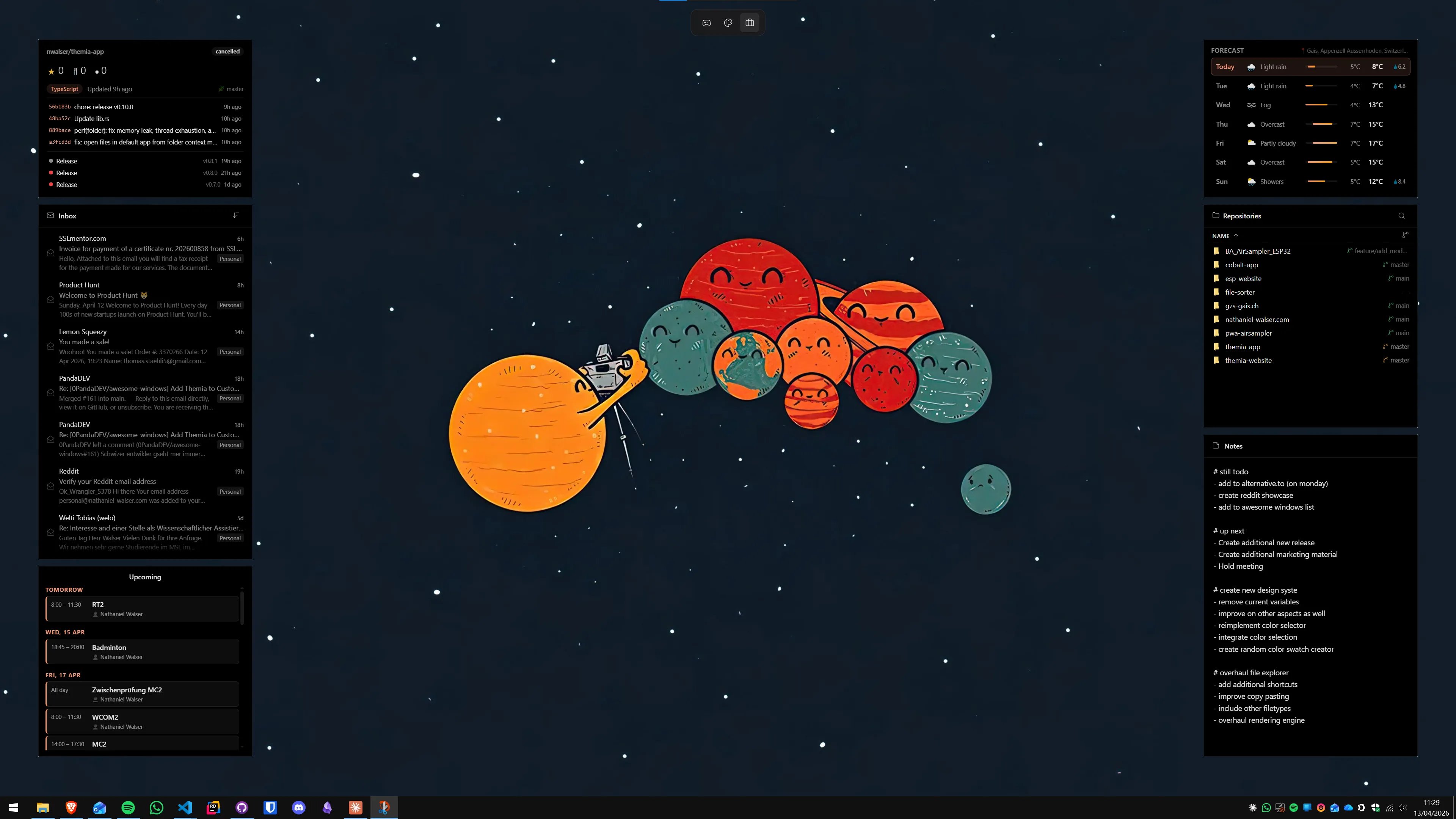
Themia is a native Windows widget app built on Tauri. The installer is under 10 MB, it runs on Windows 10 and 11, and it has a free tier alongside a one-time $19 Pro unlock. Its calendar widget keeps the current date and upcoming events permanently visible on the desktop, and the system stats widget can display uptime and other time-adjacent data alongside CPU, memory, and network readings.
This is a different philosophy from a standalone clock gadget. Rather than adding a single analog dial, Themia puts a coordinated set of information panels on the wallpaper — so the date and any time-sensitive information (calendar appointments, weather, stock movements) all live in one coherent layout.
- Download Themia from the Themia website and run the signed installer.
- On first launch, right-click the desktop and select Add widget.
- Add the Calendar widget. It shows the current date, a month grid, and any upcoming appointments if you connect it to your calendar account.
- Drag the widget into position. Use the resize handles to make it as large or as small as you need. The calendar widget stays on the desktop at all times, no window management required.
Pros: native app (not Electron), small footprint, free tier covers core widgets, polished design, consistent look across all widgets, works without a Microsoft account.
Cons: no dedicated analog clock face; the date/time display is part of the calendar widget rather than a standalone minimalist clock; full styling and theme customisation requires Pro.
Who it is for: people who want more than just a clock — a coherent dashboard of date, weather, calendar events, and system stats all living on the wallpaper. If you just want a clock, 8GadgetPack or Rainmeter is simpler.
If you are already exploring what a full widget setup could look like, our guide to the best Windows desktop widget apps compares all the main options and our productivity dashboard tutorial shows how to combine calendar, email, and system widgets into a practical layout.
Method 5: Widget Launcher (Microsoft Store)
Widget Launcher is a free Microsoft Store app that offers a clock widget, a weather widget, and about a dozen others in a Windows 11–styled interface. It is a reasonable middle ground between 8GadgetPack (older design, more clock faces) and a full widget platform like Themia.
- Open the Microsoft Store and search for Widget Launcher.
- Install it (free, no account required).
- Open the app, choose Add widget, and select Clock. You can pick between digital and analog styles.
- Position it on the desktop and set your time zone.
Pros: free, modern Store app, clean design, easy setup.
Cons: limited customisation depth; clock face options are fewer than Rainmeter; the app needs to be running for widgets to appear; occasional Microsoft Store update hiccups.
Who it is for: people who want a quick, clean clock widget from a familiar source without a configuration rabbit hole.
Method 6: Rainmeter — maximum visual control
Rainmeter is the definitive answer for anyone who wants their clock to look exactly a specific way. It is a free, open-source desktop scripting engine that has been maintained since 2001. Every clock skin is a set of configuration files, which means the ceiling for customisation is essentially unlimited — from minimal one-line digital readouts to full analog movements with custom hands and faces.
The trade-off is setup time. Expect to spend 30–90 minutes finding a skin you like and configuring its position, size, and style. The reward is a clock that looks like nobody else's.
- Download Rainmeter from rainmeter.net and run the installer.
- Browse skins on deviantart.com (search "Rainmeter clock skin 2025" or "Rainmeter analog clock") or rainmeter.net/discover/skins. Popular clock-focused suites include Mond, Senja Suite, and Flat Clock.
- Download a
.rmskinfile and double-click it to install. The skin loader walks you through the process. - Right-click the Rainmeter tray icon → Manage to load your clock skin and set its position to Stay on desktop (so it stays behind windows).
- Open the skin's
.inifile in Notepad to adjust the time zone offset, font, colours, and any other parameters specific to that skin.
Pros: unlimited visual options, huge community library, free forever, zero ads.
Cons: configuration is via text files; setup takes time; some skins are abandoned and may behave oddly; each skin update can reset your customisations.
Who it is for: anyone who enjoys crafting a desktop aesthetic and is happy spending an afternoon tweaking it.
For a broader comparison of Rainmeter against modern native apps, see our piece on Themia vs Rainmeter and the comparison with Themia vs 8GadgetPack.
Which method is right for you?
The honest cheat-sheet:
- Just want seconds visible in the taskbar: Method 1 — enable Show seconds in system tray clock, done in 30 seconds.
- Need world clocks for remote work, no desktop widget: Method 2 — Additional Clocks, built right in.
- Want the classic analog clock from Windows 7 back: Method 3 — 8GadgetPack, free, five-minute install.
- Want date + calendar + other widgets in a unified layout: Method 4 — Themia, a modern native app with a free tier.
- Want a quick clock widget from the Microsoft Store: Method 5 — Widget Launcher.
- Want total visual control and enjoy configuring things: Method 6 — Rainmeter with a clock skin.
For most people, the choice is between 8GadgetPack (if you specifically want a standalone analog clock) and Themia (if you want the clock to be part of a broader desktop information setup). Both are free to start. The more interesting question is usually what else you want on the desktop alongside the clock — see our roundup of Windows desktop customization tools for 2026 for the bigger picture, and our guide on showing weather on the Windows desktop for the most common companion widget.
A note on performance
Every time someone asks about adding a widget to Windows, someone else asks whether it will slow the machine down. For a clock specifically, the answer is definitively no. A clock widget fires an update event once per second (or once per minute if seconds are hidden). The CPU cost of drawing a small clock face is measured in microseconds, not milliseconds. Even on a modest machine with 8 GB of RAM, Rainmeter, 8GadgetPack, and Themia all have negligible overhead for a simple clock display.
Where performance starts to matter is animated clock skins with real-time blur effects, particle systems, or sub-pixel-smoothed analog hand animations. Most stock skins and all of the options covered in Methods 3 and 4 are light. If you do run into slowdowns after adding a Rainmeter skin, the culprit is almost always a background plugin fetching weather or RSS data, not the clock drawing itself.
The short version: add the clock. The performance hit is not worth worrying about.
FAQ
Can I show an analog clock on my Windows desktop?
Yes. The most popular routes are 8GadgetPack, which brings back the classic Vista-era analog clock gadget, and Rainmeter, which has dozens of analog clock skins ranging from minimal to ornate. Widget Launcher on the Microsoft Store also includes an analog clock widget. The Windows taskbar only shows a digital time display, so for an analog look you need a third-party tool.
How do I show seconds in the Windows 11 taskbar clock?
Go to Settings → Personalization → Taskbar → Taskbar behaviours and turn on "Show seconds in system tray clock." This option was added to Windows 11 in the 23H2 update (released October 2023). If you do not see it, your Windows version may be older — try running Windows Update first. The registry path is HKCU\Software\Microsoft\Windows\CurrentVersion\Explorer\Advanced, DWORD value ShowSecondsInSystemClock set to 1, followed by a restart of explorer.exe.
Does Windows have a built-in clock widget for the desktop?
Not on the desktop itself. The taskbar clock has been part of Windows since the earliest versions, but it lives in the corner of the taskbar, not on the wallpaper. The Windows 7 sidebar gadgets included a clock gadget, but that feature was removed in Windows 8. The Windows 11 Widgets Board does not include a persistent on-desktop clock either — it lives in a pop-out panel. For a clock that sits on the wallpaper, you need a third-party widget app.
Will a clock widget slow down my PC?
A well-written clock widget has a negligible performance impact. A simple digital or analog clock widget in tools like Themia or 8GadgetPack uses only a few megabytes of memory and barely any CPU — the update interval for a clock is once per second, which is trivially cheap. Complex Rainmeter clock skins with many animated elements and blur effects can be heavier, but the base performance cost of a clock display is essentially zero on any modern machine.
Can I show multiple time zones on my Windows desktop?
Yes. The Windows taskbar clock supports up to two additional clocks: go to Settings → Time & Language → Date & Time → Additional clocks (or search "Additional clocks" in the Start menu) and enable the extra clocks with your chosen time zones. These appear when you click the taskbar clock. For persistent on-desktop world clocks — always visible on the wallpaper — Rainmeter and Widget Launcher both offer multi-timezone clock widgets. This is especially useful for remote workers collaborating across continents.
How do I move the taskbar clock to the left side of the screen?
You cannot move the clock independently within the taskbar — it is always docked to the right side (system tray area). However, you can move the entire taskbar to the left edge of the screen using third-party tools like Start11 (paid) or ExplorerPatcher (free). Alternatively, placing a clock widget directly on the desktop wallpaper — using Rainmeter, 8GadgetPack, or Themia's calendar widget — gives you full control over position regardless of taskbar layout.