How to Add a Battery Widget to Windows Desktop
The small battery icon in the Windows taskbar does its job — but it is tiny, easy to miss, and barely glanceable when you are deep in a document or a game. Laptop users who care about battery life want something they can see at a glance without hovering over a tray icon: a persistent battery readout sitting on the desktop itself, visible every time they catch sight of their wallpaper.
This guide covers every practical way to put battery status on your Windows 10 or 11 desktop in 2026, ordered from the fastest setup to the most customizable, with honest notes on what each one actually delivers.
What Windows gives you out of the box
Windows 11 has two built-in battery displays worth knowing before reaching for any third-party tool:
- Battery percentage in the taskbar. By default, Windows 11 shows only the battery icon with no number. To add the percentage: go to Settings → System → Power & sleep, scroll to Battery, and toggle Show battery percentage in the taskbar. The number appears next to the icon immediately. It is small, but it is always visible and costs nothing.
- Action Center flyout. Click the battery icon once to open the flyout panel, which shows charge percentage, time remaining (when discharging), charging speed (when plugged in), and a power mode slider. This is the most complete native battery view — but it only appears when you click. It is not persistent.
- Battery settings page. Settings → System → Power & sleep → Battery shows charge history graphs and background app power usage. Useful for diagnosing drain, not for glanceable monitoring.
None of these put anything on the desktop wallpaper layer. For an always-visible widget you can see while working, all of the options below require third-party software.
Method 1: Enable battery percentage in the taskbar (zero install, 30 seconds)
This is not a desktop widget — but it is the fastest change you can make, and for many users it is genuinely enough.
- Open Settings (Win + I).
- Go to System → Power & sleep.
- Scroll to the Battery section and toggle on Show battery percentage in the taskbar.
- The number appears immediately next to the battery icon. No restart required.
Pros: zero install, zero performance cost, always visible in the taskbar.
Cons: small text, no time-remaining estimate, no charge rate info, not on the desktop surface.
Who it's for: anyone who just wants to stop hovering over the tray icon to check the number.
Method 2: BatteryBar — a smarter taskbar indicator
BatteryBar adds a color-coded battery bar directly into the Windows taskbar, showing charge percentage, estimated time remaining, and charge rate. It is more information-dense than the default icon and easier to read at a glance.
The free version of BatteryBar shows the bar and percentage. BatteryBar Pro (a one-time $5 purchase) adds estimated time until full charge, estimated runtime at current usage rate, and a charge rate display in watts. Both versions install cleanly and run as a tray process.
- Download BatteryBar from batterybar.net and run the installer.
- The battery bar appears in the taskbar immediately after installation — no configuration required.
- Right-click the bar to adjust the color thresholds (what percentage turns the bar yellow, then red), font size, and whether to show watts or time estimates.
Pros: richer than the built-in icon, time-remaining estimates, very low overhead, stable on Windows 10 and 11.
Cons: lives in the taskbar, not on the desktop wallpaper layer. No widget-style positioning.
Who it's for: anyone who wants more battery information than the default icon but prefers to keep the desktop wallpaper clear.
Method 3: Use a desktop widget app (recommended)
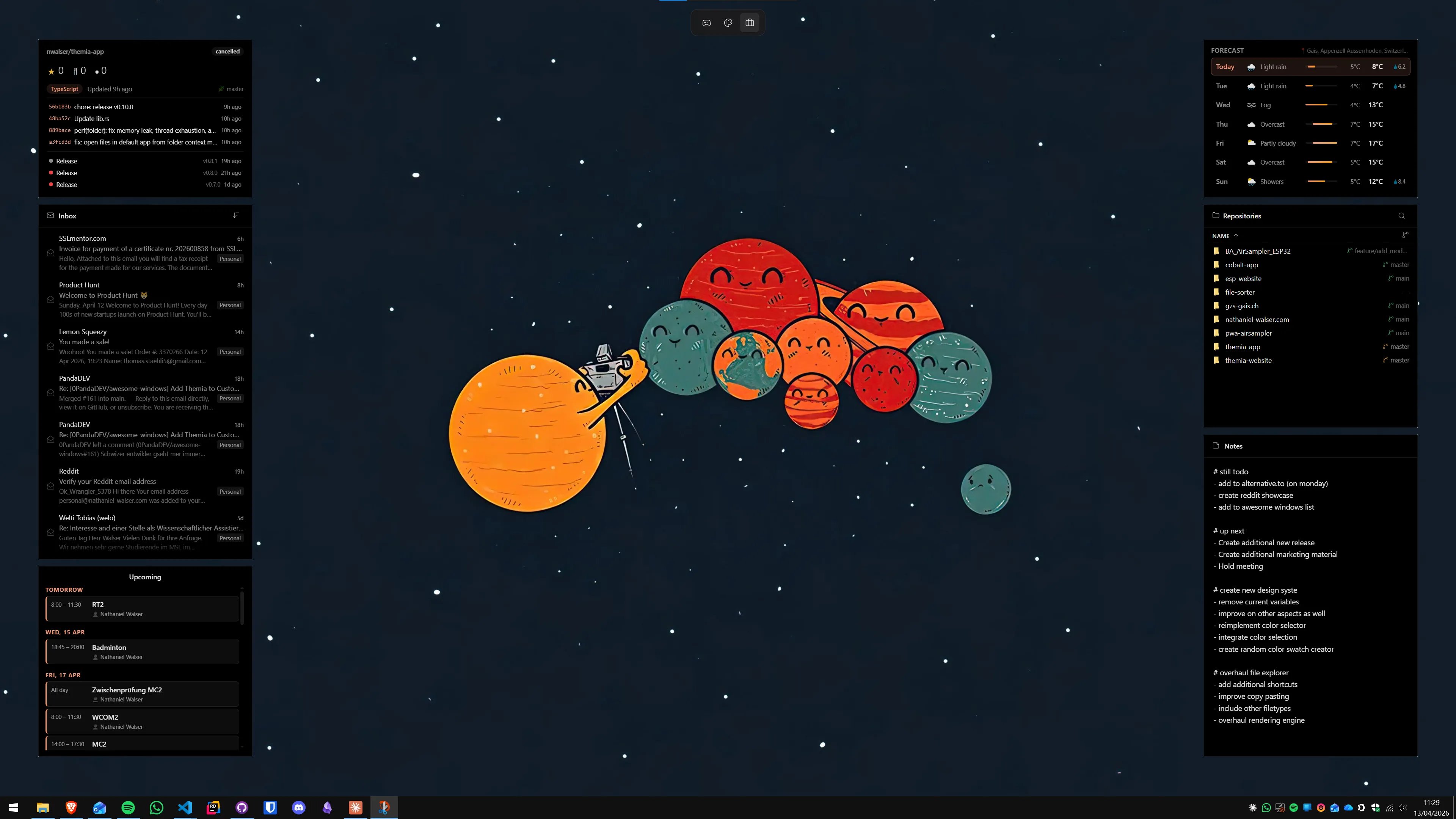
The cleanest option for always-visible battery status on the desktop itself is a widget app that renders directly onto the wallpaper layer. In 2026 there are a few solid choices.
Themia
Themia is a native Windows widget app built on Tauri — under 10 MB, runs on Windows 10 and 11, no browser engine, no heavy runtime. Its system stats widget includes battery percentage, charge status (charging/discharging), and remaining time estimates, alongside CPU, RAM, GPU, temperature, and network speed if you want them — all updating live on the wallpaper.
- Download and install Themia from the Themia website.
- Right-click the desktop and choose Add widget → System Stats.
- The widget appears on the desktop. Drag to position it, resize by dragging a corner.
- Click the widget's settings icon to control which stats show — you can display battery only, or combine it with other system metrics depending on how much wallpaper space you want to use.
Pros: native app with a tiny footprint, all system stats in one widget, freely positioned on the wallpaper, no API keys or config files.
Cons: some advanced visual customization requires the $19 Pro unlock.
Who it's for: most people reading this guide — you want battery on the desktop, probably alongside a few other stats, with minimal setup time.
8GadgetPack
8GadgetPack revives the old Windows 7 sidebar gadgets on Windows 10 and 11. It includes a CPU/RAM/Battery gadget that shows charge percentage and a battery icon. The aesthetic is circa 2010, but the data is accurate and the software is free.
The approach is detailed in our Themia vs 8GadgetPack comparison — short version: 8GadgetPack is a solid free option if you are comfortable with the dated look; Themia is cleaner and more flexible.
Method 4: Rainmeter with the PowerPlugin measure
Rainmeter is the most powerful option and the most time-intensive. It is free and open-source. Battery monitoring is handled by the built-in PowerPlugin, which reads Windows battery data directly — charge percentage, charging state (AC or battery), battery saver state, and charge rate.
- Download Rainmeter from rainmeter.net and run the installer.
- Download a skin that includes a battery panel. Illustro (ships with Rainmeter by default) includes a basic battery meter. TECH-A and SysDash (both available on DeviantArt and Rainmeter forums) include more detailed battery displays with estimated runtime.
- Double-click the downloaded
.rmskinfile to install, then load it from the Rainmeter skin manager. - Open the skin's
.inifile to customize colors, font size, position, and which data fields are displayed. The PowerPlugin measure section controls what battery data is read.
Pros: total visual control, completely free, can show charge rate in watts, time remaining estimates, and charging animations.
Cons: significant setup investment, requires editing .ini configuration files, older skins may need tweaks for Windows 11.
Who it's for: people who enjoy desktop customization as a hobby and want the battery display to match a custom skin aesthetic exactly.
What to show alongside battery status
Battery percentage on its own is useful, but a few complementary pieces of information are often more valuable:
- Time remaining. The most useful number for a laptop in active use. Windows calculates this from current discharge rate, so it fluctuates with load — but a stable estimate while writing is genuinely helpful.
- Charge rate (watts). Tells you how fast your charger is actually topping up the battery. On machines with dynamic charging, this number varies significantly between a laptop charger, a USB-C power bank, and an underpowered travel adapter.
- CPU load. High battery drain often correlates with a rogue process running at high CPU. Seeing both numbers together makes it easy to connect cause and effect. For a full system stats setup, see our guide to showing CPU and GPU stats on your Windows desktop.
- Network throughput. Background downloads are a common cause of faster-than-expected drain. Pairing battery with network speed in the same widget makes that pattern obvious.
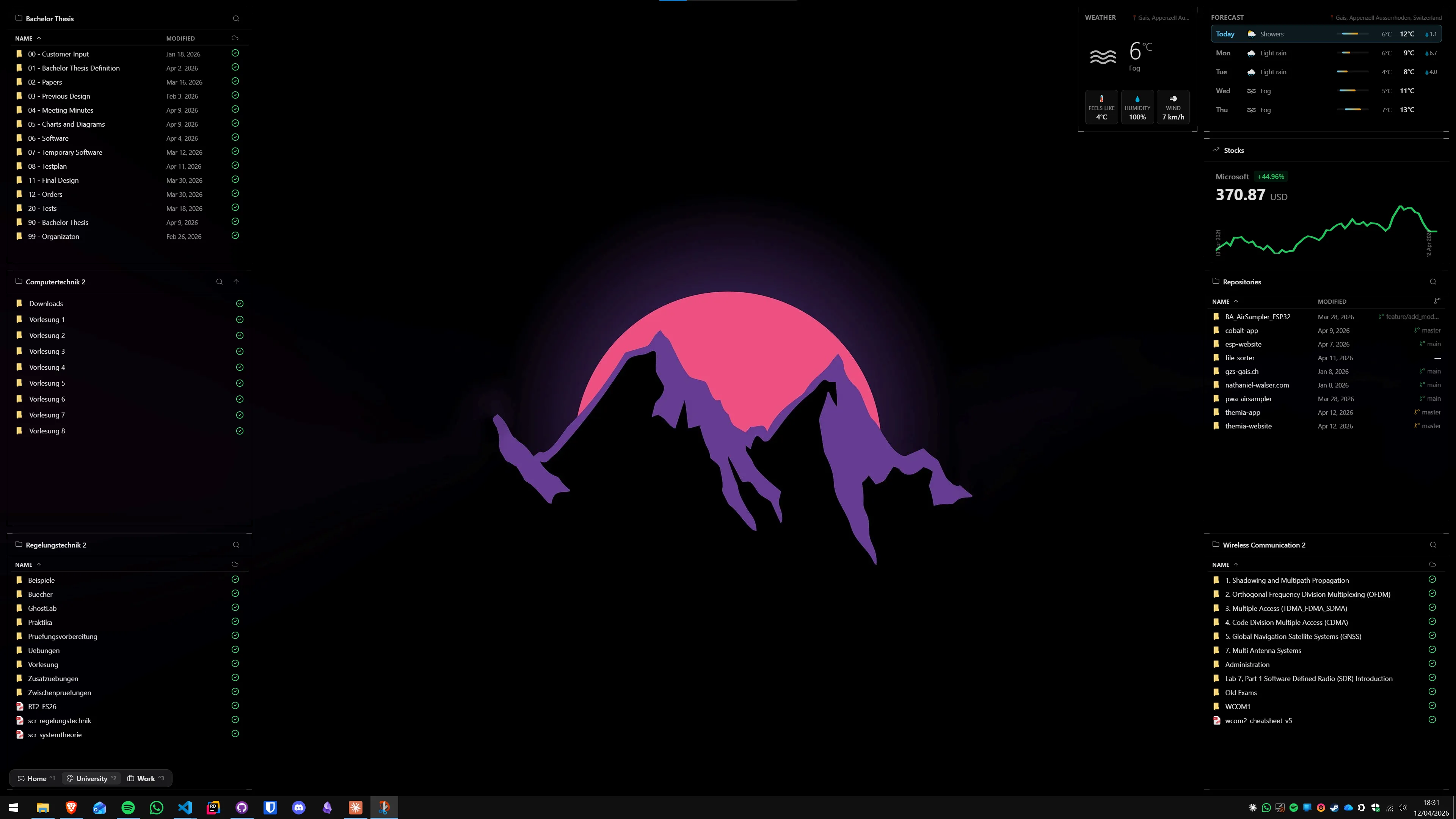
The most practical approach for most laptop users is a system stats widget that covers all of these in one panel. Themia's system stats widget does exactly that — battery, CPU, RAM, GPU, temperatures, and network speed in a single resizable panel on the wallpaper.
Which method fits your situation
- Just want the percentage, no fuss: Enable battery percentage in the taskbar (Settings → System → Power & sleep). Thirty seconds, no install.
- Want time-remaining and charge rate in the taskbar: BatteryBar free or Pro. Stays off the wallpaper, low overhead.
- Want a proper always-visible widget on the desktop: Themia — lowest friction for a multi-stat widget that looks intentional and sits on the wallpaper.
- Want full visual control over the design: Rainmeter with the PowerPlugin measure — complete flexibility, real setup commitment.
If you already use Themia for calendar, weather, or other widgets, adding battery status takes about thirty seconds — click the system stats widget, toggle on the battery field, and it appears. It fits naturally into the productivity dashboard pattern where the desktop wallpaper becomes an always-on information layer. The best Windows widget apps roundup compares all the major options if you want to survey the landscape before committing to one.
For a broader approach to turning your desktop into something useful rather than a wallpaper with a Recycle Bin, the minimalist Windows desktop setup guide walks through a restrained, practical layout that keeps the information density high without cluttering the screen.
FAQ
Can Windows 11 show battery percentage on the desktop without extra software?
Windows 11 can show battery percentage in the taskbar (Settings → System → Power & Sleep → Battery → turn on "Show battery percentage in the taskbar"), but that is a small number next to the tray icon — not a desktop widget. For an always-visible battery indicator sitting on the wallpaper itself, you need a third-party widget app or Rainmeter.
Does a battery widget drain the battery faster?
No, not meaningfully. A battery widget reads the existing Windows power management API — the same data source that the taskbar icon uses. The polling overhead is measured in microseconds. Any well-written widget app (including Themia) consumes far less power reading battery data than the screen backlight consumes in a fraction of a second.
Why does my battery widget show a different percentage than the taskbar icon?
They should match exactly, since both read from the same Windows battery API. If they differ by 1–2%, it is usually a polling-interval gap — the widget updates every few seconds, so a reading snapped just after a drain event may show a slightly older number. A persistent multi-percentage gap usually means one of the displays has a rounding difference (some apps show floor, others show round). If the gap is large, the battery itself may need recalibration.
Can I show battery status for multiple devices — headphones, phone — on the Windows desktop?
Windows 11 exposes Bluetooth device battery levels through the Settings → Bluetooth page, but not through the standard battery API that widget apps read. As of 2026, Themia and most desktop widget apps show the laptop battery only. For Bluetooth headphone battery, the most reliable option is the device manufacturer's companion app (Sony Headphones Connect, Jabra Direct, etc.) or a utility like Bluetooth Battery Monitor, which adds tray icons for paired devices.
Is BatteryBar still maintained in 2026?
BatteryBar has not had a significant update since the early 2020s, but it still works on Windows 10 and 11. It is stable software doing a simple job. The free version shows a color-coded battery bar in the taskbar; the Pro version ($5 one-time) adds time-remaining estimates and charge rate display. If you want a taskbar-level indicator without a desktop widget, BatteryBar remains a practical choice.
Does Rainmeter have a built-in battery measure?
Yes. Rainmeter includes a PLUGIN=PowerPlugin measure that reads battery charge level, charging status, and battery saver state directly from Windows. Any Rainmeter skin can include a battery readout by adding a PowerPlugin measure section and binding it to a meter. Many popular skin packs — including Illustro, which ships with Rainmeter — include a battery panel by default.