Windows 11 Keyboard Shortcuts: Complete 2026 Guide
Keyboard shortcuts are the fastest way to close the gap between thinking something and doing it on your PC. On Windows 11, a relatively short list of shortcuts — maybe 20 to 30 that you actually use — removes most of the friction from a typical workday: switching apps, snapping windows, taking screenshots, locking the machine, managing the clipboard. None of them require any software or configuration. They just work.
This guide organises every shortcut worth knowing by task rather than alphabetically, because the point is to find and remember the ones relevant to what you actually do. The first section covers the Windows key combinations unique to Windows 11; later sections cover window management, File Explorer, screenshots, clipboard, virtual desktops, and a handful of accessibility and browser shortcuts that complement the rest.
Windows key shortcuts: the essentials
The Win key shortcuts are the layer that makes Windows feel like Windows. These are the ones worth learning first because they work everywhere — in any app, at any time — and most of them have no equivalent anywhere on screen.
- Win + D — Show or hide the desktop (toggle). Press again to restore all windows.
- Win + , (comma) — Peek at the desktop while held. Release to restore everything. Useful for glancing at a widget or the clock without minimising anything.
- Win + E — Open File Explorer.
- Win + I — Open Settings.
- Win + L — Lock the screen immediately.
- Win + R — Open the Run dialog. Type
calc,notepad,cmd,mspaint,regedit, or any program name to launch it instantly. - Win + S — Open Windows Search.
- Win + X — Open the Power User menu (quick access to Device Manager, Terminal, PowerShell, System settings, Task Manager, and more).
- Win + A — Open Quick Settings panel (Wi-Fi, Bluetooth, volume, brightness, Do Not Disturb).
- Win + N — Open the Notification Centre.
- Win + W — Open the Widgets panel.
- Win + K — Open the Cast / Connect panel to connect a wireless display or Bluetooth audio device.
- Win + P — Open display projection options (PC screen only, Duplicate, Extend, Second screen only).
- Win + H — Start voice typing. Works in any text field.
- Win + V — Open clipboard history. Shows the last 25 copied items, pinned entries, and emoji picker. Requires clipboard history to be enabled in Settings → System → Clipboard.
- Win + . (period) or Win + ; — Open the emoji and symbols panel.
- Win + G — Open Xbox Game Bar. Useful for performance overlays, screen recording, and audio mixing even outside games.
- Win + U — Open Accessibility settings.
- Win + + (plus) — Open and zoom in with the Magnifier. Win + – zooms out. Win + Esc exits.
- Win + 1 through Win + 9 — Launch or switch to the app pinned at that position on the taskbar. If the app is already running, brings it to focus. If it is not pinned, does nothing.
- Win + T — Cycle focus through taskbar icons. Press Enter to launch the focused app.
- Win + B — Move focus to the system tray (notification area). Use arrow keys to navigate icons, Enter to open.
Window snapping and management
Snap Layouts in Windows 11 let you fill the screen with two, three, or four apps without dragging. The keyboard shortcuts are faster than any mouse-based approach once you know them. For a detailed walkthrough of all layout options, see the snap layouts guide.
- Win + Z — Open Snap Layout overlay on the active window. Choose a zone with the mouse or keyboard arrows, then pick the second app to fill the opposite zone.
- Win + Left arrow — Snap active window to the left half of the screen.
- Win + Right arrow — Snap active window to the right half of the screen.
- Win + Up arrow — Maximise the active window.
- Win + Down arrow — Restore a maximised window; press again to minimise.
- Win + Left/Right then Win + Up/Down — Snap to a quarter of the screen (corner). Useful on large monitors.
- Win + Shift + Left/Right arrow — Move the active window to the next monitor without resizing.
- Win + Shift + Up arrow — Stretch the window vertically to fill the full screen height while keeping its width.
- Alt + F4 — Close the active window or app. On the desktop, opens the Shut Down dialog.
- Alt + Space — Open the window menu (Restore, Move, Size, Minimise, Maximise, Close). Useful when a window is off-screen.
- Alt + Tab — Switch between open windows. Hold Alt, press Tab to cycle through thumbnails, release Alt to switch.
- Alt + ` (backtick) — Cycle through open windows of the same application (multiple Word documents, browser windows, etc.).
- Ctrl + Alt + Tab — Open the app switcher and keep it open without holding Alt.
Virtual desktops
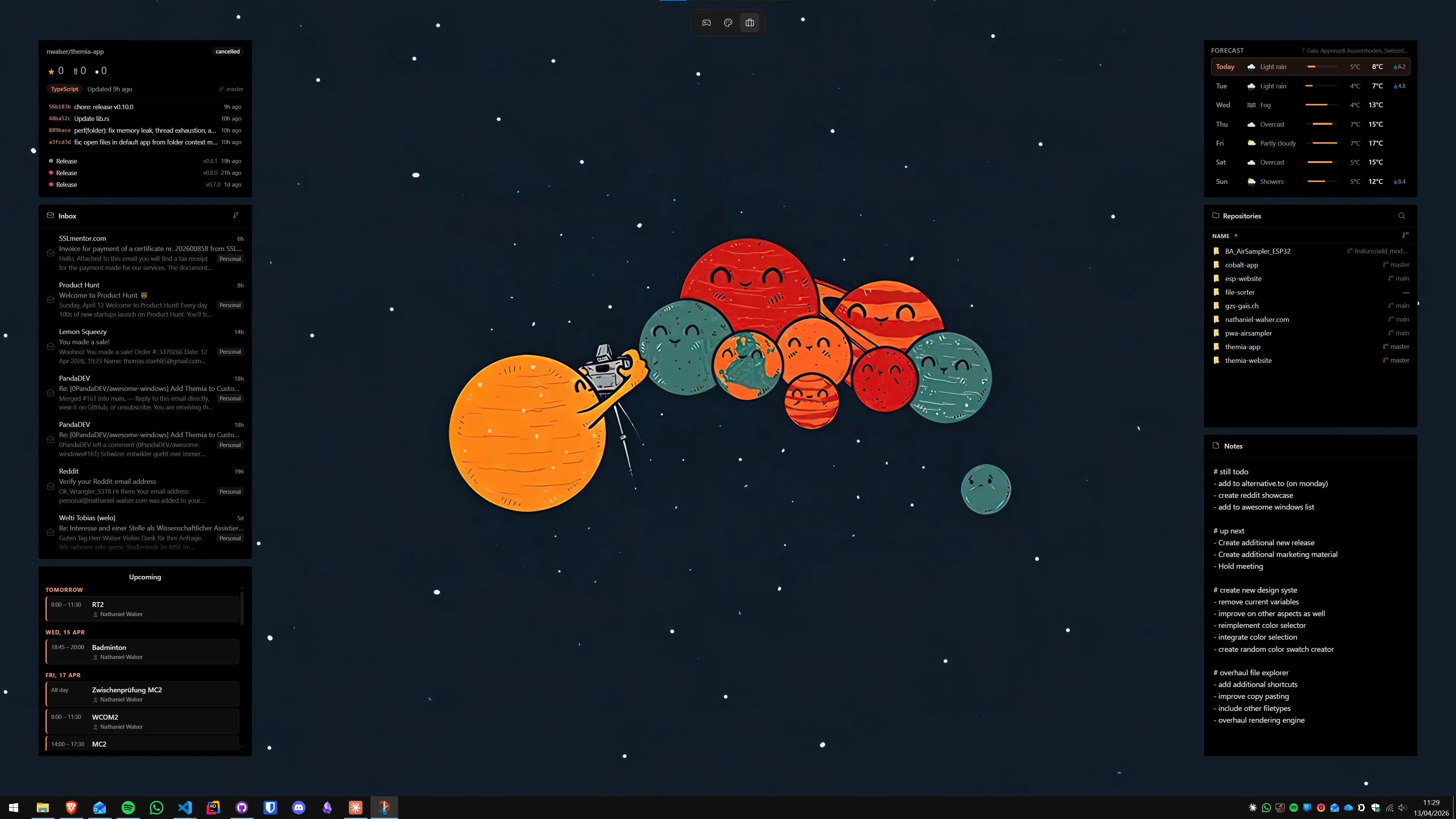
Virtual desktops let you separate work contexts without a second monitor. The keyboard shortcuts for switching between them are fast enough to make them genuinely practical once you have a consistent naming convention set up. The virtual desktops guide covers how to structure and name desktops effectively.
- Win + Tab — Open Task View. Shows all open windows and all virtual desktops. Click or press arrow keys to navigate.
- Win + Ctrl + D — Create a new virtual desktop.
- Win + Ctrl + Right arrow — Move to the next virtual desktop.
- Win + Ctrl + Left arrow — Move to the previous virtual desktop.
- Win + Ctrl + F4 — Close the current virtual desktop. Open windows on it move to the previous desktop.
- Win + Ctrl + W — Open Task View (same as Win + Tab). In some builds these are equivalent.
A practical workflow: keep a Work desktop (virtual desktop 1), a Communications desktop (desktop 2) for email and chat, and a Personal desktop (desktop 3) for everything else. Win + Ctrl + Right/Left cycles you through them in under a second.
Screenshots and screen recording
Windows 11 ships with genuinely good built-in screenshot and recording tools — no third-party software required for most tasks. The keyboard access is fast once you know which shortcut does what.
- Win + Shift + S — Open Snipping Tool overlay. Choose between rectangle, freeform, window, or full-screen capture. The screenshot goes to the clipboard and a notification appears to save it.
- PrtScn — Copy the full screen to clipboard. (May open Snipping Tool instead if that setting is enabled in Settings → Accessibility → Keyboard.)
- Win + PrtScn — Capture the full screen and save it directly as a PNG file in
Pictures → Screenshots. - Alt + PrtScn — Capture the active window to the clipboard.
- Win + Alt + PrtScn — Capture the active window and save it to the screenshots folder (via Xbox Game Bar).
- Win + G — Open Xbox Game Bar. From here you can start a screen recording, take a screenshot, or toggle a performance overlay.
- Win + Alt + R — Start or stop a screen recording via Xbox Game Bar without opening the full Game Bar panel.
- Win + Alt + G — Record the last 30 seconds (background recording must be enabled in Xbox Game Bar settings).
Clipboard and text editing
The universal clipboard shortcuts work in every app on Windows. The clipboard history feature (Win + V) is a Windows 11 feature worth enabling if you do any repetitive copy-paste work — it stores the last 25 items you copied, not just the most recent one. Enable it at Settings → System → Clipboard → Clipboard history.
- Ctrl + C — Copy selected text, file, or object.
- Ctrl + X — Cut selected text, file, or object.
- Ctrl + V — Paste from clipboard.
- Ctrl + Shift + V — Paste as plain text (strips formatting). Works in some apps like browsers and Slack.
- Win + V — Open clipboard history picker.
- Ctrl + Z — Undo last action.
- Ctrl + Y — Redo (undo the undo).
- Ctrl + A — Select all.
- Ctrl + F — Find (in most apps and browsers).
- Ctrl + H — Find and replace (in browsers, Office apps, Notepad).
- Home / End — Jump to beginning or end of the current line.
- Ctrl + Home / Ctrl + End — Jump to the beginning or end of the document.
- Shift + arrows — Extend selection character by character or line by line.
- Ctrl + Shift + arrows — Extend selection word by word.
- Ctrl + Left/Right arrow — Jump word by word instead of character by character.
- Delete — Delete the character to the right of the cursor (in text) or move selected files to the Recycle Bin.
- Shift + Delete — Permanently delete a file without sending it to the Recycle Bin. Use with care.
- Backspace — Delete the character to the left of the cursor.
- Ctrl + Backspace — Delete the entire word to the left of the cursor.
File Explorer shortcuts
File Explorer has its own set of shortcuts on top of the universal ones. These let you navigate folders, rename files, and manage the interface without touching the mouse. The File Explorer tips guide covers the interface improvements in more detail.
- Win + E — Open File Explorer.
- Ctrl + N — Open a new File Explorer window.
- Ctrl + W — Close the current File Explorer tab (or window if only one tab is open).
- Ctrl + T — Open a new tab in File Explorer.
- Ctrl + Shift + N — Create a new folder in the current location.
- F2 — Rename the selected file or folder.
- F5 — Refresh the current folder view.
- Alt + Enter — Open the Properties dialog for the selected file or folder.
- Alt + Left arrow — Go back to the previous folder.
- Alt + Right arrow — Go forward.
- Alt + Up arrow — Navigate to the parent folder.
- Ctrl + E or Ctrl + F or F3 — Move focus to the search box.
- Backspace — Go back (same as Alt + Left).
- Ctrl + L — Focus the address bar so you can type a path directly.
- Ctrl + Shift + E — Show all parent folders in the navigation pane for the current location.
- Alt + D — Focus the address bar.
- F11 — Toggle full-screen File Explorer.
- Ctrl + . (period) — Show or hide hidden files and folders (requires the relevant option to be enabled).
- Ctrl + Shift + 1 through 8 — Switch layout views (Extra large icons through Details).
System and task management
- Ctrl + Shift + Esc — Open Task Manager directly, without going through Ctrl + Alt + Del.
- Ctrl + Alt + Del — Open the security screen (Lock, Switch user, Sign out, Task Manager, Change password).
- Win + Pause / Win + Break — Open the About page in Settings (shows Windows version, device name, RAM).
- Win + Ctrl + Shift + B — Wake the display from a black screen caused by a graphics driver issue. Sends a reset signal to the GPU driver without a full reboot.
- Win + F — Open Feedback Hub to report a Windows issue to Microsoft.
- Win + Q — Open Windows Search (same as Win + S).
Browser shortcuts
These shortcuts work in Edge, Chrome, Firefox, and most Chromium-based browsers. They are the same across all major browsers so learning them once covers all your browsing.
- Ctrl + T — New tab.
- Ctrl + W — Close current tab.
- Ctrl + Shift + T — Reopen the last closed tab.
- Ctrl + Tab — Switch to the next tab.
- Ctrl + Shift + Tab — Switch to the previous tab.
- Ctrl + L or Alt + D or F6 — Focus the address bar.
- Ctrl + R or F5 — Reload the page.
- Ctrl + Shift + R or Ctrl + F5 — Hard reload (bypass cache).
- Ctrl + D — Bookmark current page.
- Ctrl + Shift + B — Show or hide the bookmarks bar.
- Ctrl + H — Open browser history.
- Ctrl + J — Open downloads.
- Ctrl + + or Ctrl + – — Zoom in or out.
- Ctrl + 0 — Reset zoom to 100%.
- F12 — Open developer tools.
- F11 — Toggle full-screen browser.
- Space / Shift + Space — Scroll down / up one page.
- Ctrl + Click — Open a link in a new background tab.
Putting shortcuts into practice
The most effective way to learn shortcuts is not to memorise a list but to replace one mouse action at a time. Pick three shortcuts that match something you do repeatedly today — for most people that starts with Win + Z for snapping windows, Ctrl + Shift + Esc for Task Manager, and Win + Shift + S for screenshots — and use only those until they are automatic. Then add three more.
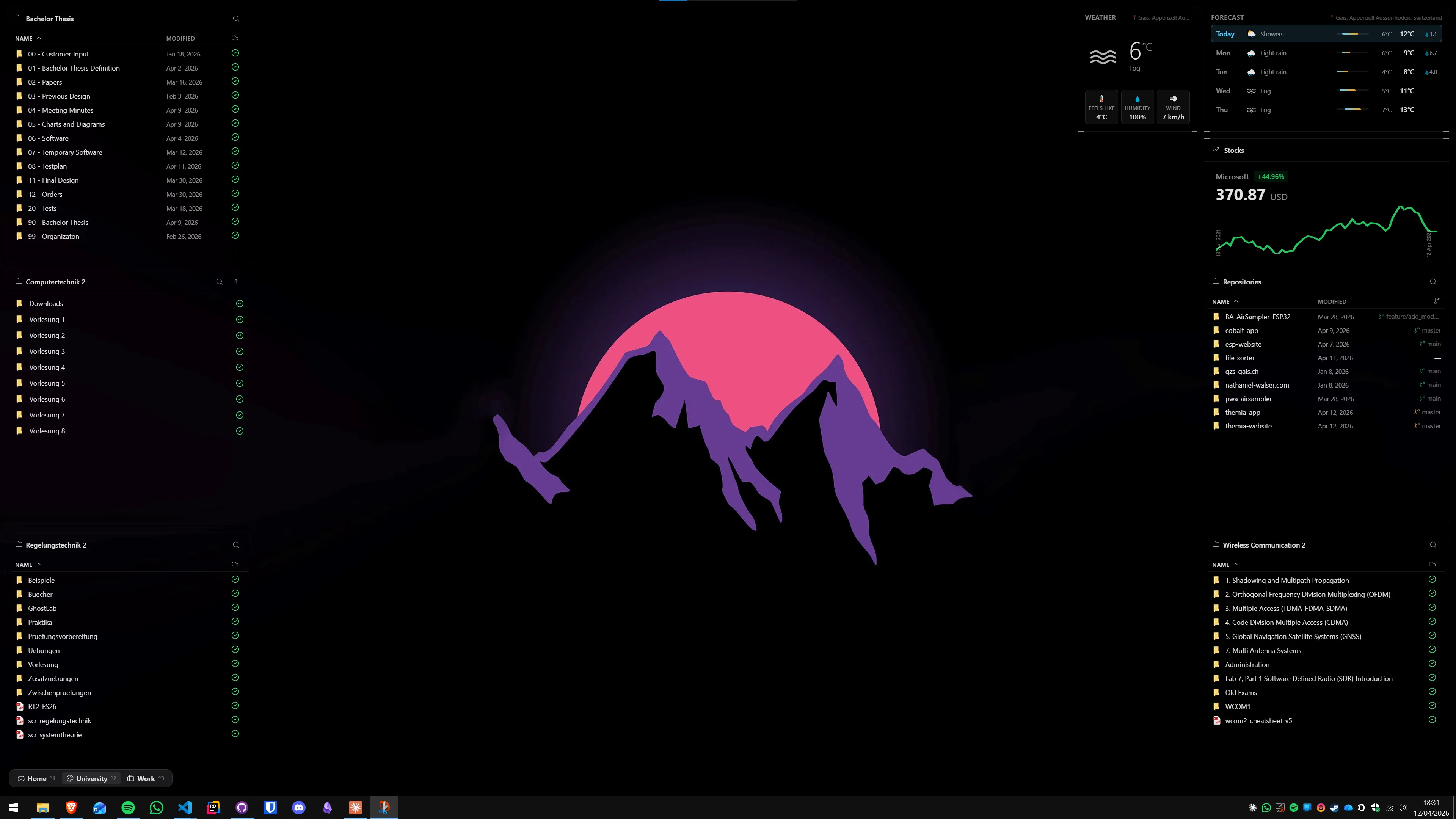
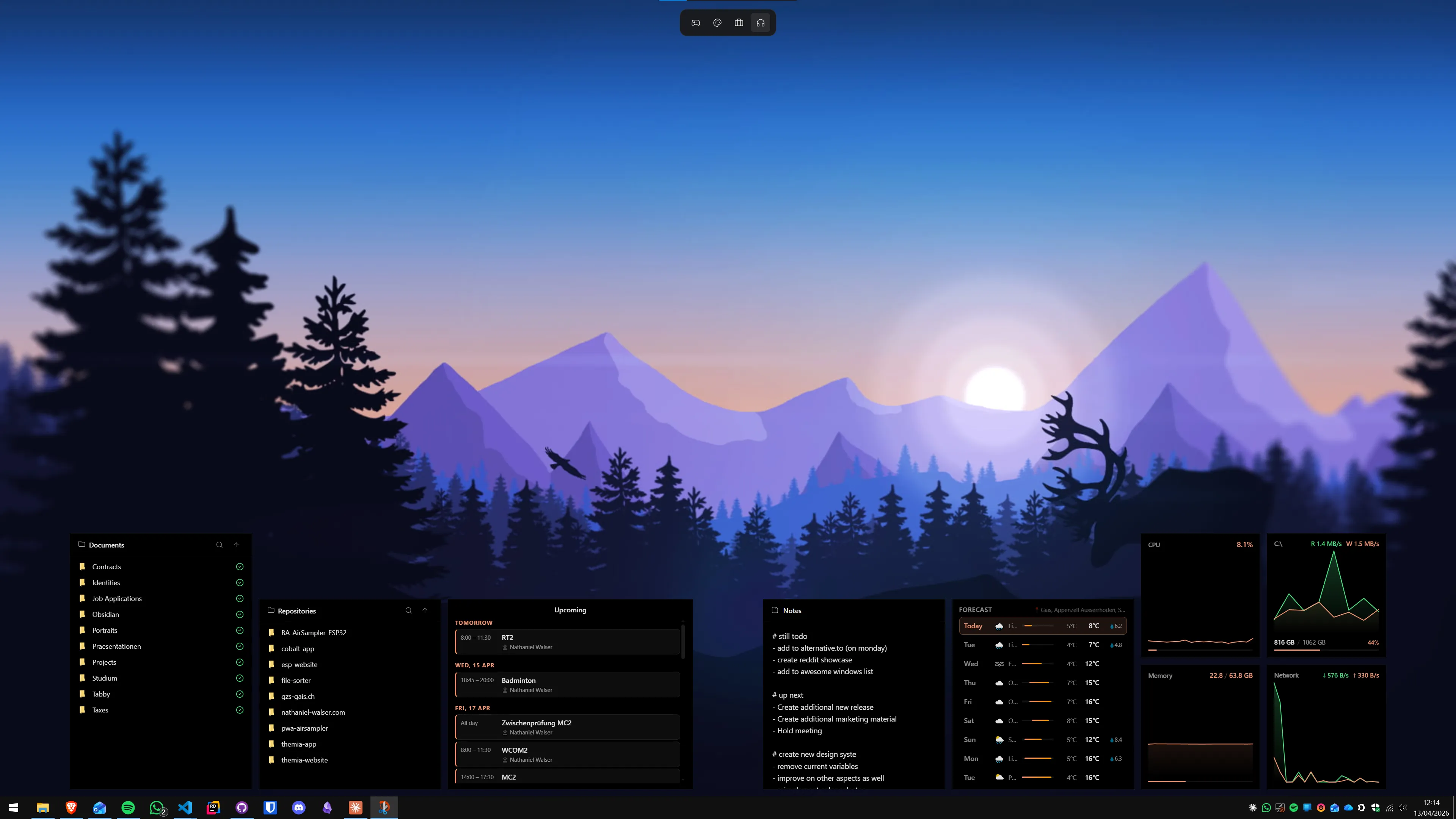
For a clean, always-visible information layer on the desktop that you can check with a Win + , peek, Themia puts widgets — calendar, email count, system stats, tasks — directly on the wallpaper. That means fewer windows to switch between in the first place, which makes the remaining windows easier to manage with shortcuts alone.
If you want to build a full productivity-first desktop, the productivity dashboard guide walks through combining shortcuts, snap layouts, virtual desktops, and desktop widgets into a coherent workflow. The Windows 11 performance guide covers startup optimisation that complements the keyboard-first approach — a faster boot means you reach your keyboard shortcuts sooner.
Frequently asked questions
Which Windows 11 keyboard shortcut do most people not know but should?
Win + Z is the one most people miss. It opens the Snap Layouts overlay on the active window — the same grid you get by hovering over the maximize button, but without touching the mouse. Combined with Win + Ctrl + Left/Right to jump between virtual desktops, you can run a full multi-monitor workflow without ever grabbing the mouse. Win + V (clipboard history) is the second most overlooked: it stores the last 25 copied items so you can paste anything you copied in the past few hours, not just the last thing.
Are Windows 11 keyboard shortcuts different from Windows 10?
Most shortcuts from Windows 10 still work in Windows 11. The additions are mostly Win + Z (Snap Layouts, new in Windows 11), Win + N (Notification Centre, replaces the old Action Centre icon), and Win + A (Quick Settings panel, now separate from notifications). Win + W opens the Widgets panel, which did not exist in Windows 10. Everything else — Alt + Tab, Ctrl + Shift + Esc, Win + D, Win + L, the whole Ctrl row — is identical.
Can I customise keyboard shortcuts in Windows 11?
Windows 11 does not let you remap most built-in Win+key shortcuts without a third-party tool. Microsoft PowerToys (free, from the Microsoft Store or GitHub) includes a Keyboard Manager that lets you remap individual keys and create custom key combinations. AutoHotkey (also free) is the more powerful option if you want to trigger scripts or complex actions. The shortcuts covered in this guide are the built-in defaults that work on any Windows 11 machine without extra software.
What is the shortcut to take a screenshot of just one window in Windows 11?
Alt + PrtScn captures the active window to the clipboard. Win + Shift + S opens the Snipping Tool overlay where you can choose Rectangle, Freeform, Window, or Full Screen — the Window mode lets you click any open window to capture exactly that. If you want the screenshot saved directly as a file rather than to the clipboard, Win + PrtScn saves a full-screen shot to Pictures → Screenshots.
Is there a shortcut to quickly switch between open windows of the same app?
Yes: Alt + ` (backtick, the key above Tab on most keyboards) cycles through open windows of the same application — useful when you have multiple Word documents or browser windows open. It is the per-app equivalent of Alt + Tab. If you are on a keyboard without a backtick key (common on some non-US layouts), Win + Tab opens Task View where all windows are visible and navigable with arrow keys.
Does Win + D close all windows or just hide them?
Win + D minimises all open windows and shows the desktop — it does not close anything. Press Win + D again and all the minimised windows return to exactly where they were. It is a toggle. This is different from Win + M, which minimises everything but cannot be reversed with a second key press. There is also Win + , (comma) which gives a momentary peek at the desktop while you hold the keys, then restores everything when you release — useful for glancing at a desktop widget without disrupting your workflow.