Windows 11 File Explorer: Tabs, Tips and Tricks (2026)
File Explorer has been part of Windows since 1995, and for most of those decades it evolved slowly. Windows 11 finally added the feature users had been asking for since Vista: tabs. But tabs are just the headline. Underneath them are search syntax tricks, keyboard shortcuts, Quick Access settings, and view options that most people never discover — and that save real time every day once you know them.
This guide covers everything worth knowing about Windows 11 File Explorer in 2026, ordered from most impactful to most niche. A short section at the end covers when to reach for a third-party alternative instead.
Tabs: everything you need to know
Tabs arrived with Windows 11 version 22H2 in October 2022. If you have applied updates since then, you have them. Open File Explorer and you will see a tab strip at the very top of the window, just like a browser.
The essential tab shortcuts:
- New tab: Ctrl+T or click the + at the right end of the tab strip.
- Close tab: Ctrl+W or click the X on the tab itself.
- Switch tabs: Ctrl+Tab to go right, Ctrl+Shift+Tab to go left. Ctrl+1 through Ctrl+8 jump directly to a numbered tab.
- Open folder in new tab: middle-click the folder, or right-click and choose Open in new tab.
- Reorder tabs: drag left or right.
Current limitations as of May 2026: there is no "duplicate tab" command, no "restore last closed tab" shortcut (Ctrl+Shift+T does nothing in Explorer), and no way to save a tab session across restarts. For those capabilities, the third-party Files app handles them properly.
The most practical use of tabs: keep one permanent tab pointing at your current project folder, and open temporary destinations — Downloads, a USB drive, a network share — in additional tabs you close when done. This beats the old habit of stacking four Explorer windows and losing track of which is which.
You can also pair multiple Explorer tabs with Windows 11 Snap Layouts — snap an Explorer window to one half of the screen and your main app to the other, keeping both visible simultaneously.
Quick Access and the Home view
In Windows 11, the navigation pane opens to a Home section that replaced what was previously called Quick Access. Home has three distinct parts: Pinned (folders you add manually), Recent files (added automatically by Windows), and Gallery (photos from Pictures, OneDrive, and other image locations).
To pin a folder: right-click it and choose Pin to Quick access. Despite the label, the folder appears in the Pinned section at the top of Home, exactly where you want it for fast navigation. To remove a pin, right-click the folder in the navigation pane and choose Unpin from Quick access.
If the Recent files or Gallery sections clutter your Home view, you can hide them: click the three-dot menu (···) at the top of the Explorer window, choose Options, and in the General tab uncheck "Show recently used files" and "Show frequently used folders". The result is a clean list of only what you pinned.
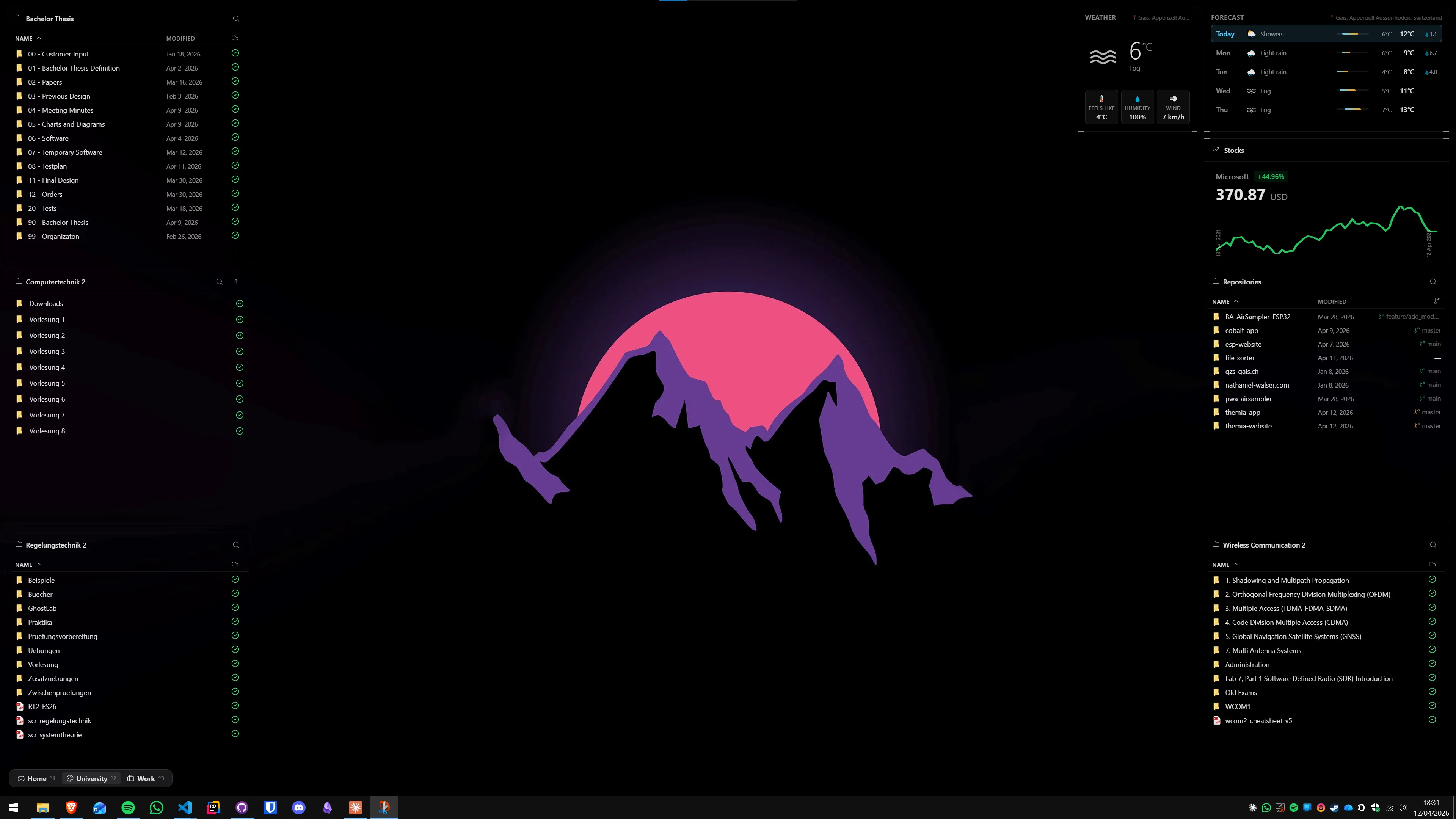
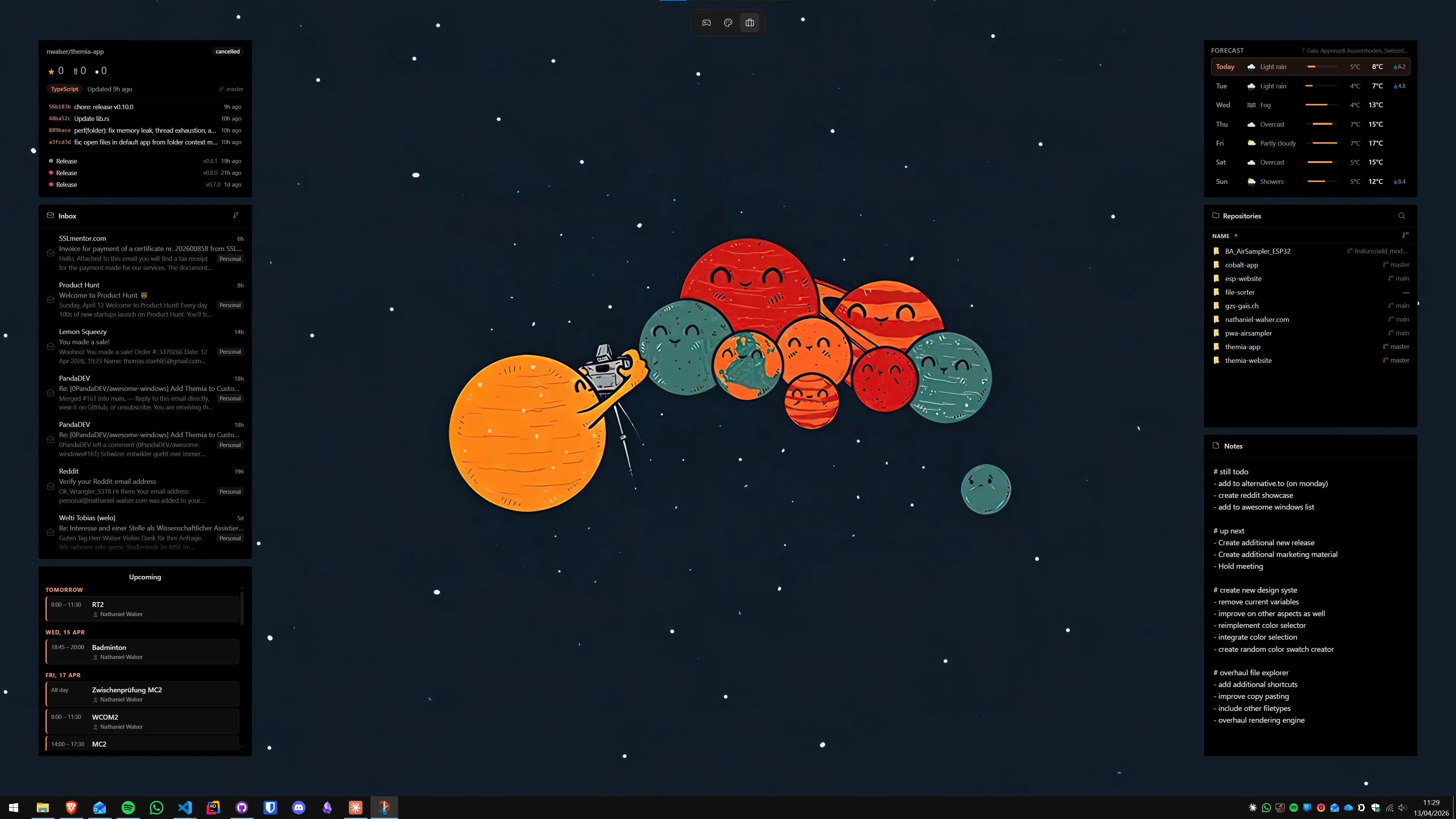
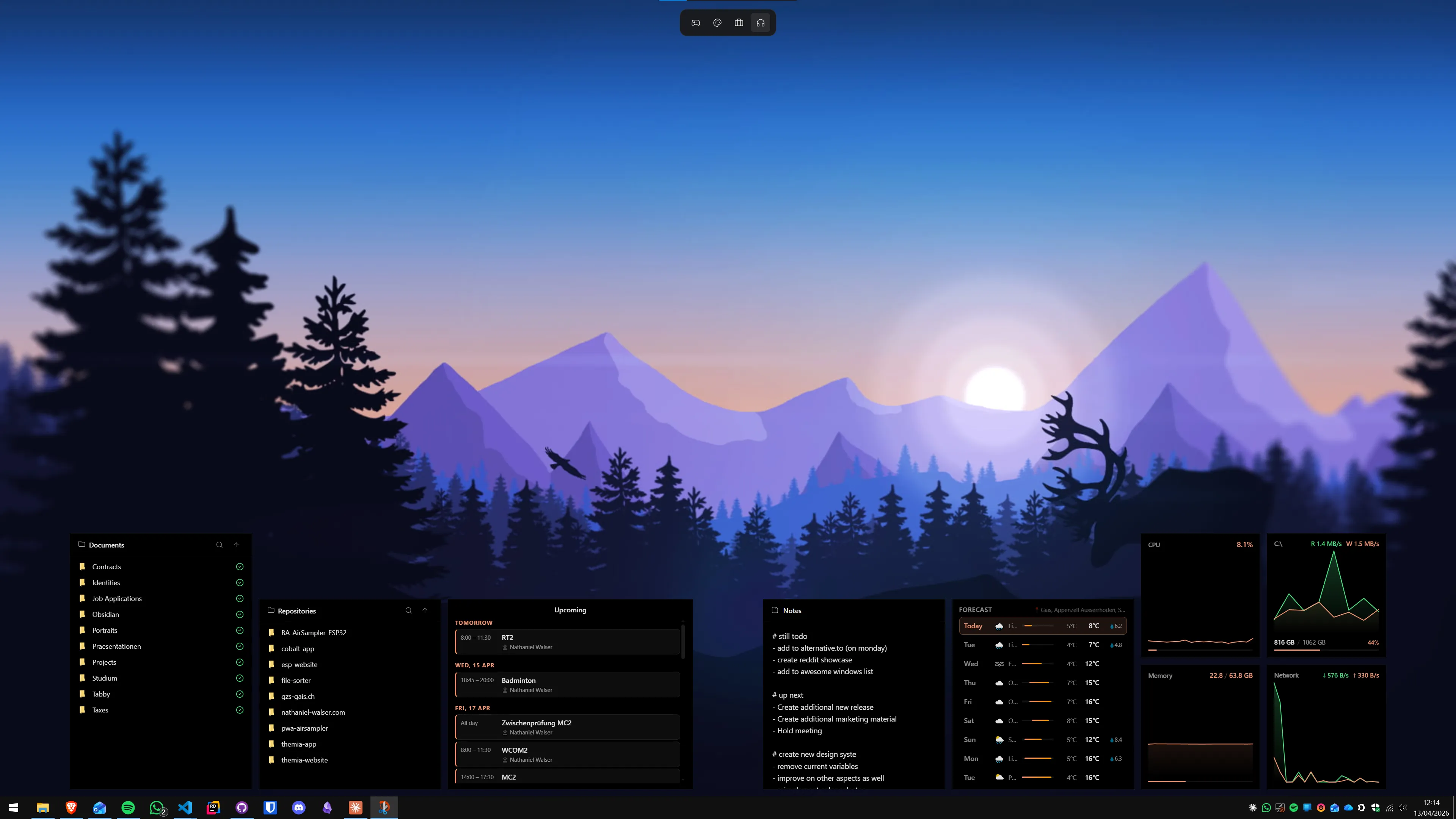
For folders you navigate to constantly, you can also pin them to the desktop — either as a simple shortcut or, with a live widget app, as a folder browser that updates in real time without opening a window.
Search: the syntax most people never use
The search box in the top-right corner of File Explorer is more capable than it appears. When Windows Search indexing is set to Enhanced mode, these search modifiers filter results with precision:
- By file type:
kind:document,kind:image,kind:music,kind:video,kind:folder. Example:budget kind:documentfinds documents with "budget" in their name or contents. - By date modified:
datemodified:last week,datemodified:this month, or a specific range:datemodified:1/1/2026..5/1/2026. - By size:
size:small(0–100 KB),size:medium(100 KB–1 MB),size:large(1–128 MB),size:huge(>128 MB),size:gigantic(>1 GB). Useful for finding storage hogs before a cleanup. - Exact phrase: wrap in double quotes:
"quarterly report". - Author or tags:
author:Smithortags:invoicefor Office files that have those metadata fields filled in. - Boolean operators:
report NOT draftfinds files with "report" but not "draft" in the name or content.
File content search works on indexed locations. By default, Windows only indexes your user profile folders. To index your whole drive: Settings → Privacy & security → Searching Windows → change to Enhanced mode. The initial indexing run takes a few hours; subsequent searches are nearly instant.
For searching unindexed drives, network shares, or very large folders, the free tool Everything by voidtools is dramatically faster. It reads the NTFS master file table directly and returns file-name results in milliseconds — though it does not search file contents.
Keyboard shortcuts that save the most time
These shortcuts work in any File Explorer window. The ones that become muscle memory fastest tend to eliminate the most mouse movement:
- Win+E — open a new File Explorer window from anywhere.
- Alt+Up — navigate to the parent folder.
- Alt+Left / Alt+Right — back and forward, browser-style.
- Alt+D or Ctrl+L — focus the address bar. Type any path and press Enter to jump directly there. Type a UNC path like
\\server\shareto open a network location. - F2 — rename the selected file or folder.
- F3 or Ctrl+F — focus the search box.
- Ctrl+Shift+N — create a new folder in the current directory.
- Ctrl+Z — undo the last file operation (rename, move, or copy). This is surprisingly powerful — it works even for large batch moves.
- Shift+Delete — permanently delete the selected item, bypassing the Recycle Bin. Use deliberately.
One less-obvious shortcut that saves time constantly: select a file or folder, hold Shift and right-click to expose Copy as path in the extended context menu. This copies the full file path, quoted, ready to paste into a terminal, a dialog box, or a script. In Windows 11's new simplified context menu, "Copy as path" also appears in the top toolbar when a file is selected — no need to hold Shift.
Views, preview pane, and compact mode
File Explorer offers several display modes. The quickest way to switch is the Sort and View button in the toolbar, but keyboard shortcuts cycle through them faster once you know them:
- Ctrl+Shift+1 — Extra Large Icons
- Ctrl+Shift+2 — Large Icons
- Ctrl+Shift+3 — Medium Icons
- Ctrl+Shift+6 — Details (the most useful for productive work)
- Ctrl+Shift+7 — Tiles
Details view shows Name, Date Modified, Type, and Size in sortable columns. Click any column header to sort — click again to reverse. Right-click any column header to add more columns, including tags, dimensions (useful for image folders), or a custom attribute.
Preview pane (Alt+P): opens a panel on the right that previews the selected file without launching an app. Works for images, text files, PDFs, and Office documents (with the appropriate app installed). Invaluable when you have a folder full of similarly-named files and need to identify the right one quickly.
Compact view: reduces the vertical spacing between rows, letting you see more entries at once without resizing the window. Go to View → Compact view to toggle it. Especially useful on high-DPI screens where the default spacing is generous to the point of being wasteful.
Gallery view: a newer mode that displays images from the current folder in a mosaic layout with auto-sizing. Not a replacement for a dedicated photo viewer, but a big improvement over scanning tiny thumbnails when browsing a folder of photos or screenshots.
The new context menu and useful additions
Windows 11 introduced a simplified right-click context menu that shows a short set of common actions and hides the rest behind "Show more options". You can access the full legacy menu at any time by pressing Shift+F10 after selecting a file, or by holding Shift while right-clicking.
Three additions in the simplified menu worth knowing:
- Open in Terminal: opens Windows Terminal at the current folder path. This replaces the old "Open command prompt here" that required Shift+right-click in Windows 10. Works for PowerShell, Command Prompt, and any other Terminal profile you have set up.
- Compress to ZIP / 7z / tar.gz: Windows 11 24H2 added native 7z and tar.gz support. You no longer need 7-Zip or WinRAR just to extract or create an archive in a modern format. 7-Zip is still worth having for its compression ratio and batch operations, but the built-in option covers most one-off tasks.
- Copy as path: copies the full, quoted path of the selected file to the clipboard. Shows in the toolbar for selected files and in the right-click menu on Shift+right-click. Works for multiple selected files too — each path appears on its own line.
If you find the simplified context menu frustrating, ExplorerPatcher restores the full Windows 10 style menu system-wide. It is third-party and injects into Windows processes, but it is mature and widely used — just be aware that it may need re-enabling after major Windows feature updates.
When to switch to a third-party File Explorer
The built-in Explorer covers most daily needs, but two scenarios justify installing an alternative:
Files (files.community): The best free option. Open-source, on the Microsoft Store, and polished. Adds dual-pane view (two folder locations side by side in one window), column view in the style of macOS Finder, proper archive support, tab duplication, and restoring recently closed tabs with Ctrl+Shift+T. If you hit the limits of built-in Explorer — especially the lack of dual-pane — start here.
Directory Opus: The professional choice. Dual-pane by default, highly scriptable through a built-in button and script system, with flat-folder search, FTP built in, and a filter system for batch renames and moves. Costs around $90 but has been actively developed since the Amiga era. If file management is a significant part of your daily workflow — software development, design, video editing — the investment pays off quickly.
For most readers: built-in Explorer with tabs and the shortcuts above handles daily use well. Install Files if you want dual-pane for free. Invest in Directory Opus if you work in files all day and efficiency matters more than the cost.
Once your files are under control, the next step is keeping your desktop useful. A productivity dashboard with always-visible widgets puts your calendar, tasks, and system stats directly on the wallpaper — no window to open. The best Windows desktop widget apps in 2026 covers the options with honest comparisons.
FAQ
Did File Explorer always have tabs in Windows 11?
No. Tabs were added with Windows 11 version 22H2, released in October 2022. Before that, users had to rely on third-party tools like Clover or QTTabBar for tab functionality. If you are on Windows 10 or a very old Windows 11 build, you will not see tabs — check Settings → Windows Update to make sure you are on a current build.
How do I open a folder in a new tab instead of a new window?
Middle-click any folder to open it in a new tab. Alternatively, right-click a folder and choose "Open in new tab" from the context menu. You can also Ctrl+click in the navigation pane. If none of these appear, you are on a pre-22H2 build of Windows 11.
Why is my File Explorer search slow or incomplete?
By default, Windows Search indexes only your user profile folders. Go to Settings → Privacy & security → Searching Windows and switch indexing to "Enhanced" to cover your whole drive. For very large or unindexed network drives, the free tool Everything by voidtools is dramatically faster — it reads the NTFS master file table directly and returns results in milliseconds.
Can I restore the old Windows 10 right-click context menu in Windows 11?
Unofficially, yes. ExplorerPatcher can restore the full classic context menu system-wide. It is a third-party tool that injects into Windows Explorer processes, so it may need updating after major Windows patches — use it knowing this trade-off. There is no official Microsoft setting to restore the old menu.
What is the difference between Quick Access and Home in Windows 11 File Explorer?
In Windows 11, the Home section replaced Quick Access as the top item in the navigation pane. Home contains three subsections: Pinned (folders you pin manually), Recent files (added automatically by Windows), and Gallery (photos from your Pictures folder). When you right-click a folder and choose "Pin to Quick access", it ends up in the Pinned section at the top of Home. You can hide Recent and Gallery from View → Options if you prefer a clean pinned-only list.
Is there a better free alternative to Windows File Explorer?
Files (files.community) is the best free open-source alternative. It adds dual-pane view, column view, better archive handling, tab duplication, and restore recently closed tabs. Available on the Microsoft Store. For professional file management work, Directory Opus (~$90) and XYplorer (~$40) are the paid power-user choices. For most daily use, the built-in Explorer with tabs and the shortcuts in this guide is sufficient.