How to Pin a Folder to Your Windows Desktop
You want a folder on your desktop. Not buried three clicks deep in File Explorer, not tucked behind a Quick Access sidebar you have to open first — on the desktop, where you can see it. This guide covers every way to do that in 2026, from the classic right-click shortcut to live folder widgets that actually show the files without you clicking anything.
Each method has its place. The right one depends on whether you just need a clickable icon, or whether you actually want the folder's contents visible at a glance while you work.
First: "pin to desktop" vs "Quick Access" vs "Start"
Windows uses "pin" in three different places and they do three different things. Before picking a method, make sure you are solving the right problem.
- Pin to desktop — an icon appears on your wallpaper. You double-click it to open the folder in File Explorer. This is what most people mean when they search for "pin folder to desktop." Methods 1 and 3–5 below cover this.
- Pin to Quick Access — the folder shows up in the sidebar of File Explorer so you can jump to it from any Explorer window. Useful, but invisible unless you have Explorer open. Method 2 covers this.
- Pin to Start — the folder becomes a tile in the Windows 11 Start menu. Only visible when Start is open. Not covered in detail here — it is a different workflow.
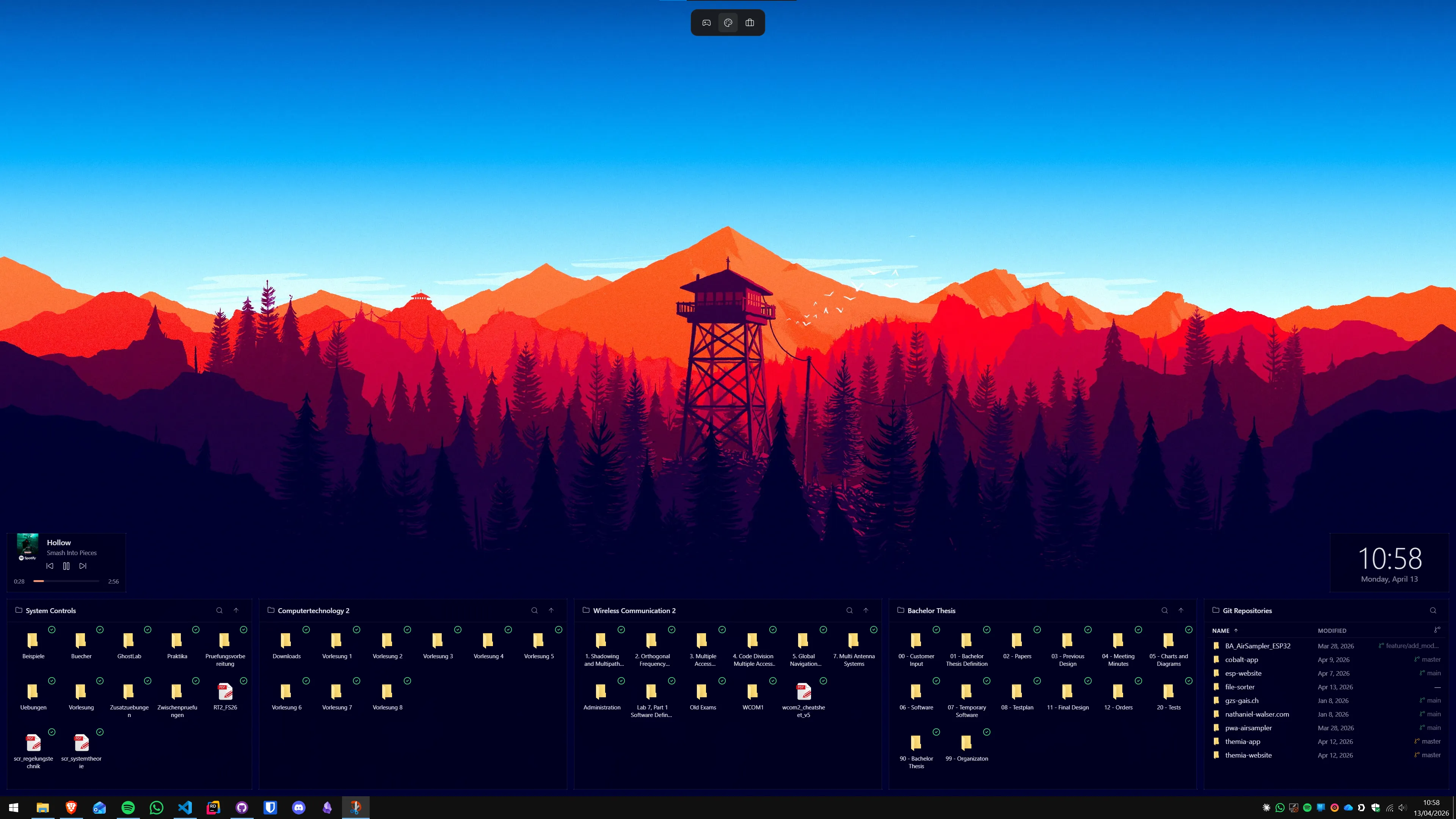
If you want the folder visible without clicking anything at all, you are looking for a folder widget, not a shortcut. That is Method 5.
Method 1: Create a classic desktop shortcut
The built-in way. Works on every edition of Windows 10 and 11, takes five seconds, no extra software. The result is a clickable icon on your desktop that opens the folder in File Explorer.
- Open File Explorer (
Win+E) and navigate to the folder you want to pin. - Right-click the folder. In Windows 11, click Show more options to get the classic context menu.
- Hover Send to, then click Desktop (create shortcut).
- Minimize or move windows out of the way — the shortcut is now on your desktop.
Three faster alternatives if you already have File Explorer open next to your desktop:
- Alt-drag the folder onto the desktop. Holding Alt while dragging forces Windows to create a shortcut instead of moving the folder. The cursor shows a small curved arrow while you drag.
- Right-click-drag the folder to the desktop. When you release, choose Create shortcuts here from the menu.
- Shift+right-click the folder, pick Create shortcut, then drag the resulting shortcut from the Explorer window onto the desktop.
What you get: a single clickable icon. What you do not get: any view of what is actually inside the folder. You still have to double-click and wait for a File Explorer window to open. For a lot of use cases that is fine — for others it is exactly the thing you were trying to avoid.
Method 2: Pin to Quick Access (useful, but not on the desktop)
This is worth mentioning because half the search results for "pin folder" actually describe this, and it solves a related but different problem. Pinning to Quick Access puts a folder in the sidebar of File Explorer, not on your desktop.
- Open File Explorer (
Win+E). - Navigate to the folder you want to pin.
- Right-click the folder and choose Pin to Quick Access. In Windows 11 you may need to click Show more options first.
- The folder now appears at the top of the left sidebar in every File Explorer window.
Use this if your workflow is already "I always have File Explorer open." Skip it if you want the folder visible on an empty desktop.
Method 3: Stardock Fences folder portals
This is where we stop pretending a shortcut is enough. Stardock Fences has a feature called folder portals — a fence that mirrors the contents of a folder directly on the desktop. You see the files, you drag files in and out, double-clicking opens them. It is a live view, not a link.
Setup: hold Alt while dragging a folder from File Explorer onto the desktop, right-click an empty area of the desktop and draw a fence then choose "This fence will be a folder portal," or right-click a folder in Explorer and pick "Show this folder on the desktop." Any of the three gets you a portal that stays pinned in place.
Fences is paid (one-time license, sold separately or as part of Object Desktop). If you also have a lot of regular desktop icons to organize, Fences does both jobs in one app — folder portals for a handful of live folder views, regular fences for grouping icons. Full comparison in Themia vs Stardock Fences.
Method 4: Nimi Places containers
Nimi Places is the long-standing free option. Each container can be pointed at a folder on disk — create a new place, drop a folder on it, and the container shows that folder's contents on the desktop. Containers can be themed, resized, and stacked.
The trade-off is customization vs. polish. Nimi gives you deep control over how each container looks (frames, backgrounds, icons, layouts), which is great if you enjoy tinkering and less great if you want something coherent out of the box. Free, actively maintained, Windows 10 and 11 compatible. Full comparison in Themia vs Nimi Places.
Method 5: Themia folder widget (the live answer)
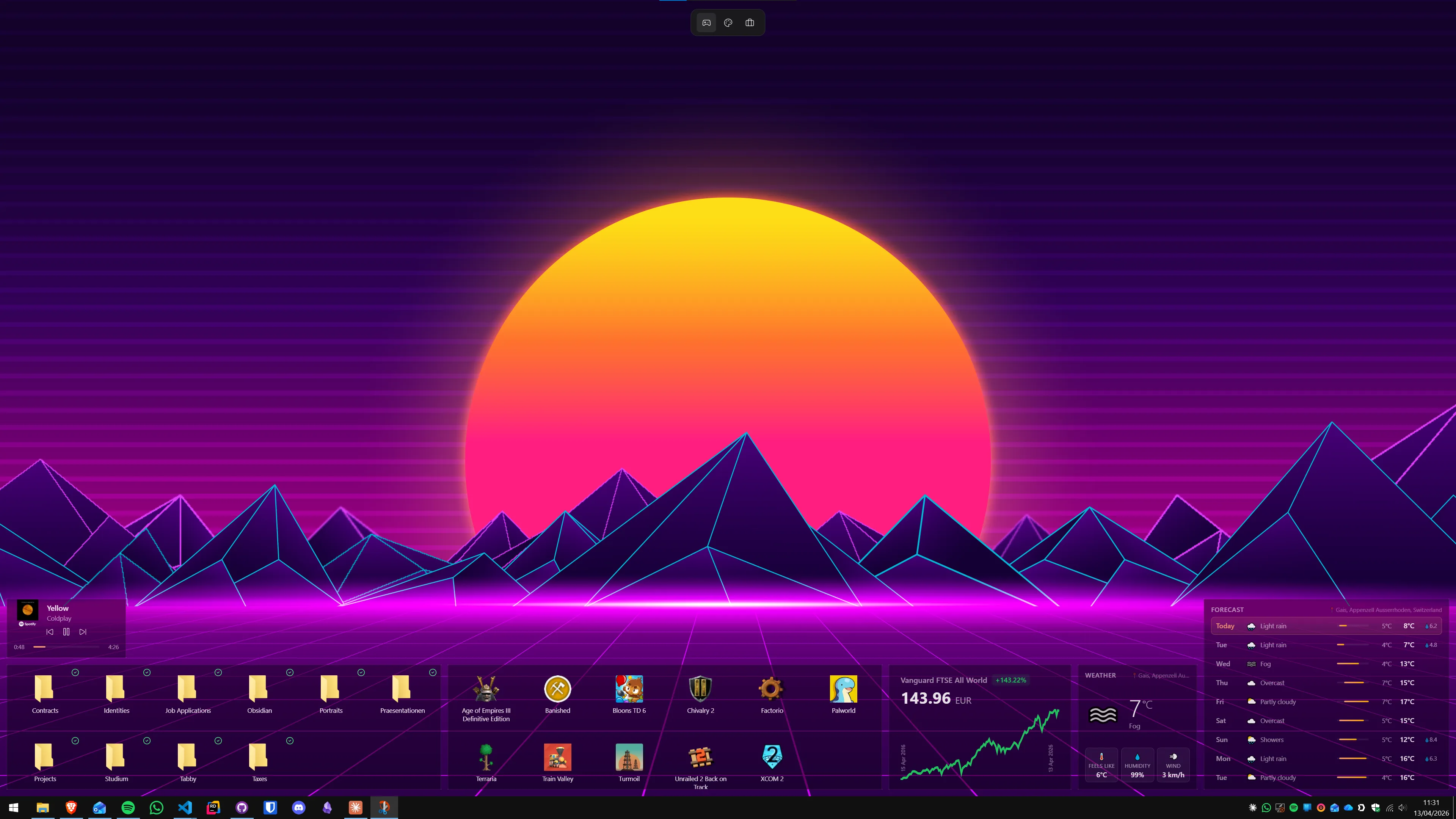
If the actual goal is "I want this folder visible on my desktop, with its contents, without clicking anything," this is the method that matches the goal. Themia is a native Windows widget app built on Tauri. Install size is under 10 MB, it runs on Windows 10 and 11, and it has a free tier that covers the folder widget.
Setup is fast:
- Install Themia and launch it.
- Click the + in the widget picker and choose the Folder widget.
- Browse to the folder you want to pin, or paste its full path.
- Pick a grid or list layout, drop the widget where you want on the desktop, and resize it to taste.
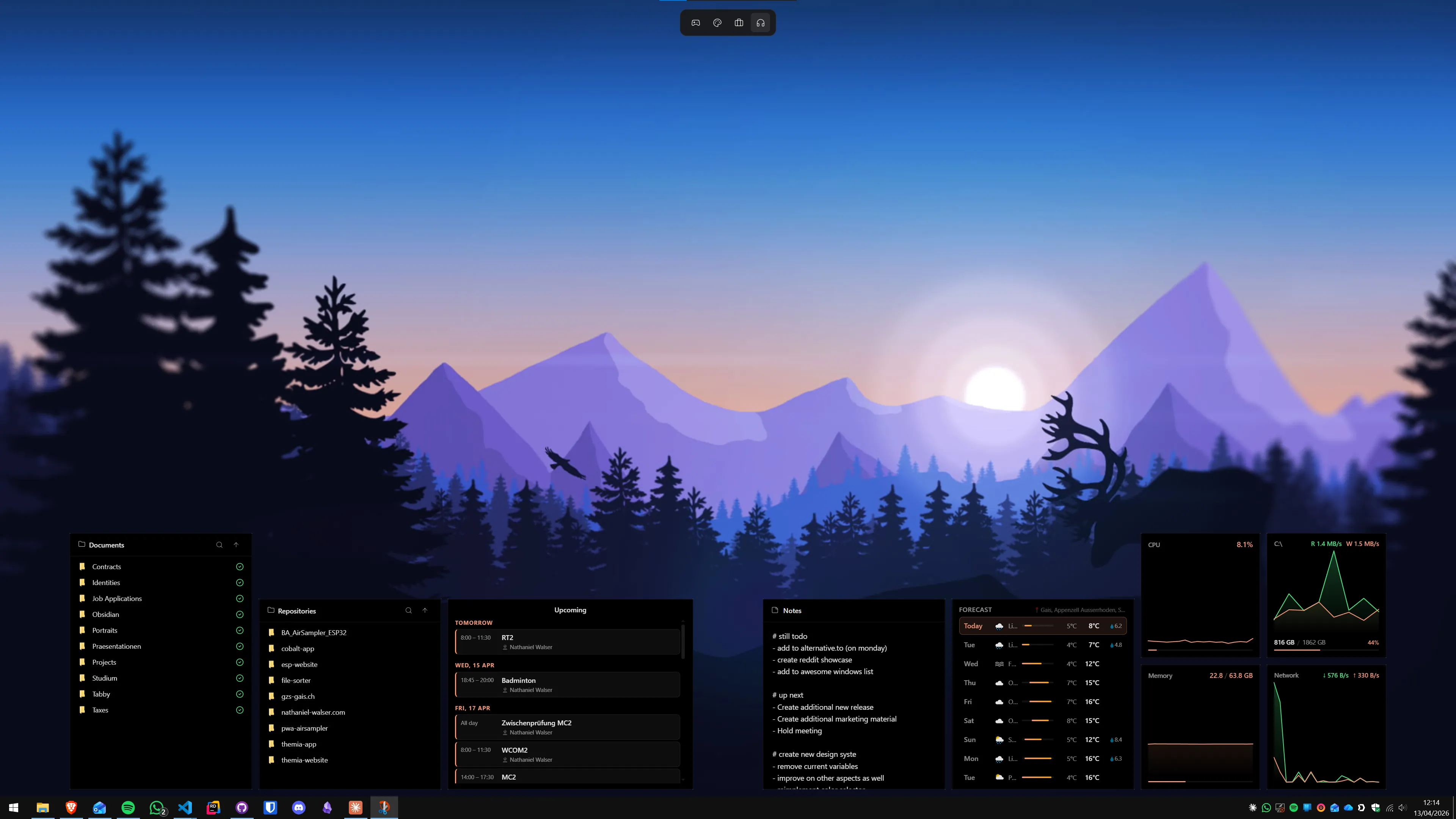
Once it is placed, the folder is actually on the desktop. You can see the files without opening File Explorer. Drag a file into the widget to move or copy it into the folder; drag one out to move it elsewhere. Double-click any file to open it with its default app. The view updates live when files change, so a downloads folder widget shows new downloads as they arrive.
Two useful extras if you work on multiple monitors or switch between work and home setups:
- Per-screen layouts. You can put different folder widgets on different monitors, and swap whole layouts when your display setup changes (docked, undocked, projector plugged in).
- Other widgets alongside. The folder widget is one of many — calendar, email, weather, system stats, notes, to-do, music. The same desktop can hold a downloads folder widget on the left, calendar on the right, and system stats in the corner.
Free tier, Pro is a one-time $19. If you just want one or two folders pinned, the free tier is enough.
Which method should you pick?
- Just need a clickable icon? Method 1 — built-in desktop shortcut. No download, five seconds.
- Always have File Explorer open? Method 2 — pin to Quick Access. Different tool for a different job.
- Want the folder contents visible on the desktop, already pay for Stardock tools? Method 3 — Fences folder portals.
- Want free, and love customizing? Method 4 — Nimi Places.
- Want live folder widgets that fit next to calendar, email, weather? Method 5 — Themia.
The built-in shortcut is the fastest answer to the narrow question. Everything past it is a better answer to the real question — the desktop is prime screen real estate, and a folder icon that opens a File Explorer window does not use it well. For more on what else can go on the desktop, see the roundup in the best Windows desktop widget apps in 2026.
FAQ
What is the fastest way to pin a folder to the Windows desktop?
The quickest built-in method is a right-click shortcut. Open File Explorer, find the folder, right-click it, choose "Show more options," then "Send to → Desktop (create shortcut)." That puts an icon on the desktop that opens the folder in a new File Explorer window. It is not the folder itself — it is a link — but it takes about five seconds and needs no extra software.
What is the difference between pinning to desktop, pinning to Quick Access, and pinning to Start?
They are three separate things. Pin to desktop means an icon on your wallpaper that you click to open the folder. Pin to Quick Access puts the folder in the sidebar of File Explorer for fast navigation inside that app. Pin to Start adds a tile to the Windows 11 Start menu. Only the first one actually shows anything on the desktop itself. If you want the folder visible without clicking at all, you need a widget app like Themia.
Can Windows show folder contents directly on the desktop without opening File Explorer?
Not out of the box. A standard desktop shortcut opens the folder in a File Explorer window when you double-click it — the contents are never visible on the desktop itself. For a live view of the files, you need a third-party tool: Stardock Fences with folder portals, Nimi Places containers, or a Themia folder widget. Themia is the modern native option and has a free tier.
Why does dragging a folder to the desktop move it instead of making a shortcut?
By default, dragging a folder within the same drive moves it. To force Windows to create a shortcut instead, hold the Alt key while dragging — the cursor will show a curved arrow and a "Create link" label. Release over the desktop and you get a shortcut without touching the original. Right-click-drag is another option: release the mouse on the desktop and choose "Create shortcuts here" from the menu that appears.
Will a pinned desktop shortcut still work if I move the original folder?
No — shortcuts break when the target moves. The shortcut stores the full path to the folder, so if you move the folder elsewhere or rename a parent directory, double-clicking the shortcut will throw a "location is not available" error. You can right-click the shortcut, open Properties, and update the Target path manually. Folder widgets in Themia watch the folder path the same way, so they have the same limitation — move the folder, update the widget.
Is there a way to pin a folder to the taskbar on Windows 11?
Not directly. The taskbar is designed for apps, not folders. The common workaround is to create a desktop shortcut first, then right-click it and pin File Explorer to the taskbar while holding the folder as an argument — but in Windows 11 the cleaner answer is to pin the folder to Quick Access and let File Explorer handle it. For "always visible" behavior, nothing on the taskbar matches a desktop widget.