Stardock Fences vs Windows 11 Snap Layouts (2026)
"Desktop organisation" searches on Windows 11 surface two names frequently: Stardock Fences and Windows 11 Snap Layouts. Both promise to bring order to a chaotic desktop experience. But if you read past the surface-level descriptions, you quickly discover they are solving entirely different problems. Fences organises the icons and file shortcuts on your desktop background. Snap Layouts organises the application windows floating above that background. These are not competing tools — they address adjacent layers of the same Windows desktop.
This comparison breaks down exactly what each tool does, when you need one or both, and where Themia enters the picture as a third distinct layer that neither Fences nor Snap Layouts provides.
What Windows 11 Snap Layouts actually does
Snap Layouts is a built-in Windows 11 feature that shipped with the initial release and has been refined in subsequent updates including 24H2. It is free, requires no installation, and is activated by hovering over the maximise button on any application window — or by pressing Win + Z. When triggered, a small overlay appears above that button showing the available layout options for your current screen size.
The number of zone configurations available depends on your display resolution. On standard 1080p screens, Windows typically offers two-column splits, three-column grids, and sidebar arrangements. On larger screens and higher resolutions, you can access up to six-zone grid layouts. Choose a zone position, and the current window snaps precisely to that boundary. Windows then prompts you to fill the remaining zones with other open applications to complete the arrangement.
Snap Layouts also integrates with the taskbar through Snap Groups. After you create a multi-window arrangement, hovering over one of those apps on the taskbar shows a thumbnail of the full grouped layout, letting you restore all the windows in their positions at once. This makes it easy to switch between a focused single-window view and a multi-panel work layout.
What Snap Layouts does not do: it has absolutely no effect on desktop icons. The icons, file shortcuts, folders, and any Fences containers sitting on your desktop wallpaper are invisible to Snap Layouts. It only ever touches running application windows. If you snap a browser into a two-column layout, the icons on the desktop below those windows are completely unaffected. Snap Layouts does not reach down to the desktop icon layer.
Snap Layouts also does not let you name zones, save zone configurations per application, or automatically route specific applications to specific zones. For those capabilities, free tools like Microsoft PowerToys FancyZones offer more granular control — as explored in our Stardock Fences vs PowerToys comparison.
What Stardock Fences actually does
Fences is a desktop icon organiser for Windows. It places labelled, resizable containers — called fences — directly on the desktop wallpaper. Icons, file shortcuts, and folder links sit inside these containers instead of loose on the background. You create as many fences as needed, label them by project, file category, or workflow stage, and arrange them wherever makes sense on your desktop layout.
Fences 6 (current build 6.4.6.1) runs on Windows 10 and Windows 11, including the 24H2 update. It costs $29.99 for a perpetual one-time licence or $9.99 per year as a subscription. A 30-day free trial is available before purchase. For a detailed breakdown of whether the cost is justified for your use case, see our guide on whether Stardock Fences is worth buying in 2026.
The specific capabilities Fences 6 adds beyond simple icon grouping:
- Auto-Organize rules: define conditions based on file extension, file name pattern, or category, and Fences automatically routes new files that appear on the desktop into the appropriate container. Drop a PDF on the desktop and it routes itself into your Documents fence. Save a screenshot and it lands in your Images fence. For a full walkthrough, see our guide on Fences Auto-Organize rules.
- Folder Portals: a fence that mirrors the live contents of a real folder on your drive. Files appear in the portal automatically as they are added to the source folder, without moving the originals. Useful for keeping a Downloads folder or active project folder visible on the desktop. Explained in detail in our Fences Folder Portals guide.
- Tabs: a single fence can hold multiple named tabs — one container footprint on the desktop, multiple categories of content accessible by tab click. Our Fences 6 Tabs guide covers the feature in depth.
- Desktop Pages: virtual desktop layouts for icons only. Switch between different icon arrangements — a work layout, a personal layout, a gaming layout — without affecting any open application windows or running processes.
- Quick Hide and Peek: press Win + Space (or a configured keyboard shortcut) to make all fences instantly invisible. Press again to reveal them. Useful before screen sharing or presentations where the desktop is briefly visible. More on this in our Quick Hide and Roll-up guide.
- Roll-up: double-click a fence header to collapse it to just the title bar, freeing desktop space when you temporarily do not need those icons visible.
- Icon colour tinting: apply a colour tint to icons within a fence for quick visual category identification without renaming files.
What Fences does not do: it has no effect on application windows. When you open a browser, a document editor, or a terminal, those windows float above the desktop layer where Fences operates. Fences containers are not zone boundaries for windows. Moving, resizing, or snapping application windows is entirely outside the scope of Fences.
Why these two tools are not competitors
The confusion between Fences and Snap Layouts usually comes from the word "desktop," which gets used loosely in two different ways. In everyday language, "the desktop" can mean everything visible on screen — the whole working environment. In precise Windows terms, "the desktop" refers specifically to the wallpaper background — the surface underneath all open windows, where icons sit. Snap Layouts addresses the broad meaning. Fences addresses the narrow one.
Once that distinction is clear, the comparison dissolves. Fences and Snap Layouts do not compete for control of the same elements. Snap Layouts moves windows. Fences organises the icons sitting beneath those windows. A user who installs both is not running redundant tools — they have covered both layers of their desktop experience.
The practical picture: open a few applications. Use Snap Layouts to arrange them into a tiled grid across your monitor. Now minimise everything. The desktop background that appears — with all its icons and shortcuts — is entirely unaffected by Snap Layouts. That icon layer is where Fences operates. Two tools, two layers, no overlap.
For a comparison of Fences with a tool that does have genuine overlap with Snap Layouts, see the Fences vs PowerToys FancyZones breakdown. FancyZones offers more advanced window snap zone configurations than the built-in Snap Layouts while still leaving the desktop icon layer entirely to Fences.
Choosing the right starting point
If you are new to both and need to prioritise, the decision depends on your primary frustration with the current setup.
Start with Snap Layouts if: your desktop icon situation is manageable but open application windows frequently overlap, you lose track of which app is where, or you spend time each session manually resizing and repositioning windows into a usable arrangement. Snap Layouts requires no download — it is already installed. Hover over any window maximise button and try it immediately.
Start with Fences if: your desktop wallpaper is buried under layers of icons, shortcuts, and downloaded files. If minimising all applications reveals a chaos of unsorted content on the background, Snap Layouts will not help — it only ever moves running windows. Fences solves the icon layer problem directly and persistently. A 30-day trial lets you evaluate it before committing to the $29.99 purchase.
For the majority of users who have both an icon-heavy desktop and multiple overlapping application windows, installing both is the right answer. They run simultaneously without conflict, without notable performance impact, and without competing for control of the same elements. For more perspectives on whether Fences earns its place in a Windows setup, see the full discussion in our Windows desktop organisation for remote work guide.
Multi-monitor setups: using both tools together
Multi-monitor users get the clearest benefit from running both tools simultaneously. With Snap Layouts, each monitor supports its own snap layout configuration. Your primary monitor might display a two-column layout with a browser on the left and a code editor on the right. Your secondary monitor might run a single-pane layout for documentation or a sidebar arrangement for a communication tool. Windows 11 remembers these configurations through Snap Groups and restores them across sessions.
Fences handles the icon layer on each monitor independently at the same time. You can place different containers on each screen — project shortcuts on the primary monitor, reference documents or archive files on the secondary. Fences 6 includes multi-monitor controls that let you configure which containers appear on which display and lock icon positions per monitor. Combined with Snap Layouts on the window layer, the result is a fully structured multi-monitor workspace where both layers are under deliberate control rather than accumulating by chance.
What Themia adds as the third layer
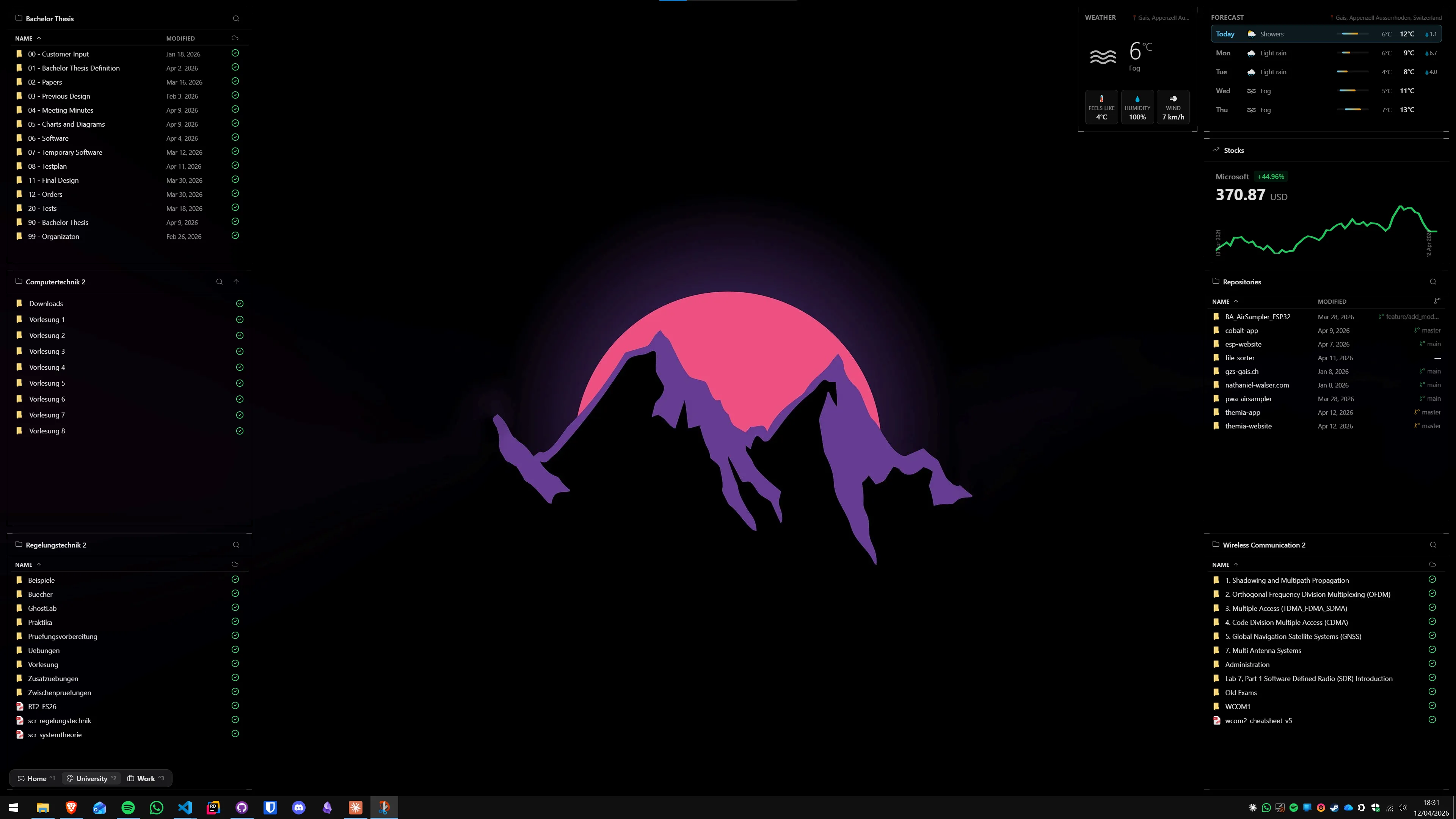
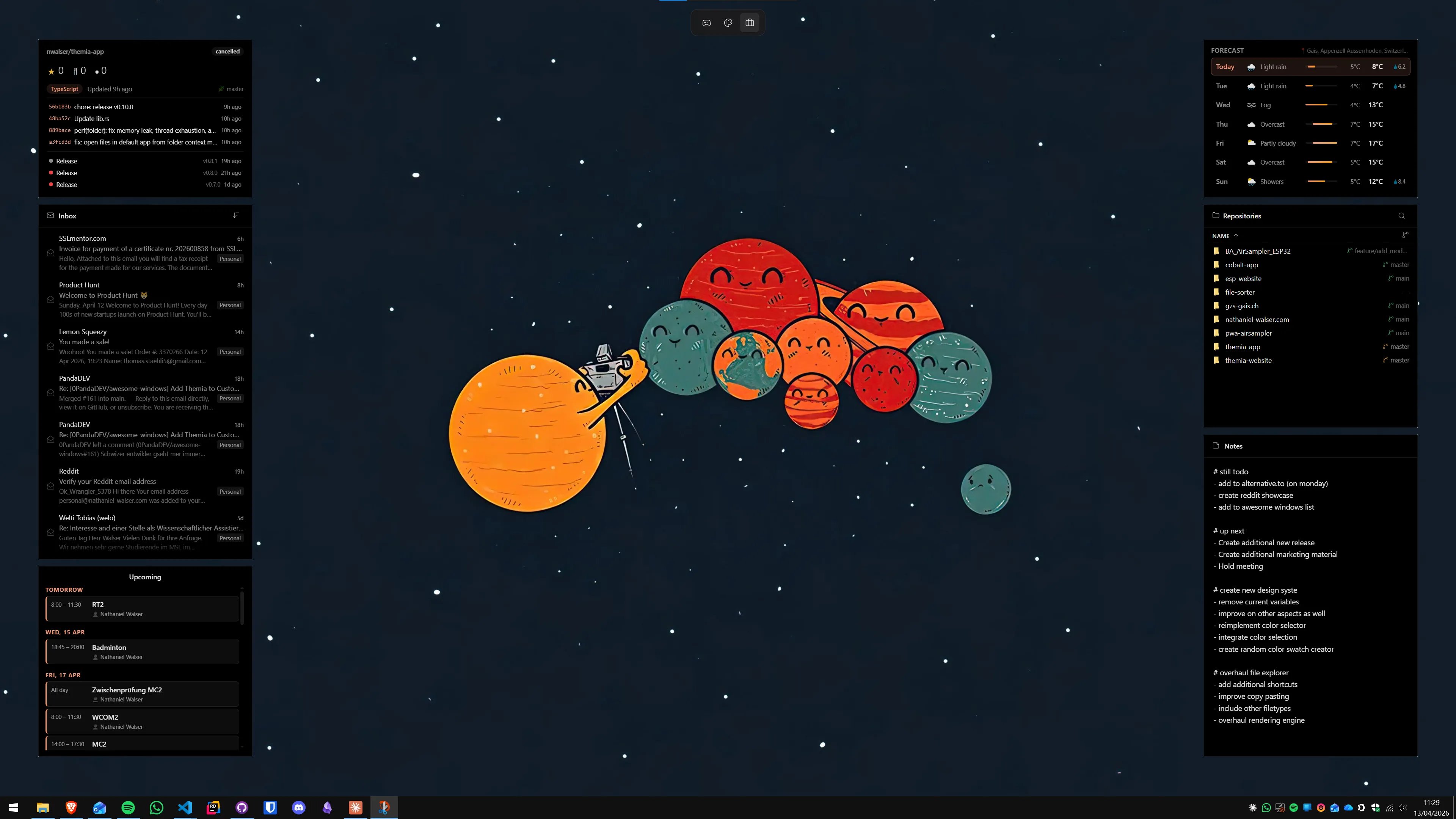
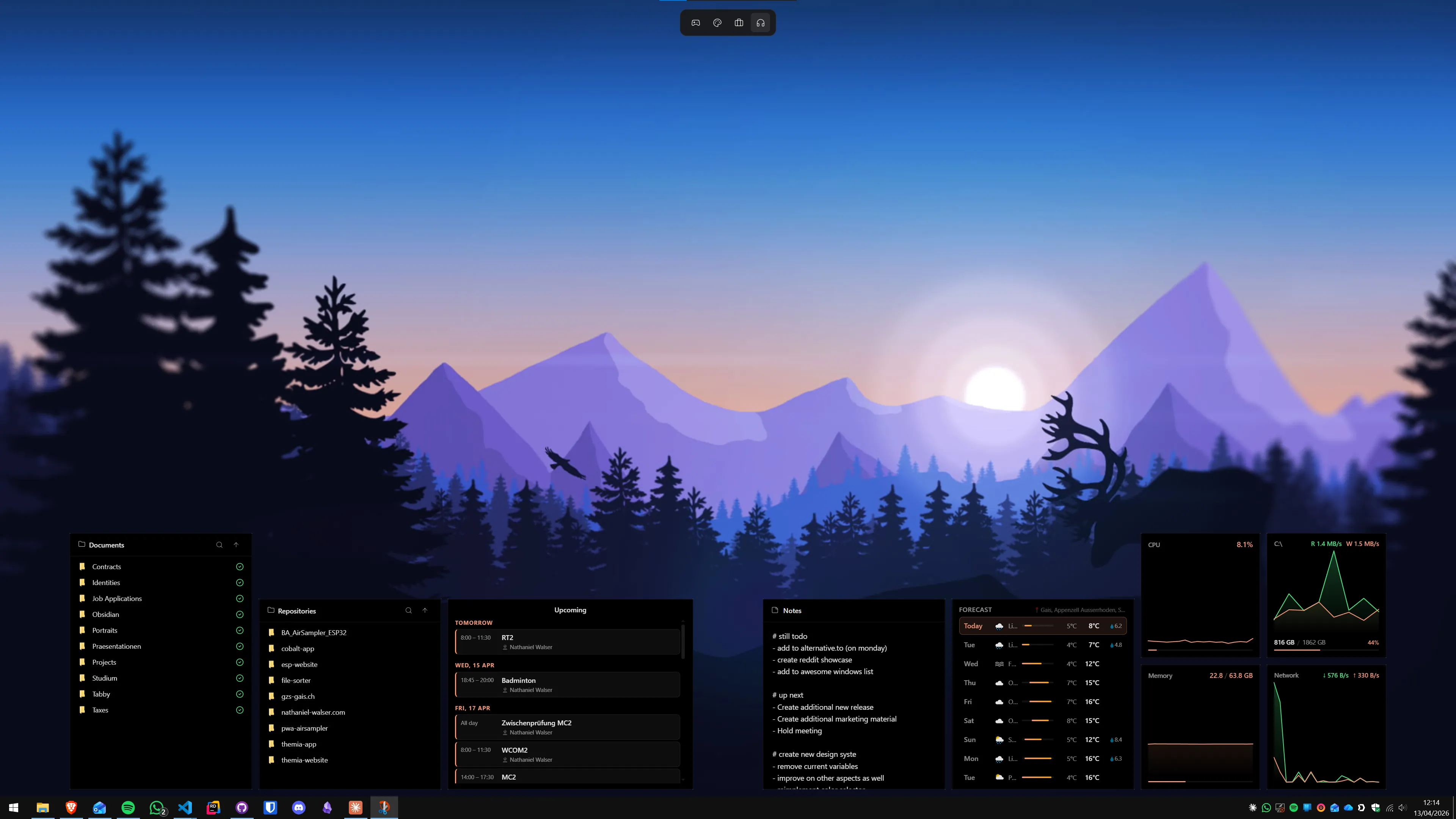
Once Fences is handling desktop icons and Snap Layouts is handling application windows, there is still a gap that neither fills: live information. Fences holds static icons. Snap Layouts arranges windows. Neither shows you current weather conditions, upcoming calendar appointments, the system CPU and RAM usage in real time, the price of a stock, unread email counts, or GitHub pull request activity.
Themia fills this third layer. It places live widgets directly on the desktop surface — the same layer where Fences containers sit. Themia is built with Tauri, which makes it a native Windows application rather than an Electron-based browser shell. The installed footprint is under 10 MB. It starts with the system and draws negligible resources at idle.
Available Themia widgets include: weather with current conditions and forecast, calendar showing current and upcoming appointments, system stats covering CPU, RAM, storage, and network, real-time stock prices for user-defined tickers, email unread counts from connected accounts, GitHub activity summaries, sticky notes, and to-do lists. Widgets are placed freely on the desktop, can be resized, and can be assigned to specific monitors in a multi-monitor configuration.
Themia offers a free tier that covers core widgets including weather and calendar — enough to evaluate whether live desktop widgets improve your workflow before deciding on a Pro upgrade. All three tools — Fences, Snap Layouts, and Themia — run simultaneously without conflict, each operating on a distinct aspect of the Windows desktop experience. For a direct side-by-side look at how Themia and Fences complement each other, see the Themia vs Stardock Fences comparison.
Summary
Stardock Fences and Windows 11 Snap Layouts are not competing tools and should not be evaluated as alternatives to each other. Fences works on the desktop background — organising icons and file shortcuts into labelled, manageable containers with Auto-Organize rules, Folder Portals, Tabs, Desktop Pages, Quick Hide, and Roll-up. Snap Layouts works above the desktop background — snapping application windows into grid zone layouts through a hover-and-click interface that is free and built into Windows 11.
Most users who need one will benefit from the other. Snap Layouts requires no setup — it is already available on every Windows 11 machine. Fences costs $29.99 for a perpetual licence or $9.99 per year and offers a 30-day trial. If your primary desktop problem is icon clutter, Snap Layouts will not solve it. If your primary problem is windows overlapping and cluttering the screen, Fences will not solve that either. When both run together, the icon layer and the window layer are both under control — and Themia can add live data on top of that complete foundation.
FAQ
Does Fences replace Snap Layouts, or does Snap Layouts replace Fences?
Neither replaces the other because they do completely different things. Stardock Fences organises the icons and file shortcuts on your desktop surface — it has no effect on application windows. Windows 11 Snap Layouts organises running application windows into defined zone layouts — it has no effect on desktop icons. Each fills a gap the other does not touch. Running both at the same time is the correct setup for most users.
Is Windows 11 Snap Layouts free while Stardock Fences costs money?
Yes. Snap Layouts is built into Windows 11 at no additional cost — it is part of the operating system and requires no installation. Stardock Fences 6 costs $29.99 for a perpetual one-time licence or $9.99 per year as a subscription. If you only need to snap application windows into grid layouts, Snap Layouts is entirely free and already installed. If you need to organise desktop icons into labelled containers with auto-sorting and folder mirroring, only Fences provides that.
Can you use Fences and Snap Layouts at the same time?
Yes, and for most users that is exactly the right approach. Fences runs on the desktop surface — organising icons into labelled containers. Snap Layouts operates above the desktop — controlling where application windows land when you snap or maximise them. There is no conflict between the two. A typical combined setup has Fences containers holding project shortcuts and files on the desktop background, while Snap Layouts arranges the browser, code editor, and communication tool into a defined three-column or sidebar grid above.
Does Snap Layouts help organise desktop icons?
No. Snap Layouts has no effect on desktop icons whatsoever. It only controls where application windows sit on screen when you trigger the snap interface — hover over the maximise button or press Win + Z to see the available layout options. The icons on the desktop wallpaper, file shortcuts, and Fences containers are completely outside the scope of Snap Layouts. If desktop icon clutter is the problem, Snap Layouts will not solve it.
What does Themia add that neither Fences nor Snap Layouts provides?
Both Fences and Snap Layouts are about arranging things — icons and windows respectively. Neither puts live data on the desktop. Themia adds live widgets directly onto the desktop surface: current weather and forecast, calendar appointments, system stats (CPU, RAM, storage), stock prices, email counts, GitHub activity, notes, and to-do lists. Themia sits alongside Fences on the same desktop layer and fills the live-information gap that neither Fences nor Snap Layouts touches. It runs as a native Tauri app under 10 MB with a free tier available.
Which is better for a multi-monitor setup — Fences or Snap Layouts?
Both support multi-monitor use, but they address different aspects of it. Snap Layouts can show different zone configurations per monitor — a two-column layout on the primary screen and a wide single-pane or sidebar layout on the secondary. Fences lets you place icon containers independently on each monitor and, in Fences 6, control which icons appear on which screen. For a multi-monitor workflow, the practical answer is to use both: Snap Layouts for snapping application windows per monitor, Fences for keeping the icon layer of each monitor organised. Neither tool conflicts with the other in a multi-monitor configuration.