How to Show Network Speed on Your Windows Desktop
You want to glance at your desktop and see exactly how fast data is moving — upload, download, or both. Maybe you are a developer waiting on a large deployment, a gamer checking latency before a session, or someone who just wants to know whether OneDrive is still grinding through a sync. Whatever the reason, Windows buries network speed behind multiple clicks by default.
This guide covers every practical way to put live network throughput on your Windows desktop in 2026, from a zero-install trick to a full Rainmeter setup, ordered by setup effort.
What Windows gives you out of the box
Before reaching for a third-party app, it is worth knowing what is already available:
- Task Manager → Performance → Network. Press Ctrl+Shift+Esc, click Performance, then select your network adapter from the left panel. You get a live graph of send and receive speed. The catch: Task Manager has to stay open and visible. It is not a widget — it is a full app window.
- Resource Monitor. Even more detail — per-process network activity, TCP connections, listening ports. Launch it from Task Manager → Performance → Open Resource Monitor, or run
resmon.exe. Again, a full window, not a desktop element. - The Widgets Board. The built-in panel (Win+W) does not include a network speed widget in 2026. It has weather, calendar, and news. Network monitoring was never added to it.
If you want network speed on the wallpaper — always visible, no window to open — you need a third-party solution.
Method 1: Pin Task Manager to always-on-top (zero install, quick)
Not elegant, but genuinely useful for a short-term session: shrink Task Manager to its compact performance view and use the always-on-top option.
- Open Task Manager (Ctrl+Shift+Esc).
- Click the hamburger icon (top-left) to expand to the full view if it opens in compact mode.
- Go to Performance → Ethernet or Wi-Fi depending on your adapter.
- Right-click the graph area and choose Always on top. The window will float above other apps even when they are in focus.
- Resize Task Manager to the minimum size that still shows the network graph and the send/receive numbers.
Pros: no install required, already on your machine, accurate data direct from the OS kernel.
Cons: it is a floating window, not a widget — it covers part of your wallpaper and other apps. There is no transparency option. It disappears when you close it.
Who it's for: anyone who needs a quick bandwidth check for an hour or two without adding new software.
Method 2: Use a desktop widget app with system stats (recommended)
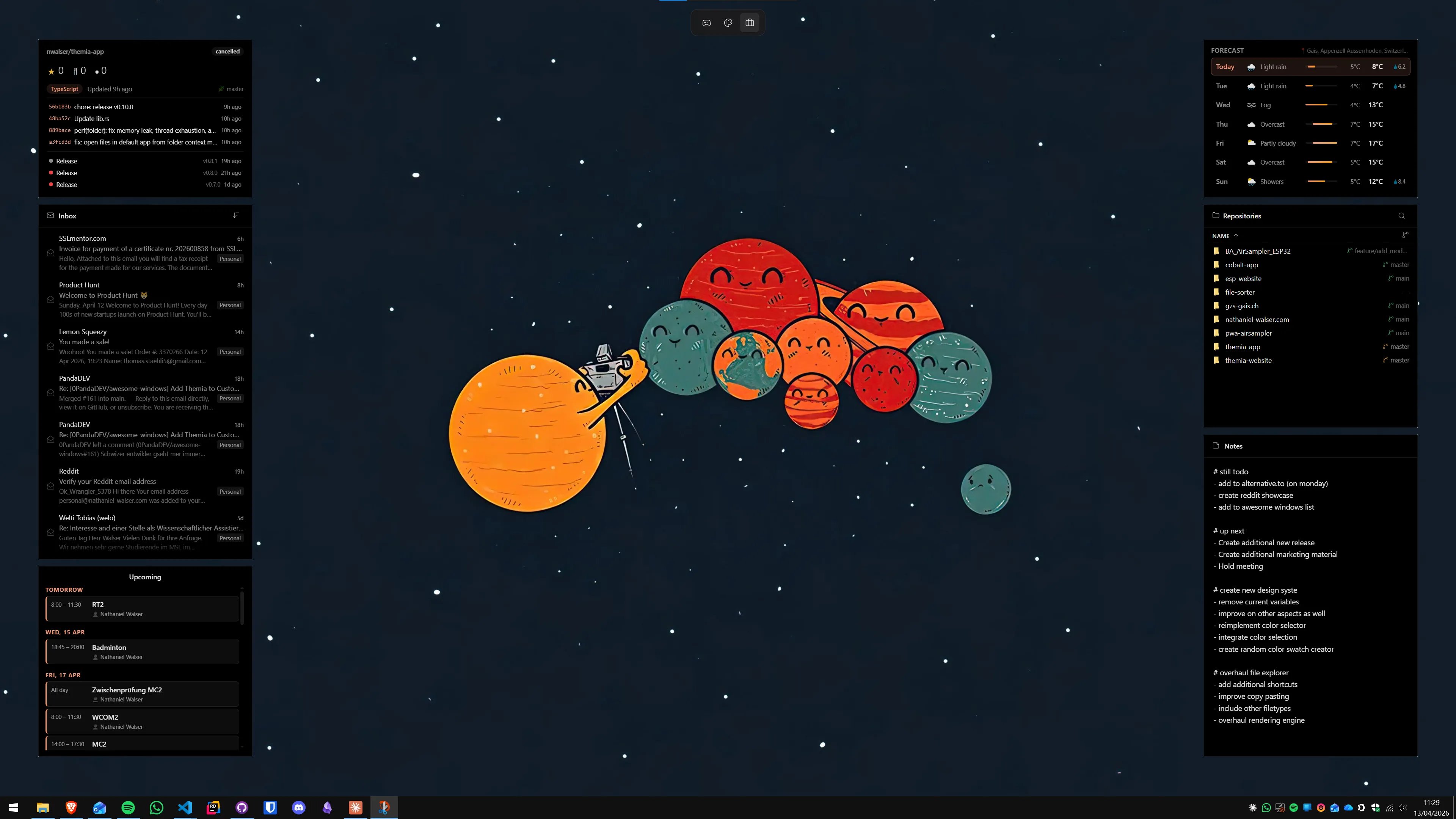
The cleanest way to get always-on network speed on the desktop is a widget app that renders directly on the wallpaper layer. In 2026 there are a few solid options.
Themia
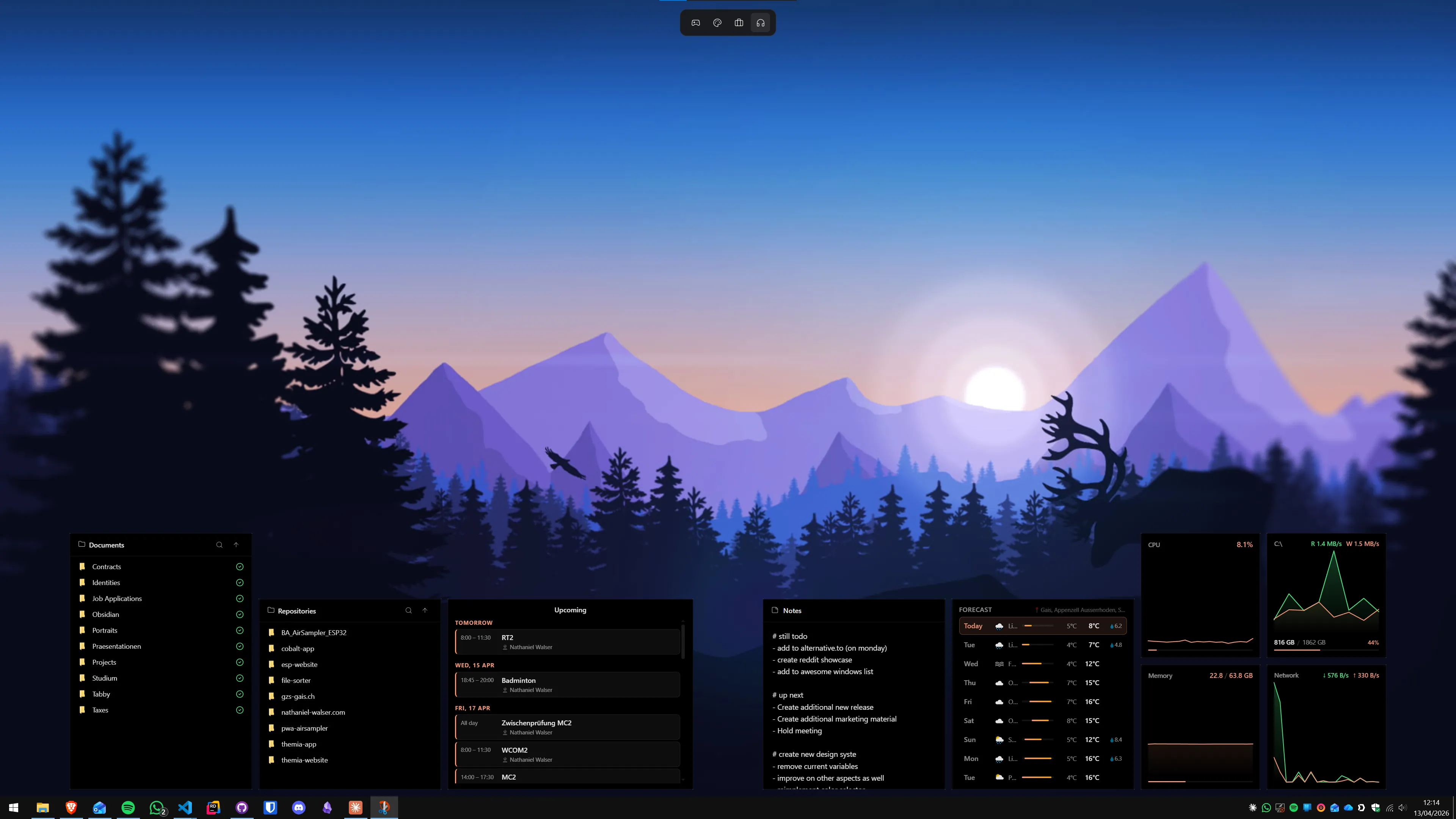
Themia is a native Windows widget app built on Tauri — the installer is under 10 MB and it runs on Windows 10 and 11 without any .NET runtime or browser engine in the background. Its system stats widget includes live CPU, RAM, GPU load, temperatures, and network throughput (upload and download shown separately), all updating every few seconds. Everything lives directly on the wallpaper alongside whichever other widgets you choose.
- Download and install Themia from the Themia website.
- Right-click an empty area of the desktop and select Add widget → System Stats.
- The widget appears on the desktop. Drag it to your preferred position, and resize by dragging a corner.
- Click the widget's settings icon to choose which stats are visible — you can show only network speed if you do not want CPU and RAM numbers cluttering the view.
Pros: native app, tiny footprint, all system metrics in one widget, no API key, no configuration files.
Cons: some advanced styling options require the one-time $19 Pro unlock.
Who it's for: most readers of this post — you want network speed (and likely a few other stats) on the desktop with minimal setup.
8GadgetPack
8GadgetPack revives the old Windows 7 sidebar gadgets on Windows 10 and 11. It includes a Network Meter gadget that shows upload and download speed in real time. The aesthetic is very 2010, but the functionality is solid and the software is free.
We cover the pros and cons in detail in our Themia vs 8GadgetPack comparison. Short version: 8GadgetPack works fine if you like the classic gadget look; Themia is the cleaner modern option.
XWidget
XWidget is a widget engine with its own skin marketplace. It includes system monitoring widgets with network stats and has a more modern look than 8GadgetPack. Setup is more involved than Themia — you choose and configure individual skins — but it gives you more visual variety.
Method 3: Rainmeter with a network monitoring skin
Rainmeter is the most powerful option and the one with total visual control. It is free, open-source, and actively maintained. The tradeoff is setup time — you will spend an evening getting a layout you like.
Rainmeter measures network speed through its built-in NET plugin, which reads directly from Windows network interface counters. Any well-maintained skin can read from it.
- Download Rainmeter from rainmeter.net and run the installer.
- Download a system monitoring skin that includes network stats. Illustro (ships with Rainmeter), SysDash, and TECH-A all include network panels and are actively maintained in 2026.
- Double-click the downloaded
.rmskinfile to install it, then load it from the Rainmeter Skins manager. - To configure which network adapter is monitored, open the skin's
.inifile and set theInterfacevalue to the index of your adapter (1 for the first, 2 for the second). Save and refresh. - Adjust the displayed scale if needed — most skins default to showing speed in bytes per second, which you may want to change to megabits per second.
Pros: completely free, infinite visual customization, can show per-adapter stats, per-process breakdowns with the right plugin combination.
Cons: significant setup time, .ini file editing required, old skins may reference deprecated Rainmeter API calls.
Who it's for: people who enjoy tinkering and want their network display to look exactly the way they envision it.
Method 4: Windows 11 resource usage in the taskbar (partial solution)
A lightweight option that requires no extra install: the free TrafficMonitor utility (open-source, available on GitHub) adds a persistent CPU, RAM, and network speed readout to the Windows taskbar. It is a small overlay on the taskbar itself rather than a desktop widget, but it is always visible and extremely low overhead.
TrafficMonitor runs as a tray app, shows upload and download speed in the taskbar's right section, and updates every second. The numbers are small but always in view even when other apps are fullscreen (it sits in the notification area). It is a good option for people who prefer to keep the desktop wallpaper completely clear and use the taskbar as their information strip.
For a more complete system monitoring setup on the desktop, see our guide to showing CPU and GPU temperature on the Windows desktop — network speed, temperatures, and load all work from the same widget layer.
Which method fits your situation
A quick decision guide:
- Need network speed visible right now, no install: Method 1 (Task Manager, always-on-top). Functional but inelegant.
- Want a proper widget on the desktop with other stats: Method 2 with Themia — the lowest-friction path for a multi-stat widget that looks intentional.
- Want to keep the desktop clear and see stats in the taskbar: Method 4 (TrafficMonitor) — tray-based, zero desktop real estate used.
- Want full visual control over the design: Method 3 (Rainmeter) — maximum flexibility, real setup commitment required.
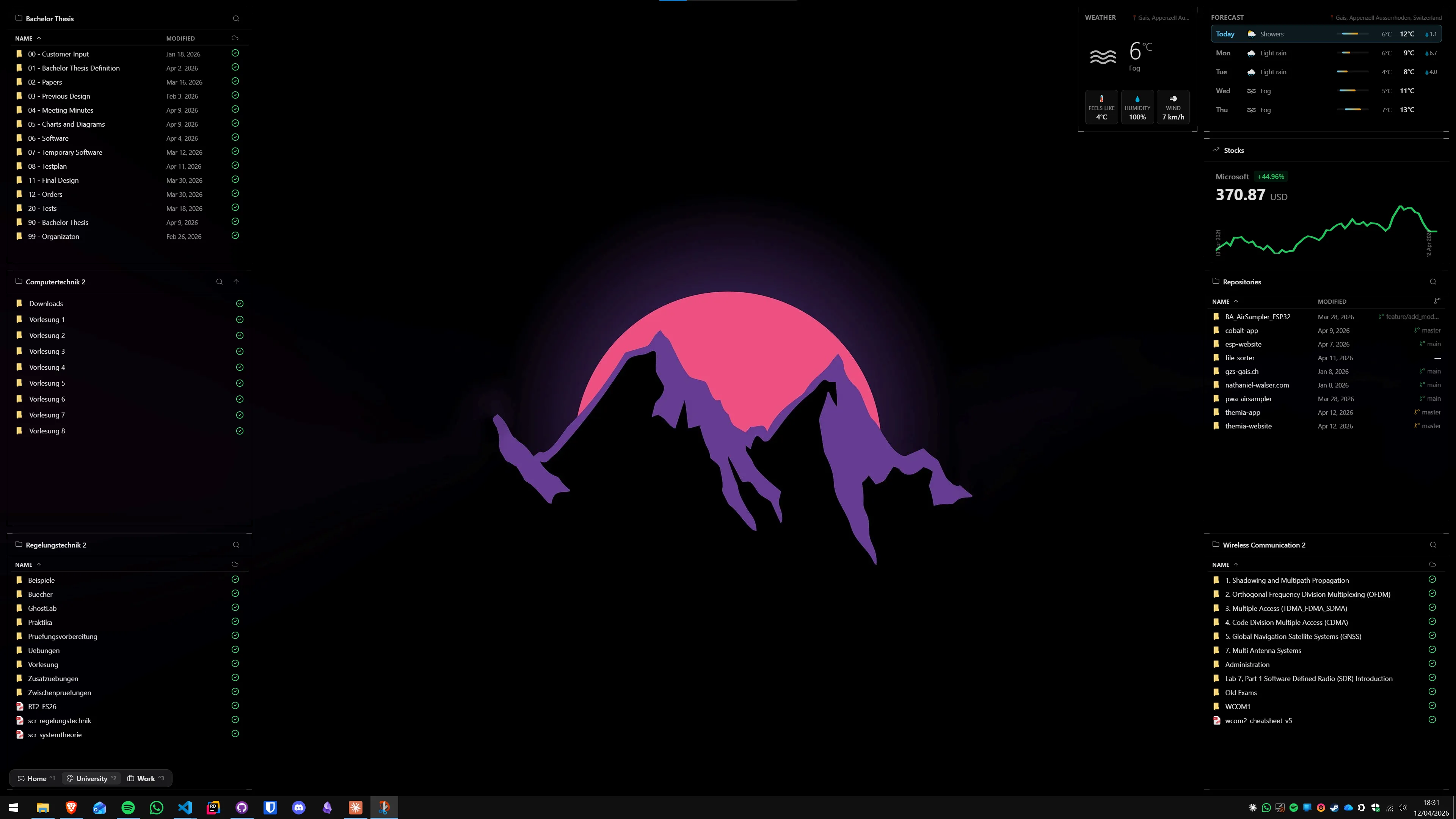
For most people, a widget app is the right call. The real-time numbers are there on the wallpaper when you glance at the desktop, and they do not need a window to stay open or a tray icon to remember clicking. If you already have Themia installed for other widgets — calendar, weather, system stats — adding network speed is literally one extra line in the widget settings.
If you are building a more complete dashboard, our guide to building a productivity dashboard on Windows walks through how to arrange multiple widgets into something coherent rather than a pile of floating panels. The best desktop widget apps roundup is a useful reference if you want to compare all the options side by side before committing.
FAQ
Can Windows 11 show network speed on the desktop without any extra software?
Not on the desktop itself. Task Manager shows real-time upload and download speed in the Performance tab, and Resource Monitor gives even more detail, but neither of them stays permanently on the wallpaper. The Widgets Board does not include a network speed panel either. For always-visible bandwidth data on the desktop, a third-party app is the only route.
What is a normal idle network speed reading on a Windows desktop?
On a healthy idle system, network throughput sits very close to zero — typically under 1 Mbps, mostly background Windows Update checks, telemetry pings, and sync services. A constant baseline of 5–10 Mbps at idle usually means something is syncing (OneDrive, Dropbox, a Windows Update download) or a background app is phoning home. Watching idle speeds for a day is a useful quick sanity check for unexpected traffic.
Does a network speed widget slow down the internet?
No. A widget that reads network speed uses the same kernel counters that Task Manager reads — it is passively observing traffic that is already happening. The widget itself sends and receives only tiny amounts of data (a few bytes per second for the polling call). The measurable overhead on a 100 Mbps connection is effectively zero.
Why does my network speed widget show a higher number than my speed test?
A desktop widget and a speed test measure different things. The widget reports live throughput — whatever is actually flowing across the adapter right now. A speed test saturates the connection and reports the peak it can sustain. If you run a speed test and watch the widget, the widget number should closely match the test result. At idle, the widget shows real traffic, not theoretical capacity.
Can I monitor a specific network adapter with a Rainmeter skin?
Yes. Rainmeter's NET plugin takes an Interface parameter that lets you specify which adapter to watch — useful on machines with both a wired NIC and a Wi-Fi adapter where you only want to track one. Set Interface=1 for the first adapter, Interface=2 for the second, and so on. You can find the adapter index in Task Manager → Performance → the adapter name shown.
Does Themia show upload and download speed separately?
Yes. Themia's system stats widget displays upload and download throughput as separate values within the same widget panel, updating every few seconds. You can resize the widget to show more or fewer stats, and position it anywhere on the wallpaper independently of other widgets.