How to Show Multiple Time Zones on Windows Desktop
If you work with people in different countries — or simply keep odd hours with friends abroad — glancing at the corner of your screen and seeing only one time zone quickly becomes annoying. You need to know whether London is nine-to-five, Tokyo is asleep, and New York is still at lunch, all at the same time, without opening a browser or pulling out your phone.
Windows gives you a partial answer out of the box, and third-party tools fill in the rest. This guide covers every working method in 2026, ranked from least setup to most.
What Windows gives you out of the box
Windows 11 has two built-in time zone features. Neither puts anything on the desktop wallpaper, but both are worth knowing before you install anything.
Additional Clocks in Settings
Windows has supported additional clocks since Windows Vista. In Windows 11 they are still there, just buried slightly deeper than before.
- Open Settings → Time & language → Date & time.
- Scroll to Additional clocks and click it to expand.
- Enable Show this clock for the first extra clock. Choose a time zone from the dropdown and give it a short display name — "London", "Tokyo", or whatever is most useful to you.
- Repeat for the second extra clock if you need three zones total.
To see the additional clocks, hover your mouse over the time display in the system tray. A tooltip appears showing all three clocks stacked with their labels. You can also click the clock to open the calendar flyout, which shows them more prominently.
Limit: Windows allows exactly two additional clocks — three time zones total. The display is tooltip-only; nothing appears on the desktop itself.
Good for: people who need a quick glance at two or three zones and do not want anything added to the wallpaper.
World Clock in the Windows Clock app
The built-in Clock app (search "Clock" in Start) has a World Clock section. You can pin as many cities as you like, and the list updates live. You can also compare times interactively by dragging a slider.
The catch: it lives inside the app window. There is no always-visible widget mode. It is useful for one-off lookups ("what time is it in São Paulo right now?") but not for a permanent display.
Method 1: Additional Clocks via the taskbar (zero install, 2 minutes)
The steps are in the section above. This is the right choice if three zones are enough and you are comfortable with the hover-to-see behaviour. It requires no extra software, no API keys, and nothing running in the background.
One tip: Windows derives additional clocks from your main system clock via a fixed UTC offset, so they stay accurate as long as your system clock is correct. Turn on Set time zone automatically and Set time automatically (same Settings page) and you never have to think about drift.
Method 2: Desktop widget app (always-on, visual)
For clocks that live on the wallpaper — visible at all times, not just on hover — you need a desktop widget tool. The right one depends on how many zones you want and how much configuration you are willing to do.
Themia
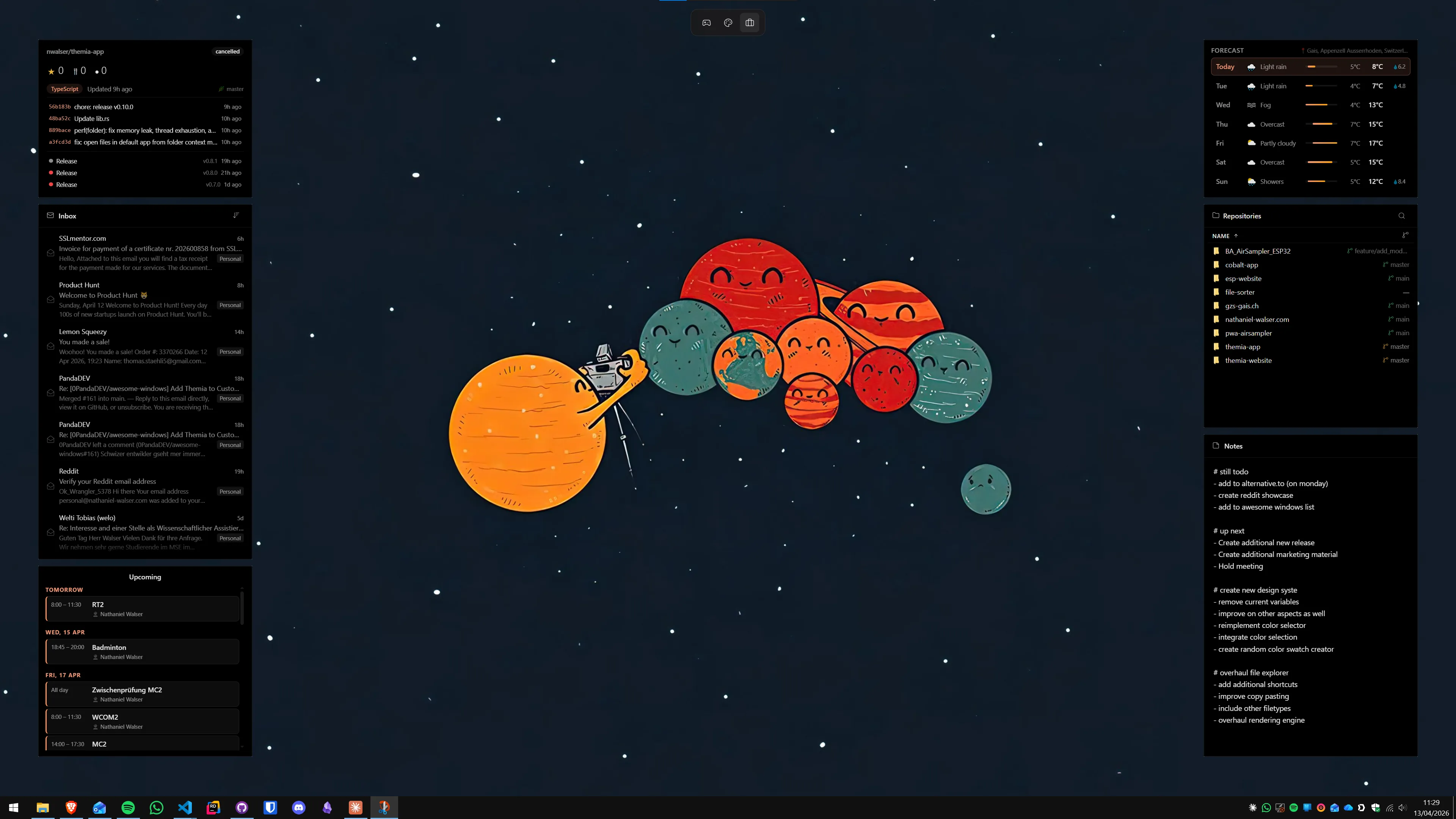
Themia is a native Windows widget app built on Tauri — the installer is under 10 MB, it runs on Windows 10 and 11, and it starts up fast. It includes a clock widget in the built-in widget set. You can add multiple instances of the same widget type and position them anywhere on the wallpaper.
To show multiple time zones with Themia:
- Download and install Themia from the Themia website.
- Right-click the desktop (or use the Themia tray icon) and choose Add widget → Clock.
- In the widget settings, set the time zone for that clock to your first target city.
- Add a second clock widget and configure it for the second city. Drag them into position side by side.
- Label each clock with the city name using the widget's title option.
The result is two or more clocks sitting permanently on the wallpaper — labeled, sized how you like, and positioned exactly where you want them. Themia's free tier covers the clock widget. The $19 one-time Pro unlock adds per-widget theming and additional layout options, but it is not required just to show world clocks.
Themia also does calendar, weather, email, system stats, and more from the same install. If you are planning a productivity dashboard on Windows, starting with Themia means all your widgets come from one place with one consistent look.
Widget Launcher and 8GadgetPack
Both of these apps include clock gadgets that can be set to specific time zones. 8GadgetPack (free, from 8gadgetpack.net) revives the Windows 7 sidebar gadget style and includes a clock gadget you can add multiple times at different zones. Widget Launcher (Microsoft Store) takes a more modern approach and also supports clock widgets.
These are solid free options. If you want a comparison across widget platforms, our roundup of the best Windows desktop widget apps in 2026 covers each one honestly.
Method 3: Rainmeter with a world clock skin (maximum clocks, maximum control)
Rainmeter is a free, open-source scripting engine for Windows desktop widgets. It is enormously flexible — the right skin can show six or eight time zones in a tight horizontal row, each with a custom city name, 12h or 24h format, and any visual style imaginable. The tradeoff is setup time.
- Download Rainmeter from rainmeter.net and install it.
- Download a WorldClock skin. The Fountain of Colors suite and Win10 Widgets both include world clock modules that are maintained and work correctly in 2026.
- Install the skin by double-clicking the
.rmskinfile. - Open the skin's
.inifile in any text editor. Locate the time zone variables — they are typically named something likeTimeZone1,TimeZone2, etc. Replace the default values with standard Windows time zone identifiers (for example,UTC+9for Tokyo,UTC-5for New York Eastern Standard). - Right-click the Rainmeter tray icon → Manage Skins → refresh the skin to apply changes.
You can also write your own Rainmeter measure using the built-in Time measure with a TimeStampFormat and a TimeZone offset. This is documented in the Rainmeter manual and gives you total control over formatting — seconds, day-of-week, AM/PM — with no creative limits.
Good for: people who want six or more zones displayed at once, or who want a very specific visual style that no packaged app offers. Also good if you are already running Rainmeter for other skins and do not want another tool running alongside it. See our comparison of Rainmeter alternatives if you are deciding whether to start with Rainmeter or go a different route.
Layout tips for multiple world clocks
Having five clocks on screen is only useful if you can read them at a glance. A few things that actually work:
- Group clocks by work day. Put the zones that overlap your work hours in a prominent horizontal row. Zones where you rarely need to call can go smaller or to a corner. A cluttered row of eight equal-sized clocks is harder to parse than four clearly arranged ones.
- Use labels, not offsets. "Tokyo" is faster to read than "UTC+9". Every widget tool here supports custom labels — use them.
- Pick a consistent format. Mixing 12h and 24h across five clocks creates cognitive overhead. Pick one and stick with it, regardless of what is conventional in each country.
- Consider a secondary monitor. If you run two screens, the second monitor is an excellent home for a world clock row. It stays visible without eating into the primary workspace. Our guide to desktop widgets on a dual monitor setup has layout suggestions.
- Dark wallpaper, light clock text. Light-coloured numerals on a dark wallpaper read faster than either dark-on-light or mixed combinations. Most widget apps let you control text colour.
Which method should you use?
Quick decision guide based on your situation:
- Two or three zones, hover is fine: Windows Additional Clocks, zero install required.
- Two or three zones, always visible on the wallpaper: Themia with multiple clock widget instances — takes five minutes and no technical knowledge.
- Four or more zones, always visible, custom layout: Rainmeter with a WorldClock skin, or Themia for a quicker setup with slightly less flexibility.
- Occasional lookup, no permanent display needed: Windows Clock app World Clock section.
For most remote workers and freelancers with two or three key zones, the right answer is either the built-in Additional Clocks (if the hover behaviour is acceptable) or a single quick Themia setup (if you want them always on screen). Rainmeter becomes the right call when you need more zones than Themia's layout accommodates, or when you are already managing a Rainmeter skin suite.
If you are building out a more complete desktop setup — calendar, weather, email, and world clocks all in one view — the guide on how to build a productivity dashboard on Windows shows how to combine all of these into a single coherent layout.
FAQ
How many additional clocks can Windows 11 show in the taskbar?
Windows 11 lets you add up to two additional clocks on top of the main clock — so three time zones total. They appear in the hover tooltip when you mouse over the taskbar clock, or in the expanded panel when you click it. If you need more than three zones always visible on the desktop itself, a widget app or Rainmeter is the right path.
Does the Windows Clock app show time zones on the desktop?
No. The Windows Clock app has a built-in World Clock section that can track as many cities as you like, but you still have to open the app to see them. It does not place anything on the desktop background. For clocks that live permanently on the wallpaper, you need a desktop widget tool.
Can I label each time zone clock so I know which city it belongs to?
Yes — the built-in Additional Clocks in Windows Settings let you set a custom display name (up to 32 characters) for each extra clock. Widget apps like Themia and Rainmeter skins also support labels; the Rainmeter WorldClock skin in particular lets you add city names directly under each clock face.
Do desktop clock widgets keep working when my computer is asleep or locked?
Widget apps run in the background and update when the machine wakes up. On a sleep/wake cycle, the clocks jump to the correct current time — they do not "fall behind." Rainmeter is also event-driven and updates correctly on wake. Neither approach requires internet access for local time display; only "fetch from time server" features need connectivity.
Why does my taskbar Additional Clock show the wrong time?
The most common cause is that Windows itself is set to the wrong local time zone. Go to Settings → Time & language → Date & time and check that your current time zone is correct and that "Set time zone automatically" is on. Additional clocks are offsets from the system clock, so an incorrect base zone cascades into every extra clock. Also confirm that the time server sync has run recently under "Sync now."
Is there a free way to show more than three time zones on the desktop?
Yes. Rainmeter is free and open-source, and the WorldClock skin can show as many zones as your screen has space for — typically four to six fit comfortably. Themia is also free for the basic widget set. You can add multiple clock widget instances side by side in the free tier, each labelled for a different city.