How to Show Disk Usage on Your Windows Desktop
Your C drive is quietly filling up. You find out when something fails to save, a game refuses to install, or Windows throws a low-disk-space notification that evaporates before you can act on it. None of that is how a well-configured desktop should work. A glanceable disk usage indicator on your wallpaper turns a hidden problem into an obvious one.
This guide covers every working method to show disk usage on your Windows desktop in 2026, starting from what Windows already gives you and progressing to always-on widgets that sit on the wallpaper itself. Most people land on Method 3. The last method is for those who want complete visual control.
What Windows shows you out of the box
Windows 11 has three built-in places to check disk usage, none of which put anything on the desktop background.
- File Explorer → This PC. Open File Explorer and click "This PC" in the sidebar. Every connected drive appears as a tile with a capacity bar showing used and free space. It updates in real time whenever you open that view, but the moment you close Explorer it is gone.
- Settings → System → Storage. This gives a category breakdown — apps, temporary files, videos, Downloads, and so on. Useful for understanding what is using space, not for glancing at the current state without switching context.
- Task Manager → Performance → Disk. Press Ctrl+Shift+Esc, click Performance, and choose your disk. You get a live graph of disk read/write activity in MB/s plus a utilisation percentage. This is disk activity, not capacity — it tells you how busy the disk is, not how full.
If you want disk information always on screen without opening a window, you need something else. The methods below cover that.
Method 1: Task Manager in compact mode (zero install, 30 seconds)
Task Manager has a "compact" mode that shrinks it to a small CPU/disk/memory summary strip. It does not go on the wallpaper — it floats over everything — but it is one of the fastest ways to get persistent system stats visible.
- Press Ctrl+Shift+Esc to open Task Manager.
- In Windows 11's Task Manager, click the hamburger menu (three horizontal lines) at the top left and choose CPU to switch to the summary graph view. The view shrinks but is not quite compact mode.
- Alternatively, right-click the Task Manager taskbar button while it is open and choose Always on top — then resize the window as small as possible and park it in a corner.
Pros: nothing to install, updates in real time.
Cons: floats over other windows rather than sitting behind them on the wallpaper; shows disk activity (read/write speed) rather than disk capacity (free space); takes up screen real estate awkwardly.
Who it is for: anyone who wants a quick temporary check without installing anything.
Method 2: Storage Sense dashboard (built-in, one click away)
Windows 11's Storage Sense (Settings → System → Storage) has become much more detailed since it was introduced. In 2026 it shows a breakdown by category, lists large files, identifies apps you have not launched in months, and provides a cleanup button that runs safely without touching your personal files.
It does not put anything on the desktop, but if your goal is understanding why your drive is full rather than just how much is full, this is the first place to look — and it requires zero installation. Enable the automatic cleanup toggle to have Windows quietly reclaim temporary files, old Windows Update downloads, and the Recycle Bin on a schedule.
For a live number on the desktop, keep reading.
Method 3: Desktop widget app — the actual always-on solution
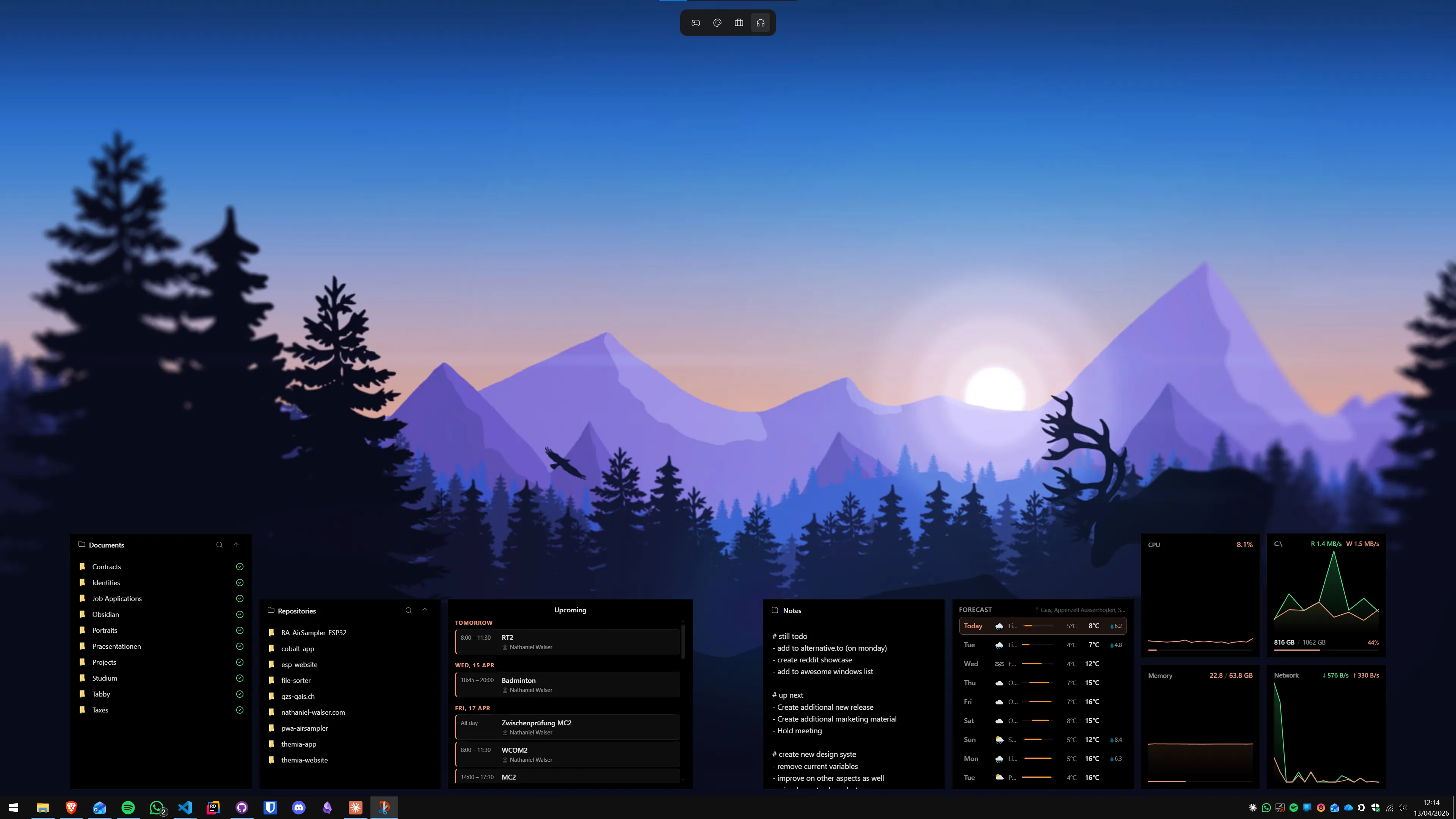
A proper desktop widget app puts disk information directly on the wallpaper — not behind a button, not in a floating window, just there as part of the desktop backdrop every time you minimise your apps.
Themia
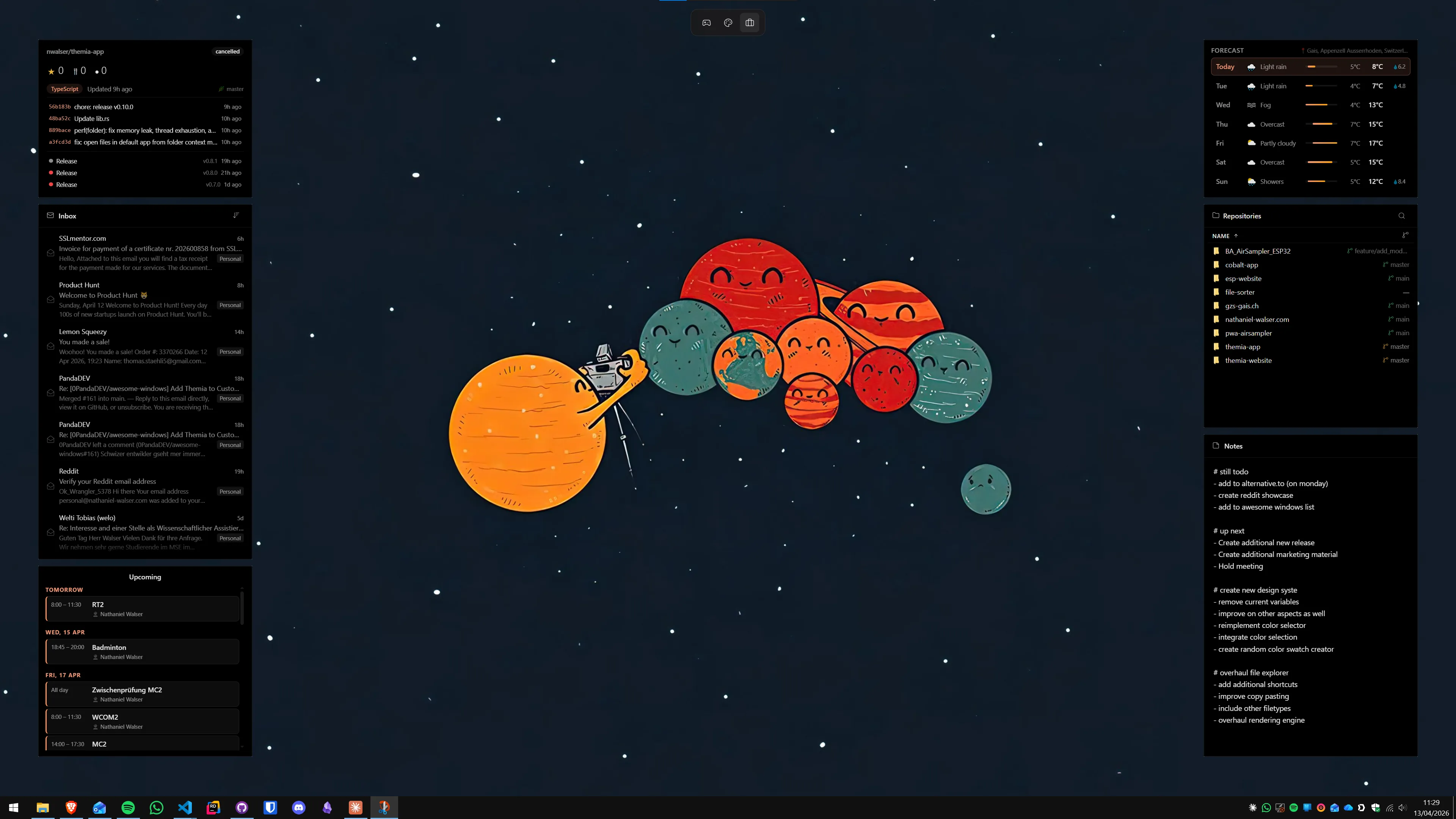
Themia is a native Windows desktop widget app built on Tauri — the installer is under 10 MB and it runs on Windows 10 and 11 without a browser engine or Electron overhead. The system stats widget covers CPU load, RAM usage, disk (both capacity and activity), and network speed in a single configurable panel.
- Download Themia from the Themia website and run the installer.
- Right-click the desktop, choose Add widget → System stats.
- The widget shows up on the wallpaper immediately. Drag it to your preferred corner and resize by dragging a corner handle.
- Click the widget's settings icon to toggle individual metrics on or off — if you only want disk and network and not CPU/RAM, you can hide the rest.
Multiple drives are supported: add a second system stats instance and configure it to a different drive letter. The free tier covers this widget; the one-time $19 Pro unlock adds visual theming options.
For a broader look at how system stats compare across widget apps, see the guide to CPU and GPU temperature on the Windows desktop — same widget, additional sensor data.
8GadgetPack and Widget Launcher
Both apps include classic drive-space gadgets in the Windows 7 sidebar style. 8GadgetPack is a free download that reinstalls the old Gadgets platform; Widget Launcher is on the Microsoft Store. If you specifically want the retro look, both work. The roundup of the best Windows desktop widget apps covers them alongside newer alternatives.
Method 4: Disk scanning tools — find what is eating the space
The tools in this section are not persistent desktop widgets — they are scanners you run when you need to understand disk usage at the file and folder level. They answer the question "what is actually on this drive?" rather than "how much is free?"
WinDirStat
WinDirStat (Windows Directory Statistics) is a free, open-source disk usage visualiser that has been a staple of Windows power-user toolkits for over fifteen years. It scans a drive or folder and produces a treemap — a coloured grid where each rectangle represents a file, sized proportionally to its disk footprint. Large forgotten files, bloated game folders, and video caches that have not been touched in years become immediately obvious.
- Download WinDirStat from windirstat.net (free, open source).
- Run it and select the drive to scan. A full C: scan on a 500 GB drive typically takes two to five minutes.
- Once complete, click any coloured block in the treemap to highlight the corresponding file or folder in the tree above. Right-click → Explorer here to jump directly to the folder and delete or move files.
TreeSize Free
TreeSize Free (from JAM Software) takes a folder-tree approach rather than a treemap. It shows each folder sorted by size, making it easy to drill down from C:\ to the exact subdirectory that is ballooning. It is faster to navigate than WinDirStat for people who prefer a list view. The free version is fully functional; a paid Professional edition adds filters and scheduling.
SpaceSniffer
SpaceSniffer is a portable (no install required) disk scanner that updates its treemap in real time as it scans. It is particularly fast on SSDs and useful if you want to start seeing results within seconds of launching it rather than waiting for a complete scan. Download it from the official site and just run the executable — no installer.
Use WinDirStat or TreeSize Free when your C drive is mysteriously full. Use Themia when you want to keep an eye on how full it is getting, every day, without doing anything.
Method 5: Rainmeter with a disk skin (maximum customisation)
Rainmeter is the open-source scripting engine for Windows desktop widgets. With the right skin, it can show disk free space, capacity bar, and read/write speed for any drive letter — and it can look exactly however you want.
- Download and install Rainmeter from rainmeter.net (free, open source).
- In a Rainmeter skin's
.inifile, the FreeDiskSpace measure reads available space on a given drive. Example usage in a skin:
The Drive option accepts any drive letter (C:, D:, E:, etc.). Many all-in-one skins — Mond, Illustro, HWiNFO — bundle a disk panel alongside CPU and RAM. Search Rainmeter DeviantArt or the Rainmeter forums for "disk space skin" to find current, actively maintained options.
Pros: total visual control, free, works on any Windows version.
Cons: hours of setup to get a layout you are happy with; requires editing .ini files to configure drives.
Who it is for: dedicated ricing enthusiasts. See the Windows ricing guide for a fuller picture of this workflow.
Which method should you use?
- I just want to check occasionally: File Explorer → This PC, or Settings → System → Storage. Zero setup.
- I want disk usage always visible on the desktop: Themia system stats widget. Installed and running in under two minutes, free tier covers it.
- My drive is nearly full and I need to find what is eating space: WinDirStat or TreeSize Free. Run once, find the culprits, delete or move, done.
- I want full visual customisation and enjoy configuring things: Rainmeter. Plan an evening.
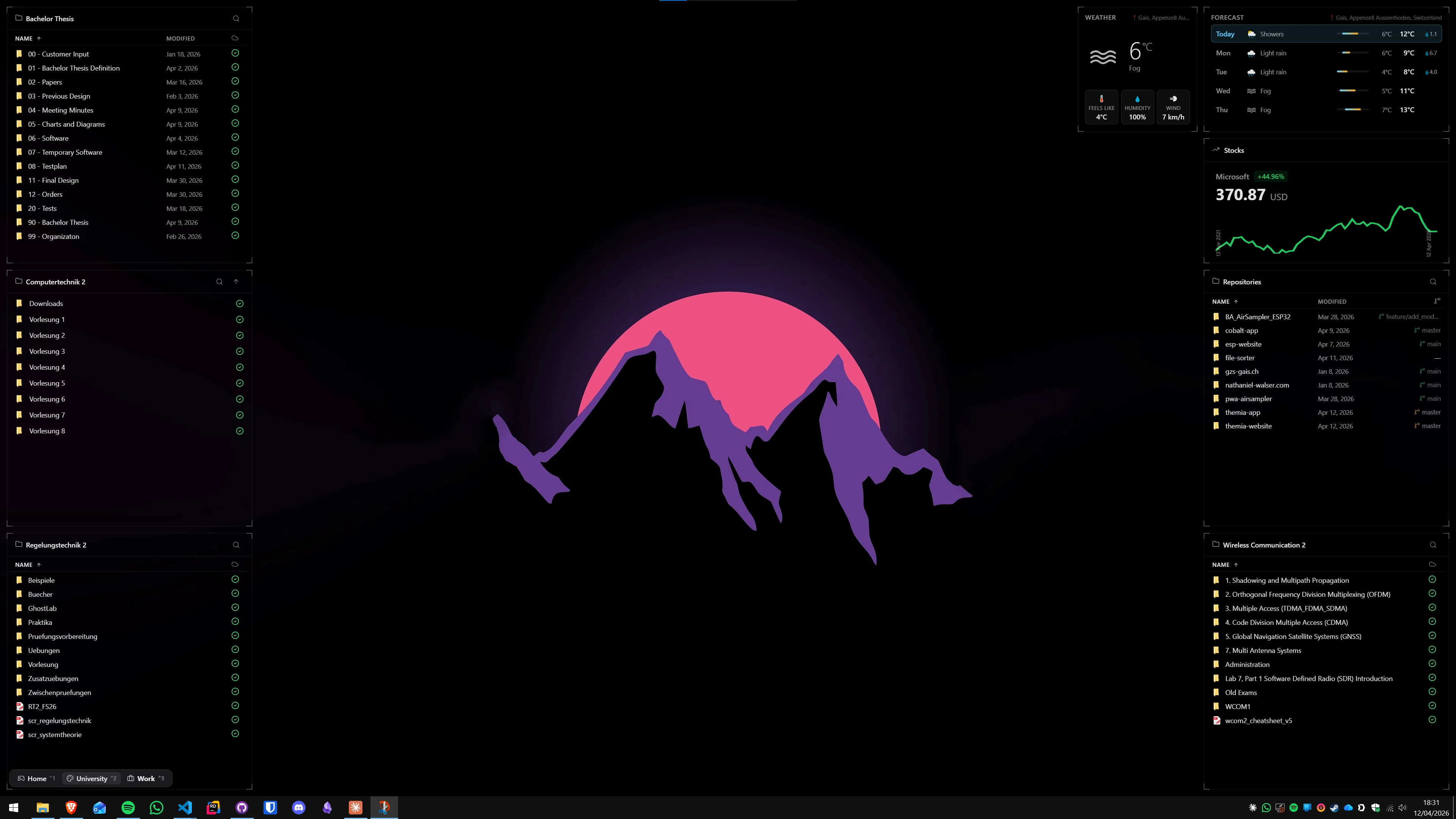
For most readers, the answer is a widget app for the always-on view and WinDirStat when things get mysterious. The two complement each other well: the widget tells you when to worry, the scanner tells you what to fix. If you are building a fuller information dashboard — system stats, email, calendar, and todo list on a single wallpaper — the guide to building a productivity dashboard on Windows is a good next read.
You can also combine disk monitoring with network speed in the same Themia system widget — both live on the desktop together without adding separate widgets.
FAQ
Can Windows show disk usage on the desktop without any third-party app?
Not as a persistent widget on the wallpaper. Windows offers Storage Sense in Settings → System → Storage, and File Explorer shows a rough capacity bar under each drive in the "This PC" view. Task Manager has a live disk performance graph. But none of these sit on the desktop — they all require opening a window. For always-visible disk usage on the desktop itself, you need a third-party widget app or Rainmeter.
What is the difference between disk usage and disk space?
Disk space (or disk capacity) is how much total storage a drive holds — for example, a 512 GB SSD. Disk usage is how much of that space is currently occupied by files. A desktop widget that shows disk usage tells you something like "345 GB used of 512 GB, 167 GB free." Some tools also show a separate real-time disk activity metric (read/write speed in MB/s), which is different again — that is disk activity, not disk fullness.
Will a disk usage widget slow down my PC?
A well-written widget reads disk space once every few seconds at most — this is a trivially cheap operation for the operating system. The CPU and memory overhead is negligible on any computer made after 2015. What can be slow is a disk-scanning tool like WinDirStat running a full deep scan of a large drive; that scan can take several minutes and uses noticeable I/O. But a widget that simply shows free/used percentages does not scan — it reads the same summary data Task Manager does.
How do I show disk usage for multiple drives at once?
Most widget apps support multiple instances of the same widget. In Themia, you can add a system stats widget for each drive and position them together. Rainmeter skins with multi-drive support (like Drive Mapper or some Enigma variants) show all drives in a single panel. WinDirStat and TreeSize Free can scan any drive you select. If you run multiple drives — an NVMe for the OS and a secondary HDD for storage — it is worth monitoring both, since one can fill up while the other looks empty.
My C drive is almost full but I cannot find what is using the space. What should I use?
Start with Windows' built-in Storage Sense (Settings → System → Storage → Storage usage) for a high-level breakdown by category (apps, temp files, Downloads, etc.). Then run WinDirStat or TreeSize Free for a file-level drill-down — both show a treemap or folder tree that makes large, forgotten files obvious within minutes. Common culprits on Windows: the Windows.old folder after an upgrade, Hibernation file (hiberfil.sys), page file (pagefile.sys), and accumulations in C:\Users\[you]\AppData\Local\Temp.
Does Themia show disk read/write speed as well as free space?
Yes. The Themia system stats widget covers CPU, RAM, network (upload/download), and disk — the disk panel shows both current disk activity (read/write in MB/s) and storage capacity (used/free). You can configure which metrics appear and resize the widget to show as much or as little as you want. The free tier covers the system stats widget; the $19 Pro unlock adds styling options like custom backgrounds and per-widget color themes.