How to Show Crypto Prices on Your Windows Desktop
You want to glance at your desktop and see Bitcoin, Ethereum, or whatever you are holding right now — without switching to a browser tab or unlocking your phone. That is a reasonable thing to want, and on Windows it is more achievable than most people realise. There is no first-party crypto widget sitting on your wallpaper, but there are four distinct approaches that actually work in 2026, ranging from a two-minute setup to a custom Rainmeter skin that pulls from the CoinGecko API.
This guide covers every working method, ordered from least effort to most. Pick the one that matches your patience for configuration and how live you need the data to be.
What Windows gives you out of the box
Before installing anything, check what is already available. Windows 11 includes an MSN Markets widget inside the Widgets Board — the panel you open with Win+W or by clicking the small icon on the left of the taskbar. The Markets widget shows a short list of assets by default: major stock indices, a handful of currency pairs, and popular cryptocurrencies including Bitcoin and Ethereum. You can add more tickers by clicking the three-dot menu on the widget and choosing "Customize".
The catch is that the Widgets Board is a panel, not the desktop. The data lives behind a click or a keypress — it does not sit on your wallpaper where you can see it while working. The taskbar Widgets icon does show a live readout for one selected asset, which gets you something close to always-visible if you are happy with one number tucked into the taskbar corner. For anything richer — multiple coins, a sparkline chart, percentage change — you need a third-party tool.
The other built-in path is the Windows 11 Widgets Board's "Watch list" pane, reachable inside the board. This is slightly more configurable than the Markets widget and lets you track a personalised list, but it still lives inside the panel. Use this if you are in a corporate environment where installing third-party apps is restricted.
Method 1 — Pin a crypto site as a browser app (2 minutes, free)
The quickest route to always-visible crypto data is to pin a web page as a standalone app window using Edge or Chrome. This is not a widget on the wallpaper, but it is a dedicated, frameless window that you can snap to a corner of the screen and keep visible alongside other work.
In Microsoft Edge: open CoinGecko, CoinMarketCap, or your preferred exchange's portfolio page, then click the three-dot menu → Apps → Install this site as an app. Give it a name and click Install. A dedicated window opens without browser chrome, and you can resize it to a narrow strip on the side of your screen.
In Google Chrome: the path is three-dot menu → Save and share → Create shortcut, then tick "Open as window". The result is the same — a borderless app window you can position anywhere.
The advantage: full charts, real-time updates, portfolio tracking, news. The disadvantage: it is a browser window, so it consumes browser-level memory (usually 200–500 MB), and if you minimise it or click the wrong key combination it disappears. It sits above your wallpaper, not embedded in it. Still, for most people who want crypto data visible while working, this is the right trade-off.
Method 2 — Themia stocks widget (5 minutes, free tier available)
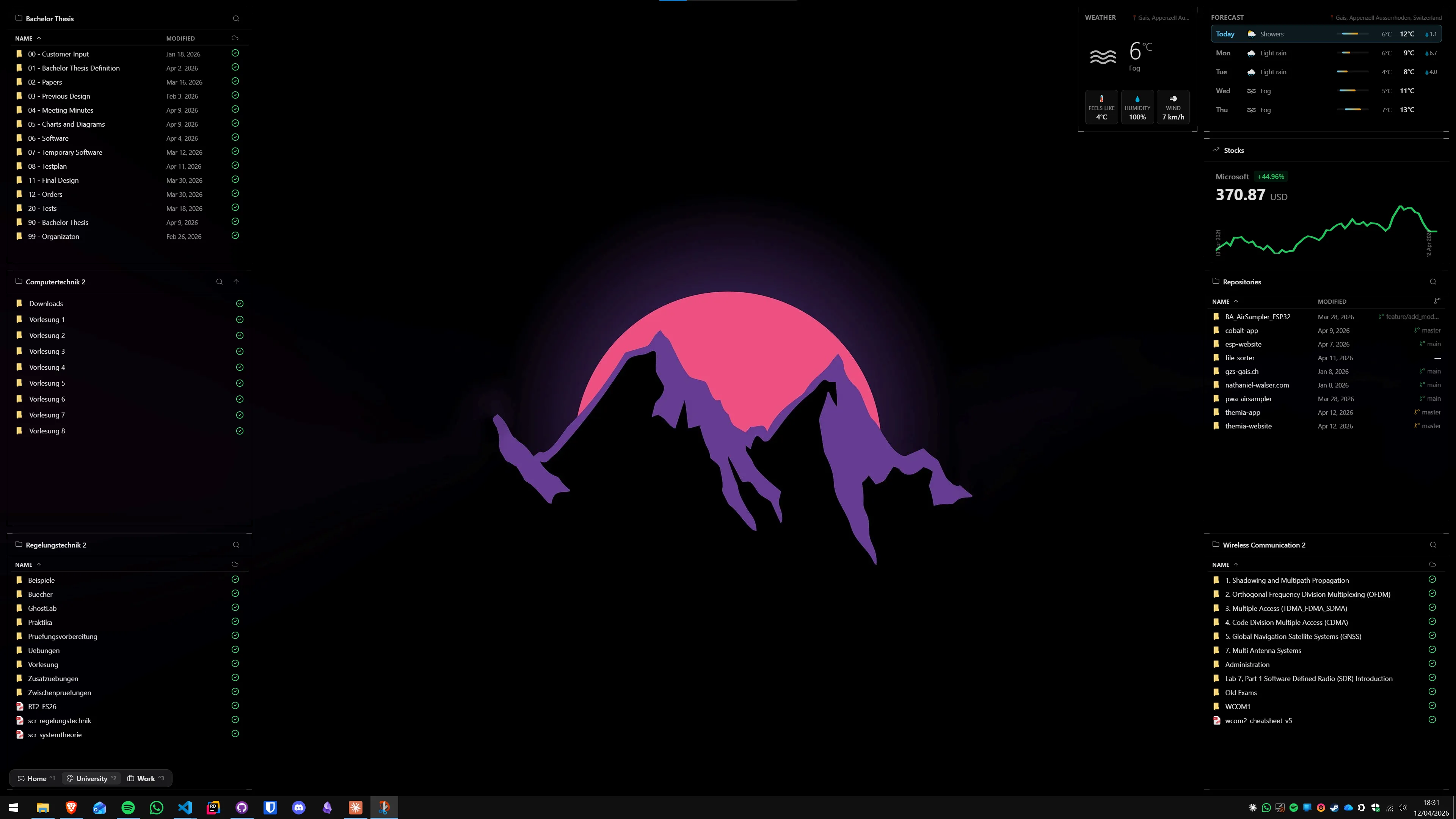
Themia is a native Windows desktop widget app built on Tauri — under 10 MB, no Electron overhead, runs on Windows 10 and 11. It includes a built-in stocks widget that displays price, percentage change, and a sparkline chart for any ticker you configure. Because the widget pulls from standard financial data feeds that include crypto pairs like BTC-USD and ETH-USD, you can track Bitcoin and Ethereum the same way you would track a stock.
Setup takes about five minutes. Download Themia from the Themia website, install it, and add a Stocks widget to your layout. In the widget's settings panel, add the tickers you want to track. For Bitcoin, the typical symbol is BTC-USD; for Ethereum, ETH-USD. Less common altcoin pairs depend on what the underlying data feed supports — major coins by market cap are generally available. The widget sits directly on the desktop wallpaper layer, so it is visible even when all your windows are maximised, as long as you can see any part of the desktop.
The free tier of Themia supports a limited number of widgets. To run multiple crypto tickers alongside other widgets — email, calendar, system stats — the Pro licence is a one-time $19 payment. If you are already using Themia for a productivity dashboard, adding a crypto ticker is just a matter of adding one more widget to an existing layout.
Refresh interval: Themia updates on its own schedule, which for financial data is typically every few minutes. This is suitable for general awareness — checking whether you are up or down 3% today — but not for trading decisions that require second-level data.
Method 3 — Rainmeter with CoinGecko API (30–60 minutes, free)
If you want total control over layout, refresh rate, and which data fields you display, Rainmeter with the CoinGecko public API is the most flexible route. It requires more setup than the other methods, but once configured, a Rainmeter skin can show price, 24h change, 24h volume, market cap, and a custom-drawn chart — all embedded in the wallpaper layer at whatever position and style you choose.
The CoinGecko simple price endpoint does not require an API key for basic usage, though CoinGecko encourages registering for a free Demo key at coingecko.com to get a higher rate limit (500 calls per minute on the free Demo tier vs. 30 on the anonymous tier). The endpoint format is:
https://api.coingecko.com/api/v3/simple/price?ids=bitcoin,ethereum&vs_currencies=usd&include_24hr_change=trueIn Rainmeter, you use the WebParser plugin to fetch this URL and extract values using regex. A minimal working skin has four sections: a WebParser measure for the HTTP request, individual measures to extract price and percentage change with RegExp, and Text meters to display the values. The learning curve for Rainmeter is real — if you have never written an INI-format skin before, expect to spend an hour getting the first version right. The Rainmeter community on DeviantArt and Reddit has published ready-made crypto skins that you can drop in and configure with your preferred coin IDs, which cuts the setup time significantly.
Polling interval: set the UpdateRate on the WebParser measure to control how often the skin fetches data. A value of 60000 (60 seconds) is reasonable for awareness without hammering the API. Be mindful of CoinGecko's rate limits if you are polling multiple coins in separate measures.
Choosing the right method
Here is how to decide:
- You want crypto data visible with no installation: Use the Windows Widgets Board (Win+W) and add a Markets widget. One-click, no setup, data is there when you need it — just not on the wallpaper.
- You want a dedicated window with full charts and portfolio tracking: Pin CoinGecko or CoinMarketCap as a browser app. Two minutes, free, works for any asset.
- You want prices embedded in the wallpaper layer, always visible: Use Themia's stocks widget. Five-minute setup, clean UI, works alongside other widgets for email, calendar, and notes.
- You want total control, custom design, and specific data fields: Build or download a Rainmeter skin. Takes more time, but the result is fully yours.
What to realistically expect from a desktop crypto widget
A desktop widget is an ambient awareness tool, not a trading terminal. The data refresh intervals on free APIs range from 30 seconds to several minutes. For price alerts and precise entry/exit decisions, a dedicated exchange app or a browser tab with your trading platform is the right tool. What a desktop widget does well is keeping you informed of broad price direction — whether the market is up 5% or down 8% today — without requiring you to switch windows or check your phone.
If you are also monitoring your PC's performance while running a trading bot or data-heavy analysis, combining a crypto widget with a system stats widget in the same dashboard keeps everything visible in one layer.
For anyone building a more comprehensive desktop information setup, the productivity dashboard guide covers how to lay out multiple widget types — email, calendar, system stats, and prices — in a layout that stays readable without becoming cluttered.
A note on price accuracy
Free financial data feeds — including the ones that power most desktop widget apps — introduce a delay that is typically 15 minutes or more for traditional market data and anywhere from 30 seconds to several minutes for crypto. This is because real-time streaming data costs money to license. CoinGecko's free API is one of the more generous options for crypto specifically, updating every 30–60 seconds depending on the tier. If you are seeing a price that seems off from what an exchange shows, the difference is almost always a data-freshness issue, not a bug in the widget.
For most people using a desktop widget for portfolio awareness rather than active trading, a 1–2 minute delay is entirely acceptable.
Frequently asked questions
Does Windows 11 have a built-in crypto price widget?
Not a dedicated one, but the Windows 11 Widgets Board includes an MSN Markets widget that shows Bitcoin, Ethereum, and other major cryptocurrencies alongside stocks and indices. You access it via Win+W or the taskbar Widgets icon. It lives inside the panel, not on the desktop itself, and requires a Microsoft account to personalise.
Can I track altcoins and smaller tokens, not just Bitcoin and Ethereum?
Yes, with the right tool. The MSN Markets widget is limited to a curated list of popular assets. Themia's stocks widget can display any symbol available through its financial data feed, including a wide range of crypto pairs. Rainmeter with the CoinGecko API gives you access to thousands of tokens by coin ID — if it is listed on CoinGecko, you can display it. A pinned CoinGecko or CoinMarketCap PWA also lets you track any asset their site supports.
How often does the price refresh on a desktop crypto widget?
It depends on the tool. The Themia stocks widget refreshes on a configurable interval, typically every few minutes for free financial data feeds. Rainmeter with the CoinGecko API can be configured to refresh every minute or faster, but the free CoinGecko API has rate limits (30 calls per minute on the demo tier). For real-time second-by-second price action you need a paid API or a dedicated trading platform, not a desktop widget.
Do I need an API key to show crypto prices on the desktop?
Not necessarily. The Windows Widgets Board and a pinned browser app need no API setup at all. Themia handles the data source internally. Rainmeter with the CoinGecko API can work without a key on the free public endpoint, though CoinGecko now encourages registering for a free Demo API key to get higher rate limits. The key is free and takes about two minutes to generate at coingecko.com.
Will a crypto widget slow down my PC?
A well-built widget app has negligible impact. Themia is a native Tauri app under 10 MB that uses very little CPU between refresh intervals. A simple Rainmeter WebParser skin is similarly lightweight when the polling interval is set to 60 seconds or longer. Avoid web-based widgets that keep a full browser renderer alive in the background — those are the ones that genuinely affect performance.
Can I show a price chart, not just the current price?
On the desktop, full interactive charts are impractical without a browser window. The Themia stocks widget shows a sparkline chart alongside the current price and percentage change. Rainmeter skins can draw simple bar or line charts by storing historical price data locally, but building one from scratch requires real Rainmeter experience. For a proper chart, pinning a CoinGecko page as a browser app (Edge or Chrome PWA) is the most practical option.