How to Schedule Automatic Shutdown on Windows 11
You want your PC to shut itself off at midnight — after the download finishes, when you leave for work, or simply because you always forget to close the laptop lid. Windows 11 can absolutely do this. It just does not make it obvious.
This guide covers every working method to schedule a shutdown on Windows 11 in 2026, from a ten-second command you can run right now to a proper repeating schedule in Task Scheduler. Most people need one of the first two methods. The rest are for specific situations.
Method 1: The shutdown command with a timer (fastest, one-time)
This is the quickest way to schedule a shutdown for a specific number of seconds from now. No install, no configuration — just open a command prompt and type.
- Press Win+R, type
cmd, and press Enter. Or press Win, type Command Prompt, and open it. -
Type the following and press Enter:
shutdown /s /t 3600
This schedules a shutdown in 3600 seconds (one hour). Replace 3600 with however many seconds you want. - A notification will appear at the bottom-right of the screen confirming the shutdown is scheduled.
Common time values: /t 1800 = 30 minutes, /t 7200 = 2 hours, /t 28800 = 8 hours.
To cancel before it fires: open any Run dialog or command prompt and type shutdown /a. The pending countdown disappears immediately.
Useful flags:
/s— full shutdown/r— restart instead of shutdown/h— hibernate (saves RAM to disk, powers off)/f— force close all applications without warning/c "message"— show a custom message in the notification
Example combining flags: shutdown /s /t 3600 /c "Shutting down in 1 hour"
Limitation: this is a one-shot timer. It runs once and is gone. For a repeating daily schedule (shut down every night at 11pm), use Task Scheduler below.
Method 2: Task Scheduler — repeating daily shutdown
Task Scheduler is Windows's built-in automation engine. It can run any command on a schedule — daily, weekly, on login, on idle, or when specific events occur. Setting up a daily shutdown takes about three minutes.
- Press Win, search for Task Scheduler, and open it.
- In the right panel, click Create Basic Task.
- Give it a name (e.g., "Nightly Shutdown") and click Next.
- Under Trigger, choose Daily and set the time you want the shutdown to occur. Click Next.
- Under Action, choose Start a program. Click Next.
-
In the Program/script field, type:
C:\Windows\System32\shutdown.exe
In the Add arguments field, type:
/s /f /t 0
The/t 0means shut down immediately when the task fires./fcloses all apps without prompting. - Click Next, review the summary, and click Finish.
Making the task conditional
By default, Task Scheduler fires the shutdown whether you are at the keyboard or not. To make it smarter, open the task you just created (double-click it in the task list), then:
- Conditions tab → Idle: Check "Start the task only if the computer is idle for" and set a duration (e.g., 10 minutes). This prevents the shutdown from interrupting active work.
- Conditions tab → Power: Uncheck "Stop if the computer switches to battery power" if you want the task to run on laptops regardless of power source. Or keep it checked to skip shutdown when on battery.
- Settings tab: Check "Run task as soon as possible after a scheduled start is missed" to catch up if the PC was off at the scheduled time.
To pause the schedule temporarily, right-click the task and choose Disable. To delete it entirely, right-click and choose Delete.
Method 3: PowerShell scheduled task (script-friendly)
If you prefer working in PowerShell or want to automate the task creation itself (useful for IT environments or scripted setups), you can create the same scheduled task from a single PowerShell command.
Open PowerShell as Administrator and run:
$action = New-ScheduledTaskAction -Execute "shutdown.exe" -Argument "/s /f /t 0"
$trigger = New-ScheduledTaskTrigger -Daily -At "23:00"
Register-ScheduledTask -TaskName "NightlyShutdown" -Action $action -Trigger $trigger -RunLevel Highest
This creates a task that shuts down the PC every day at 23:00. Replace "23:00" with your preferred time. To remove the task later: Unregister-ScheduledTask -TaskName "NightlyShutdown" -Confirm:$false
The -RunLevel Highest flag ensures the task runs with elevated privileges, which prevents User Account Control prompts from blocking the shutdown command.
Method 4: Sleep and hibernate scheduling
A full shutdown powers off the PC entirely — it is the right choice if you want zero power draw or if someone else might pick up where you left off. But for many use cases, sleep or hibernate is more appropriate. Sleep keeps RAM powered and resumes in seconds; hibernate saves RAM to disk and uses no power.
You can schedule hibernate through Task Scheduler the same way, but change the program path and argument:
- Hibernate: Program =
shutdown.exe, Argument =/h - Sleep: Program =
rundll32.exe, Argument =powrprof.dll,SetSuspendState 0,1,0
Sleep scheduling is less reliable via Task Scheduler because Windows may prevent sleep if it detects active network connections or pending tasks. Hibernate is more reliable for strict power-off scheduling.
If your goal is simply "stop using power after X minutes of inactivity," the easier path is the built-in power plan settings. Go to Settings → System → Power & sleep and set the "When plugged in, PC goes to sleep after" value. No scripting needed.
Method 5: Third-party apps with a GUI
If you want a graphical interface instead of command-line work, a few lightweight free tools are worth knowing:
- Wise Auto Shutdown — free, straightforward. Set a specific clock time, a countdown, or trigger on idle. Has a one-click cancel button on the main UI. No install required (portable version available).
- GShutdown — free, open-source, minimal. Supports shutdown, restart, hibernate, and suspend with a simple countdown or scheduled time.
- Sleeptimer — freeware with a system tray icon. Targets music and media users who want the PC to shut down when a playlist ends or after a set duration.
None of these are necessary if you are comfortable with the command-line method or Task Scheduler — but they are useful if multiple people share the machine and need a non-technical way to set shutdown timers.
Combining scheduled shutdown with desktop widgets
The most common reason people miss scheduled shutdowns is forgetting what's still running — an active download, a rendering job, a file sync. A desktop widget that shows system activity solves this at a glance.
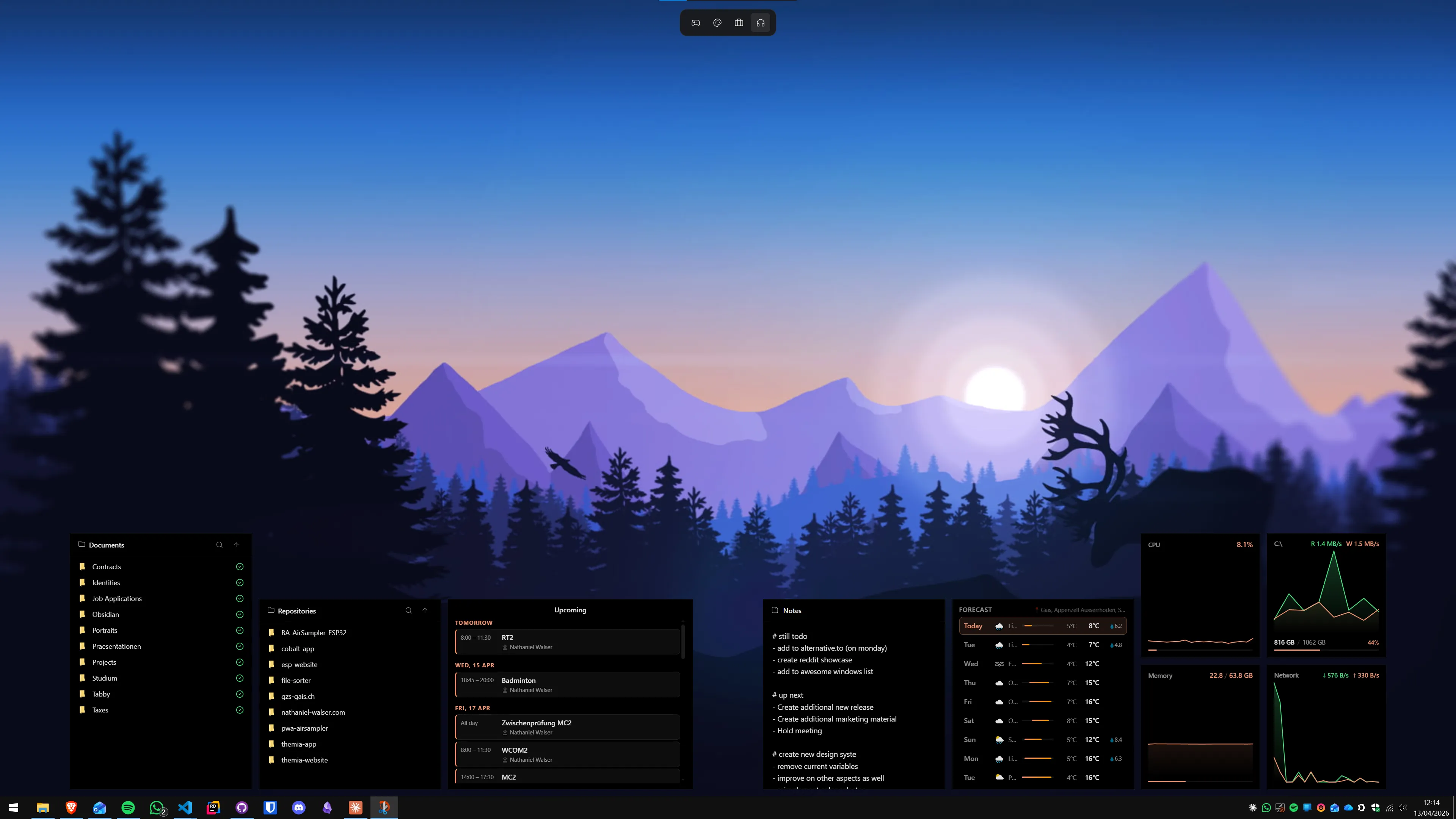
Themia's system stats widget shows live CPU load, memory usage, disk activity, and network throughput directly on your desktop wallpaper, without opening any window. If you schedule a shutdown for 11pm and glance at the desktop at 10:50 to see the disk is still thrashing, you know to extend the timer before it fires. It is the kind of passive information that saves you from waking up to an interrupted process.
For more on system monitoring on the desktop, see our guide on how to show CPU and GPU temperature on Windows and how to show network speed on your Windows desktop.
Quick reference: which method to use
- One-time shutdown in 2 hours:
shutdown /s /t 7200in Run or Command Prompt. - Shut down every night at 11pm: Task Scheduler with a Daily trigger at 23:00.
- Shut down only when idle: Task Scheduler with the Idle condition enabled.
- Non-technical users on a shared PC: Wise Auto Shutdown or similar GUI tool.
- Scripted/automated environments: PowerShell
Register-ScheduledTask.
For a well-rounded productivity setup — scheduled tasks running in the background, system health always visible, and important info on the desktop rather than buried in menus — the productivity dashboard guide is a good next step. And if you want to know all the keyboard shortcuts for managing your session quickly, the Windows 11 keyboard shortcuts guide covers the session-management ones too.
FAQ
Does Windows 11 have a built-in way to schedule shutdown?
Not through a graphical button, no. Windows 11 offers three built-in methods: the shutdown command with a timer (shutdown /s /t 3600), the Task Scheduler GUI, and PowerShell with Register-ScheduledTask. There is no simple "shut down at 11pm" toggle in Settings. Third-party apps fill this gap if you want a friendlier interface.
How do I cancel a scheduled shutdown before it runs?
If you used the command-line timer (shutdown /s /t SECONDS), run "shutdown /a" in any Command Prompt or Run dialog (Win+R) before the countdown ends. If you created a Task Scheduler task, open Task Scheduler, find your task, right-click and choose Disable or Delete. The /a flag only cancels pending command-line shutdowns — it does not affect Task Scheduler tasks.
Will a scheduled shutdown interrupt a running download or update?
Yes. A forced shutdown will terminate all processes, including active downloads, game installations, and Windows Updates that are in the middle of applying. For downloads, use the /hybrid flag (shutdown /s /t 3600 /hybrid) which triggers a fast-startup shutdown. For Windows Update, it is safer to schedule the shutdown after update installation is complete — or use "Update and shut down" from the Start menu instead.
Can I schedule the PC to turn back on automatically?
Yes, through Task Scheduler. When creating a task, under Triggers choose "On a schedule" and set the time. Under Settings, check "Wake the computer to run this task." This requires Wake On Alarm to be enabled in your BIOS/UEFI (look under Power Management). The feature works on most modern systems but some manufacturers disable it by default or remove the BIOS option entirely.
Is there a way to schedule shutdown only if the PC is idle?
Yes. In Task Scheduler, after creating your shutdown task, go to the Conditions tab and check "Start the task only if the computer is idle for X minutes." This prevents the shutdown from firing if you are still actively using the machine at the scheduled time. You can also check "Stop if the computer ceases to be idle" to cancel if someone returns to the keyboard.
What is the difference between shutdown, sleep, hibernate, and restart in the shutdown command?
The shutdown command covers: /s (full shutdown, all power off), /r (restart), /h (hibernate — saves RAM to disk, powers off, resumes fast), /l (log off current user only). Sleep (low-power standby) is not directly available via the shutdown command — use "rundll32.exe powrprof.dll,SetSuspendState 0,1,0" or simply close the laptop lid depending on your power plan settings.