How to Improve Laptop Battery Life on Windows 11 (2026)
The gap between "connected to charger" and "running on battery" can feel brutal on Windows 11 laptops. A machine that breezes through a workday plugged in might struggle to reach four hours on battery if you have not touched any of the default settings. The defaults are not optimised for battery life — they are optimised for a decent first impression on a desktop spec sheet.
This guide covers the changes that actually matter: power plans, display, background apps, sleep and hibernate, and a few less obvious settings. Everything here is verified and built into Windows 11 — no third-party optimisers needed.
First: check your battery health
Before adjusting settings, it is worth knowing whether your battery is healthy. A degraded battery cannot hold as much charge as it did new, and no power setting will fix that. The built-in battery report gives you the data.
Open Windows Terminal or Command Prompt as Administrator and run:
powercfg /batteryreport /output C:\battery-report.html
Open the resulting HTML file in a browser. Look for Design Capacity versus Full Charge Capacity. If Full Charge is below 70–75% of Design Capacity, your battery has aged significantly. Adjusting settings will help, but a battery replacement will help more if the gap is large. For ongoing monitoring, adding a battery widget to your desktop shows live percentage and estimated remaining time at a glance.
Power plan: Balanced is still the right choice
In Windows 11, power plans moved from Control Panel into Settings → System → Power & battery. The three main options:
- Best power efficiency (formerly Power saver): caps CPU performance aggressively. Good for passive tasks like reading, but makes everything feel slow. Useful if you need to squeeze out an extra hour from a nearly dead battery.
- Balanced: the correct default. Reduces CPU clock speeds during idle, ramps up under load, dims the display sooner. This gives the best balance of responsiveness and battery on most hardware.
- Best performance: keeps the CPU running at full speed continuously. Fine on AC power. On battery it is wasteful — avoid it unless you are doing CPU-heavy work on battery intentionally.
If your laptop manufacturer installed a companion app (Dell Power Manager, Lenovo Vantage, HP Omen Command Center, ASUS Battery Health Charging), check it for additional power profiles. OEM profiles sometimes do a better job than Windows' built-in plans because they know your exact hardware.
One setting inside the Balanced plan worth checking: Settings → System → Power & battery → Screen and sleep. Set the display to turn off after 2–3 minutes on battery. The display is the single largest power draw on most laptops — cutting it early when you step away makes a meaningful difference.
Display brightness: the biggest lever
The backlight consumes more power than almost anything else at normal usage. A display at 100% brightness can use two to three times the power of the same display at 40%. The practical advice:
- Set brightness to 50–60% when on battery unless your environment demands more.
- Enable adaptive brightness if your laptop has an ambient light sensor: Settings → System → Display → Brightness → toggle Change brightness automatically when lighting changes. This dims the screen in dark rooms automatically.
- Lower the display refresh rate. If your laptop has a 144 Hz or 165 Hz display, switching to 60 Hz on battery saves meaningful power. Go to Settings → System → Display → Advanced display → Choose a refresh rate. Some OEM apps let you do this automatically on battery.
Background apps: find and stop the real culprits
Go to Settings → System → Power & battery → Battery usage. Switch the view to Last 7 days and sort by battery use. This shows which apps consumed the most charge and whether they did it in the foreground (while you were using them) or in the background (while you were doing something else).
Background offenders to look for:
- Cloud sync clients (OneDrive, Dropbox, Google Drive) can spike CPU during initial indexing or large uploads. They settle down once synced, but if they are always active, consider pausing sync when on battery.
- Browsers with many tabs. Each tab is a separate process. A browser with 30 tabs open is doing background rendering, video decoding, and extension work constantly. Close unused tabs or suspend them with an extension like OneTab.
- Video call apps (Teams, Zoom, Meet) that keep camera or microphone active between calls. Quit them completely when not in use — they do not always release hardware when minimised.
- Antivirus doing a scheduled full scan. If your antivirus lets you schedule scans, set them to run while plugged in.
To reduce background app activity globally: Settings → Apps → Installed apps → search for an app → Advanced options → Background app permissions. Set apps you do not need running in the background to Never. Note that this affects notifications — apps restricted from background activity will not deliver notifications while you are in another app.
Energy Saver: when to use it and what it actually does
Windows 11 24H2 replaced the old Battery Saver with Energy Saver. Unlike its predecessor, Energy Saver can be activated even when the laptop is plugged in — it is now a general power-reduction mode rather than a purely battery-oriented one. On battery, it activates automatically when charge drops below 20% by default. You can enable it manually at any time from Settings → System → Power & battery or from the Quick Settings panel (Win+A).
What Energy Saver does:
- Reduces display brightness by 30% from your current level (adjustable in settings).
- Limits background app refresh for apps that are not in the foreground.
- Pauses OneDrive sync and some background tasks.
- Disables transparency effects and some animations.
- Greys out the Power Mode slider — turn Energy Saver off to change power mode.
Worth checking: Settings → System → Power & battery → Energy recommendations shows a curated checklist of settings Microsoft identifies as beneficial for your specific hardware. It is a quick starting point that does not require hunting through settings manually.
Sleep vs hibernate: understanding the difference
Sleep (S3) keeps RAM powered and resumes in one to two seconds. It is convenient but continues draining the battery — typically 1–5% per hour depending on the machine. Over an eight-hour night, that is meaningful.
Hibernate (S4) writes RAM contents to the SSD and cuts power almost entirely. Resume takes 10–20 seconds but battery drain while hibernated is near zero. For overnight or multi-hour pauses, hibernate is clearly better for battery.
To make sure hibernate is available: search for Choose what closing the lid does in Start. Set On battery to Hibernate for lid close or do nothing for a period. You can also set it at Settings → System → Power & battery → Screen and sleep — click When plugged in, put my device to sleep after and configure the battery equivalent to hibernate after a shorter interval.
Modern Standby (S0ix), which many thin laptops use instead of S3, behaves differently — it maintains some network connectivity and background sync during sleep. If your laptop uses Modern Standby, it may drain more during sleep than older S3 sleep. Check by comparing battery level before and after a brief sleep period.
Wireless radios: Wi-Fi and Bluetooth
Wi-Fi uses power even when your laptop is idle — the wireless adapter polls for packets constantly. If you are working offline (on a plane, in a location without Wi-Fi), disabling Wi-Fi from Quick Settings (Win+A) saves a small but real amount of battery.
Bluetooth has a similarly small but measurable draw. If you are not using Bluetooth peripherals, turning it off via Quick Settings costs nothing and gains a little battery. This matters more on older hardware where power management for wireless chips is less sophisticated.
Startup programs: what drains battery from boot
Programs that launch at startup begin consuming CPU and battery immediately after you log in, before you have opened a single app. Open Task Manager (Ctrl+Shift+Esc) → Startup apps tab. Look at the Startup impact column. Disable anything listed as High impact that you do not actively use. Common candidates: gaming launchers (Steam, Epic, GOG), Discord, Spotify, Teams, and OEM utilities you do not use.
Disabling a startup item does not uninstall the app — it just means it will not launch automatically. You can still open it manually. See the full guide on how to speed up Windows 11 for a systematic startup cleanup process.
Desktop widgets and battery
A common concern among laptop users is whether always-visible desktop widgets hurt battery life. The answer depends heavily on the app.
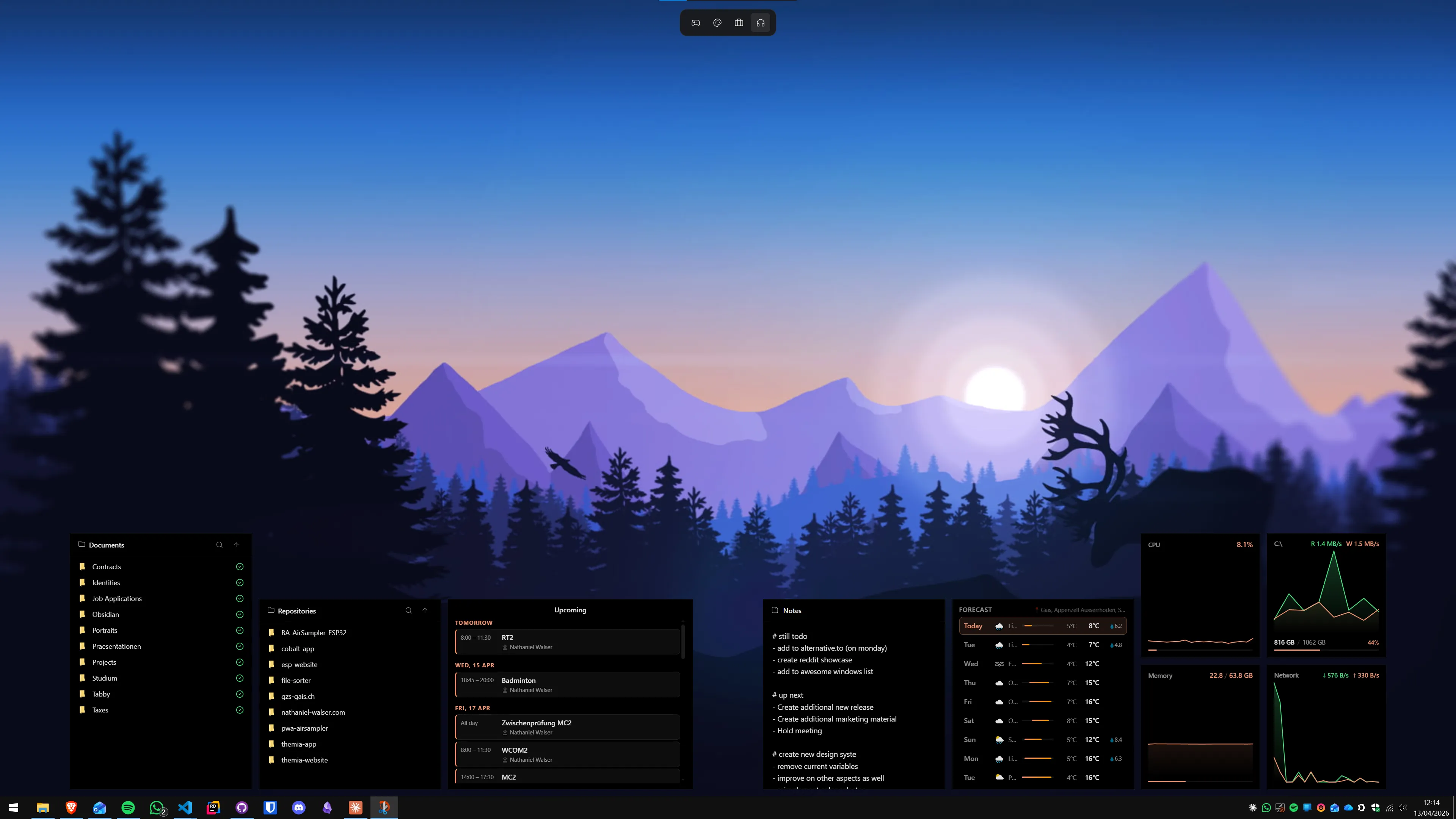
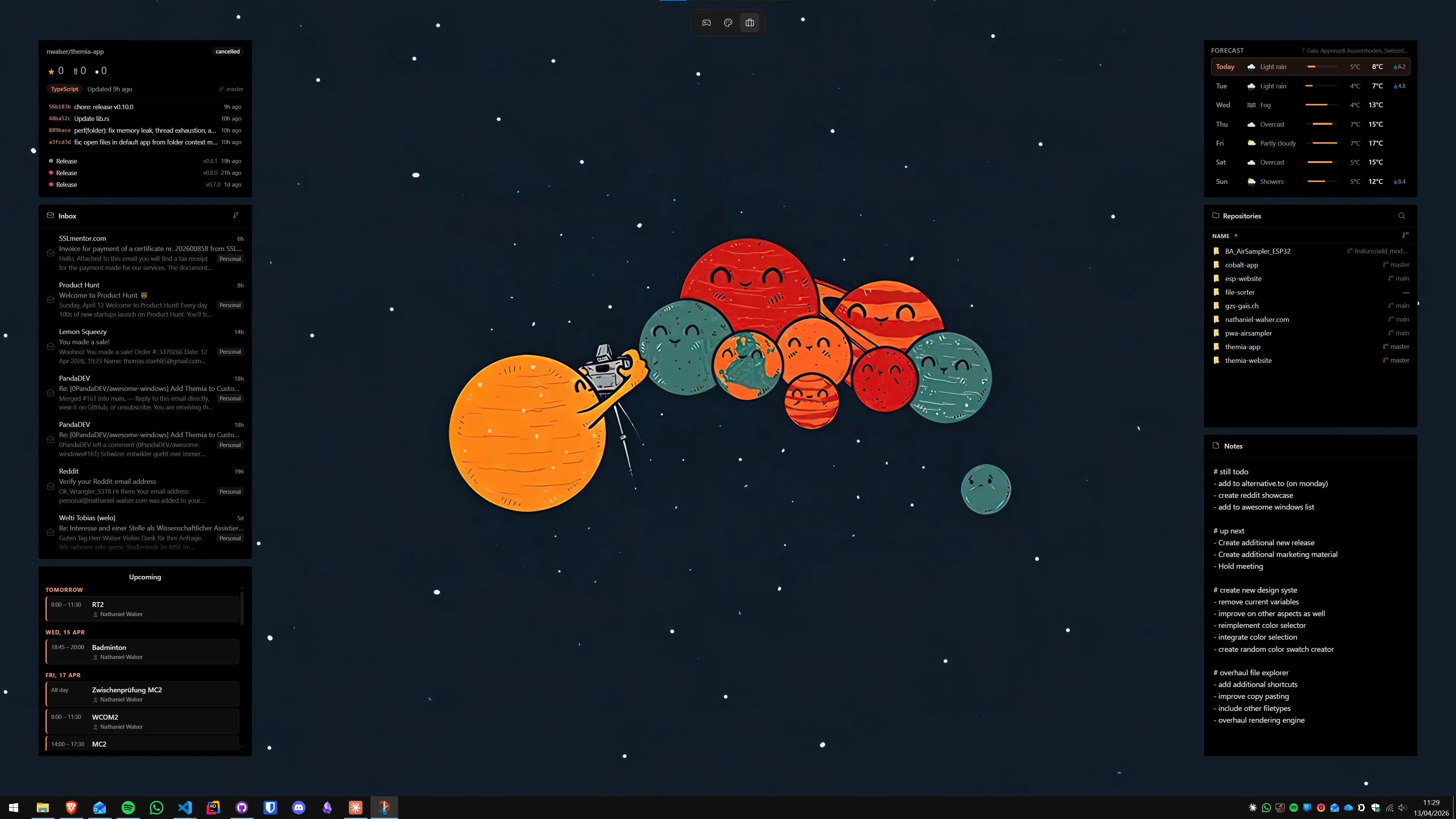
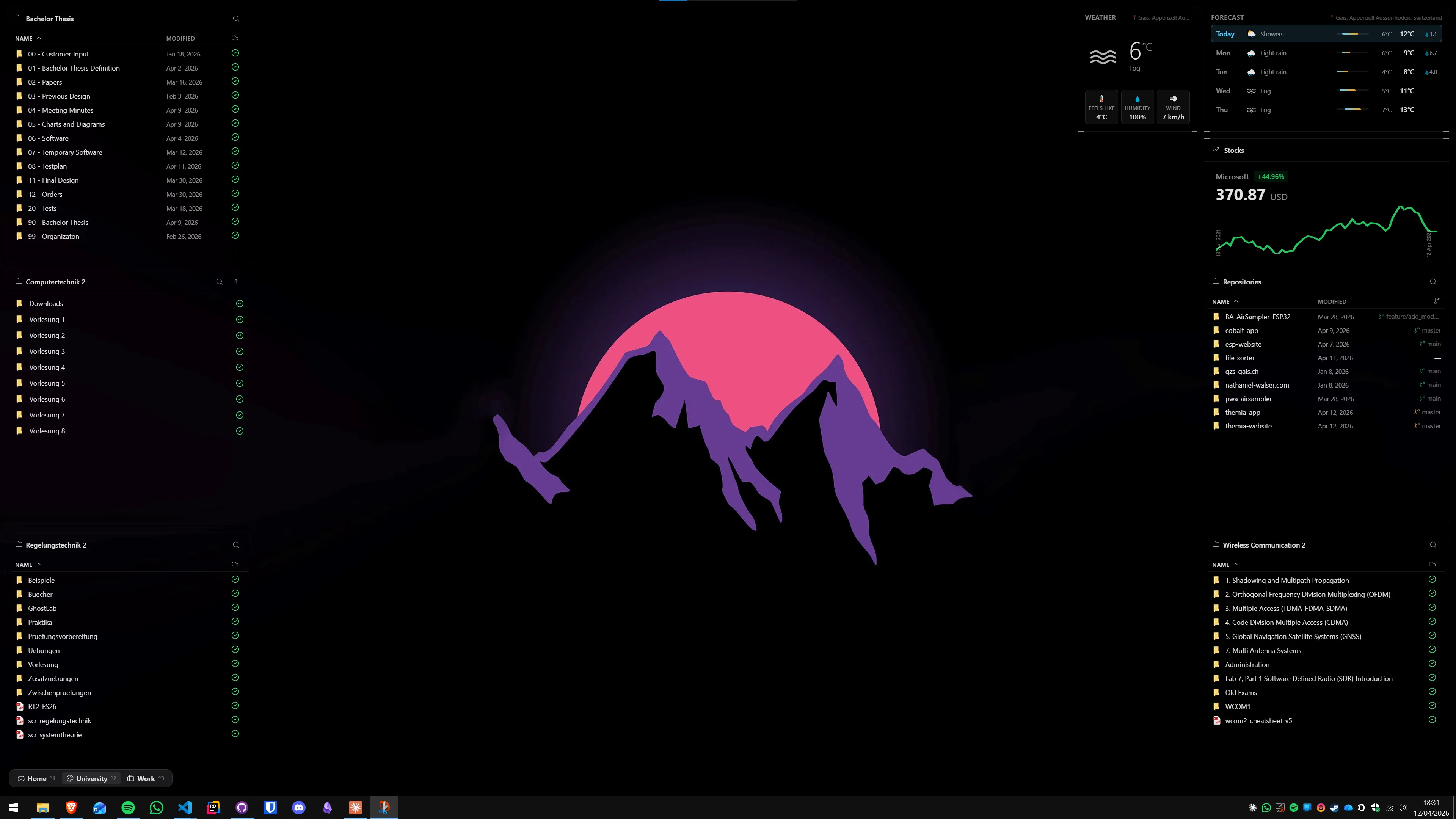
Widget apps built on native frameworks (like Themia, which uses Tauri and the system WebView) have very low idle CPU draw. They poll for data (weather, stocks) on a slow schedule — typically every few minutes — and otherwise sit idle. The impact on battery is negligible: less than having an extra browser tab open.
Animated wallpaper apps are a different story. Wallpaper Engine and Lively Wallpaper render continuously, which means the GPU is always doing work. On battery, this is a real drain. If you use animated wallpapers, consider setting them to pause when on battery — both Wallpaper Engine and Lively have this option.
For a laptop setup, a static wallpaper with lightweight widgets beats an animated wallpaper without widgets on battery efficiency. If you want to track CPU temperature and battery level without opening Task Manager, a system stats widget covers both while staying genuinely lightweight.
Long-term battery health
The settings above help with daily runtime. For the long-term health of the battery cell itself, a few additional practices matter:
- Avoid keeping the battery at 100% indefinitely. Lithium-ion cells age faster when held at full charge constantly. Many OEM apps offer a charge cap at 80% for laptops primarily used plugged in. Check Dell Power Manager, Lenovo Vantage, HP Battery Health Manager, or ASUS Battery Health Charging for this option.
- Avoid draining to 0%. Deep discharges stress the battery chemistry. Plug in before reaching 10–15%.
- Avoid heat. A laptop that gets hot regularly during charging degrades its battery faster than one that stays cool. Elevating the laptop with a stand improves airflow and reduces operating temperatures during charging.
For a complete picture of the working-from-home laptop setup — including productivity tools, virtual desktops, and the always-visible widgets that make a connected home office more comfortable — see the guide on setting up Windows 11 for working from home.
Quick checklist: battery life improvements by impact
- High impact: reduce display brightness to 50–60% on battery; set display to turn off after 2–3 minutes idle; switch to Balanced power plan; check battery usage for background culprits.
- Medium impact: lower display refresh rate to 60 Hz on battery; enable hibernate for long pauses; disable Wi-Fi and Bluetooth when not needed; manage startup programs.
- Lower impact but still worth doing: enable battery saver threshold at 20%; enable adaptive brightness; use static wallpaper on battery instead of animated; check for OEM battery charge cap.
- Negligible: enabling dark mode on LCD (real on OLED); switching off desktop widget apps (native apps like Themia are too lightweight to matter).
Most laptops in 2026 with healthy batteries will see a 20–40% improvement in real-world runtime by combining the high-impact changes above. The display settings alone are often worth an extra hour.
FAQ
What is the best power plan for battery life on a Windows 11 laptop?
The Balanced plan is the right default for most people — it reduces clock speeds when the CPU is idle and ramps up only under load, which is exactly what extends battery life without sacrificing responsiveness. Avoid Best performance while on battery; it keeps the CPU running hot and fast regardless of what you are doing. Power saver is more aggressive and can make the machine feel sluggish. If you are doing light work (email, docs, web) the Balanced plan with display brightness at 50-60% will give you the most runtime.
Does dark mode actually save battery on a Windows 11 laptop?
Only on OLED displays. On an OLED screen, black pixels are literally turned off, so dark mode meaningfully reduces power draw — the difference can be 15–30% in display power consumption depending on the content. On LCD/IPS panels, the backlight shines at full intensity regardless of what colour the pixels display, so dark mode saves essentially nothing. Check your laptop's spec sheet: if it says OLED or AMOLED, dark mode is a real battery tip. If it says IPS, TN, VA, or just LCD, it is a comfort preference, not a power-saving measure.
Do desktop widget apps like Themia drain laptop battery?
Lightweight native widget apps have a negligible impact on battery. Themia, for example, is built on Tauri — a Rust-based framework that renders widgets using the system WebView rather than bundling a full browser engine. Its idle CPU draw is very low, and it has no background processing beyond the occasional API poll for live data (weather, stocks). Animated wallpaper apps like Wallpaper Engine have a much larger impact because they render constantly. Rainmeter with complex skins and frequent data refresh intervals can also add up. If battery matters on your laptop, prefer native widget apps over scripted or browser-based ones.
How do I check my Windows 11 battery health?
Open Windows Terminal or Command Prompt as Administrator, run: powercfg /batteryreport /output C:\battery-report.html — then open that file in a browser. The report shows your battery's Design Capacity (what it held when new) versus its Full Charge Capacity (what it holds now). If Full Charge is 70% or less of Design Capacity, your battery has degraded significantly and replacement is worth considering. For a quicker check, open Settings → System → Power & battery → Battery — you will see the current percentage but not the health data. The powercfg command is the only built-in tool that gives the health report.
Should I keep my laptop plugged in all the time to preserve long-term battery health?
Modern lithium-ion batteries prefer to stay between 20% and 80% charge rather than constantly cycling to 100% or dropping to near 0%. Keeping a laptop plugged in at 100% all day, every day, does cause slow degradation over years. Many laptop manufacturers now include a 'battery limit' or 'conservation mode' setting — often in the OEM companion app (Dell Power Manager, Lenovo Vantage, HP Omen Command Center, ASUS Battery Health Charging) — that caps charging at 80% while plugged in. If your laptop has this, enable it. Windows 11 itself does not have a universal cap setting, but Settings → System → Power & battery shows the current state and you can enable Smart Charging if the manufacturer exposes it.
Which background apps drain the most battery on Windows 11?
Open Settings → System → Power & battery → Battery usage to see which apps consumed the most power in the last 24 hours or 7 days. Common culprits: browsers with many tabs (each tab is its own process), sync clients running continuous uploads (OneDrive, Dropbox, Google Drive during indexing), video call apps that keep the camera or microphone active, and antivirus real-time scanning. The battery usage view shows both the percentage each app used and whether it was in the foreground or background — apps consuming significant power in background are the ones worth managing.