How to Add a Habit Tracker to Your Windows Desktop
Most habit tracking apps solve a problem they also create: you have to open them deliberately to log anything. By the time the novelty wears off — usually around week three — the app sits unopened and your habits revert to whatever they were before. The desktop is better because it is already open. You are staring at it every time you start work, every time you take a break, every time you close a browser tab.
This guide walks through every practical way to put your habit tracker on the Windows desktop itself — not inside an app window you have to find and click, but right there on the wallpaper where you cannot ignore it. The methods are ordered from dead simple to fully customized, and none require any technical background.
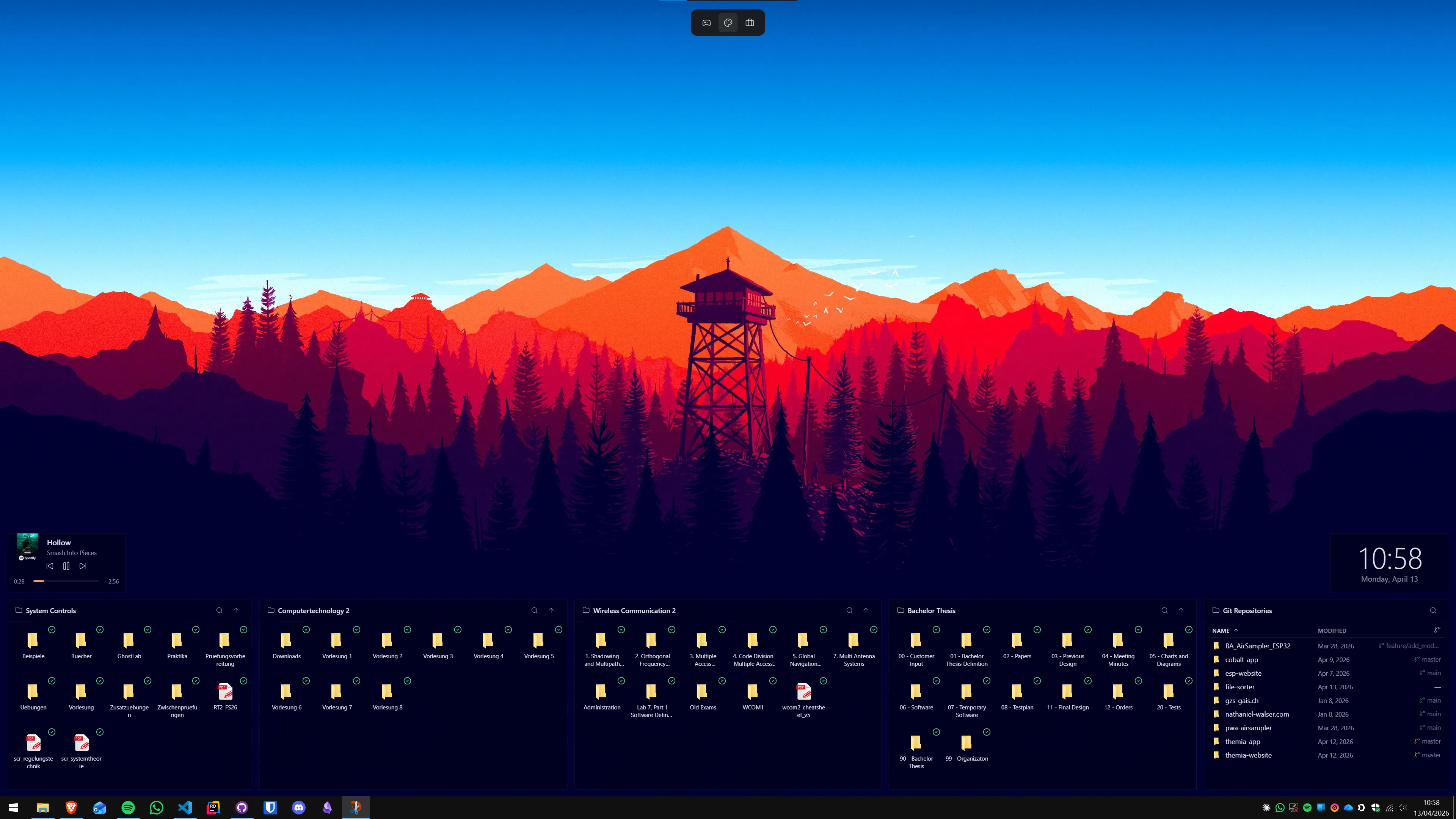
Why the desktop works better than a dedicated app
Habit apps compete with everything else on your phone and in your browser. Every notification, every lock screen badge, every tab switch is a small opportunity to not check in. The Windows desktop has none of that competition — it is the first thing you see when you sit down, and it stays visible the moment any app window is minimized or moved.
Research on habit formation consistently points to environmental cues as the strongest predictor of follow-through. A visible, specific prompt — "did you do your 20-minute walk today?" — is more effective than a general intention to track. Putting your habit list on the desktop makes it an environmental cue rather than a task you have to remember to seek out.
The second advantage is friction. Opening a dedicated app takes four to six seconds and a deliberate action. Glancing at your desktop takes zero seconds because you are already looking at it. For habits where consistency over months matters more than perfect data, the lower-friction option wins almost every time.
Method 1: Sticky Notes for minimal tracking
Windows has a built-in Sticky Notes app (search for it in the Start menu) that places colored note windows directly on your screen. You can use one note per habit or group everything on a single note — whatever matches how your brain works. To mark a habit done, add a checkmark emoji, cross out the text, or simply retype the list fresh each morning.
A practical setup that takes under two minutes:
- Open Sticky Notes and write one habit per line as a plain checklist.
- Resize the note to a narrow vertical strip and drag it to the edge of your monitor.
- Right-click the Sticky Notes taskbar icon and select "Always on Top" so other windows do not cover it.
- Each morning, check off what you completed. The note persists between restarts automatically.
Limitations: Sticky Notes lives at the app level, not the wallpaper layer — other windows can cover it unless you set always-on-top. It also lacks any visual calendar or streak view. For many people this is enough to build consistency. For those who want more, the widget methods below are the next step.
For everything Sticky Notes can do, the guide on adding sticky notes to your Windows desktop covers the full setup including alternatives.
Method 2: To-do widget for structured habit tracking
A to-do widget that sits permanently on your wallpaper — below all app windows, always visible when the desktop is exposed — is the closest thing to a habit tracker that actually lives on the desktop itself. Unlike Sticky Notes, it does not float over your work. It is part of the background layer.
Themia's to-do widget connects to your existing task lists (including Microsoft To Do) and renders them on the wallpaper. The key feature for habit tracking is recurring tasks: set "30 minutes of reading" as a daily recurring task and it automatically reappears each morning as unchecked. You mark it complete, it disappears from today's list, and it comes back tomorrow without any additional effort.
A practical configuration for habit tracking:
- In Microsoft To Do (free, included with Windows), create a list called "Daily Habits".
- Add each habit as a task with a daily recurrence — no due time required, just a daily repeat.
- Open Themia, add the To-Do widget, and point it at your "Daily Habits" list.
- Position the widget on the right edge of your desktop where it stays visible under your usual windows.
This gives you automatic daily resets, a completion count visible at a glance, and a history in Microsoft To Do that lets you look back across weeks. The full setup guide for the to-do widget on Windows covers every configuration option in detail.
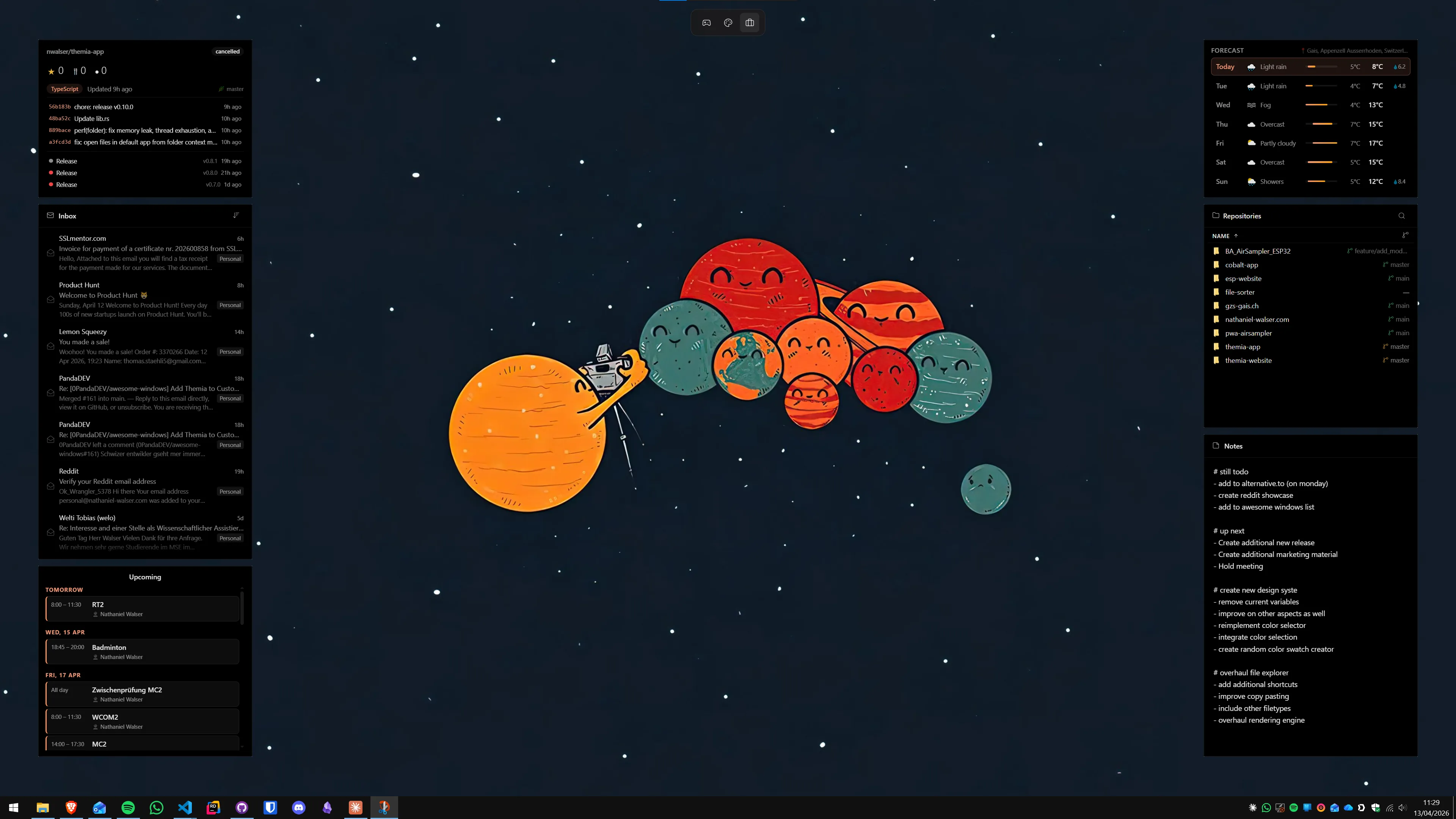
Method 3: Calendar widget for streak and milestone tracking
A calendar widget does something a to-do list cannot: it shows you time as a visual shape. A month grid where you have marked off 22 of 30 days looks and feels different from a week with four consecutive gaps. That visual difference is motivating in a way that a streak counter expressed as a plain number is not.
The simplest streak tracking approach with a calendar widget:
- Add a calendar widget to your desktop — Themia includes a monthly calendar view that sits on the wallpaper layer.
- Create a repeating calendar event for each habit you want to track. The title is the habit name; the time is optional.
- When you complete the habit, mark the event as done in your calendar app. Completed events display differently from pending ones in the monthly grid.
- Miss a day? The empty square stays visible for the rest of the month as a visible accountability signal.
This method does not require a specific tool — any calendar widget showing a monthly grid works. But having it on the wallpaper layer rather than as a floating window makes the streak visible at a low-attention glance rather than requiring a deliberate window switch. The guide on the desktop calendar widget covers setup options from simple to advanced.
Method 4: Combined system for building multiple habits
The most effective desktop setup combines three widgets: a to-do widget for today's habits, a calendar widget for monthly streaks, and a notes widget for weekly reflection. Each serves a different time horizon — today, this month, this week — without cluttering your screen.
A layout that works well on a single 1080p or 1440p monitor:
- Right edge, top half: To-do widget showing today's habits. Narrow, vertical, minimal — no more than seven items.
- Right edge, bottom half: Calendar widget showing the current month. Small enough to see the full grid at a glance.
- Left edge or bottom center: Notes widget with a weekly reflection prompt. Updated every Sunday — what worked, what did not.
On a dual-monitor setup, the second monitor is an excellent home for this dashboard. It stays permanently visible while your primary monitor runs all your work applications. Three widgets take up roughly one-quarter of a 1920×1080 display, leaving plenty of wallpaper showing and avoiding a cluttered feel.
Themia's Pro tier (one-time $19) lets you save named layouts and restore them in one click, which becomes useful once you have settled on a habit dashboard configuration you want to keep through wallpaper changes and system resets.
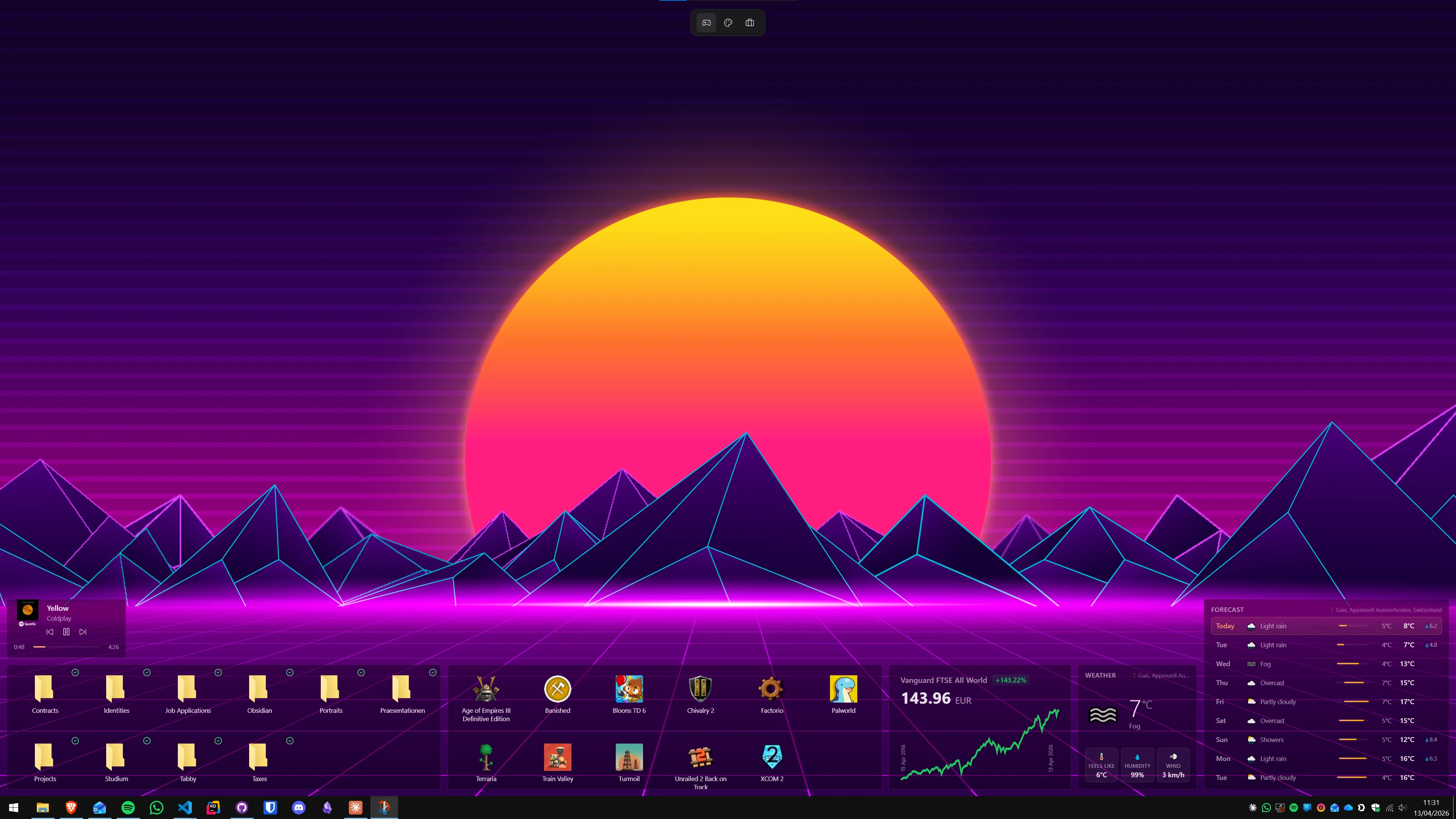
Choosing the right habits for desktop tracking
Not every habit belongs on the desktop. Some are best tracked by feel or by a separate device — fitness trackers for exercise, kitchen timers for cooking, phone reminders for medication. Desktop tracking works best for habits tied to your computer time: reading, writing, focused deep work, language learning, journaling, reviewing your workday.
A useful filter: if completing the habit either requires your computer or naturally happens while you are at your computer, put it on the desktop. If the habit happens entirely away from the computer, a phone app or a paper notebook is more practical, and the desktop widget just serves as a manual checkmark.
Start with three to five habits. More than seven items makes the to-do widget visually dense and cognitively heavy. The widget works best when every item on it is something that matters today, not an aspirational list of everything you wish you did eventually.
Habits that stick: the environmental side
The desktop setup handles one part of the habit equation: visibility and low friction. The rest — motivation, sleep, a sustainable workload, not having too many competing priorities — is yours to manage. A habit tracker on the desktop that you can see but never check is still a wallpaper decoration, not a system.
One practical note specific to the desktop setup: do not change the layout of your habit widgets for the first 30 days. Familiarity makes the visual cue faster to process. Once you know exactly where to look without thinking, the habit loop runs closer to automatic.
The free tier of Themia is enough to set up the full combined system — to-do, calendar, and notes. The Pro upgrade adds layout saving for when you want to preserve a setup you have refined. Explore more productivity setups on the blog.
Frequently asked questions
Do I need a separate habit tracking app, or can Windows handle it natively?
Windows does not have a dedicated habit tracker built in, but it has all the building blocks. The Microsoft To Do app (free, pre-installed) handles recurring daily tasks well. The built-in Sticky Notes app works for minimal tracking. Neither puts information permanently on your desktop wallpaper — for that you need a widget app like Themia, which keeps your habit checklist and calendar visible at all times without opening another window.
What is the simplest possible habit tracking setup on Windows?
Open Sticky Notes, write your habit list, and pin the window so it stays on top. Mark each habit done with a checkmark emoji. No third-party app required, no data sync, no learning curve. The downside is that Sticky Notes is an app window, not a wallpaper-layer widget — it can be covered by other windows and requires you to reopen it after a restart unless you pin it to the taskbar.
Can I track habit streaks on the Windows desktop?
Not automatically — you track streaks manually by marking days on a calendar widget or logging dates in a notes widget. A calendar widget gives you a monthly grid where you can see at a glance which days you completed a habit. For automatic streak counting you would need a dedicated app like Habitica, but those live in a browser tab rather than on the desktop itself.
Will adding habit-tracking widgets slow down my PC?
No, not in any meaningful way. A to-do widget and a notes widget together typically use a few megabytes of RAM and under one percent CPU on any modern machine. On anything purchased in the last six or seven years, the impact is invisible in daily use.
How do I make sure I actually look at my habits every morning?
Place the habit widget on the part of the desktop you see first — typically the right edge of your primary monitor. Do not layer it under other windows. If you use virtual desktops, keep your habit dashboard on Desktop 1 and make that your default. A neutral, low-texture wallpaper makes widgets stand out visually rather than competing with a busy background.
Is there a way to get automatic daily habit resets on Windows?
Yes. The Microsoft To Do app and to-do widgets connected to it reset recurring tasks automatically at midnight — so if you mark "read for 20 minutes" as done on Monday, it reappears unchecked on Tuesday. Themia's notes widget does not auto-reset (it is freeform), so for automatic resets the best workflow is to connect a to-do widget to Microsoft To Do with daily recurring tasks.