How to Show a Calendar on Your Windows Desktop
You open your computer every morning and you want to see what is on for today — without opening a browser, without switching to an app, just a glance at the desktop. A calendar that lives right there on your wallpaper. Windows makes this harder than it should be.
The built-in options hide your calendar behind a click or a panel. The old Windows Mail and Calendar app was retired at the end of 2024. Google Calendar does not have a native Windows app. And Microsoft's Widgets Board — while it does have a calendar panel — is not the same as a widget that lives directly on the desktop.
This guide covers every working method to get a calendar on your Windows 10 or 11 desktop in 2026, from the fastest built-in option to always-on desktop widget apps, in order of setup effort.
What Windows gives you out of the box
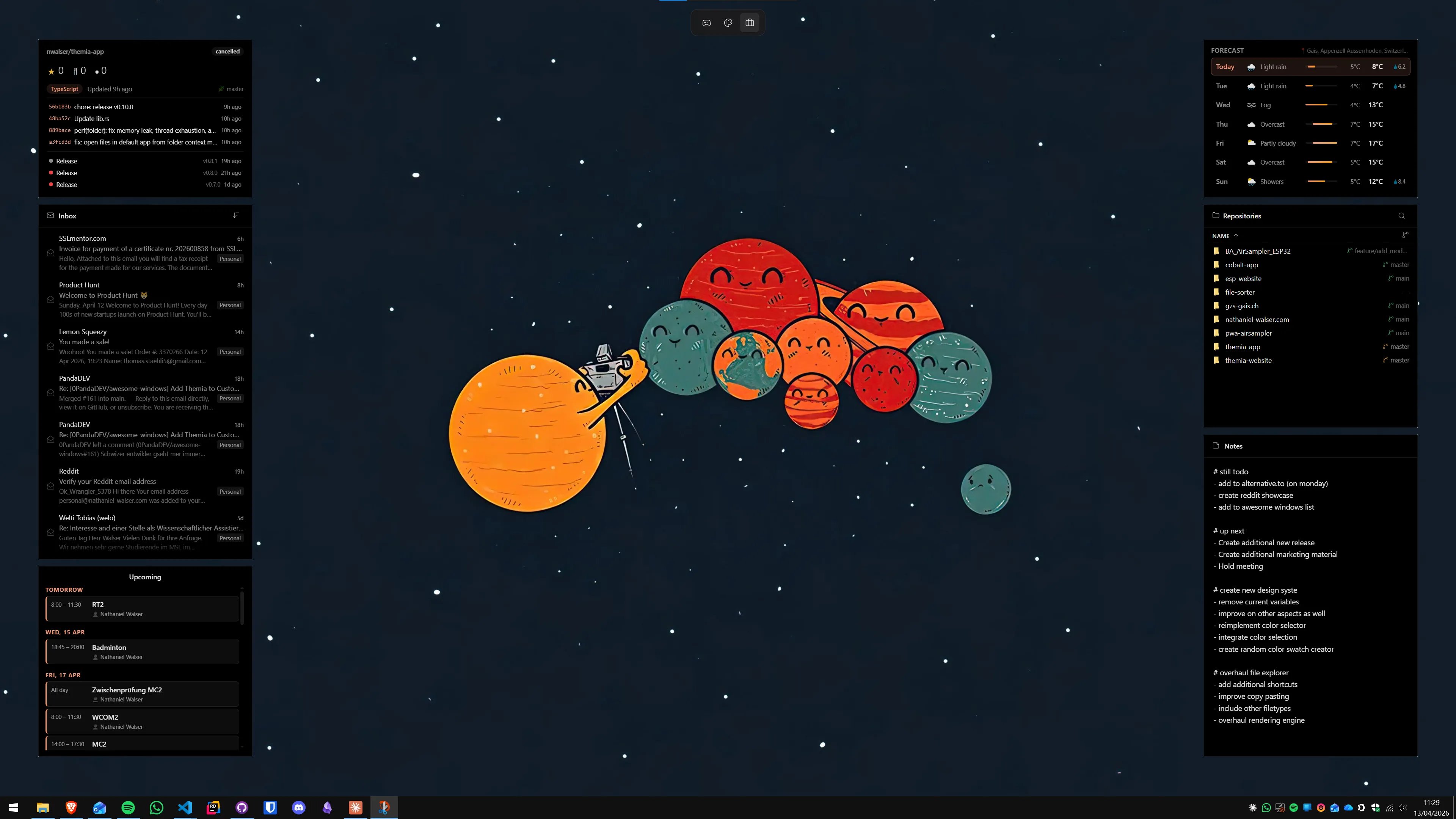
Before installing anything, it is worth knowing what the built-in options actually are. Neither puts a calendar on the desktop wallpaper itself, but one of them covers a lot of use cases.
The taskbar calendar popup
Click the time and date in the system tray (bottom-right corner of the taskbar) and a month calendar pops up. If you have a Microsoft account linked to Windows and a compatible calendar connected — Outlook or Microsoft 365 — upcoming events also appear in that popup alongside the month grid. It closes the moment you click elsewhere. It is a popup, not a widget.
The Widgets Board calendar panel
Press Win+W (or click the Widgets icon on the taskbar) to open the Widgets Board. You can add an Outlook Calendar card there, which shows your schedule for today and the next few days. It is more useful than the taskbar popup — more room, more detail — but it still lives inside a panel that you have to deliberately open. Nothing stays visible on the desktop unless the panel is open.
If the Widgets Board bothers you generally, we have a guide on how to disable Windows 11 Widgets — you can turn off the panel entirely without affecting third-party desktop widget apps.
Method 1: Sync events into the taskbar calendar (zero install)
The fastest way to get upcoming events visible on one clock-click, no software required. Works on Windows 10 and 11.
- Open Settings → Accounts → Email and accounts.
- Click Add an account under "Accounts used by other apps." Add your Outlook.com, Microsoft 365, or Google account.
- When asked what to sync, make sure Calendar is checked.
- Click the time in the taskbar — within a few minutes, your upcoming events appear in the popup alongside the month grid.
Pros: nothing to install, events from Outlook and Google in one view, always one click away.
Cons: it is a popup — it closes on any stray click; requires a Microsoft account; Google Calendar syncs read-only (you cannot edit events this way).
Who it is for: people who want events visible on one click and do not need anything permanently on screen.
Method 2: Add an Outlook Calendar widget to the Widgets Board
If you are on Windows 11 and use Outlook or Microsoft 365, the Widgets Board already has a calendar widget waiting for you.
- Press Win+W to open the Widgets Board.
- Click the + button (top-right) to add a widget.
- Find the Outlook Calendar widget and add it. Size options are small, medium, and large.
- Your upcoming events populate automatically from your logged-in Microsoft account.
Pros: no extra install, shows event name, time, and location, syncs with Microsoft 365 and Outlook.com.
Cons: panel-based — you still have to open it; Google Calendar events only show here if you have first synced them through the new Outlook app; the news feed in the Widgets Board is distracting and cannot be removed.
Who it is for: Microsoft ecosystem users who want a decent calendar view and do not mind opening a panel.
See also our breakdown of why the Windows 11 Widgets Board falls short for most people wanting real desktop widgets.
Method 3: Install a desktop calendar widget app
This is what most people are actually searching for — a calendar that lives directly on the wallpaper, always visible, without opening any panel or launching any app. There are solid options in 2026 at every price point.
Themia (recommended for most people)
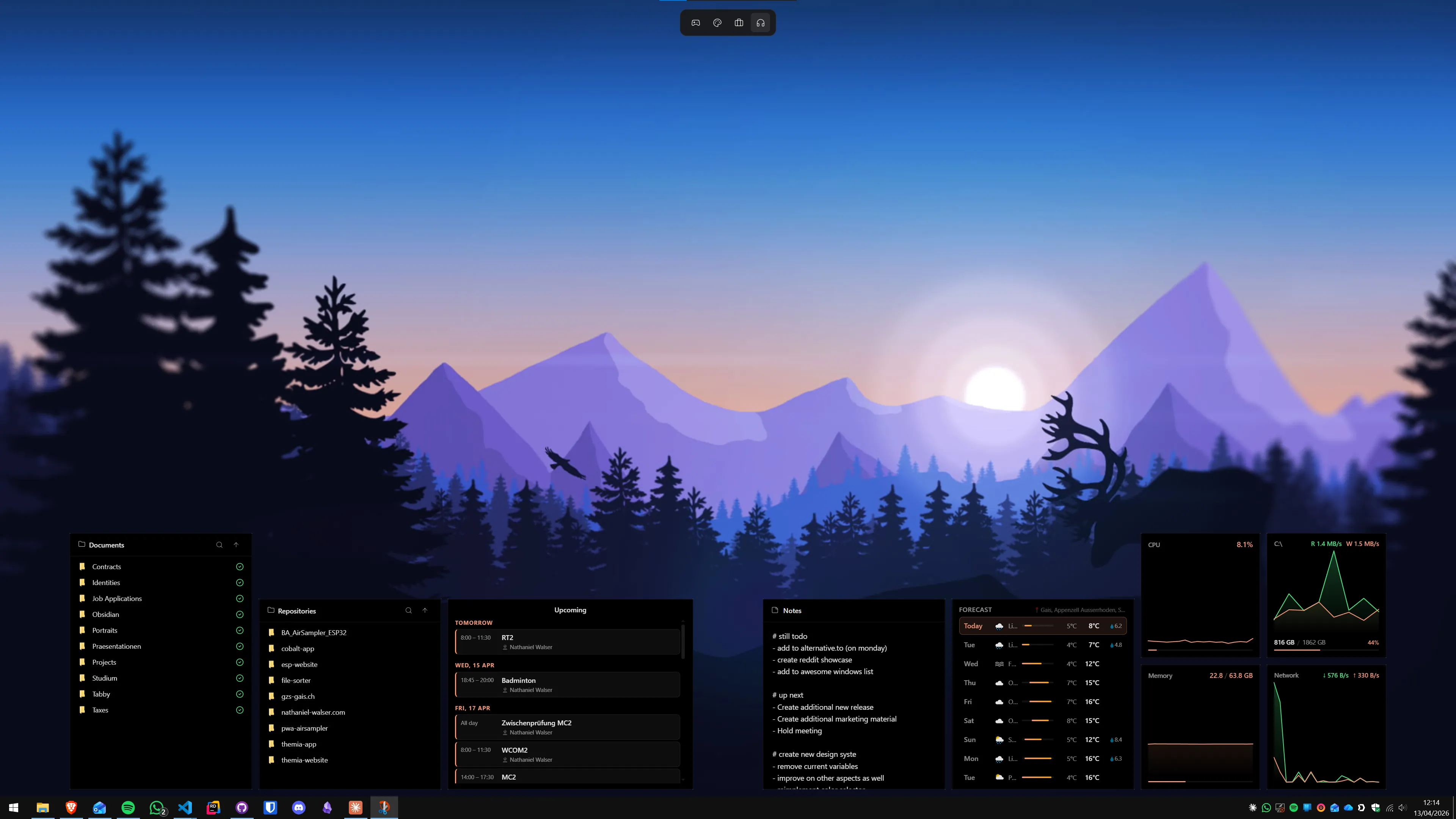
Themia is a native Windows desktop widget app built on Tauri — the installer is under 10 MB and it runs on Windows 10 and 11 with no browser runtime underneath. The calendar is one of the built-in widgets: it shows the current month in a compact grid, highlights today, and can display events from connected calendar accounts. You can resize it by dragging a corner, position it anywhere on the desktop, and pair it alongside other widgets — weather, email, system stats, notes, to-dos — all in the same layout.
- Download Themia from the Themia website and run the installer (signed, under 10 MB).
- Right-click the desktop and choose Add widget → Calendar.
- Drag the widget to position it; drag a corner to resize.
- In Themia's settings, connect a calendar account to show events alongside the month grid.
Pros: native app, tiny footprint, free tier covers the calendar widget, no config files to edit, works on local Windows accounts, multiple widgets in one layout.
Cons: advanced styling and per-screen layout switching are behind a one-time $19 Pro upgrade.
Who it is for: most people — you want a calendar on the desktop and probably a couple of other widgets alongside it.
Agenda Widget (Google Calendar-focused)
Agenda Widget is a Microsoft Store app specifically designed to show Google Calendar and Google Tasks on the desktop. Sign in with your Google account and upcoming events appear in a persistent desktop panel with time, title, and calendar color coding. It is single-purpose — Google Calendar and Tasks, nothing else — but it does that job cleanly. The base tier is free.
It is the right pick if Google Calendar is your primary calendar and you do not need any other widget types. If you want weather, email, or system stats alongside the calendar, a broader platform like Themia makes more sense.
LiveDeskCal
LiveDeskCal is a dedicated desktop calendar widget that supports Google Calendar and Outlook Online in its free Lite tier. Events from both services appear on a persistent desktop panel, auto-refreshing on a schedule you configure. The interface leans toward the classic gadget aesthetic — a mini month grid with an event list below — which some people prefer. It is a reasonable pick if you specifically want Google and Outlook in one calendar widget without needing other widget types.
Method 4: Rainmeter calendar skins
Rainmeter is the classic Windows desktop scripting engine — you install community-built skins that display whatever you want on the desktop. Calendar skins exist and some are genuinely good. The tradeoff is the usual Rainmeter one: complete visual control, but expect to spend time on configuration.
Two calendar skins worth looking at in 2026:
- LuaCalendar by Smurfier: A static month calendar that uses Lua scripting for fast load and high flexibility. It shows the month grid with today highlighted. No event sync — a pure calendar display that you can style to match any Rainmeter theme. Available at smurfier.github.io/LuaCalendar.
- Google Calendar + Clock skin (Rainmeter Forums): Pulls events from up to three Google Calendar .ics feeds and displays them as a unified event list for the next 14 days. Auto-refreshes every minute. Setup requires exporting your calendar's private .ics URL from Google Calendar settings and pasting it into the skin config file.
- Download and install Rainmeter from rainmeter.net.
- Download your chosen skin's
.rmskinfile and double-click to install. - Right-click the Rainmeter tray icon, go to Skins, and load the calendar skin.
- For event skins, open the skin's
.iniconfig file in any text editor and paste your .ics URL where the comments indicate.
Pros: total visual control, free, large skin library.
Cons: config-file editing required for event skins; skins are not always maintained; no unified settings UI.
Who it is for: people already building a custom Rainmeter desktop who want the calendar to match their theme. See the Windows ricing guide if you are new to Rainmeter.
Google Calendar specifically: your options at a glance
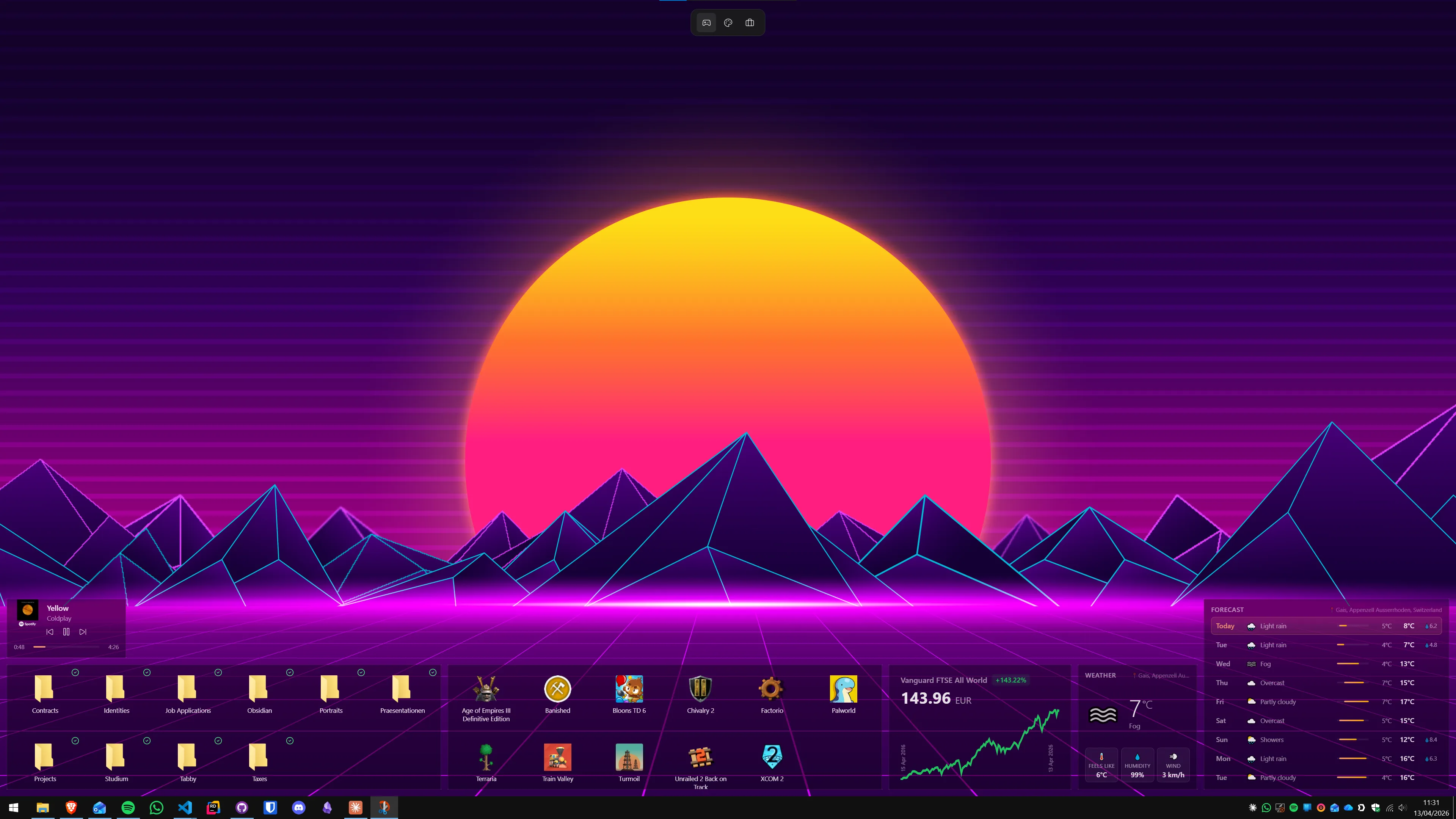
Google Calendar does not have a native Windows desktop app, so getting it onto the desktop takes one extra step. Here are the realistic paths in 2026:
- Themia or LiveDeskCal: Connect Google Calendar directly in the app settings. Events appear in the desktop widget automatically on a refresh schedule.
- Agenda Widget: Sign in with your Google account in the app. The cleanest Google Calendar integration of the dedicated options.
- Sync into the new Outlook app: Open Outlook for Windows, add your Google account, and your Google Calendar events merge into the Outlook calendar — then flow into the Widgets Board panel automatically.
- Rainmeter with an .ics feed: Go to calendar.google.com → Settings → your calendar → "Secret address in iCal format." Copy that URL and paste it into a Rainmeter skin that supports .ics feeds.
- Google Calendar as a PWA: In Microsoft Edge, open calendar.google.com, then go to the menu and choose Apps → Install this site as an app. This creates a standalone window that opens outside the browser. Not a widget, but it launches fast and stays out of your taskbar.
Which method should you use?
A quick decision guide based on what you actually want:
- Events one click away, no install: Method 1 — sync your calendar account into the taskbar popup.
- Microsoft 365 or Outlook user, panel is fine: Method 2 — Widgets Board Outlook Calendar card.
- Calendar always visible on the desktop, minimal setup: Method 3 with Themia — free tier, native app, done in two minutes.
- Google Calendar only, focused widget: Method 3 with Agenda Widget.
- Google and Outlook merged in one desktop widget: LiveDeskCal, or Themia with both accounts connected.
- Building a custom Rainmeter theme: Method 4 — LuaCalendar for a static grid, Google Calendar skin for event sync.
For most people the honest answer is a desktop widget app. The built-in Windows options are one click away from the taskbar — convenient, but not the same as a calendar you can see the moment you glance at the screen. If you check the date and upcoming events throughout the day, having it permanently on the wallpaper saves dozens of small interruptions. Themia's free tier is enough to try the concept — install it, add the calendar widget, and decide from there.
If you are building a full productivity setup with email, to-dos, weather, and stats alongside the calendar, the productivity dashboard guide covers the full layout approach. More widget apps compared in the complete roundup of the best Windows desktop widget apps in 2026.
FAQ
Does Windows 11 have a built-in desktop calendar widget?
Not on the desktop itself. Windows 11 shows a month calendar when you click the clock in the taskbar, and it can overlay upcoming events there if your Microsoft account is connected. The Widgets Board (Win+W) also has an Outlook Calendar panel widget. Neither puts a calendar directly on the desktop wallpaper — for that you need a third-party app like Themia, Agenda Widget, or LiveDeskCal.
Can I see Google Calendar on my Windows desktop without a browser?
Yes, via a dedicated widget app. Agenda Widget on the Microsoft Store is the most direct option — it connects to your Google account and shows upcoming events in a persistent desktop panel. Themia also has a calendar widget that can surface events from connected accounts. A lighter workaround is installing Google Calendar as a Progressive Web App (PWA) via Microsoft Edge — it is not a widget, but it opens instantly and stays out of your main taskbar.
How do I sync my Outlook calendar to appear on the Windows desktop?
The easiest route is the Outlook Calendar widget in the Windows 11 Widgets Board (Win+W) — it picks up your Microsoft account calendar automatically. For always-on visibility on the desktop wallpaper, LiveDeskCal and Calendar Dashboard both support Outlook Online sync and display as persistent desktop panels. Themia also connects to calendar accounts and shows events in its calendar widget.
Why do my events not show up in the Windows 11 taskbar calendar?
The taskbar calendar only shows events when your Microsoft account is signed into Windows and a compatible calendar is linked — Outlook or Microsoft 365. If you log in with a local Windows account, or if your only calendar is Google-only, events will not appear. Fix it via Settings → Accounts → Email and accounts → Add an account, then choose your provider and make sure Calendar sync is enabled.
Can I show Google Calendar and Outlook Calendar side by side on the desktop?
Yes. Apps like LiveDeskCal and Themia can pull events from multiple calendar sources into one widget. If you prefer keeping them visually separate, you can run two widget instances side by side. You can also sync your Google Calendar into the new Outlook app for Windows, which then flows into the Widgets Board calendar panel — effectively merging both in one view.
Will a calendar widget slow down Windows?
A well-written calendar widget has negligible impact. Themia is a native Tauri app under 10 MB. The main variable is sync frequency — an app polling your calendar server every 30 seconds uses more network and CPU than one refreshing every 15 minutes. Most apps default to a sensible interval you can adjust in settings.