Stardock Fences Desktop Pages: Complete Guide 2026
Most Stardock Fences users know the basics — drag a rectangle, name it, drop icons in. But Desktop Pages is the feature that fundamentally changes how much organizational capacity Fences can hold. Instead of one flat desktop covered in fence containers, you get multiple swipeable pages, each with its own set of fences, so your work context, personal shortcuts, and project-specific tools can live on separate layers without ever piling onto each other.
This guide covers what Desktop Pages actually do, how to set them up in Fences 6, when they are genuinely useful versus when they just add navigation overhead, and how Themia's per-screen layout switching addresses a related but distinct organizational need.
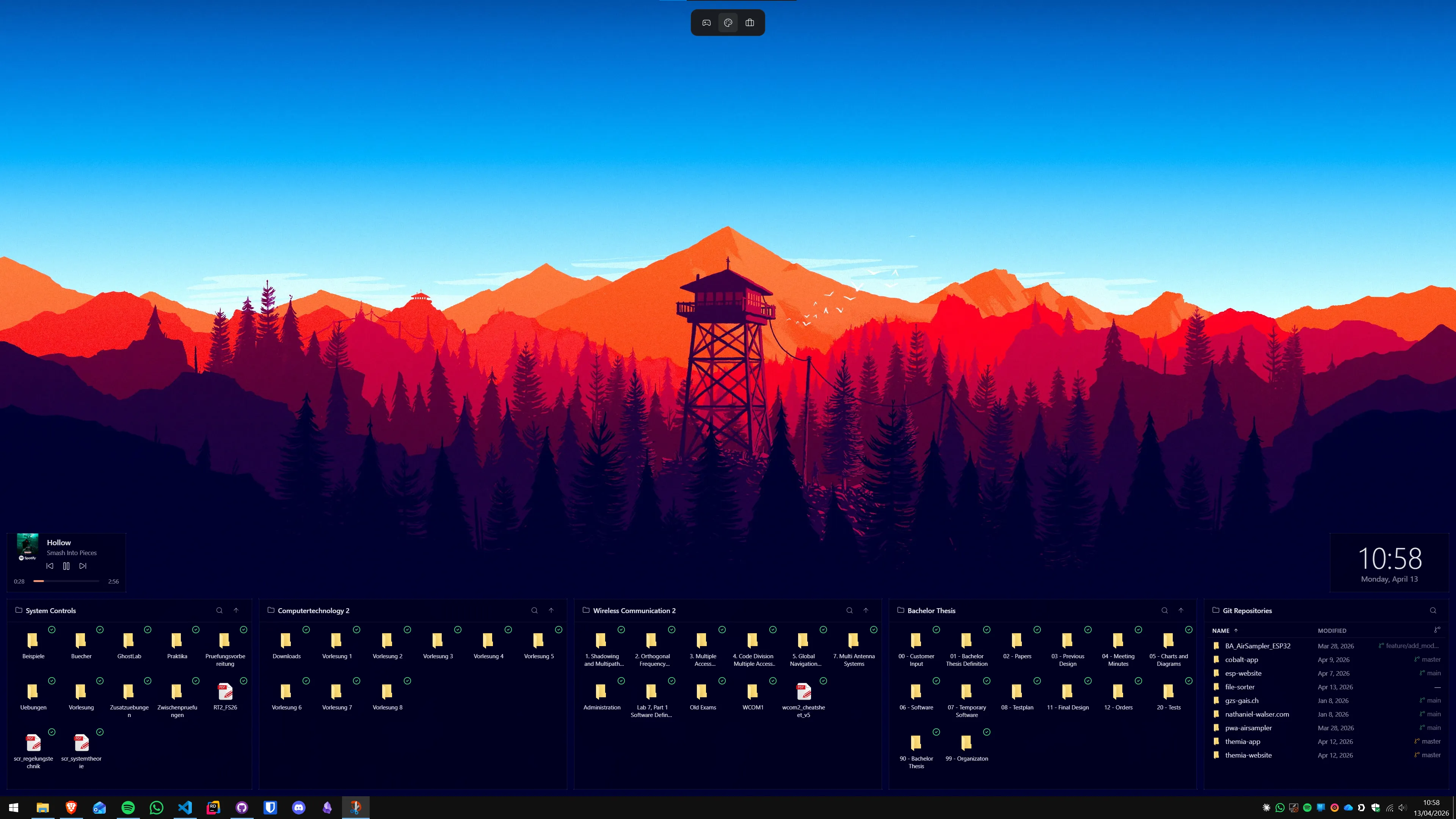
What Stardock Fences Desktop Pages actually are
Desktop Pages is a Fences feature that treats your desktop like a series of horizontal slides. Each page is an independent collection of fence containers — the fences on page 1 are completely separate from the fences on page 2. When you swipe to page 2, page 1's containers disappear and page 2's containers appear in their place. Your wallpaper stays the same; only the fence overlay changes.
This is different from three other Fences features that sound similar:
- Tabs — multiple icon groups within a single fence container, controlled by tabs at the top of that container. Tabs are a sub-feature of individual fences; pages are a feature of the whole desktop.
- Roll-Up / Quick Hide — Roll-Up collapses a single fence to its title bar; Quick Hide hides all fences at once. Both are visibility toggles, not organizational layers.
- Folder Portals — mirror a real folder's contents to the desktop as a fence. Folder Portals can exist on any page, like any other fence.
Desktop Pages also is not the same as Windows 11 Virtual Desktops. Virtual Desktops (Win+Ctrl+D) create separate workspaces for your windows and applications. Desktop Pages organize your icon containers on the desktop background. The two operate at different layers and can be used at the same time without conflict.
How to create and switch Desktop Pages
Desktop Pages are off by default in a fresh Fences 6 installation. To enable them:
- Right-click the desktop and open Fences → Fences Settings.
- Navigate to the Desktop Pages tab (in some Fences 6 builds, it appears under the general Fences tab as a sub-section).
- Enable Desktop Pages with the toggle switch.
- Choose how many pages to create — you can start with 2 and add more later.
- Set your preferred navigation method: horizontal swipe on an empty desktop area, hot corners, or a keyboard shortcut.
Once enabled, a small page indicator appears at the edge of the desktop (typically the bottom or left edge, depending on your settings). You can click the indicator dots to jump to any page directly, swipe to go forward or back one page at a time, or use whatever hot key you assigned in settings.
Each page starts empty — your existing fences stay on page 1. To add fences to a new page, navigate to that page and create fences there exactly as you would normally: right-click the desktop background and choose Create New Fence, or hold Shift while dragging a rectangle.
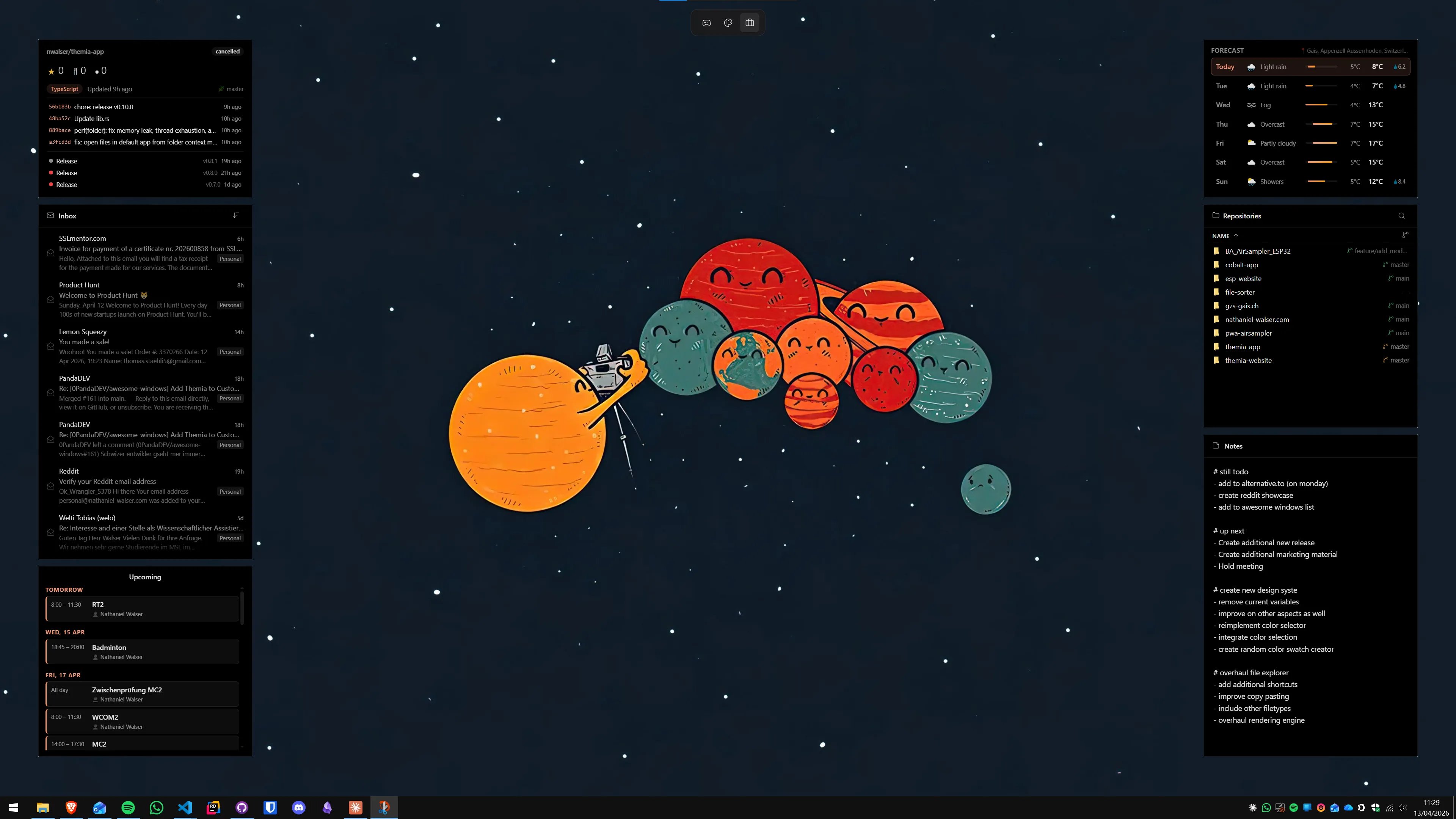
Practical page layouts that actually work
The most common reason users turn on Desktop Pages is to separate context. Here are the page structures that hold up in daily use:
Two pages: work and personal
The simplest setup and the one most likely to be sustainable long-term. Page 1 holds work fences — project shortcuts, client folders, tools you open every morning. Page 2 holds personal fences — gaming launchers, creative project files, media shortcuts. You spend most of your day on page 1 and swipe to page 2 when you are done. The friction of switching is low; the benefit is that your work fences do not visually compete with your personal ones.
Three pages: work, current project, archives
A useful structure for freelancers or anyone managing multiple client engagements. Page 1 is the universal layer — tools you always need. Page 2 is the active project layer — Folder Portals and shortcuts specific to whatever you are working on this week. Page 3 is the archive or reference layer — files and shortcuts you need occasionally but do not want cluttering the primary view. Swapping the active project onto page 2 when you start a new engagement takes about two minutes.
Four or more pages: diminishing returns
Four pages is where many users find the navigation overhead starts to match or exceed the organizational benefit. With four pages, you are one extra swipe away from being completely lost about which page holds a specific shortcut. Fences provides no visual indicator of a page's contents when you are not on it — there is no thumbnail preview. If you have enough context categories to warrant four pages, Fences containers with descriptive names (and Tabs within them) on two to three pages may serve you better than spreading thin content across many pages.
Desktop Pages and multi-monitor setups
An important constraint to know: in Fences 6, Desktop Pages apply to your primary monitor only (the monitor marked as your main display in Windows Display Settings). Your secondary and tertiary monitors show whatever fences you placed on them, but they do not participate in the page-switching system — swiping on the primary display does not change what appears on your secondary display.
This is one area where the comparison with Themia becomes practically relevant. Themia's per-screen layout switching applies to every monitor independently. If you have a two-monitor setup and want context-switching on both screens simultaneously, Themia's named layout profiles can switch what is visible on all connected displays at once. Fences Desktop Pages and Themia layouts solve related problems, but at different scopes. For more on managing widgets across multiple screens, see How to Use Desktop Widgets on a Dual Monitor Setup.
What Desktop Pages do not do
A few capabilities that users frequently expect from Desktop Pages but which are not there:
- Per-page wallpapers. Switching Desktop Pages does not change the wallpaper. All pages share the same wallpaper (or the same slideshow). If per-page visual identity is important to you, Windows 11 Virtual Desktops do support per-virtual-desktop wallpapers, which Fences Desktop Pages do not.
- Per-page auto-organize rules. Auto-Organize rules in Fences 6 route new desktop icons to specific fence containers regardless of which page is currently active. You cannot tell Fences to put files from a specific folder onto page 2's fences while page 1 is shown. Rules target fence containers by name, not by page.
- Animated transitions. Page switching in Fences 6 is a cut or a brief fade — the fences on one page disappear and the next page's fences appear. There is no slide animation matching the swipe gesture.
- Thumbnail previews of other pages. When you are on page 1, you cannot see a preview of page 2's layout without navigating there. This makes locating a specific shortcut across pages slower than it would be if the pages were all visible at once.
Desktop Pages vs Windows 11 Virtual Desktops: the comparison
Because both features involve "multiple desktops," the comparison comes up often. The distinction is straightforward:
- Fences Desktop Pages organize what is on the desktop surface (icon containers). Open applications are unaffected by page switches. Pages 1 and 2 could show different sets of fences while both displaying the same Chrome windows in the taskbar.
- Windows 11 Virtual Desktops organize which application windows are visible. Each virtual desktop can show completely different open windows. The desktop surface (wallpaper and any Fences containers) is shared across virtual desktops in the default configuration, though per-virtual-desktop wallpapers can be enabled.
In practice, many power users run both: Virtual Desktops to separate work applications from personal ones at the window level, and Fences Desktop Pages to give each context its own set of relevant shortcuts on the desktop background. They do not conflict, and the combined setup provides genuine depth of organization. For a detailed breakdown, see Stardock Fences vs Windows 11 Virtual Desktops.
When Desktop Pages genuinely help
Desktop Pages are most useful when:
- You have enough distinct contexts (work, personal, project, gaming) that keeping all fences on one page makes the desktop feel like a crowded toolbar.
- You work on a single monitor and context-switching is frequent but not so rapid that the swipe gesture becomes annoying.
- The contexts you are switching between have genuinely non-overlapping tool sets — if 80% of your shortcuts appear on every page, pages are not adding organizational value.
- You are already using Fences for icon organization and want to extend that organization into separate contexts without adopting a fundamentally different tool.
If you are coming to the Desktop Pages question fresh and wondering whether Fences is the right tool at all, it is worth knowing what Fences does at its core: it organizes the desktop icons you already have. If your primary goal is to reduce icon clutter and give shortcuts logical groupings, Fences is well-suited to that. If you are looking to replace icon launchers with live data — a weather panel, an email count, a calendar display, a system stats widget — that is outside what Fences does, and a tool like Themia addresses it directly. The two can run together, as covered in Can You Run Themia and Stardock Fences Together on Windows 11?
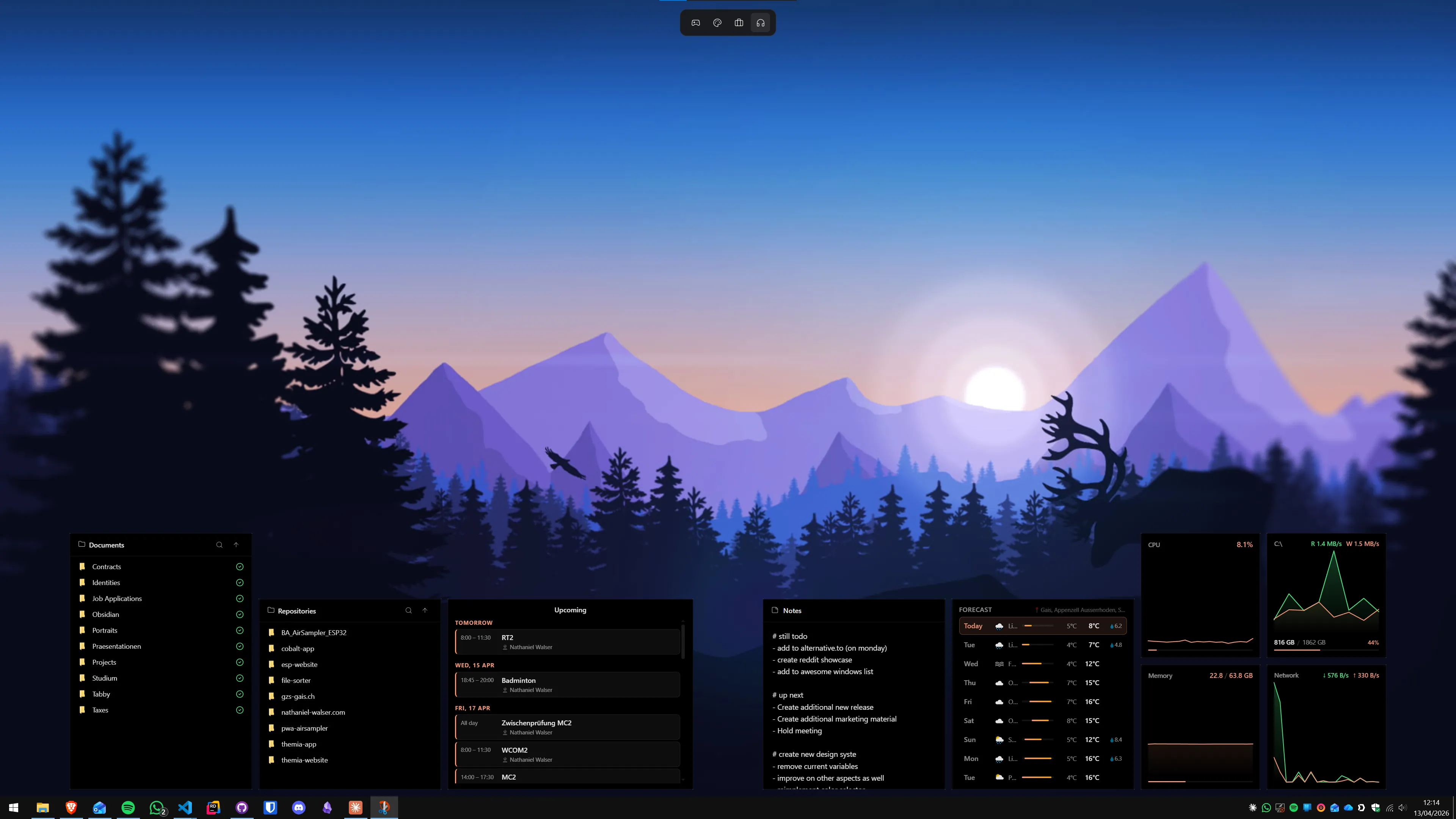
How Themia handles context switching
Themia does not have swipeable pages in the Fences sense. Instead, it works with named widget layouts that you can switch between from the system tray. Each layout stores a complete set of widgets — which widgets are present, where they are positioned, and how they are configured. Switching layouts swaps the entire widget layer at once.
The practical difference:
- Fences Desktop Pages manage icon shortcuts across contexts. Themia layouts manage live data widgets across contexts.
- Fences pages are navigated by swipe or hot key on the desktop surface. Themia layouts are switched from the taskbar icon or a keyboard shortcut.
- Fences pages only apply to the primary monitor. Themia layout switching applies to all connected displays simultaneously.
If you rely on shortcuts and icon launchers, Fences Desktop Pages is the right organizational tool. If you want live data panels that shift context with you as you switch tasks, Themia layout switching is designed for that use case. The two are complementary rather than competing when you care about both. For the full comparison of what each tool does, see Themia vs Stardock Fences.
Stardock Fences 6 pricing
Desktop Pages is included in the standard Fences 6 license at no additional cost. Fences 6 is available as a perpetual license for $29.99 (covers the current major version) or a subscription at $9.99/year. Both options are available from the Stardock website and Steam. There is no separate "Desktop Pages add-on" — all organizational features including Tabs, Auto-Organize, and Folder Portals are part of the standard license.
Themia's free tier covers weather, calendar, system stats, and several other widgets. The one-time $19 Pro unlock adds all remaining widgets — files, email, music, RSS, GitHub, stocks, notes, to-do, contacts, battery — and removes the widget count limit. No subscription. If you want to compare license structures between the two tools in detail, see Is Stardock Fences Worth It in 2026?
Summary
Stardock Fences Desktop Pages turns your single-layer desktop into a swipeable stack of separate icon-container sets. The feature is well-suited to users who have two to three distinct contexts and enough shortcuts in each that a single desktop page would feel crowded. The constraints are worth knowing: pages apply to the primary monitor only, per-page wallpapers are not supported, and auto-organize rules target fence containers by name rather than by page. For most users, two to three pages is the sweet spot; beyond that, tabs within fences and descriptive naming tend to be better organizational tools than adding more pages.
If you find yourself wanting context switching at the live-data level rather than the icon level — or want per-monitor rather than per-page switching — Themia's layout profiles cover that workflow as a complement or alternative to Fences Desktop Pages.
FAQ
What are Stardock Fences Desktop Pages?
Desktop Pages is a Fences feature that lets you create multiple "pages" of fence containers on your Windows desktop — similar to swiping between home screens on a smartphone. Each page holds a different set of fences with their own icon groups. You switch between pages with a horizontal swipe gesture directly on the desktop background, via hot corners, or using keyboard shortcuts set in Fences Settings.
How many Desktop Pages can I create in Stardock Fences 6?
Fences 6 does not publish a hard cap on the number of Desktop Pages. In practice, most users create two to five pages before the navigation overhead outweighs the organizational benefit. Each page is fully independent — its fences, their positions, colors, and icon contents are stored separately and do not carry over when you switch pages.
Is Stardock Fences Desktop Pages the same as Windows 11 Virtual Desktops?
No. They solve different problems at different layers. Fences Desktop Pages swap out which icon containers are visible on the desktop background — the applications running in your taskbar and open windows stay exactly the same regardless of which page you are on. Windows 11 Virtual Desktops (Win+Ctrl+D) create separate window workspaces — each virtual desktop can show different open applications. You can use both at the same time: Virtual Desktops manage your windows, Desktop Pages organize your desktop icons on each virtual desktop separately.
Do I need the Fences Pro or Object Desktop subscription to use Desktop Pages?
Desktop Pages is included in the standard Stardock Fences 6 license — it is not locked behind a higher tier or the Object Desktop bundle. The standard $29.99 perpetual license or $9.99/year subscription both include full access to Desktop Pages, Auto-Organize rules, Folder Portals, Tabs, and all other Fences 6 features.
Can Themia replace what Stardock Fences Desktop Pages do?
Themia handles multi-desktop organization differently. Instead of swipeable icon pages, Themia supports per-screen switchable widget layouts — each physical monitor can show a completely different set of widgets. If you are using Desktop Pages to simulate separate contexts (work, personal, gaming), Themia achieves a similar result with named layout profiles that you switch between from the system tray. It does not organize desktop icons (Themia replaces icon launchers with live data widgets), so if icon management is central to your workflow, Fences Desktop Pages and Themia address complementary rather than identical needs.
Does swiping between Desktop Pages affect my running applications?
No. Switching between Fences Desktop Pages only changes which fence containers are displayed on the desktop background. All open applications, browser tabs, and running processes continue exactly as they were. The only thing that changes is the visual organization layer on the wallpaper.