How to Get Windows 7 Gadgets Back on Windows 11
A small clock in the top-right corner. A weather tile that told you it was going to rain. A CPU meter ticking away while you compiled something. Sticky notes that floated on the wallpaper instead of hiding in an app. The Windows 7 sidebar was, for a lot of people, the best thing about that era of Windows — and Microsoft killed it in 2012 over a security advisory that never really got fixed.
Fourteen years later, plenty of people still miss it. This guide walks through every working way to get Windows 7 gadgets back on Windows 11 in 2026 — the faithful revivals, the Store-delivered copies, and a modern take that finally picks up where the original platform stopped.
Quick history: why gadgets disappeared
Gadgets shipped with Windows Vista in 2006 and hit peak use during Windows 7. They lived in the Windows Sidebar, a host process that loaded small HTML/JavaScript bundles (.gadget files) and rendered them on top of the desktop. Anyone could write one, publish it, and users installed them with a double-click.
That last bit is what ended them. In Microsoft Security Advisory 2719662 (2012), Microsoft disclosed that gadgets could be built or modified to run arbitrary code with the current user's rights. On a typical Windows 7 home PC, that meant administrator. Microsoft shipped a Fix it tool that disabled Sidebar outright, then dropped the feature from Windows 8 and everything since.
The platform has not been patched since. That is the honest backdrop to every option in this guide: the revival projects run the same 2012-era host on top of a 2026 operating system. The risk is manageable if you stick to trusted sources, but it is real, and it is worth saying up front.
Option 1: GadgetPack (formerly 8GadgetPack)
This is the most faithful revival and the easiest to install. The project was called 8GadgetPack for over a decade; in December 2024 it was renamed to GadgetPack and moved to gadgetpack.net. Version 39 shipped in September 2025 with fixes for current Windows 11 builds. It bundles the original sidebar host plus more than 50 classic gadgets — clock, weather, CPU meter, calendar, currency, sticky notes, RSS, and the rest.
- Open
gadgetpack.netin your browser. (The old8gadgetpack.netstill redirects there.) - Download the installer. It will be around 20 MB.
- Run the installer. Accept the UAC prompt — GadgetPack needs administrator rights because it registers the classic Sidebar component into Windows.
- After install, the sidebar appears on the right edge of your primary display, with a small set of gadgets pre-enabled.
- Right-click an empty spot on the desktop and choose Gadgets to open the classic gadget gallery and add, remove, or rearrange anything.
Honest caveats. You are installing the deprecated Windows 7 gadget platform onto Windows 11. The host has not been security-audited by Microsoft since 2012 — the GadgetPack maintainer keeps it compiling and running, but the underlying attack surface that caused Advisory 2719662 is still there. Only install .gadget files from sources you trust. Expect occasional rendering quirks on high-DPI displays, since most original gadgets were designed for 96 DPI.
Option 2: Widget Launcher (Microsoft Store)
If you want the gadget look without reviving the deprecated host, Widget Launcher (formerly Widgets HD) is the Microsoft Store option. It does not run original .gadget files — it ships its own gadget-style widgets that are intentionally styled after Windows 7: clock, weather, CPU meter, calendar, RSS, currency, sticky notes, and a few more.
- Open the Microsoft Store and search for Widget Launcher.
- Click Get. It installs as a Store app, sandboxed the way Store apps are — no installer, no UAC prompt, no registry entries to clean up later.
- Launch it, pick a widget from the picker, and drag it onto the desktop.
- Right-click any widget to resize it, change its theme, or pin it to always-on-top.
The base app is free with short ads when you add a widget (roughly ten seconds). A one-time purchase — around $24.99 in the Store — removes ads and unlocks the Pro extensions. Because it is a Store app, it is a good fit on managed or locked-down machines where open-web installers are blocked, and it avoids the security baggage of the original gadget platform entirely.
Option 3: Gadgets Revived
Gadgets Revived (at gadgetsrevived.com) is the other long-running revival. It is a smaller, stricter project than GadgetPack — instead of bundling 50+ gadgets, it just re-enables the classic Desktop Gadgets feature on Windows 8, 10, and 11, plus a handful of first-party gadgets (clock, calendar, currency, weather, feed headlines, CPU meter, slideshow, picture puzzle). You install your own .gadget files on top.
- Go to
gadgetsrevived.comand download the Desktop Gadgets installer. - Run it with administrator rights. It adds a Gadgets entry to the desktop right-click menu and a Control Panel applet.
- Right-click the desktop, choose Gadgets, and the classic Windows 7 gadget gallery opens.
- Install additional
.gadgetfiles by double-clicking them. The Gadgets Revived site keeps an archive of classic gadgets curated from the original Microsoft gallery.
Gadgets Revived is the right pick if you want the exact Windows 7 experience — the original Sidebar UI, the original gallery, nothing extra — and you are comfortable picking your own gadgets. The same security caveat applies as with GadgetPack, and more strongly: because you will be installing individual .gadget files, vet the source of each one.
Option 4: A modern widget app (the spiritual successor)
Here is a different framing. If you are reading this guide, you probably do not specifically miss the year 2009 — you miss useful information on your desktop. The sidebar was the first mainstream attempt at that idea, and Microsoft abandoned it. Nothing Microsoft has shipped since (tiles, Live Tiles, Widgets Board) has really picked it up. Third-party apps have.
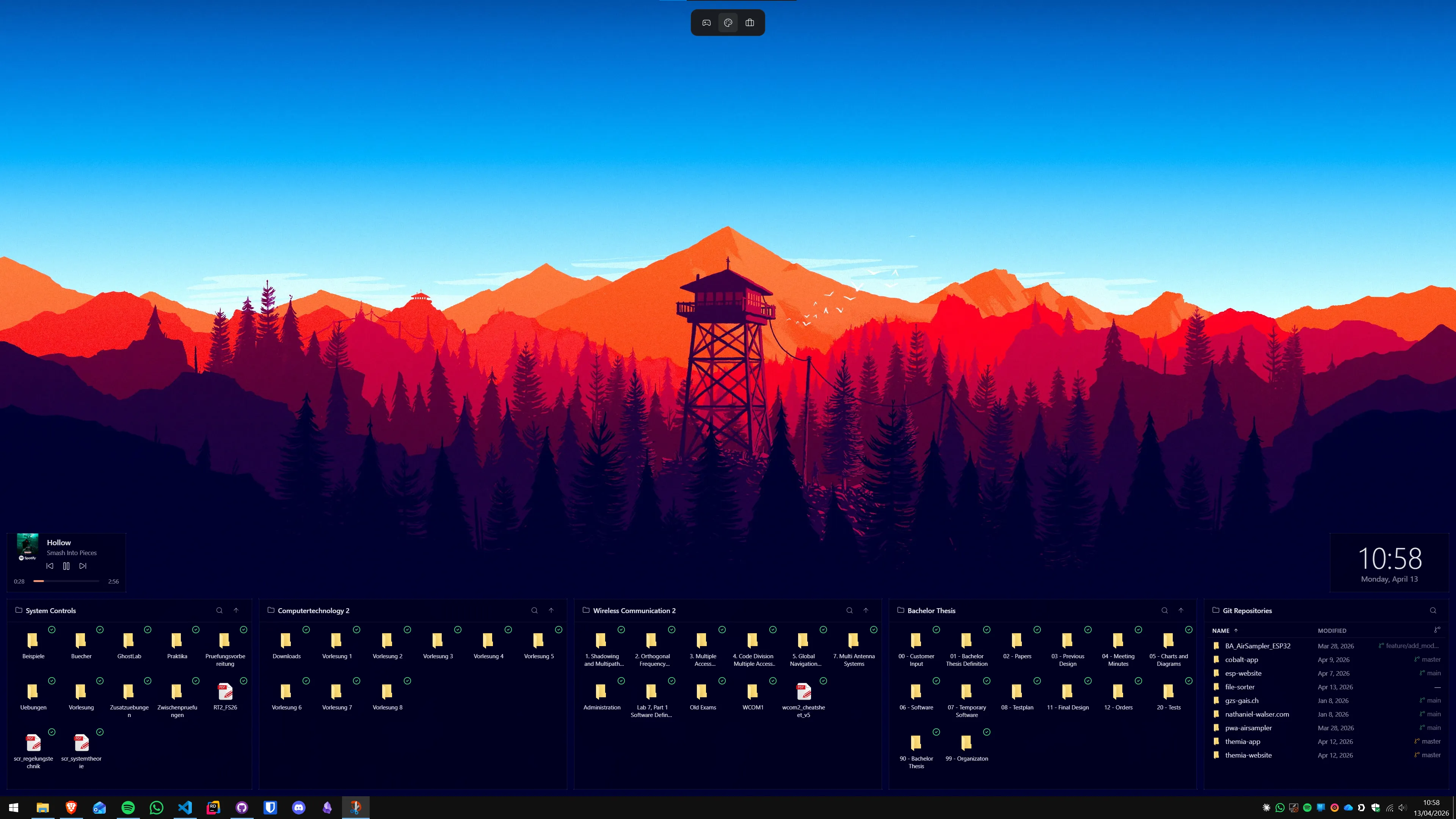
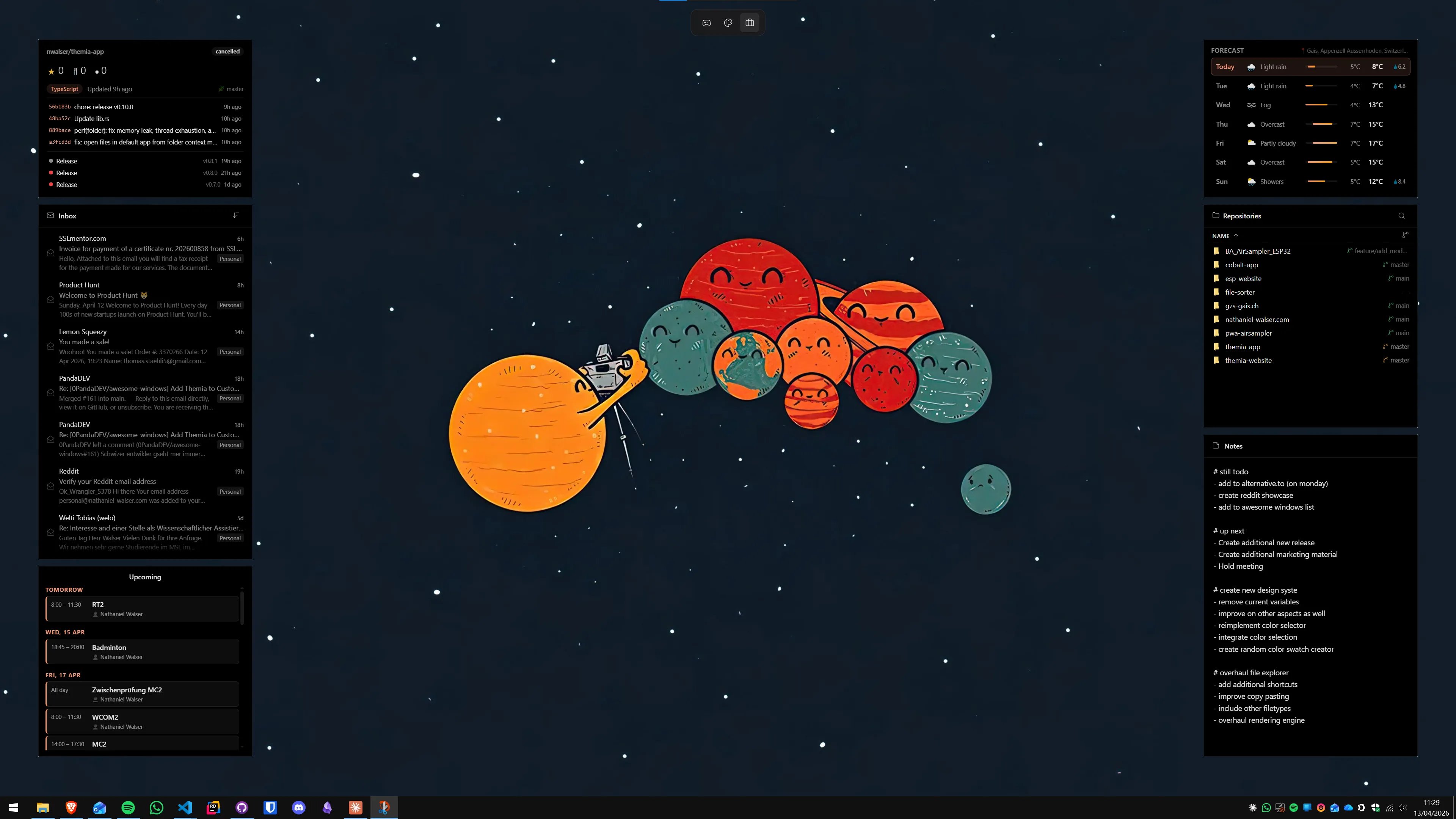
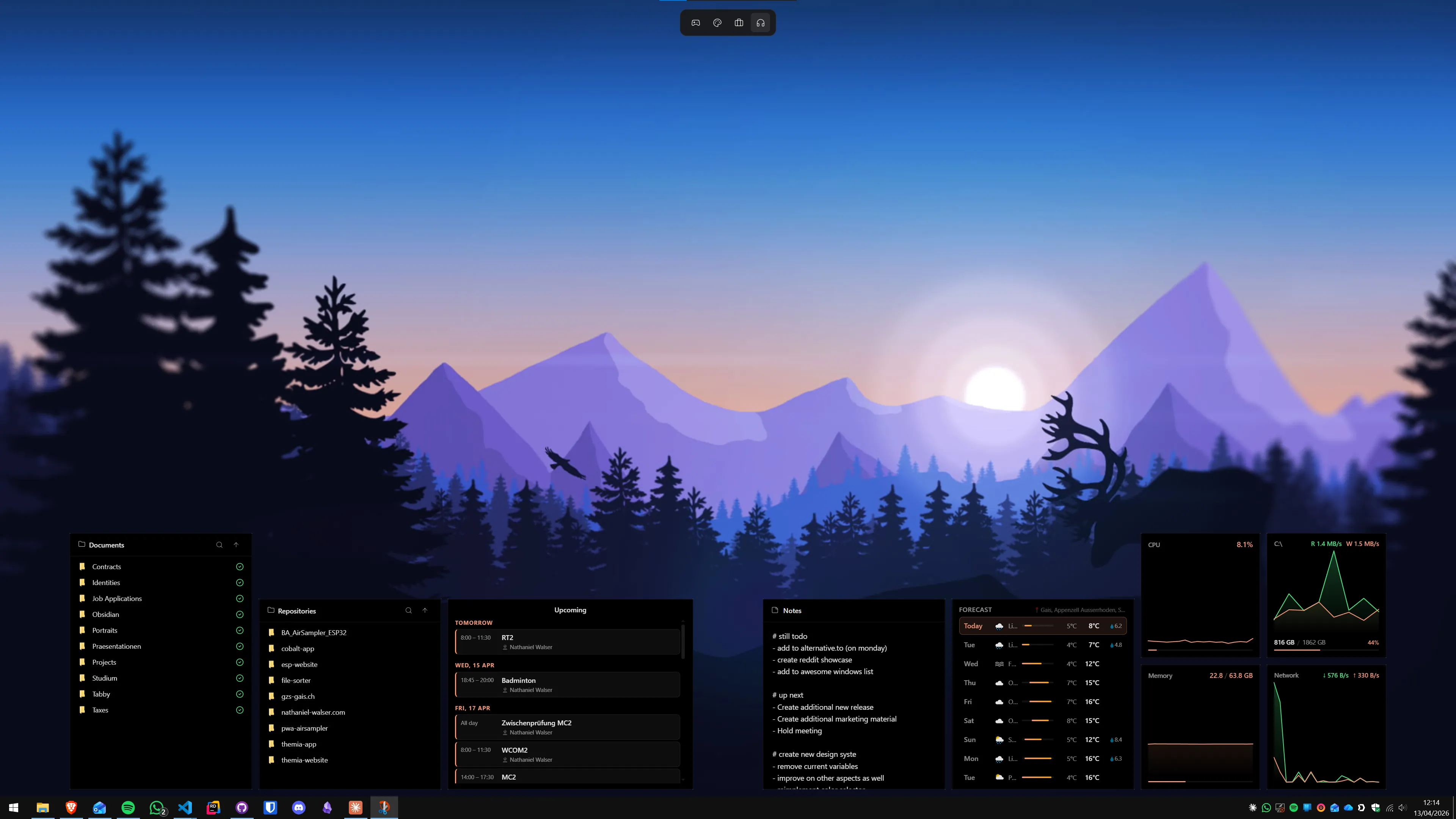
Themia is the direction that philosophy goes when you rebuild it for 2026. It is a native Windows app (Tauri, under 10 MB) that puts widgets directly on the desktop the way gadgets did — always visible, always in place, no panel to open — but with widgets that know about 2026: a real email inbox via Microsoft 365, calendar events, GitHub repos, music, stocks, files, notes, to-do, system stats, weather. Free tier plus a one-time $19 Pro. Auto-updates. No ads.
The trade versus the revivals is explicit. You lose the Windows 7 aesthetic — Themia has its own modern look, with blur and transparency that belong on Windows 11. You gain an architecture that was not deprecated in 2012 and integrations that were not possible when the sidebar was written.
Which option should you pick?
A quick decision tree based on what you actually want:
- You want the Windows 7 sidebar back, exactly as it was → GadgetPack. It is the fastest path and includes the whole classic gadget set.
- You want the gadget look but are allergic to running a deprecated platform → Widget Launcher from the Microsoft Store.
- You want only the original Sidebar, no extras, and you will curate your own gadgets → Gadgets Revived.
- You want the idea of gadgets — information on the desktop — with modern integrations and modern design → Themia.
- You want total aesthetic control and are willing to script your own skins → Rainmeter, not covered above but worth knowing about.
None of these options are wrong. The revivals are the right choice if the Windows 7 look itself is the thing you are chasing. A modern widget app is the right choice if the sidebar was an answer to a still-unsolved problem — your desktop is mostly empty and the information you actually use is buried behind a taskbar panel.
Related reading on the Themia blog
If you are weighing the specific options: Themia vs 8GadgetPack goes deep on the faithful-revival route, Themia vs Widget Launcher covers the Store side, the best Windows desktop widget apps in 2026 rounds up every option in the category, and the Windows desktop customization guide steps back to cover wallpapers, icons, and widgets together.
If you want to try the modern path for free, Themia's free tier takes about a minute to install and gives you the gadget-on-the-desktop feel without the 2012-era platform underneath.
FAQ
Are Windows 7 gadgets safe to install on Windows 11?
Microsoft retired the gadget platform in 2012 after Security Advisory 2719662, which covered remote-code-execution vulnerabilities in the Windows Sidebar host. Modern revivals like GadgetPack and Gadgets Revived bring that same platform back on top of Windows 11. The platform itself has not been patched by Microsoft since Windows 7 — the maintainers keep it running, but they are not rewriting the underlying host. That means only install gadgets from trusted sources (the pack itself, or reputable authors), and avoid downloading random .gadget files from forums the way people did in 2009. A modern widget app that does not revive the deprecated host avoids this risk entirely.
Do Windows 7 gadgets still work on Windows 11 24H2 and later?
Yes, as of early 2026. GadgetPack (formerly 8GadgetPack) released version 39 in September 2025 with fixes for current Windows 11 builds, and Gadgets Revived is still active with its own installer. Both need administrator rights to install because they register a classic sidebar component. Expect occasional scaling oddities on high-DPI displays — most gadgets were drawn for 96 DPI in 2009 and can look slightly soft on a 4K monitor.
Why did Microsoft remove gadgets in the first place?
The official reason, given in Microsoft Security Advisory 2719662 in 2012, was that gadgets could be used for remote code execution — a malicious gadget running in the Sidebar host ran with the logged-in user rights, which on most home PCs meant administrator. Microsoft shipped a Fix it tool to disable Sidebar and gadgets outright, then removed the feature from Windows 8 and later. The unofficial reason, often cited alongside, is that Microsoft was reallocating the desktop concept toward the Start-screen tile model (which itself was later replaced by Windows 11 Widgets).
What is the difference between Windows 7 gadgets and Windows 11 Widgets?
Windows 7 gadgets lived on the desktop itself — always visible, always in place. Windows 11 Widgets live inside a taskbar panel that slides out when you click the icon, and most of that panel is an MSN news and sports feed. They share the name but not the philosophy. If what you actually miss is information on the desktop — clock, weather, CPU — the Windows 11 Widgets panel is not a replacement, which is why the gadget-revival and modern widget-app categories still exist.
Can I get Windows 7 gadgets without installing third-party software?
No. Microsoft removed the feature from Windows 8 onwards and does not ship the Sidebar host or any of the original gadgets with Windows 10 or Windows 11. Any option that gives you Windows 7 gadgets on a modern OS is either reviving the deprecated platform (GadgetPack, Gadgets Revived) or imitating the look and feel with a new app (Widget Launcher, Themia, Rainmeter). There is no hidden toggle in Windows.
Which modern app feels most like Windows 7 gadgets?
If what you want is the exact Windows 7 sidebar aesthetic, GadgetPack is the most faithful — it literally runs the original platform. If you want the gadget-on-the-desktop philosophy with modern widgets that know about email, calendar, GitHub, and streaming music, Themia is the closer spiritual successor. Widget Launcher sits in the middle — Store-distributed, gadget-style UI, cleaner than GadgetPack but lighter on integrations than Themia.