How to Add a GitHub Widget to Your Windows Desktop
Most developers have the same problem: you are deep in a task, you want to know whether that CI run passed or whether a reviewer just left a comment, and the only way to find out is to alt-tab to the browser, load GitHub, and wait. For a 20-second check you broke your flow for two minutes.
A GitHub widget on your desktop solves that. Open issues, PR counts, the latest workflow status — always visible, always current, no window to open. This guide covers every working approach in 2026, from zero-install options to fully custom Rainmeter skins.
What you can realistically show
Before choosing an approach, it helps to know what the GitHub API actually exposes to a polling widget. GitHub offers a REST API and a GraphQL API, both accessible with a personal access token. A lightweight desktop widget — one that polls every few minutes rather than maintaining a persistent WebSocket — can reliably show:
- Open pull request count for a repo or across your account
- Open issue count
- Latest workflow (Actions) run status: pass, fail, or in progress
- Most recent commit message and author
- Notification count (mentions, review requests, assignments)
- Latest release tag
Real-time push events — a widget that turns red the instant a CI run fails — require a WebSocket connection to the GitHub Events stream. Most desktop widget apps do not implement this; they poll. For most developers, polling every 2–5 minutes is perfectly fine. If a build fails and you see it two minutes later, that is still vastly faster than noticing it after your next manual browser check.
Method 1: Themia's built-in GitHub widget (recommended)
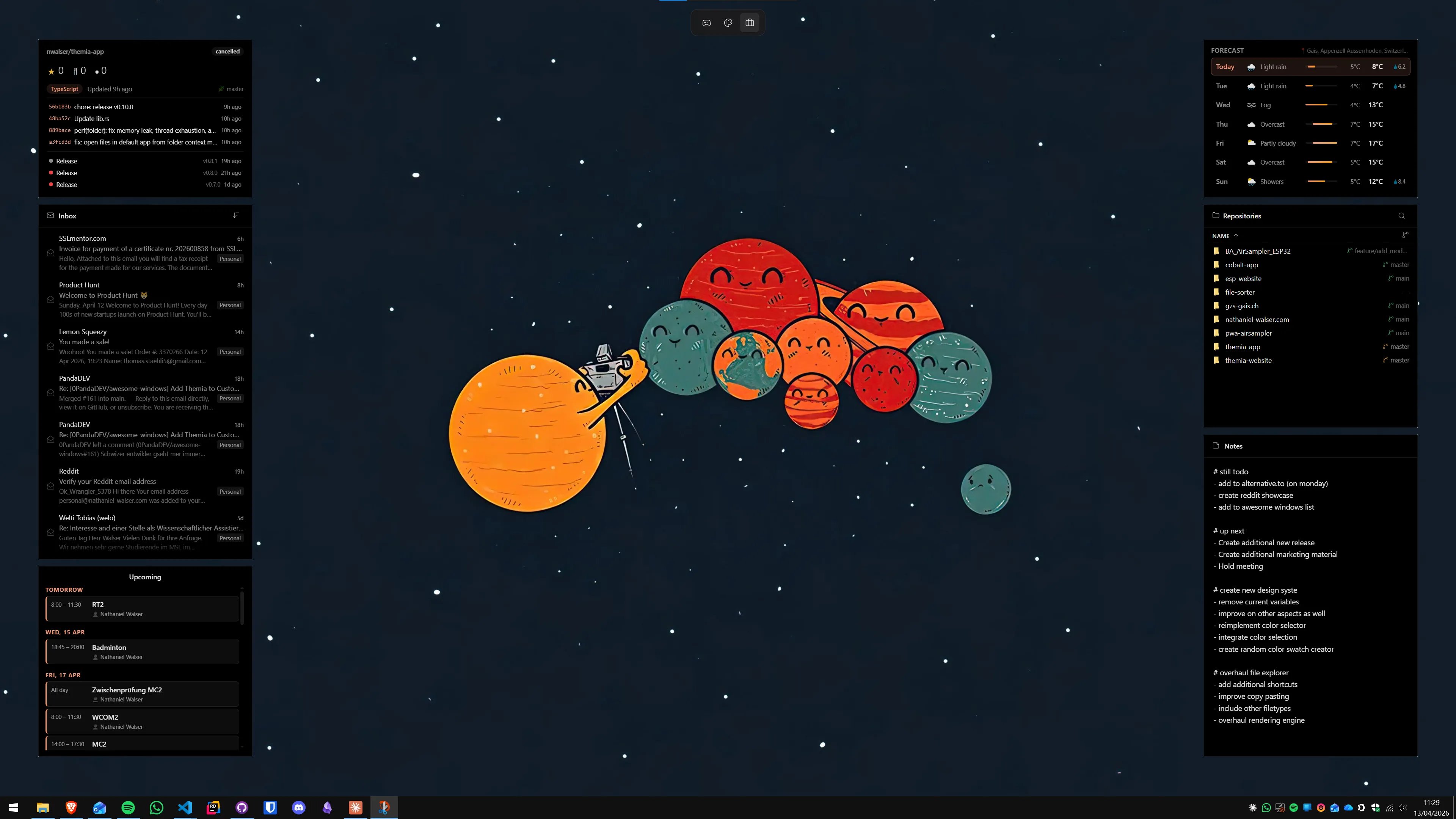
Themia is a native Windows desktop widget app built on Tauri — the installer is under 10 MB, it runs on Windows 10 and 11, and it ships a GitHub widget as one of its built-ins alongside weather, calendar, email, system stats, and RSS. No skin to find, no config file to edit.
Setup
- Generate a GitHub personal access token. Go to GitHub → Settings → Developer settings → Personal access tokens → Tokens (classic). Create a new token with
reposcope for private repos, orpublic_repofor public-only. Copy the token. - Install Themia from the Themia website and run the signed installer. It registers in the system tray on first launch.
- Add the GitHub widget. Right-click the desktop → Add widget → GitHub. Paste your personal access token and enter the repository in
owner/repoformat. The widget populates immediately. - Resize and position. Drag a corner to resize, drag the widget body to reposition. If you track multiple repos, add a second GitHub widget the same way — each one is independent.
Pros: native app with no browser engine overhead, built-in UI for token entry, no config files, runs on local Windows accounts, free tier covers the widget.
Cons: the deeper styling options — custom backgrounds, per-widget color themes, transparent overlays — are behind the one-time $19 Pro unlock.
Who it is for: most developers who want GitHub info on the desktop with minimal setup.
Method 2: Windows notification center via the GitHub app
If you have the GitHub Desktop app installed, it can push Windows 11 notifications for repository events you are subscribed to — new review requests, CI failures, @mentions in issues. These appear in the Windows Action Center (notification panel) just like any other app alert.
This is not a persistent widget — once you dismiss the notification it is gone, and there is no always-visible count on your desktop. But if you are already using GitHub Desktop for your Git workflow and just want a nudge when something important happens, enabling its notifications costs nothing:
- Open GitHub Desktop → File → Options → Notifications.
- Enable the events you want: pull request reviews, check run failures, and so on.
- In Windows 11 Settings → System → Notifications, make sure GitHub Desktop is allowed to send notifications and (optionally) show notification banners.
Who it is for: developers who already use GitHub Desktop and want lightweight event alerts without a persistent widget on the desktop.
Method 3: A Rainmeter skin with the GitHub API
Rainmeter is the most flexible approach and the most time-consuming one. The free, open-source desktop engine can call any HTTP API, parse JSON, and display the result as a skinned widget. With some effort you can build a widget that looks exactly how you want and shows exactly the data you care about.
The catch: there is no maintained, ready-to-use GitHub skin in the major Rainmeter community hubs as of 2026. You would either write your own or heavily adapt a generic JSON-fetch template. Here is the minimal approach using Rainmeter's built-in WebParser measure:
- Install Rainmeter from rainmeter.net.
-
Create a new skin folder under
Documents\Rainmeter\Skins\GitHub\and add a file namedGitHub.ini. -
Use a
WebParsermeasure pointed at the GitHub REST endpoint for your repo — for examplehttps://api.github.com/repos/OWNER/REPOwith your token in theAuthorizationheader. Parseopen_issues_countand surface it in a meter. - Set the
UpdateRateto something sensible — 300 (seconds) is a reasonable poll interval for a public API with a 60-requests-per-hour rate limit on unauthenticated calls, or 5000 requests per hour on authenticated ones.
Pros: total visual freedom, data goes exactly where you want it, free.
Cons: you are writing INI files and reading the Rainmeter docs to get there. Budget a few hours for a first attempt.
Who it is for: developers who enjoy the craft of a custom setup and already use Rainmeter for other widgets.
For a broader comparison of the two widget approaches, see our post on Themia vs Rainmeter.
Method 4: A browser extension or web app pinned to the taskbar
Not technically a desktop widget — but worth a mention because it is what a lot of developers land on before they discover a dedicated widget app. Tools like the official GitHub notifications page, Octobox (a hosted notification manager), or a browser extension like GitHub Notifications Counter keep your unread count visible in the browser or as a pinned PWA.
The limitation is that these live inside the browser. They go invisible when the browser is hidden, and they cannot sit on the wallpaper alongside your calendar and system stats. If the browser approach works for your workflow, great — but if you want GitHub info on the desktop itself, it does not solve the problem.
Pairing GitHub with a full developer dashboard
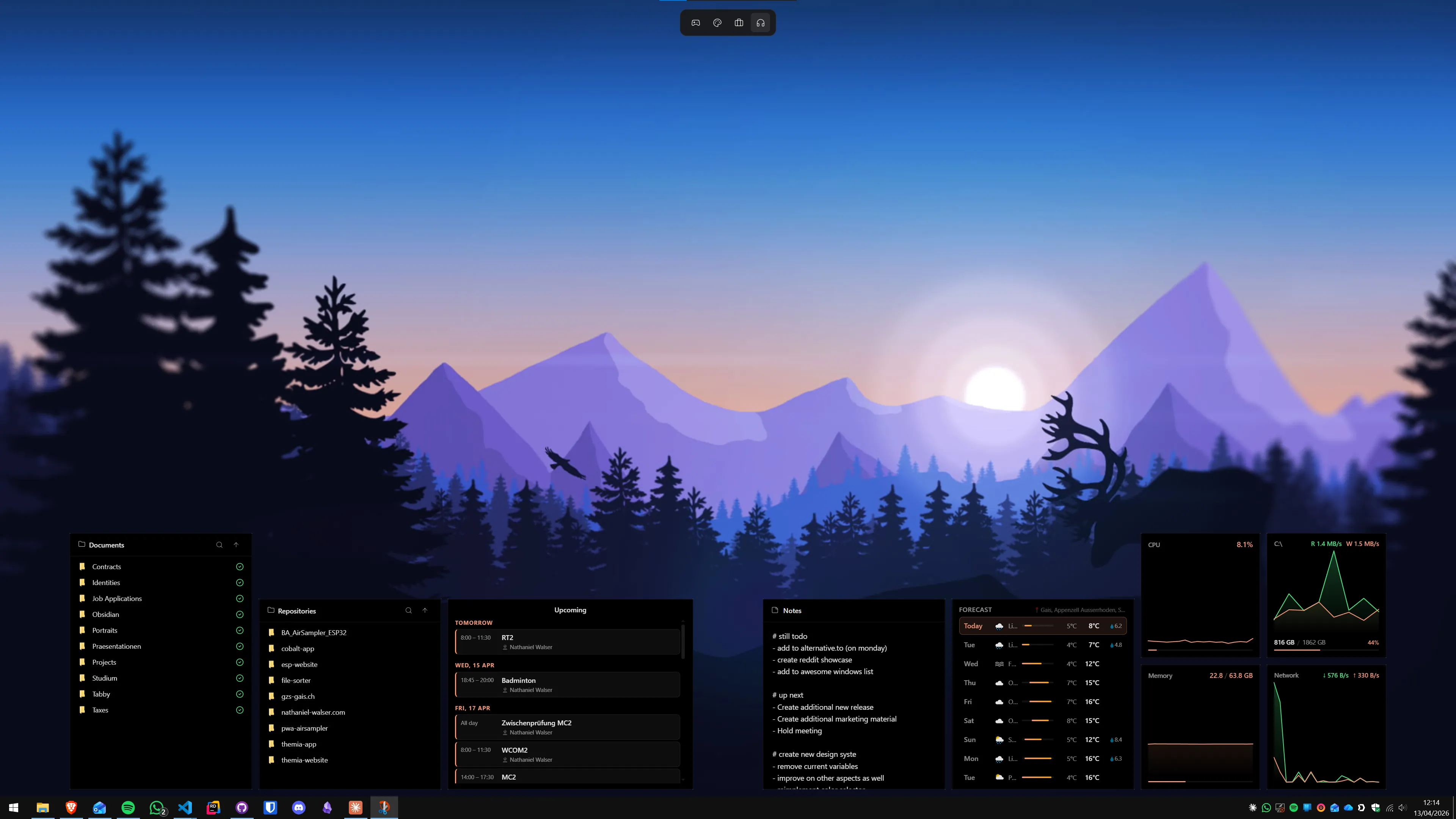
The GitHub widget is most useful when it sits alongside the other information a developer glances at during a workday: system CPU and RAM (is my build pegging a core?), a to-do list, an email count, and the current time. Themia's per-screen layout feature lets you define a dedicated secondary-monitor dashboard that stays put while your primary display runs your editor.
Our guide on the best Windows desktop setup for developers goes into the full picture — terminal setup, WSL, and the utilities that actually earn their place on a developer machine. The guide on building a productivity dashboard on Windows has a step-by-step layout walkthrough for a multi-widget setup.
Which method should you pick?
- You want setup done in five minutes: Themia's built-in GitHub widget. Generate a PAT, paste it in, done.
- You already use GitHub Desktop and just want event alerts: enable GitHub Desktop's Windows notifications — no extra install.
- You want total visual control and enjoy configuration: Rainmeter with a custom skin — expect a few hours of work.
- You only need an unread count and you live in the browser anyway: a browser extension is fine, though it will not sit on your desktop.
For most developers, the Themia route is the right default. It takes five minutes to set up, it works alongside other widgets (see our roundup of the best Windows desktop widget apps), and you can build out a full developer dashboard over time without touching a configuration file.
If you want to go further and track multiple repos or add CI status alongside the issue count, you can also look at getting RSS feeds onto your Windows desktop — many CI systems and project trackers expose an RSS or Atom feed you can drop straight into a feed widget.
FAQ
Does Themia show private GitHub repositories?
Yes. You authenticate with a GitHub personal access token, which can be scoped to private repos. Themia reads the token locally — it is stored on your machine, not on any Themia server. You control exactly which permissions the token carries.
Will a GitHub desktop widget slow down my PC?
No, not in any meaningful way. A well-built widget app like Themia polls the GitHub API on a configurable interval (typically every few minutes) and caches the result. The network request is tiny — a few kilobytes of JSON. The CPU cost between polls is effectively zero.
Can I see pull request and issue counts from multiple repositories?
With Themia you can add multiple GitHub widgets, each pointed at a different repository, and position them anywhere on the desktop. So yes — one widget per repo, or one summarising your whole org, depending on how you configure the token scope.
Is there a free way to get GitHub notifications on the Windows desktop without a widget app?
Sort of. The GitHub app for Windows (if you have it installed) can push Windows notifications for mentions and review requests. The Windows Action Center will show them, but they disappear once dismissed — there is no persistent widget. For always-visible, persistent GitHub info on the desktop, a dedicated widget app is the only real option.
What GitHub data can a desktop widget realistically show?
Via the GitHub REST API (which all these approaches use), a widget can show: open issue and PR counts, recent commits, workflow run status (pass/fail), notifications, and release tags. Real-time push events require a WebSocket connection to the GitHub Events API, which most lightweight widget apps do not implement — they poll instead. For most developers, polling every 2–5 minutes is more than sufficient.
Can I use a GitHub widget on a Windows 10 machine?
Yes. Themia runs on Windows 10 (build 1803 or later) as well as Windows 11. The GitHub widget works identically on both. The built-in Windows 11 Widgets Board is Windows-11-only, but third-party apps like Themia do not have that restriction.